

Building trust is one of the biggest challenges for any online store, especially when customers are visiting your product pages for the first time. Shopify Trust Badges can help create confidence by highlighting secure payments, reliable shipping, money-back guarantees, product quality, and other important assurances directly where customers make buying decisions. When placed strategically, these badges can reduce hesitation and make your store appear more professional and trustworthy.
In this blog, we will explain what Shopify Trust Badges are, why they are important for product page credibility, and how you can easily add and customize them using our Shopify theme without depending on additional apps or complicated development work.
What Are Shopify Trust Badges?
Shopify Trust Badges are visual elements displayed on an online store to reassure customers that the website, payment process, shipping service, or purchase experience is secure and reliable. These badges usually appear on product pages, cart pages, or near the Add to Cart and Buy Now buttons, where customers are most likely to look for reassurance before completing a purchase.
Trust badges can communicate different types of information depending on the store. For example, a merchant may use badges to highlight secure checkout, free shipping, easy returns, money-back guarantees, trusted payment methods, fast delivery, or product quality guarantees.
For new visitors who may not already know your brand, these visual signals can make the store feel more professional and dependable. Instead of making shoppers search through multiple policy pages, Shopify Trust Badges allow important trust-related information to be presented directly on the product page.
Common examples of Shopify Trust Badges include:
- Secure Payment
- SSL Secure Checkout
- Free Shipping
- Easy Returns
- Money-Back Guarantee
- Fast Delivery
- Customer Support
- Quality Guarantee
- Verified Payments
- Satisfaction Guarantee
When used correctly, these badges can support the overall credibility of your Shopify store while helping customers feel more comfortable proceeding with their purchase.
Benefits of Using Shopify Trust Badges
Adding Shopify Trust Badges to your product pages can improve the shopping experience by addressing some of the common concerns customers have before purchasing online. Since shoppers cannot physically inspect products or interact with a salesperson, trust signals can provide additional reassurance at important points in the buying journey.
- Build Customer Confidence: Trust badges reassure shoppers that your store follows secure practices and provides a dependable online shopping experience.
- Improve Product Credibility: Relevant trust badges make product pages appear more professional, reliable, and transparent to both new and returning customers.
- Reduce Purchase Hesitation: Clear badges for payments, returns, and shipping can answer common concerns and encourage customers to complete purchases confidently.
- Highlight Store Guarantees: Trust badges quickly communicate important benefits such as secure checkout, easy returns, warranties, free shipping, and satisfaction guarantees.
- Support Better Conversions: Showing reassurance near purchase buttons can strengthen buying confidence and help Skincare Shopify stores improve the overall conversion potential of their product pages.
- Improve Visual Communication: Simple icons and short messages help shoppers understand important policies and store benefits without reading long sections of text.
- Strengthen Brand Trust: Consistent, well-designed trust badges help create a professional brand image and reinforce your store’s credibility throughout the shopping journey.
Overall, Shopify Trust Badges provide a simple yet effective way to reinforce credibility, communicate important store benefits, and give customers additional confidence while browsing your product pages.
How to Add Shopify Trust Badges Using Our Shopify Theme?
Adding Shopify Trust Badges to your product pages does not always require an additional Shopify app or custom coding. If you are using the Nexus Shopify Theme by Sams IT Services, you can display trust-related icons directly on your single product pages using the built-in Feature Icon block.
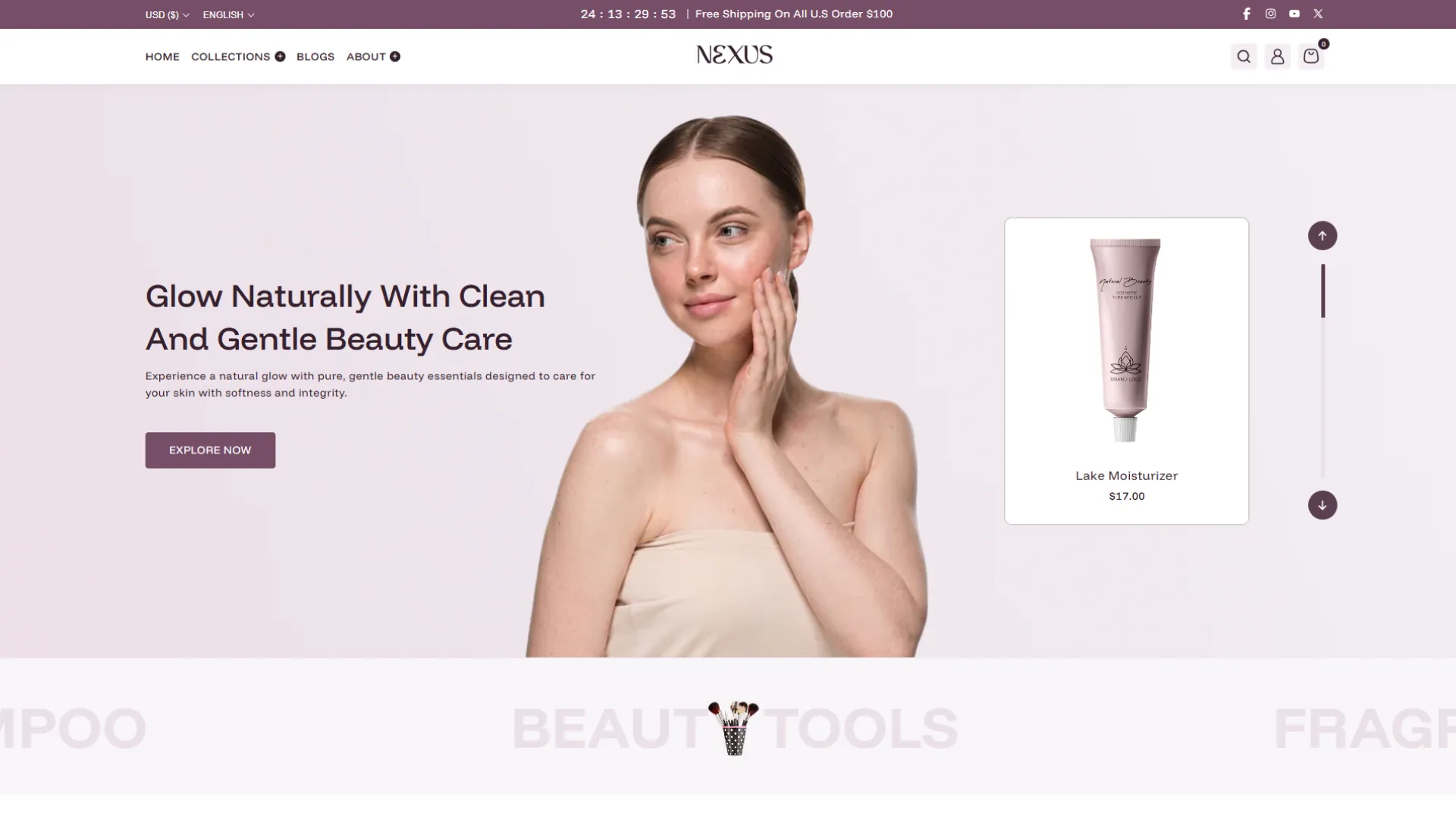
The Nexus Beauty Shopify Theme includes this feature to help merchants highlight important selling points such as secure payments, fast shipping, easy returns, customer support, quality guarantees, or other assurances customers may want to see before making a purchase.
Because the functionality is already included within the theme, you can manage your Shopify Trust Badges directly from the Shopify Theme Editor.
This also gives you greater control over how your trust signals appear on individual product pages. You can upload your own icons, add suitable titles, and organize multiple trust badges according to the benefits or guarantees offered by your store.
Steps to Add Shopify Trust Badges in the Nexus Shopify Theme
1. Install and activate the Nexus Shopify Theme:
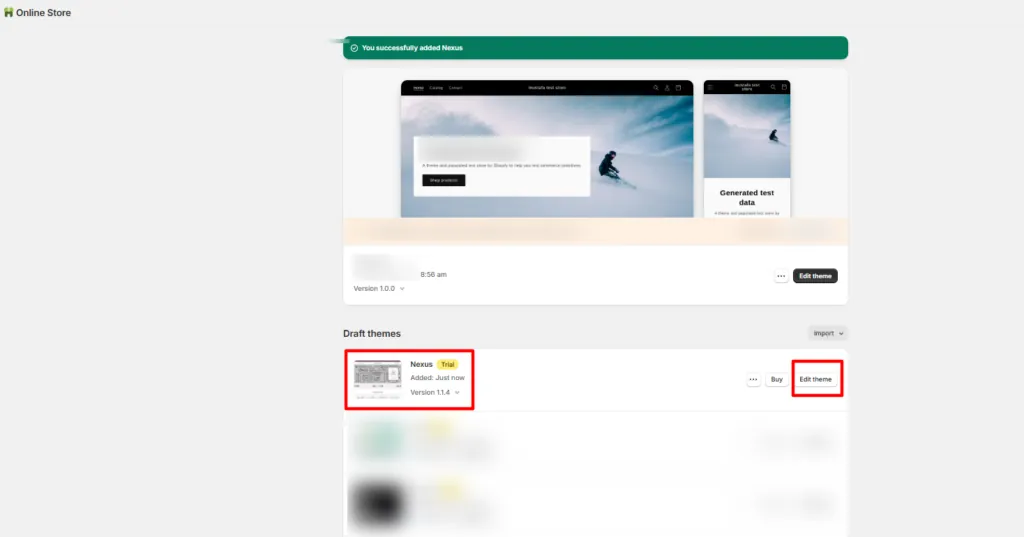
First, install the Nexus Shopify Theme on your Shopify store. Once the theme has been added successfully, open your Shopify admin dashboard and navigate to Online Store > Themes. Find the Nexus theme and click Customize to open the Shopify Theme Editor.
2. Open the single product page:
Inside the Theme Editor, use the page selector at the top to navigate from the homepage to a Product template. Select the default product template or the specific product template where you want to display the Shopify Trust Badges.
3. Locate the main product section:
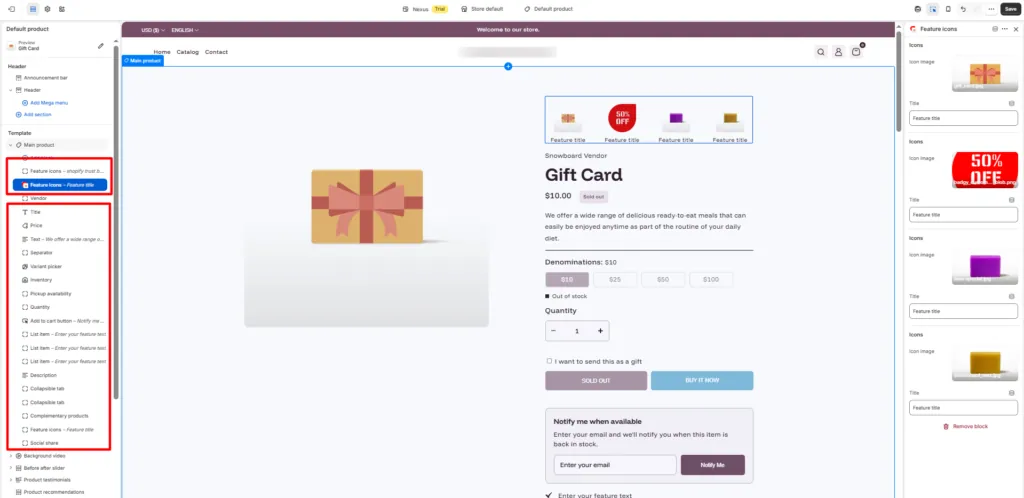
Once you open the single product page editor, check the left-hand sidebar for the main product information section. This area normally contains blocks for the product title, price, description, variant selector, quantity selector, Add to Cart button, and other product information.
4. Add the Feature Icon block:
Click Add block within the product section and select the block named Feature Icon. This is the built-in block provided by the Nexus Shopify Theme that can be used to display Shopify Trust Badges on the product page.
5. Open the Feature Icon settings:
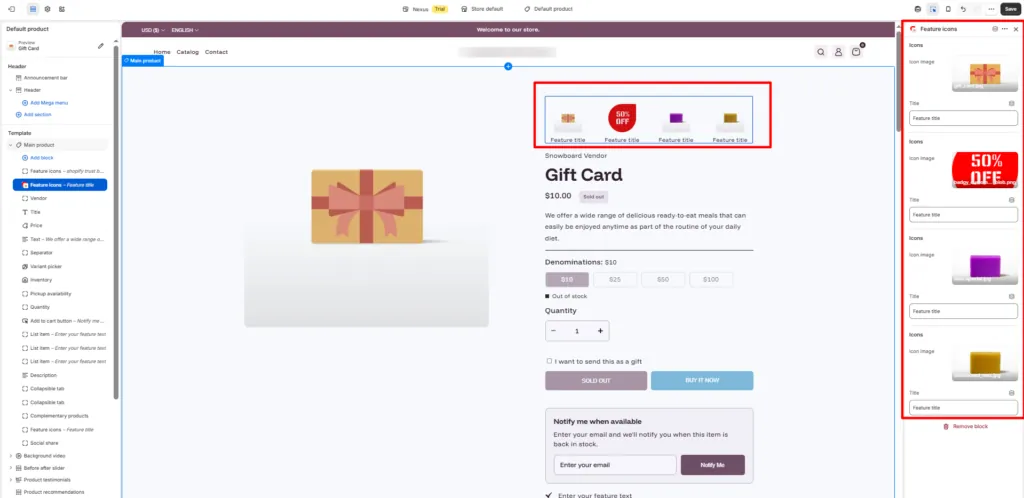
After adding the block, click on it in the left sidebar. Its customization settings will appear in the Theme Editor. From here, you can configure multiple icons and titles based on the benefits or assurances you want to communicate to customers.
6. Configure the first icon:
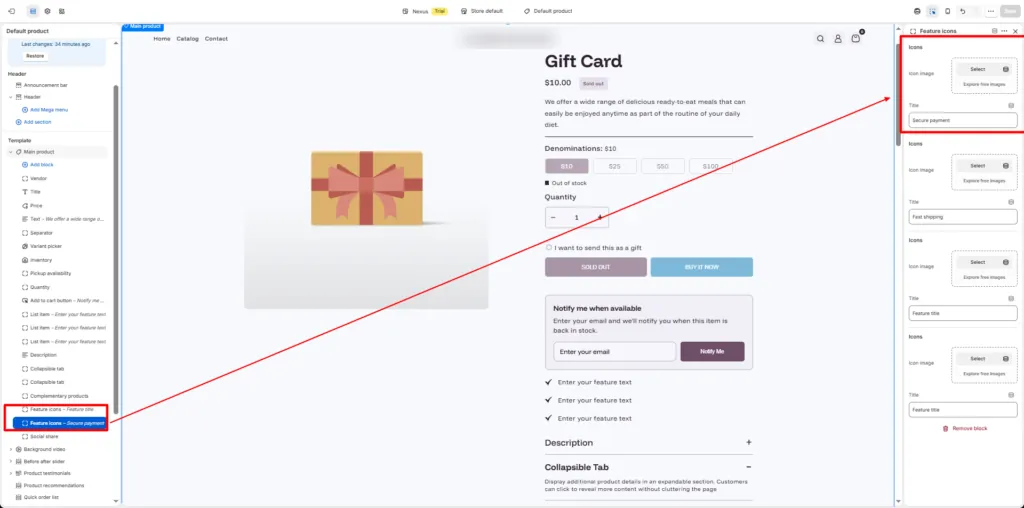
Under the Icons setting, locate Icon Image and click Select or Upload Images. You can upload your own trust badge icon or explore available free images. After selecting the image, enter a short and clear message in the Title field. For example, you could use titles such as “Secure Payment,” “Fast Shipping,” or “Easy Returns.”
7. Configure the second icon:
Move to the next Icon Image field and upload or select another suitable image. Add a corresponding title that represents another important benefit of purchasing from your store. For example, you could highlight “Quality Guarantee” or “Free Shipping.”
8. Configure the third icon:
Repeat the same process for the third trust badge. Choose an icon that visually communicates the benefit and enter a concise title. Keeping the wording short makes the Shopify Trust Badges easier for customers to scan while viewing the product page.
9. Configure the fourth icon:
The Nexus Shopify Theme allows you to configure another Feature Icon in the same section. Upload the image and add the required title. You could use this area for a message such as “Customer Support,” “Money-Back Guarantee,” or another benefit relevant to your business.
10. Choose relevant trust messages:
Avoid adding random badges simply to fill the available spaces. Each Shopify Trust Badge should communicate an actual benefit, policy, or service offered by your store. For example, only display “Free Shipping” if your shipping policy genuinely provides it.
11. Use consistent icon designs:
Try to use icons with a similar visual style, dimensions, and overall appearance. Consistency helps the trust badge area blend naturally with the product page instead of looking like an unrelated third-party element.
12. Keep titles short and understandable:
Customers should immediately understand what each badge means. Titles such as “Secure Checkout,” “Fast Delivery,” “Easy Returns,” and “24/7 Support” are generally easier to scan than long sentences.
13. Position the block strategically:
Since these Shopify Trust Badges appear on the single product page, place the Feature Icon block close to important purchasing information whenever the theme layout allows it. Displaying trust signals near the product information or purchase controls can help customers notice them during the buying process.
14. Save your changes:
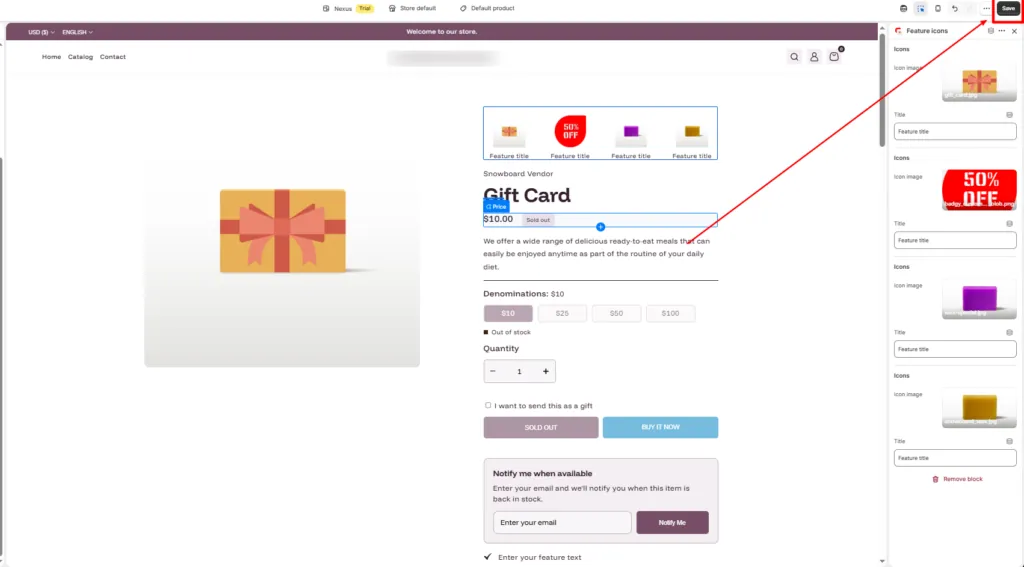
Once all the icon images and titles have been configured, review the section inside the Theme Editor. Click the Save button in the upper-right corner to publish the changes to your theme.
15. Test the Shopify Trust Badges on the storefront:
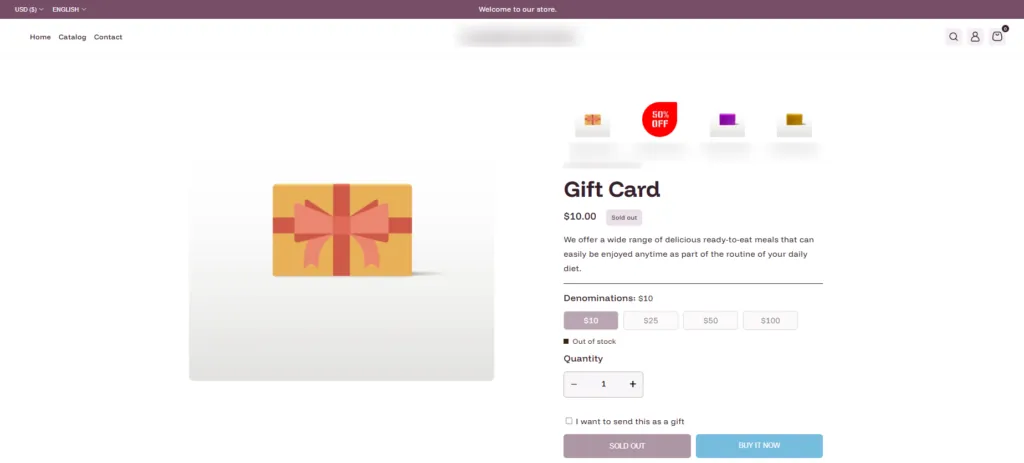
Finally, open the product page on the live storefront and confirm that all icons and titles are displaying correctly. Test the page on both desktop and mobile devices to ensure the trust badges remain clear, properly aligned, and easy to read.
Customizing the Feature Icon Block
The main advantage of using the built-in Feature Icon block is flexibility. You are not limited to one specific type of trust message. The four available icon areas can be customized according to your store’s policies and customer priorities.
For example, a fashion store might highlight Easy Returns, Secure Payments, Fast Shipping, and Premium Quality, while an electronics store could emphasize Warranty Protection, Secure Checkout, Fast Delivery, and Customer Support.
Using relevant titles together with recognizable icons helps customers understand these benefits more quickly. Because all customization takes place inside the Shopify Theme Editor, merchants can also update their Shopify Trust Badges later without changing theme code.
Preview and Test Before Publishing
After configuring your Shopify Trust Badges, carefully check how the Feature Icon section appears across your product pages. Make sure icons are not stretched or blurry, titles are readable, and the badges match the overall visual style of your store.
You should also check the mobile preview because a large percentage of Shopify customers may browse and purchase through smartphones. The trust badge section should remain clean and easy to understand even on smaller screens.
With the Nexus Shopify Theme from Sams IT Services, adding Shopify Trust Badges becomes a straightforward theme customization task. Simply open your product template, add the Feature Icon block, upload your icons, enter the appropriate titles, save the changes, and test the section on your storefront. This allows you to communicate important store benefits directly on your product pages while keeping the design integrated with your Shopify theme.
Conclusion
Shopify Trust Badges are a simple yet effective way to make a Shopify beauty store feel more reliable, transparent, and customer-friendly. By highlighting benefits such as secure payments, fast delivery, easy returns, quality guarantees, and responsive customer support, merchants can reduce hesitation and give shoppers more confidence before purchasing beauty, skincare, makeup, or personal care products.
With the Nexus Shopify Theme from Sams IT Services, adding these trust signals is straightforward through the built-in Feature Icon block. You can upload suitable icons, add clear titles, save the changes, and display them directly on product pages without additional coding. When used thoughtfully, Shopify Trust Badges can strengthen product page credibility, improve the shopping experience, and support better conversion opportunities.
Frequently Asked Questions
1. What are Shopify Trust Badges?
Shopify Trust Badges are visual icons or labels used on product pages to highlight important assurances such as secure payments, fast shipping, easy returns, warranties, and customer support.
2. Can I add Shopify Trust Badges without installing an app?
Yes. The Nexus Shopify Theme from Sams IT Services includes a built-in Feature Icon block that allows you to display Shopify Trust Badges without installing an additional app.
3. Where should I display Shopify Trust Badges?
Shopify Trust Badges are generally most useful on product pages, especially near product information, purchasing controls, or other areas customers review before making a buying decision.
4. What types of trust badges should I use?
You can use badges for secure checkout, free shipping, easy returns, fast delivery, money-back guarantees, warranties, quality assurance, or customer support, depending on your store policies.
5. How do I add Shopify Trust Badges in the Nexus Shopify Theme?
Open the Shopify Theme Editor, navigate to the single product page, add the Feature Icon block, upload your icons, enter suitable titles, save the changes, and test the section.