
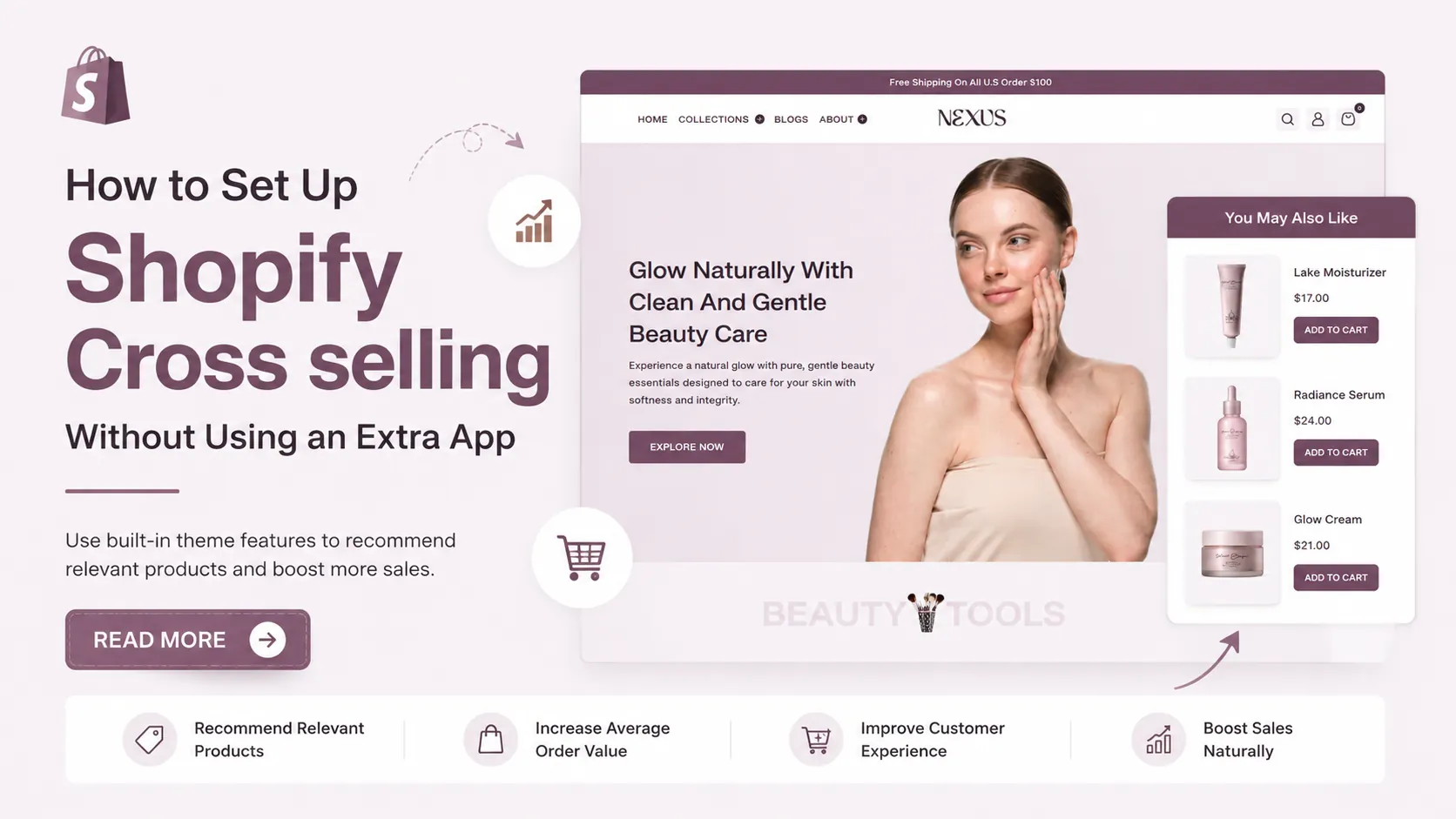
Cross-selling is a simple ecommerce strategy that helps merchants encourage customers to explore additional products related to what they are already viewing or planning to buy. Instead of relying on a separate Shopify app, you can use built-in theme functionality to display relevant product recommendations directly on your store.
This can help improve product discovery, increase average order value, and create a more convenient shopping experience. When choosing from the Best Shopify Themes features that support product recommendations and cross-selling can make a noticeable difference in how customers browse and shop. The Nexus Shopify Theme includes a Product Recommendation block that works as a Shopify Cross-Selling feature, allowing merchants to showcase complementary or related products in strategic areas of the store. In this blog, we’ll explain how Shopify cross-selling works and how to set it up using Nexus.
What Is Shopify Cross-Selling?
Shopify Cross-Selling is a sales strategy used to recommend additional products that complement the item a customer is currently viewing or planning to purchase. Instead of replacing the main product, cross-selling encourages shoppers to add related items that may improve or complete their purchase.
For example, a customer viewing a smartphone may also be shown a phone case, screen protector, or charging cable. Similarly, someone shopping for a dress might see matching accessories, footwear, or a handbag. These recommendations can appear on product pages, cart pages, or other sections of a Shopify store.
When implemented properly, Shopify Cross-Selling can make product discovery easier while also helping merchants increase the overall value of each order.
Benefits of Using Shopify Cross-Selling
Using Shopify Cross-Selling can provide several advantages for both merchants and customers:
- Increase Average Order Value: Relevant product recommendations can encourage customers to add more items to their cart.
- Improve Product Discovery: Shoppers can discover complementary products they may not have found otherwise.
- Create a Better Shopping Experience: Well-matched recommendations can make the buying journey more convenient.
- Promote Related Products: Cross-selling helps merchants give additional visibility to accessories, add-ons, and complementary products.
- Increase Revenue Per Customer: Selling multiple relevant products within the same order can improve revenue without requiring a new customer acquisition.
- Support Faster Purchase Decisions: Showing useful complementary products at the right time can reduce the effort customers spend searching for them.
- Reduce Dependence on Separate Apps: If your Shopify theme already includes product recommendation functionality, you may be able to implement cross-selling without installing an additional app.
Overall, Shopify Cross-Selling can help merchants create a more helpful shopping experience while increasing product visibility, average order value, and revenue from existing customers.
Steps to Set Up Shopify Cross-Selling Using the Nexus Shopify Theme
Setting up Shopify Cross-Selling does not always require installing an additional app. If your Shopify theme already includes a product recommendation feature, you can use that built-in functionality to display relevant products directly on your product pages. This keeps the setup simpler while also helping you avoid unnecessary third-party apps.
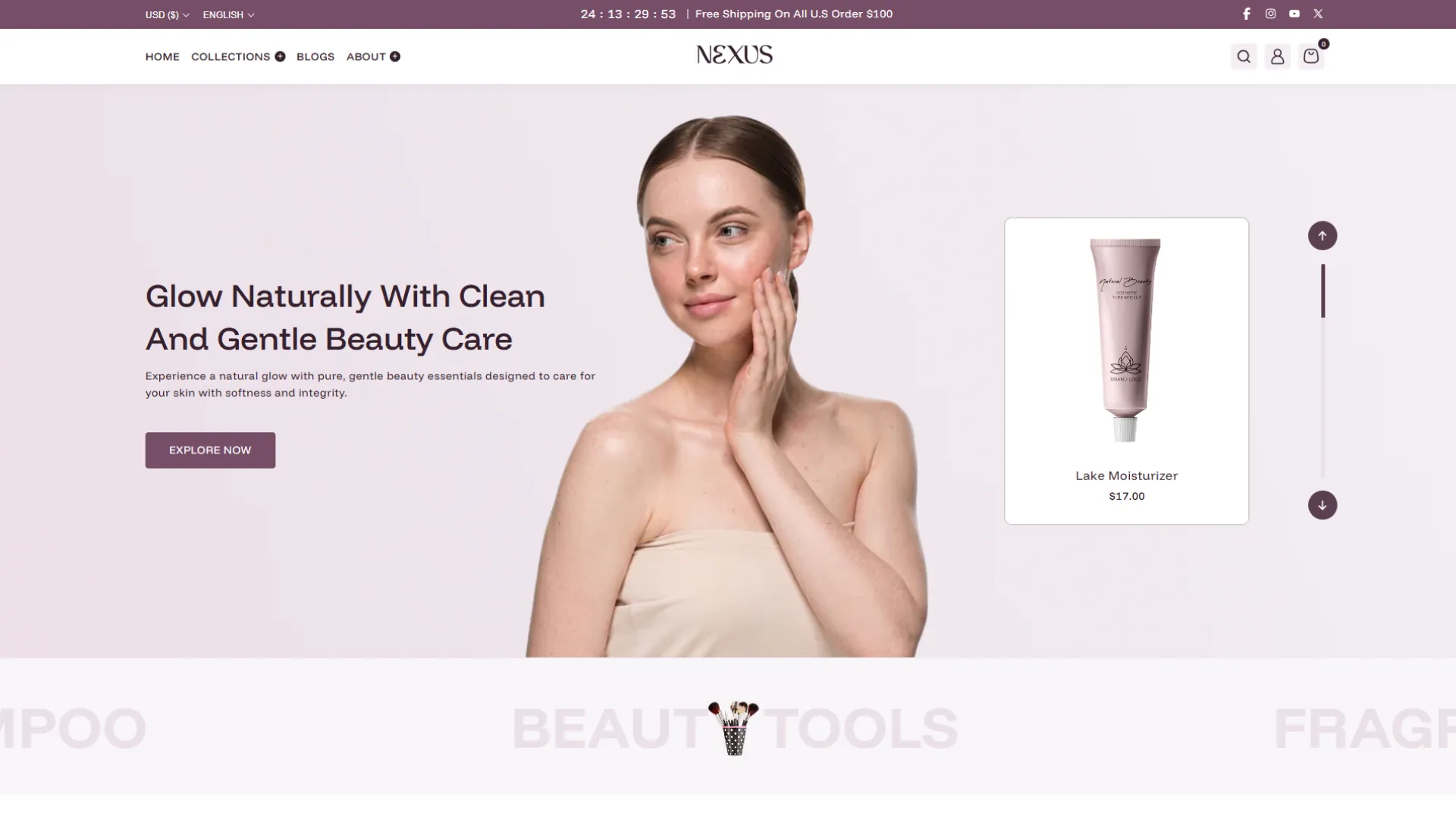
The Nexus beauty Shopify Theme includes a Product Recommendation section that can be used as a Shopify Cross-Selling feature. It allows you to display related products below or around the main product information, helping customers discover additional items that may complement what they are currently viewing.
For example, if a customer is browsing a jacket, you could use product recommendations to expose them to matching trousers, shirts, shoes, or accessories. Likewise, a shopper viewing skincare products may discover related cleansers, moisturizers, serums, or other products through the recommendation section.
Here is how you can set up Shopify Cross-Selling using the Nexus Shopify Theme.
Step 1: Install the Nexus Shopify Theme
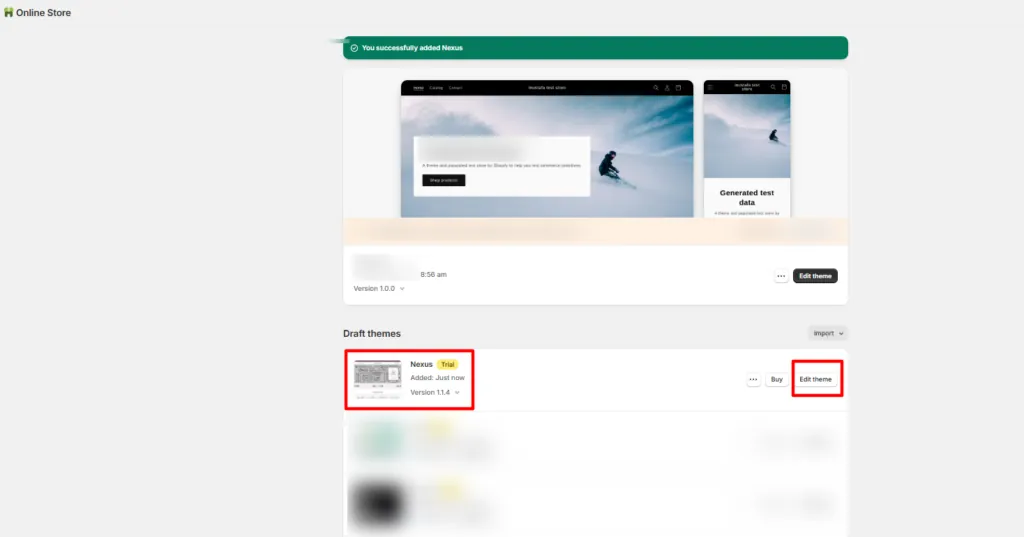
The first step is to install the Nexus Shopify Theme on your Shopify store. Once the theme has been added to your store, you can access its customization options through the Shopify admin.
Go to your Shopify admin dashboard and navigate to your theme area. Find the Nexus Theme and open its customization interface by clicking the option to edit or customize the theme.
Before making major changes, it can be helpful to duplicate the theme so you have a backup version available. This gives you the flexibility to test different layouts, recommendations, colors, and product card settings without affecting your existing live store immediately.
Once the Nexus Theme is installed and ready, you can begin configuring the built-in Shopify Cross-Selling functionality.
Step 2: Open the Nexus Theme Editor
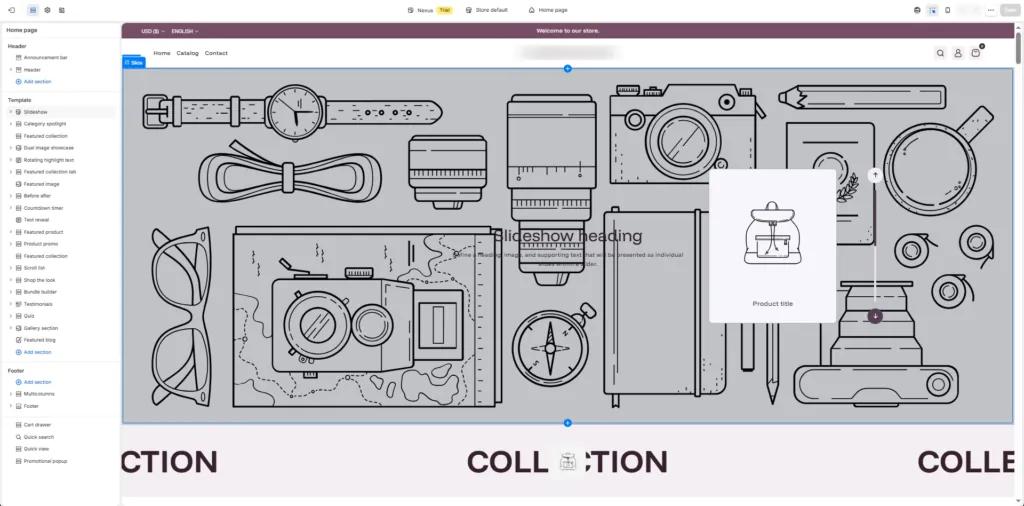
After installing Nexus, open the Shopify Theme Editor.
The Theme Editor is where you can control the appearance and behavior of different sections across your store. Instead of writing code manually, most of the configuration can be handled through the visual settings available inside the editor.
From here, you can manage:
- Page sections
- Product page layouts
- Typography
- Color schemes
- Product cards
- Images
- Mobile layouts
- Padding and spacing
- Product recommendation sections
For Shopify Cross-Selling, you will primarily be working with the product page template because product recommendations are most effective when shoppers are already evaluating a specific item.
Step 3: Go to the Single Product Page
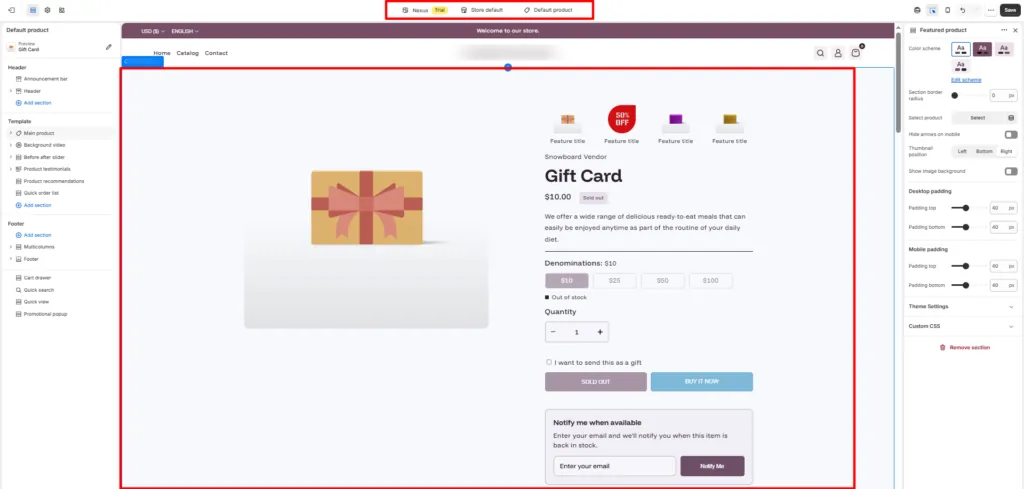
Inside the Nexus Theme Editor, use the page selector at the top to navigate to the Single Product Page or the relevant product template.
This is important because the cross-selling section needs to appear where shoppers can naturally discover products related to the item they are already viewing.
Once the product page template is open, look at the left-hand sidebar. This sidebar contains all the available sections and blocks being used on the product page.
You should see a section named:
Product Recommendation
This is the section that can be used to create the Shopify Cross-Selling experience. Click on the Product Recommendation section to open its configuration settings.
Step 4: Configure the Color Scheme
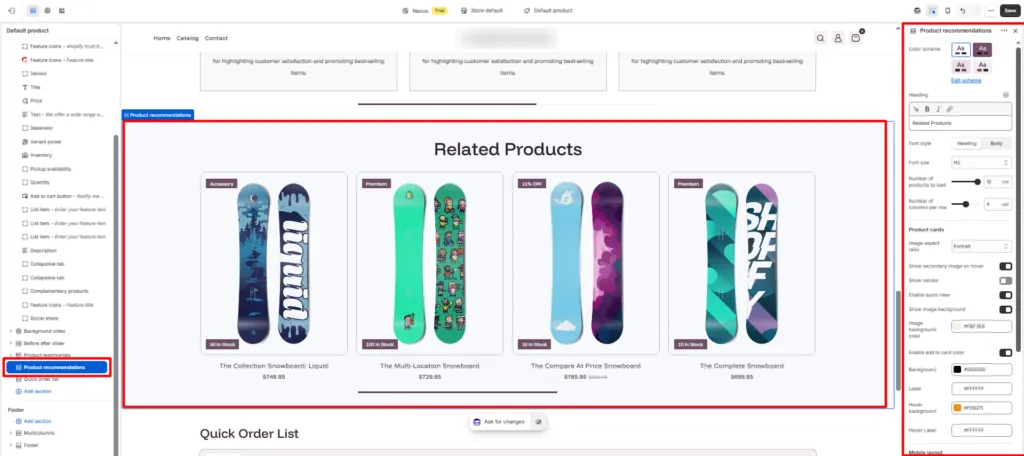
The first setting available is the Color Scheme.
The color scheme determines the general visual appearance of the Product Recommendation section. It can control elements such as the background, text colors, buttons, and other theme-level styling depending on the selected scheme.
For Shopify Cross-Selling, it is generally best to choose a color scheme that matches the rest of your product page while still making the recommendations noticeable.
You can select an existing color scheme or use the Edit Scheme option if you want to customize the appearance further.
When choosing a color scheme, consider:
- Maintaining visual consistency with your store
- Creating enough contrast between products and the background
- Keeping text readable
- Making call-to-action buttons easy to identify
- Avoiding excessive color combinations
Your Shopify Cross-Selling section should look like a natural part of the store rather than an unrelated promotional widget.
Step 5: Add the Section Heading
The Nexus Product Recommendation section allows you to define a heading for the cross-selling area.
By default, you can use:
Related Products
However, depending on your store and brand tone, you may also test alternatives such as:
- You May Also Like
- Complete the Look
- Pair It With
- Customers Also Considered
- Recommended for You
- Explore Similar Products
- Complete Your Purchase
Keep the heading short and easy to understand. Customers should immediately recognize that the products displayed below are recommendations related to their current purchase.
Step 6: Select the Font Style
Next, configure the Font Style for your Product Recommendation section.
Nexus allows you to choose whether the heading should use the store’s:
- Heading font
- Body font
Using the Heading style will usually make the recommendation title more noticeable and visually consistent with other major sections on your product page.
If your store follows a minimalist design, the Body style may create a more subtle appearance.
Step 7: Configure the Heading Font Size
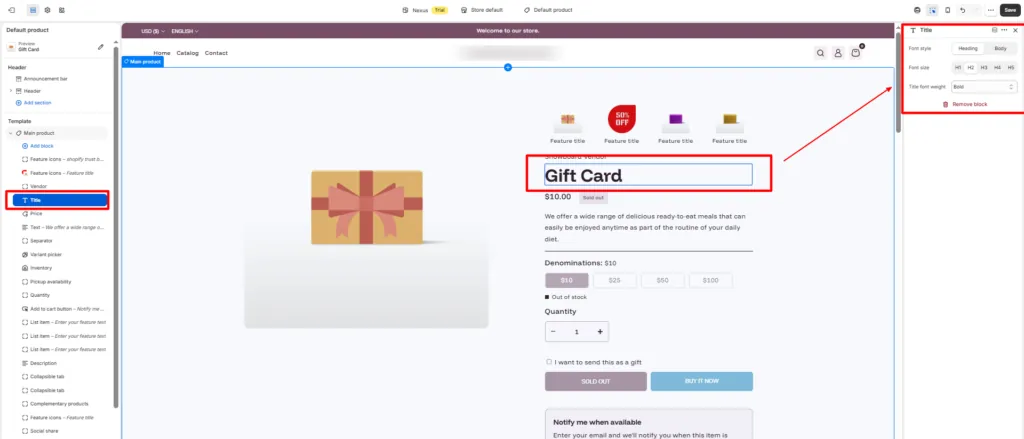
You can also choose the font size for the Product Recommendation heading.
For example, you may select H2.
An H2 heading usually works well because the recommendation section is an important subsection of the product page but is not the main page heading.
Avoid making the recommendation heading excessively large. The primary purpose of the page is still to sell the main product, while cross-selling should support that conversion journey.
Step 8: Choose the Number of Products to Load
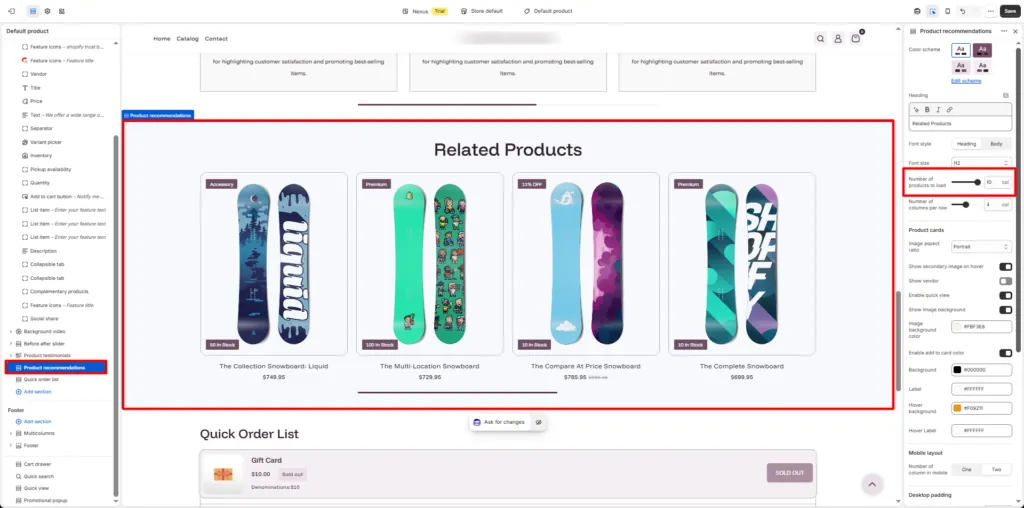
Nexus allows you to define how many recommended products should be loaded.
For example:
Number of products to load: 10
Displaying several options gives customers more opportunities to discover additional items. However, the number should still be controlled so the product page does not become overwhelming.
Potential considerations include:
- Product relevance
- Number of available complementary products
- Page length
- Mobile usability
- Site performance
- Customer decision fatigue
Step 9: Set the Number of Columns Per Row
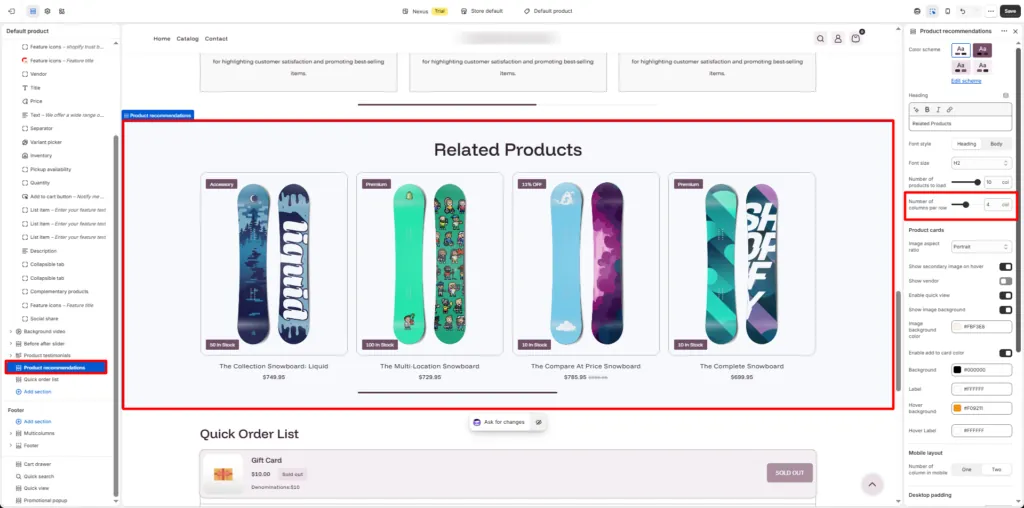
The next setting controls how many product cards appear in each row on desktop devices.
For example:
Number of columns per row: 4
Displaying four products per row is a balanced layout for many Shopify stores. It provides enough product visibility while keeping each card large enough for customers to view the image, title, vendor, and other available information.
Step 10: Configure the Product Card Image Aspect Ratio
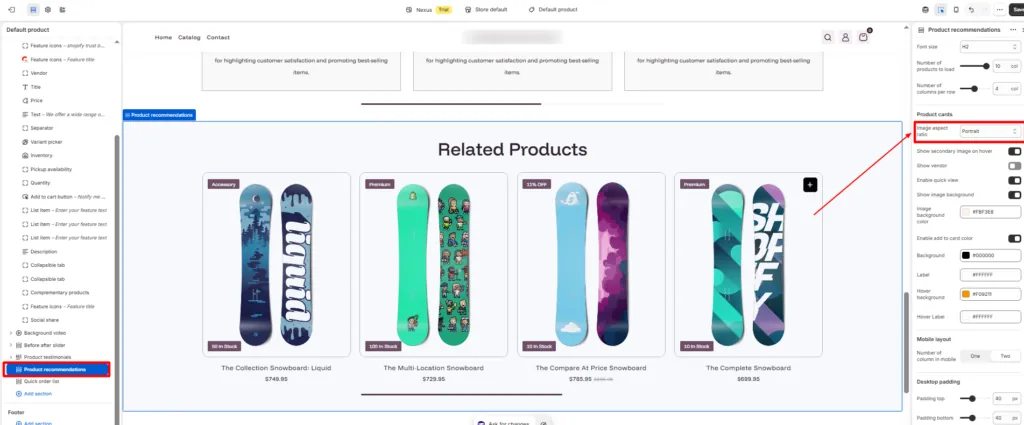
Inside the Product Cards settings, Nexus lets you control the Image Aspect Ratio.
You can select Portrait.
A portrait image ratio is particularly useful for categories such as:
- Clothing
- Fashion
- Beauty
- Jewellery
- Accessories
- Footwear
- Lifestyle products
Consistent product image ratios help make your Shopify Cross-Selling section look cleaner and more professional.
Step 11: Enable the Secondary Image on Hover
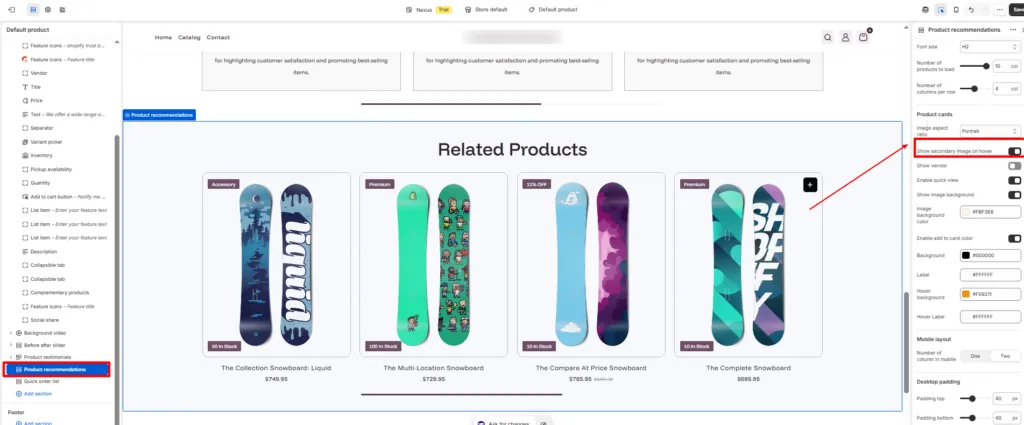
Nexus includes an option to Show secondary image on hover.
When enabled, customers can move their cursor over a recommended product card and see an alternative image.
For example, the second image could show:
- A different product angle
- A lifestyle image
- A model wearing the product
- Another available variation
- Product details
Step 12: Decide Whether to Show the Vendor
The Show Vendor option allows you to display the product vendor or brand name on each recommendation card.
This can be useful for stores selling products from multiple brands. However, if your entire store sells products under a single brand, displaying the vendor may be unnecessary.
Step 13: Enable Quick View
The Nexus Product Recommendation section also includes an Enable Quick View option.
Quick View allows customers to inspect a recommended product without navigating completely away from the current product page.
Benefits can include:
- Faster product discovery
- Fewer page transitions
- Easier product comparison
- Improved browsing experience
- Faster purchase decisions
Step 14: Enable the Product Image Background
You can enable the Show Image Background option to give product images a defined background.
For example:
Image Background Color: #FBF3E8
When selecting a background color for Shopify Cross-Selling, use a shade that complements your branding and product photography.
Step 15: Customize the Add to Cart Button Colors
The Product Recommendation section also allows you to customize the Add to Cart button styling.
- Background: #000000
- Label: #FFFFFF
- Hover Background: #F09211
- Hover Label: #FFFFFF
The Add to Cart button is one of the most important elements within your Shopify Cross-Selling section because it can allow customers to act immediately when they find an additional product they want.
Step 16: Configure the Mobile Layout
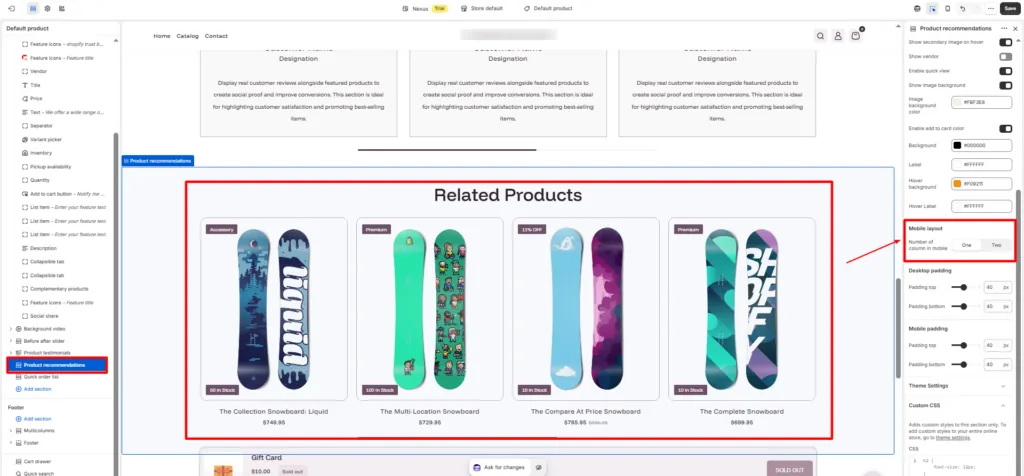
Mobile shopping represents an important part of ecommerce traffic, so your Shopify Cross-Selling section should be easy to browse on smaller screens.
Nexus allows you to choose the number of columns in mobile:
- One
- Two
A one-column layout provides larger product cards and more visual space, while a two-column layout allows customers to browse more products without excessive scrolling.
Always test the Product Recommendation section on an actual mobile device before publishing.
Step 17: Adjust Desktop Padding
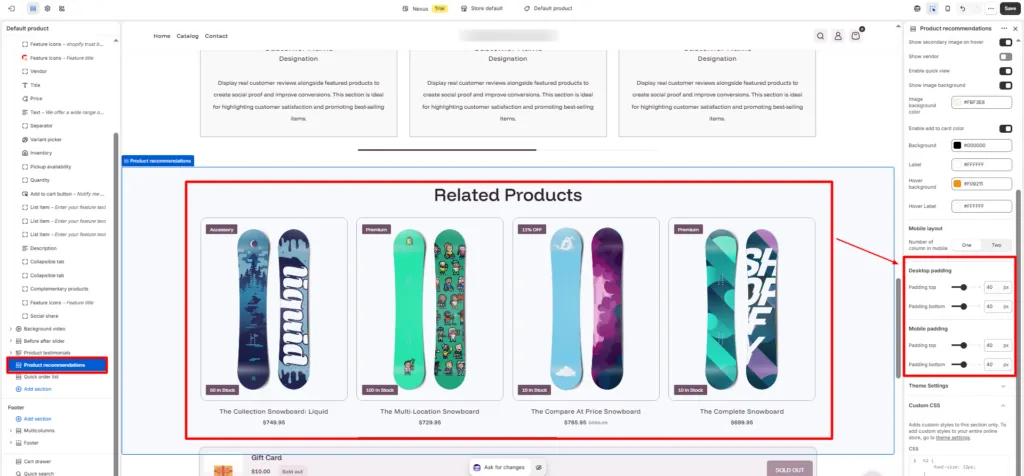
Nexus gives you control over the spacing surrounding your Product Recommendation section.
- Padding Top: 40
- Padding Bottom: 40
Padding creates visual breathing room between the Shopify Cross-Selling section and other sections on the product page.
Step 18: Adjust Mobile Padding
You can separately configure padding for mobile devices.
- Padding Top: 40
- Padding Bottom: 40
Review the layout carefully and adjust the values until your Shopify Cross-Selling section feels clearly separated without wasting screen space.
Step 19: Save Your Shopify Cross-Selling Settings
Once you have configured all the available options, review the Product Recommendation section one more time.
Check:
- Color scheme
- Heading
- Font style
- Heading size
- Number of products
- Number of columns
- Image aspect ratio
- Secondary image
- Vendor visibility
- Quick View
- Image background
- Add to Cart button colors
- Mobile columns
- Desktop padding
- Mobile padding
Once everything looks correct, click the Save button in the Shopify Theme Editor.
Step 20: Test the Shopify Cross-Selling Section on the Storefront
The final step is to test the section from the customer-facing side of your store.
Open one of your product pages and scroll to the Product Recommendation section.
Make sure that:
- Related products are loading correctly
- Product images appear properly
- Product titles are readable
- Buttons are working
- Quick View works correctly
- Hover images display properly
- Product cards are aligned
- Mobile layout is responsive
- Spacing looks consistent
- The section does not interfere with other product page elements
You should also test multiple product pages instead of checking only one. The products shown in your Shopify Cross-Selling section should make sense in the context of the product the shopper is viewing.
Conclusion
Shopify Cross-Selling is an effective way to help customers discover complementary products while increasing average order value and improving the overall shopping experience. With the Nexus Shopify Theme, you can set up cross-selling directly through the built-in Product Recommendation section without depending on an extra app.
You can customize the heading, product count, columns, product cards, Quick View, colors, spacing, and mobile layout to match your Shopify Beauty Store design. Once configured, test the section carefully to ensure the recommendations are relevant, responsive, and easy for customers to explore across desktop and mobile devices.
Frequently Asked Questions (FAQs)
1. What is Shopify Cross-Selling?
Shopify Cross-Selling is the practice of recommending additional products that complement the item a customer is currently viewing or purchasing. For example, a fashion store may recommend shoes or accessories alongside a dress.
2. Can I set up Shopify Cross-Selling without an app?
Yes. If your Shopify theme includes a built-in product recommendation feature, you may be able to create a cross-selling section without installing a separate app. The Nexus Shopify Theme includes a Product Recommendation section for this purpose.
3. How does the Nexus Theme support Shopify Cross-Selling?
Nexus provides a built-in Product Recommendation section that can display related products on product pages. Merchants can customize product count, columns, images, Quick View, button colors, typography, spacing, and mobile layout.
4. How many products should I show in a Shopify Cross-Selling section?
There is no fixed number, but the recommendations should remain relevant and easy to browse. Nexus allows you to control the number of products loaded and the number of products displayed per row.
5. Does Shopify Cross-Selling help increase average order value?
It can. When customers are shown relevant complementary products at the right stage of their shopping journey, they may be more likely to add additional items to their cart, which can help increase average order value.
Can Shopify Cross-Selling work with Shopify in store pickups?
Yes. Shopify Cross-Selling can help customers discover complementary products before completing their order, while Shopify in store pickups can provide a convenient way to collect eligible purchases from a physical store. Together, these features can improve product discovery and create a smoother shopping experience for local customers.