

Helping shoppers quickly return to products they have already explored can make the browsing experience smoother and more convenient. Instead of forcing visitors to search again or navigate through multiple collections, a recently viewed section keeps previously explored products within easy reach. This can be especially useful for stores with large catalogs, where customers often compare several products before making a purchase decision. Features like these are also worth considering when choosing the best Shopify themes as they can improve product discovery and create a more user-friendly shopping experience.
The Nexus Shopify Theme includes a built-in option that allows merchants to display recently viewed products without relying on an additional app. In this guide, we will explain the benefits of this feature and show you how to add and configure Shopify Recently Viewed Products using the Nexus Theme.
Benefits of Shopify Recently Viewed Products
Adding Shopify Recently Viewed Products can make it easier for shoppers to continue exploring items they were already interested in. Instead of searching for the same product again, customers can quickly return to previously viewed items and continue comparing their options. This creates a smoother shopping journey and can support better engagement across the store.
Key benefits include:
- Improves product discovery: Shoppers can easily revisit products they explored earlier without navigating through collections again.
- Creates a smoother shopping experience: Recently viewed items reduce unnecessary searching and make store navigation more convenient.
- Supports purchase decisions: Customers can compare products more easily, while Shopify trust badges can add confidence during the buying process.
- Encourages repeat product visits: Bringing relevant products back into view can remind shoppers about items they may still be considering.
- Can help improve conversions: Making preferred products easier to access may reduce friction between browsing and purchasing.
- Useful for large product catalogs: Stores with many products can help visitors keep track of items they have already explored.
- Keeps shopping personalized: The section reflects each shopper’s browsing activity, making the storefront feel more relevant to their interests.
- May increase engagement: Customers have more opportunities to revisit product pages, compare details, and continue their shopping journey.
Overall, Shopify Recently Viewed Products create a more convenient and personalized shopping experience by helping customers quickly return to products they have already explored, making it easier to compare options and move closer to a purchase.
Steps to Add Shopify Recently Viewed Products Using the Nexus Theme
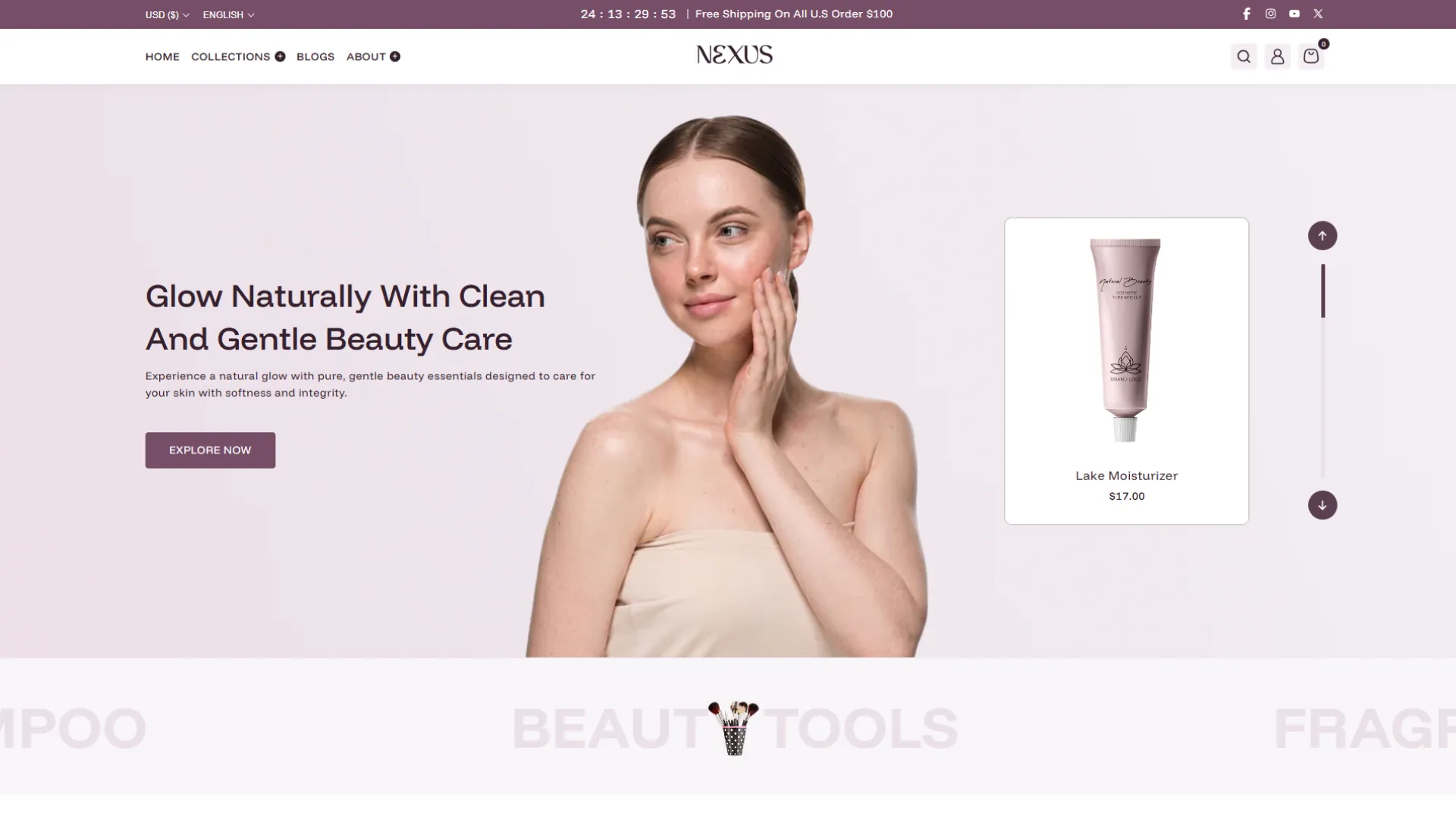
The Shopify Recently Viewed Product section available in the Nexus beauty Shopify Theme can be added to different parts of your store, including the homepage, shop or collection pages, and individual product pages. This gives merchants flexibility over where they want previously viewed products to appear and helps customers quickly return to products they explored earlier.
To add the section, first install the Nexus Shopify Theme on your store. Once the theme is installed, open your Shopify admin, go to Online Store > Themes, locate the Nexus Theme, and click Customize to open the Theme Editor.
1. Open the Page Template Where You Want to Add the Section
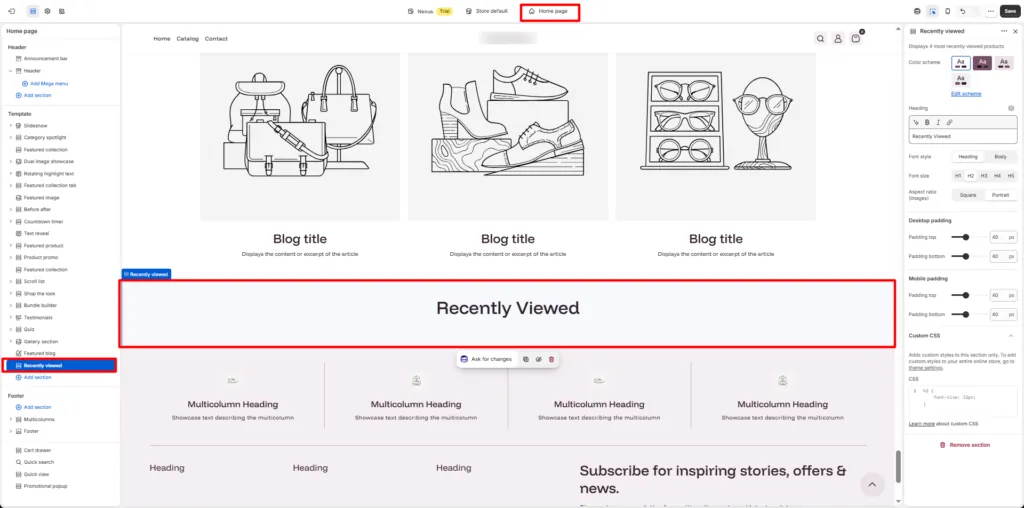
Inside the Theme Editor, use the page selector at the top to open the template where you want to display the Shopify Recently Viewed Product section.
You can add it to pages such as:
- Homepage
- Collection or shop page
- Individual product page
- Other supported Shopify page templates
Choose the page carefully based on where recently viewed products will be most useful for your customers. For example, adding the section to a product page can help visitors quickly return to other products they were comparing, while placing it on the homepage can help returning shoppers continue browsing.
2. Add the Recently Viewed Section
After opening the required template, look at the left-hand sidebar in the Shopify Theme Editor.
Click Add section, then search for the Recently Viewed section. Once it appears in the list, select it to add it to the page.
The Nexus Theme is designed to display up to 4 most recently viewed products in this section. These products are automatically based on the visitor’s recent browsing activity, so merchants do not need to manually select products each time.
3. Configure the Color Scheme
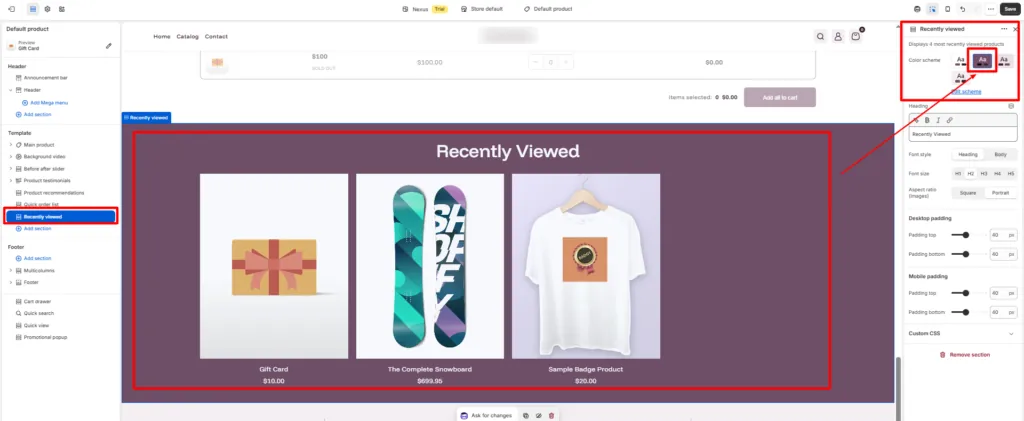
After adding the section, you can customize its appearance to match the overall design of your Shopify store.
The Nexus Theme provides a Color scheme option that allows you to select an existing theme color scheme for the section.
You can also use the Edit scheme option when you want to modify the selected color configuration. This helps maintain visual consistency between the recently viewed section and the rest of your storefront.
When choosing a color scheme, make sure the background, heading, product information, and other elements remain easy to read.
4. Customize the Section Heading
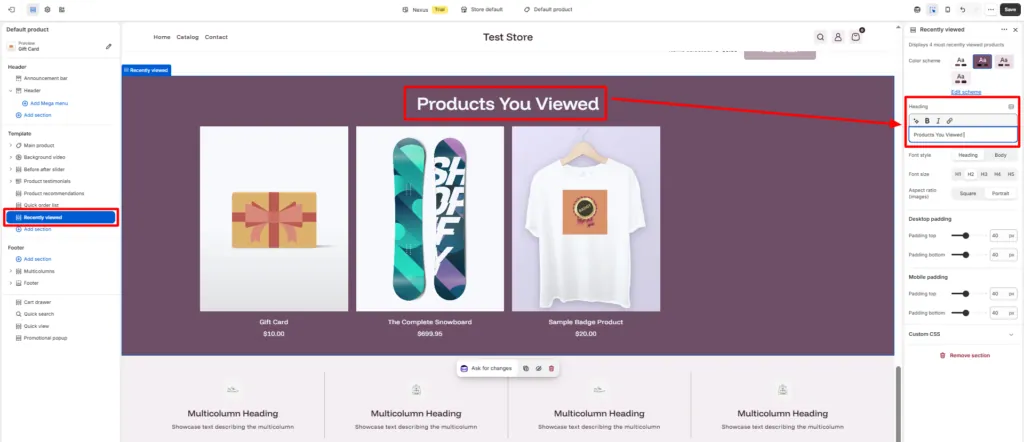
The next option allows you to control the heading displayed above the products.
By default, you can use a heading such as:
Recently Viewed
You can also replace it with a heading that better matches your store’s tone, such as:
- Recently Viewed Products
- Products You Viewed
- Take Another Look
- Continue Browsing
- Your Recently Viewed Items
A clear heading helps shoppers immediately understand why these products are being displayed.
5. Select the Font Style
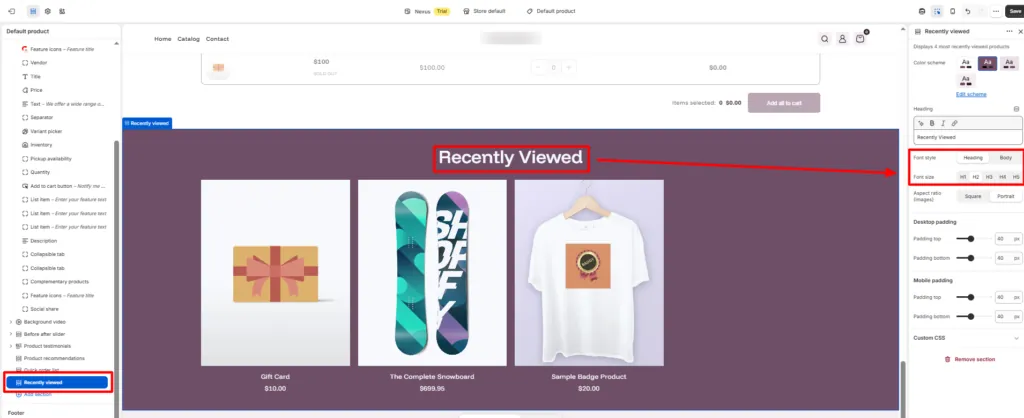
The Shopify Recently Viewed Product section also gives you control over the font style used for the heading.
You can choose between options such as:
- Heading – Uses your theme’s heading typography.
- Body – Uses the standard body font style.
For most stores, using the Heading style can help the section title stand out while keeping the design consistent with other content sections.
6. Choose the Font Size
You can also select the heading size depending on how prominent you want the section to appear.
For example, you can use an H2 heading size to make the Recently Viewed section clearly visible while still maintaining a proper content hierarchy on the page.
The ideal size may depend on where you place the section and how other headings are styled throughout the store.
7. Set the Product Image Aspect Ratio
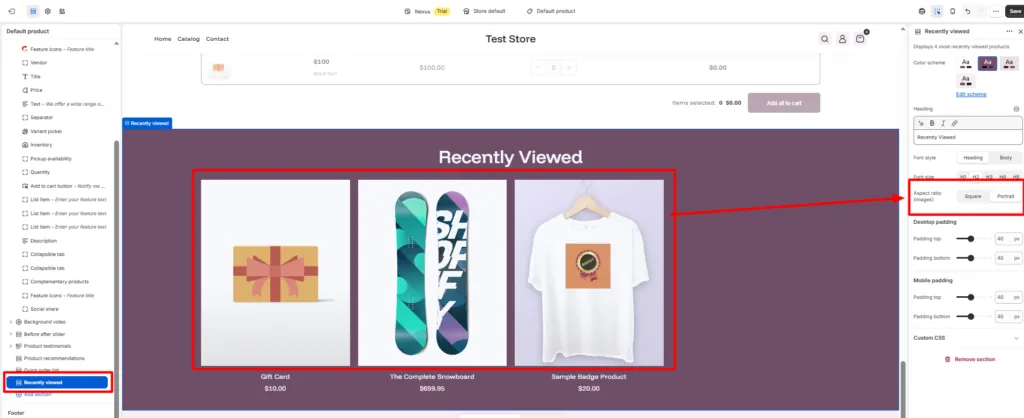
The Nexus Theme provides different aspect ratio options for the product images shown inside the Shopify Recently Viewed Product section.
Available options include:
- Square – Displays products using a balanced square image format.
- Portrait – Displays taller product images, which can work particularly well for fashion, Shopify beauty Store, accessories, and lifestyle products.
Choose an aspect ratio that matches the photography style used across your Shopify store. Keeping product image proportions consistent can make the overall storefront look more polished.
8. Configure Desktop Padding
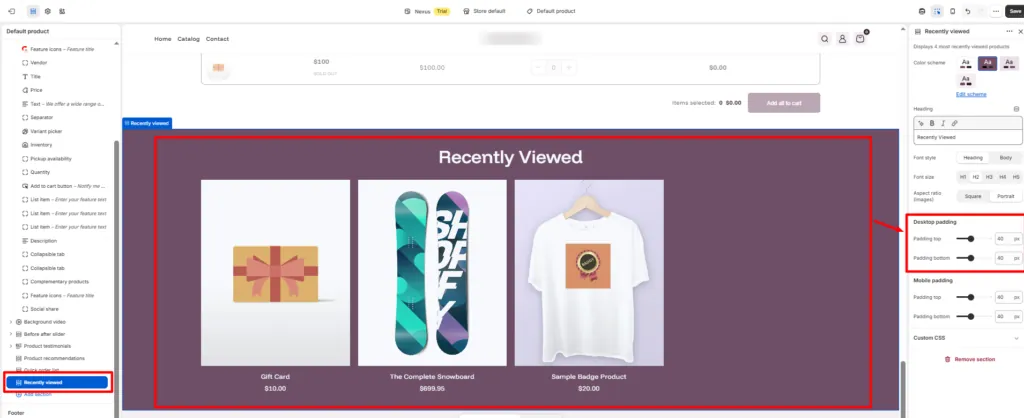
You can adjust the spacing above and below the section for desktop visitors.
The available settings include:
- Padding top: 40
- Padding bottom: 40
These settings determine how much space appears between the Recently Viewed section and surrounding sections.
Increasing the padding can create more breathing room, while reducing it can produce a more compact layout. The default value of 40 can work well for many store layouts.
9. Configure Mobile Padding
The Nexus Theme also allows separate spacing adjustments for mobile devices.
You can configure:
- Padding top: 40
- Padding bottom: 40
Separate mobile controls are useful because spacing that looks good on a desktop screen may feel excessive on a smartphone. Adjust the padding based on your store’s mobile layout and test how the section looks on smaller devices.
10. Save Your Changes
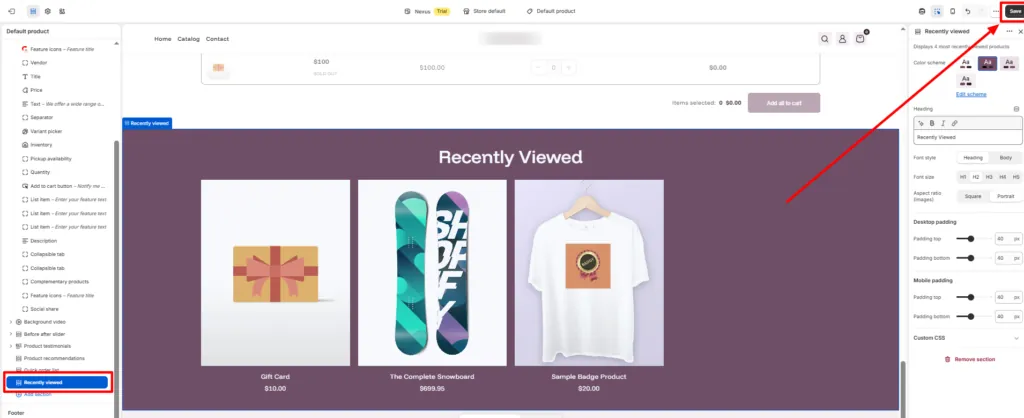
Once you have finished configuring the section, review all the settings and click the Save button in the Theme Editor.
This ensures that the Shopify Recently Viewed Product section and all of your customization choices are applied to the selected page template.
11. Test the Recently Viewed Products Section
The final step is to test the section on the storefront.
Open your Shopify store and visit several different product pages. After viewing a few products, navigate to the page where you added the Recently Viewed section.
Check whether the products you previously explored appear correctly.
During testing, make sure to verify:
- The section displays recently viewed products correctly.
- Up to 4 products appear as expected.
- Product images display in the selected aspect ratio.
- The heading style and font size look correct.
- The section spacing works well on desktop and mobile.
- Product cards link to the correct product pages.
- The section fits naturally with the rest of the page design.
By using the Nexus Theme’s built-in Shopify Recently Viewed Product section, you can add this functionality to important store pages without manually creating a custom section. Once configured and tested, it can help shoppers quickly rediscover products they were previously interested in and continue their shopping journey with less effort.
Why Use the Nexus Theme Instead of a Separate Recently Viewed App?
Using the Nexus Theme for Shopify Recently Viewed Product functionality can be a more convenient option than installing a separate app, especially for merchants who prefer to keep their store setup simple. Since the feature is already available within the theme, you can add and customize it directly from the Shopify Theme Editor without introducing another third-party tool into your store.
One of the biggest advantages is easier management. Instead of configuring an external app, handling separate settings, or adjusting app blocks, the Recently Viewed section can be managed alongside the rest of your theme sections.
Key advantages include:
- Built-in functionality: The Recently Viewed section is already included in the Nexus Theme.
- No separate app setup: You do not need to install and configure an additional app just for this feature.
- Simpler store management: All design and section settings remain available within the Shopify Theme Editor.
- Consistent design: The section follows the styling, typography, spacing, and color schemes of the Nexus Theme.
- Easy customization: Merchants can control the heading, font style, image ratio, color scheme, and padding directly from the editor.
- Flexible placement: The section can be added to supported templates such as the homepage, collection pages, and product pages.
- Reduced app dependency: Using a native theme feature can help keep your Shopify setup more streamlined.
- Potential cost savings: Merchants may avoid paying for a separate Recently Viewed app if the built-in Nexus functionality already meets their needs.
For stores already using the Nexus Theme, the built-in Shopify Recently Viewed Product section provides a straightforward way to offer this feature while keeping design and management within the theme itself.
Conclusion
Adding a Shopify Recently Viewed Product section can make the shopping experience more convenient by helping customers quickly return to products they have already explored. This is especially useful for stores with larger catalogs where shoppers may compare multiple items before deciding what to buy.
With the Nexus Theme, merchants can add the Recently Viewed section directly through the Shopify Theme Editor and customize its heading, color scheme, typography, image ratio, and spacing. Since the functionality is already built into the theme, there is no need to rely on a separate app. Once configured and tested properly, the section can support smoother navigation, better product discovery, and stronger customer engagement.
FAQs
1. What is a Shopify Recently Viewed Product section?
A Shopify Recently Viewed Product section displays products that a customer has previously opened or explored while browsing your store. It helps shoppers quickly return to those products without searching for them again.
2. Does the Nexus Theme support recently viewed products?
Yes. The Nexus Theme includes a built-in Recently Viewed section that can be added through the Shopify Theme Editor.
3. How many recently viewed products does the Nexus Theme display?
The Nexus Theme can display up to 4 most recently viewed products in the section.
4. Can I add recently viewed products to the Shopify homepage?
Yes. You can add the Recently Viewed section to the homepage through the Theme Editor, provided the selected template supports the section.
5. Can I add recently viewed products to product pages?
Yes. The section can be added to supported product templates, making it easier for shoppers to revisit other products they recently explored.
6. Do I need a separate Shopify app for recently viewed products with Nexus?
No. If the built-in Nexus functionality meets your needs, you do not need to install a separate app just to display recently viewed products.
7. How can Shopify in store pickups work with Shopify Recently Viewed products?
Shopify in store pickups allow customers to collect products from a physical store, while Shopify Recently Viewed helps them quickly return to products they explored earlier. Together, these features can make product discovery and local purchasing more convenient.
8. Can I customize the Recently Viewed section in Nexus?
Yes. You can customize settings such as the heading, color scheme, font style, heading size, product image aspect ratio, and desktop and mobile padding.
9. Can I change the “Recently Viewed” heading?
Yes. The default heading can be replaced with text such as Products You Viewed, Take Another Look, or Continue Browsing.
10. Does the Recently Viewed section work on mobile devices?
Yes. The Nexus Theme provides separate mobile padding controls, allowing you to adjust the section spacing for smaller screens.
11. Why should I use recently viewed products in my Shopify store?
Recently viewed products help customers rediscover items they were interested in, reduce unnecessary searching, support product comparison, and create a smoother and more personalized shopping journey.