
A custom domain gives your Shopify store a professional web address that customers can recognize and remember. Instead of sharing a store URL that ends in myshopify.com, you can use a branded domain that matches your business name. If you want to know how to connect a domain to Shopify, the process involves adding your domain to Shopify, configuring DNS records when necessary, and checking that your storefront loads correctly. A custom domain also makes it easier to share your store link in marketing campaigns, social media profiles, packaging, and customer communications.
Shopify lets you purchase a domain through its platform or connect one registered with a third-party provider. The steps vary depending on where you manage your domain, but you do not need advanced technical knowledge to complete the process. Along with choosing premium Shopify themes to create an attractive storefront, connecting a custom domain helps establish a consistent brand identity and gives customers a more professional shopping experience.
Why Connect a Custom Domain to Your Shopify Store?
Before connecting your domain, it helps to understand how it supports your online business.
- Build brand recognition: A domain that matches your business name helps customers identify your store.
- Make your store easier to remember: A short, relevant web address is simpler to share and revisit.
- Support marketing campaigns: You can use your domain in advertisements, social media posts, email campaigns, and promotional materials.
- Create a consistent brand experience: Customers can move from your marketing channels to your storefront using the same business identity.
- Establish a foundation for growth: You can build your store’s content, product collections, and customer experience around a domain you control.
What You Need Before Connecting a Domain to Shopify
Prepare a few things before starting the setup process.
- An active Shopify store: You need access to the Shopify admin where you want to connect the domain.
- A domain name: Purchase a new domain or use one you already own.
- Access to your domain provider: For an existing third-party domain, you may need to update DNS records or authorize Shopify to connect automatically.
- The correct DNS settings: If you are connecting the domain manually, you need the records required by Shopify.
- Time for the connection to complete: DNS changes may take up to 48 hours to propagate fully.
If you already use your domain for business email or other services, review the existing DNS records before changing anything. Incorrect changes can interrupt email delivery or other services associated with the domain.
How to Connect Domain to Shopify
There are three common approaches: connecting an existing domain, purchasing a domain through Shopify, or transferring a domain from another provider. Choose the method that matches your current setup.
Method #1: Connect an Existing Domain to Shopify
Use this method if you have already purchased a domain through a provider such as GoDaddy, Cloudflare, IONOS, or another domain registrar.
Step 1: Open the Shopify Domain Settings
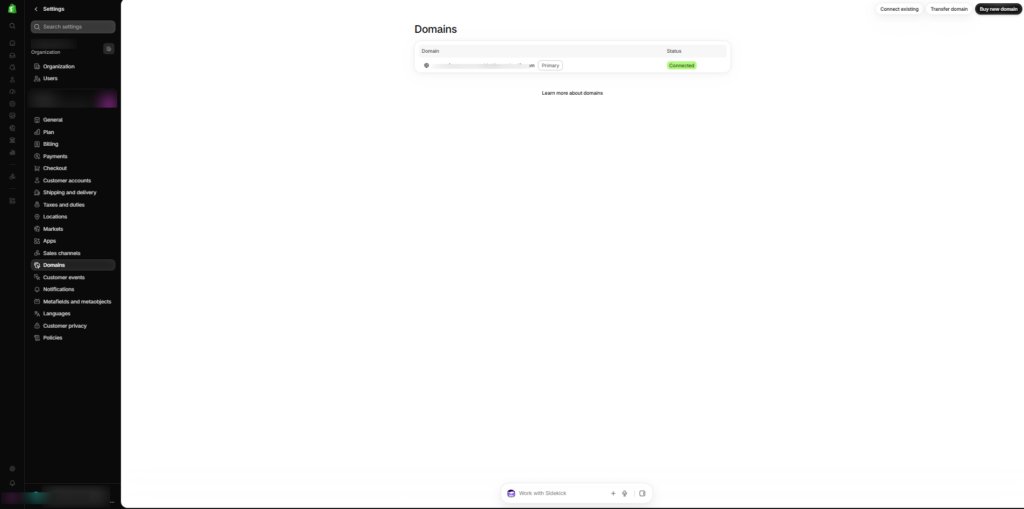
Log in to your Shopify admin and follow this path: Shopify admin → Settings → Domains.
Step 2: Select Connect Existing Domain
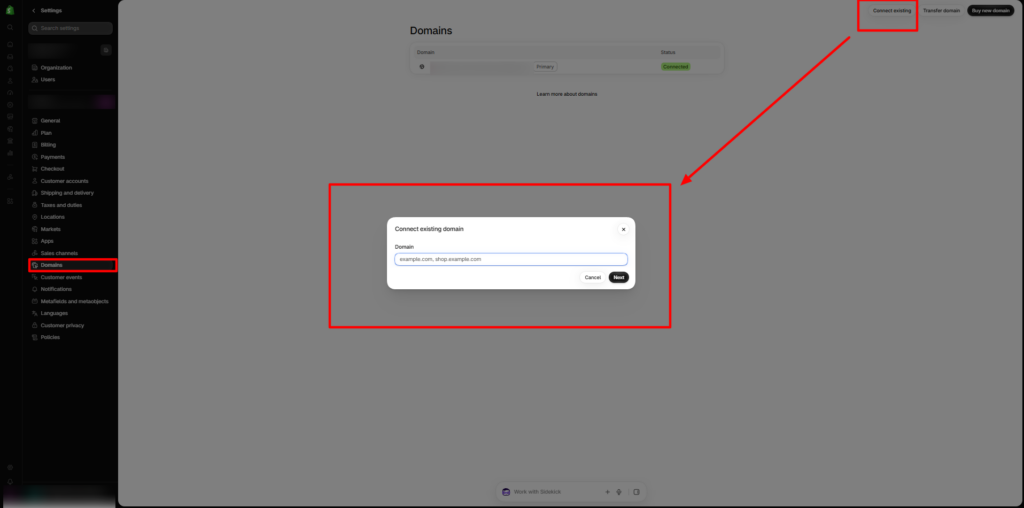
Click Connect existing domain and enter the domain you want to use. For example, if your domain is example.com, enter the root domain without adding www. or another subdomain. Click Next to continue.
Step 3: Choose an Automatic or Manual Connection
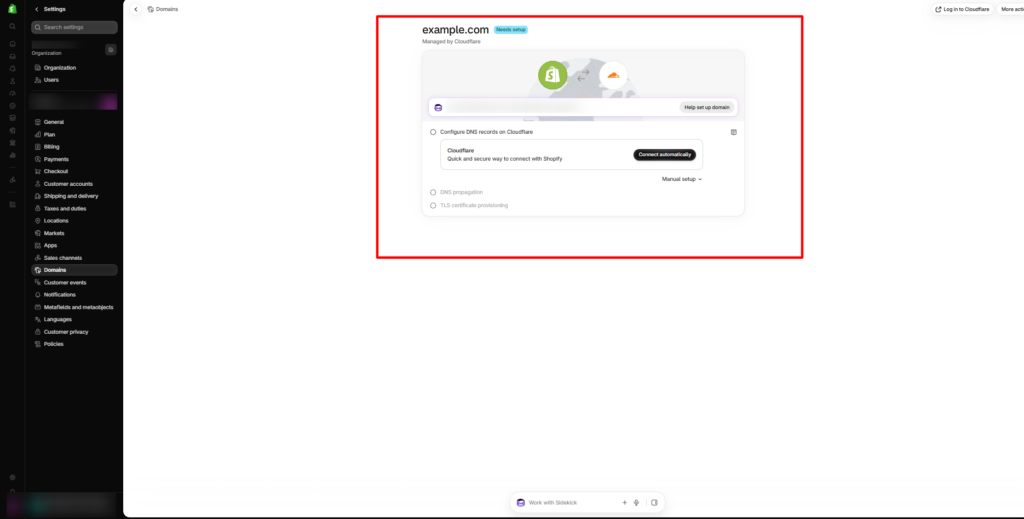
The available options depend on your domain provider. If your provider supports automatic connection, Shopify can guide you through authorizing access to the provider’s account. You will typically need to sign in and approve the connection. If automatic connection is unavailable, choose the manual setup option and update the DNS records through your domain provider.
Step 4: Complete the Connection
Follow the instructions displayed in Shopify. Once you have completed the required steps, return to Settings → Domains to check the connection status. Shopify may need time to verify the DNS records and issue the security certificate. Wait for the domain status to show that the connection is active before assuming the setup is complete.
Method #2: Connect Your Domain Manually Through DNS Settings
Manual configuration is useful when Shopify cannot connect automatically, or your domain provider requires you to manage DNS records yourself. If you are learning how to connect domain to Shopify manually, start by understanding DNS, or Domain Name System, records, which tell browsers where to direct requests for your domain. The correct records allow your domain to reach your Shopify storefront.
Step 1: Log In to Your Domain Provider
Open the website of the company where you registered your domain. Sign in and find the domain management or DNS settings section. The exact menu names vary between providers. Look for options such as DNS Management, Manage DNS, DNS Zone, or Advanced DNS.
Step 2: Update the Required DNS Records
Shopify’s current manual connection instructions specify the following default values for a standard third-party domain connection.
| Record Type | Host or Name | Value |
|---|---|---|
| A | @ | 23.227.38.65 |
| AAAA | @ | 2620:0127:f00f:5:: |
| CNAME | www | shops.myshopify.com |
The @ symbol generally represents the root domain, although your provider may use a different format. Some providers may not support the shortened IPv6 address, so follow their requirements and Shopify’s current instructions.
Important: Check the DNS values shown in your Shopify admin and official setup instructions before making changes. Shopify may display a different supported IPv4 address for your region.
If conflicting records already exist, update or remove them as instructed rather than creating duplicate records. Be especially careful with email-related records, including MX records, and do not delete them unless you understand the impact.
Step 3: Save Your DNS Changes
Save the updated records in your domain provider’s dashboard. Leave the TTL setting at its default value unless your provider or Shopify specifically instructs otherwise. DNS changes do not always become visible immediately. Your provider may update its records quickly, while other DNS resolvers take longer to reflect the changes.
Step 4: Return to Shopify and Verify the Connection
Go back to Shopify admin → Settings → Domains. If you have not already added the domain, select Connect existing domain, enter the domain name, and follow the displayed instructions to finish the connection. Shopify will check whether the domain points to the correct destination. If a connection warning appears, review the indicated record or setting before making further changes.
Method #3: Buy a Domain Directly Through Shopify
If you do not own a domain yet, purchasing one through Shopify can simplify the setup because domain management is available from your Shopify admin.
Step 1: Open the Domains Page
Go to Shopify admin → Settings → Domains. Look for the option to buy or register a new domain. The exact wording may vary with the admin interface.
Step 2: Search for a Domain Name
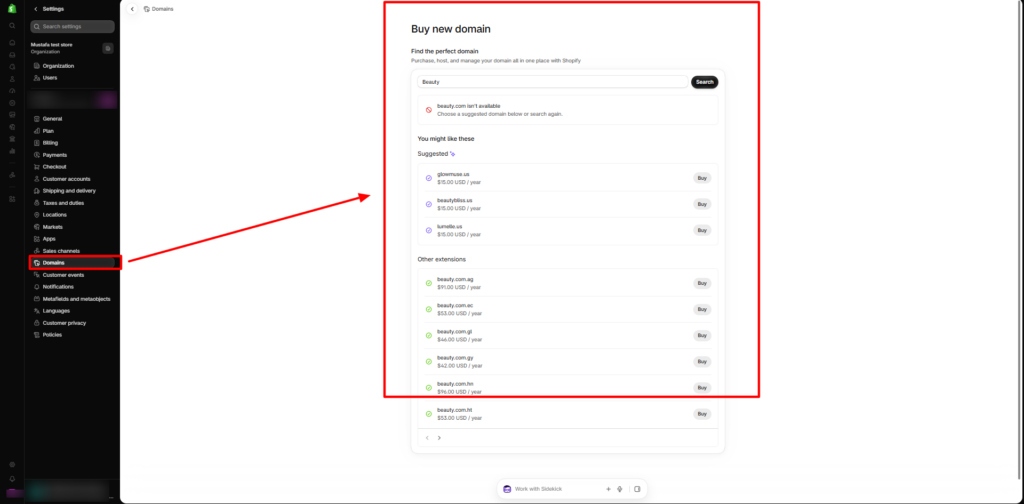
Enter your preferred business name or a relevant keyword to check available domain names and extensions. Choose an address that is easy to spell, relevant to your brand, and suitable for long-term use. Review the registration price and renewal cost before purchasing.
Step 3: Complete the Purchase
Follow the on-screen instructions to register the domain. You may need to provide registration details and complete the required payment. Once the purchase is complete, the domain should appear in your Shopify admin. Follow any remaining prompts to confirm its configuration.
Step 4: Check the Domain Status
Open the domain details page and confirm that it is connected correctly. If Shopify is still processing the setup, allow time for the connection and security certificate to become active. Buying a domain through Shopify is optional. You can continue using a domain from another provider if that better suits your business needs.
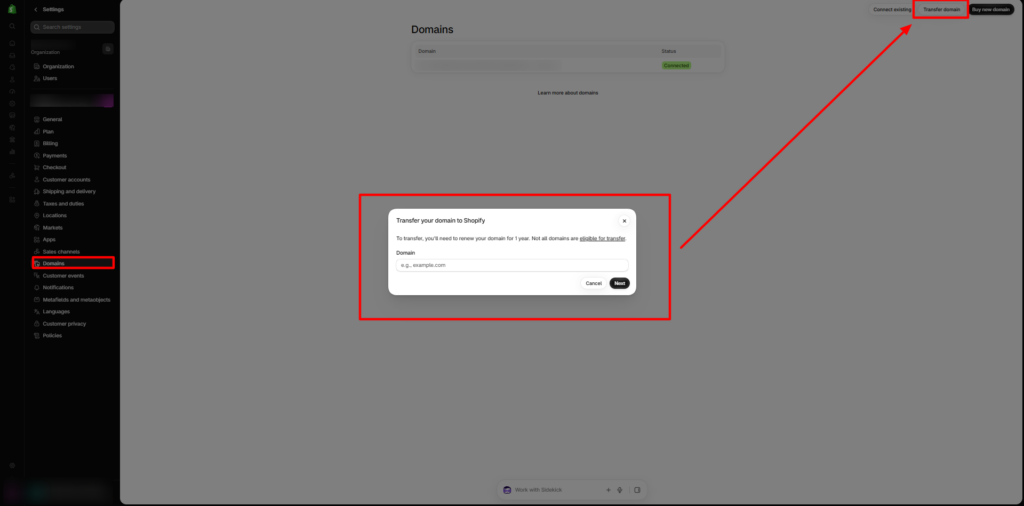
Method #4: Transfer a Domain to Shopify
Connecting and transferring are different processes. When you connect a domain, your current registrar continues to manage registration, billing, and renewals. Shopify simply becomes the destination for your storefront traffic. When you transfer an eligible domain, domain management moves from your existing registrar to Shopify. This can make administration more convenient if you want to manage your store and domain in one place.
Before transferring, check Shopify’s eligibility requirements and your registrar’s transfer rules. Some domains cannot be transferred, and newly registered or recently transferred domains may be subject to waiting periods. If you only need your existing domain to display your Shopify store, connecting it is often the simpler option.
How to Set Your Connected Domain as the Primary Domain
After connecting your domain, choose which address customers should use to access your store. For example, you may have both example.com and www.example.com. Your primary domain determines the main address Shopify uses for your storefront, while other connected domains can redirect visitors to it.
Follow these steps:
- Open Shopify admin → Settings → Domains.
- Select the domain you want customers to see.
- Choose the option to set it as your primary domain, if available.
- Confirm the change and review the domain settings.
- Open your storefront in a browser to verify that the selected address loads correctly.

Once your primary domain is set, you can customize your storefront to match your brand identity. The Nexus Beauty Shopify Theme offers features such as mega menus, product filtering, quick buy, color swatches, and promotional sections to help you create an organized shopping experience. Choose a suitable preset and customize the layout to complement your brand. While your domain provides your store’s web address, the theme determines how your storefront looks and functions.
How to Check Whether Your Shopify Domain Is Connected Correctly
Once the setup is complete, run through these checks before sharing the domain with customers.
- Open the domain: Enter the address directly into a browser and check that your Shopify storefront loads.
- Test the www version: If you use both the root domain and the www version, check that they resolve as expected.
- Review the domain status: Visit the Domains page in Shopify and check for warnings or pending actions.
- Check HTTPS: Confirm that the storefront loads securely using HTTPS.
- Test important pages: Visit your homepage, product pages, collection pages, and cart to make sure they work.
- Review business email: If you use a custom email address, check that sending and receiving still work after any DNS changes.
Common Problems When Connecting a Domain to Shopify
Even when you follow the setup steps, you may encounter a warning or delay. Most connection issues relate to DNS configuration, domain verification, or security certificate provisioning.
1. The Domain Is Not Connecting
If Shopify reports that your domain is not connected, check the DNS records at your domain provider. Confirm that the records match the instructions shown in your Shopify admin. Look for misspelled hostnames, incorrect destinations, duplicate conflicting records, or missing records. If the records appear correct, allow time for DNS propagation before making additional changes.
2. The SSL Certificate Is Pending
Shopify provisions a TLS certificate that enables HTTPS connections to your storefront. The certificate may remain pending while DNS changes are being processed. Check your DNS configuration and wait for the connection to finish. Shopify indicates that this process can take up to 48 hours. If the certificate is still pending after that period, review the domain warnings and contact Shopify Support if necessary.
3. The Website Works Without www but Not With It
This problem may occur when the www CNAME record is missing or points to the wrong destination. Open your DNS settings and check that the www record points to the value specified by Shopify. Then return to Shopify’s Domains page to verify the connection.
4. Your Business Email Stops Working
Changing website DNS records should not require you to remove your email provider’s MX records. However, deleting or replacing the wrong records can interrupt email services. If your business email stops working, review the DNS records and compare them with the configuration supplied by your email provider. Restore any required records that were changed incorrectly.
5. Shopify Says the Domain Is Connected to Another Store
A domain previously connected to another Shopify store may require ownership verification before it can be connected to a new store. Follow the verification instructions shown in Shopify. You may be asked to confirm ownership through a DNS record or another supported method. Only proceed if you own or are authorized to manage the domain.
6. The Domain Is Still Not Working After 48 Hours
If the connection has not completed after 48 hours, inspect the DNS configuration again. Check whether the domain is active, the records match Shopify’s requirements, and any unsupported DNS or proxy settings have been addressed. If you use a third-party DNS service, review its configuration as well. If the issue remains unresolved, contact your domain provider for registrar or DNS problems, or Shopify Support for assistance with the Shopify-side connection.
Final Words
Connecting a custom domain is an important step in preparing your Shopify store for customers. Whether you purchase a new address through Shopify or use a domain from another provider, the key tasks are adding the domain, following the correct connection instructions, verifying DNS settings when required, and checking the final storefront. By following this guide on how to connect domain to Shopify, you can set up your store’s web address, resolve common connection problems, and establish a consistent domain for your business. After the connection is complete, review your primary domain, HTTPS status, business email, and essential store pages before promoting your website.
Ready to build a storefront that reflects your brand? Choose a suitable Shopify theme, organize your product pages, and create a consistent shopping experience across desktop and mobile devices.
Frequently Asked Questions
1. Can I connect a domain I purchased from another provider?
Yes. Shopify supports domains purchased from third-party registrars. You can connect an eligible domain by authorizing an automatic connection or updating the required DNS records manually.
2. How long does it take to connect a domain to Shopify?
A connection may complete within a few hours, but DNS propagation and security certificate provisioning can take up to 48 hours. The exact time depends on the domain configuration and provider.
3. Do I need to transfer my domain to Shopify?
No. Connecting an existing domain allows you to keep your registration and renewals with your current provider. Transferring is optional and moves domain management to Shopify when the domain is eligible.
4. Will connecting a domain affect my existing email?
It should not affect email when the necessary email DNS records are preserved. However, incorrect DNS changes can interrupt email delivery, so check your MX and other email-related records before saving changes.
5. Can I use my Shopify domain and a custom domain together?
Yes. Your default myshopify.com address remains associated with your store, and you can connect a custom domain. You can also configure a primary domain for your storefront.
6. Why is my Shopify domain showing SSL pending?
The certificate may still be processing while Shopify verifies the domain and DNS records. Check the connection status, confirm the records are correct, and allow up to 48 hours before escalating the issue.
7. Does connecting a custom domain improve Shopify SEO?
A custom domain provides a consistent branded address, but connecting one alone does not guarantee higher rankings. SEO also depends on useful content, relevant product information, technical accessibility, site performance, and other ranking factors.