
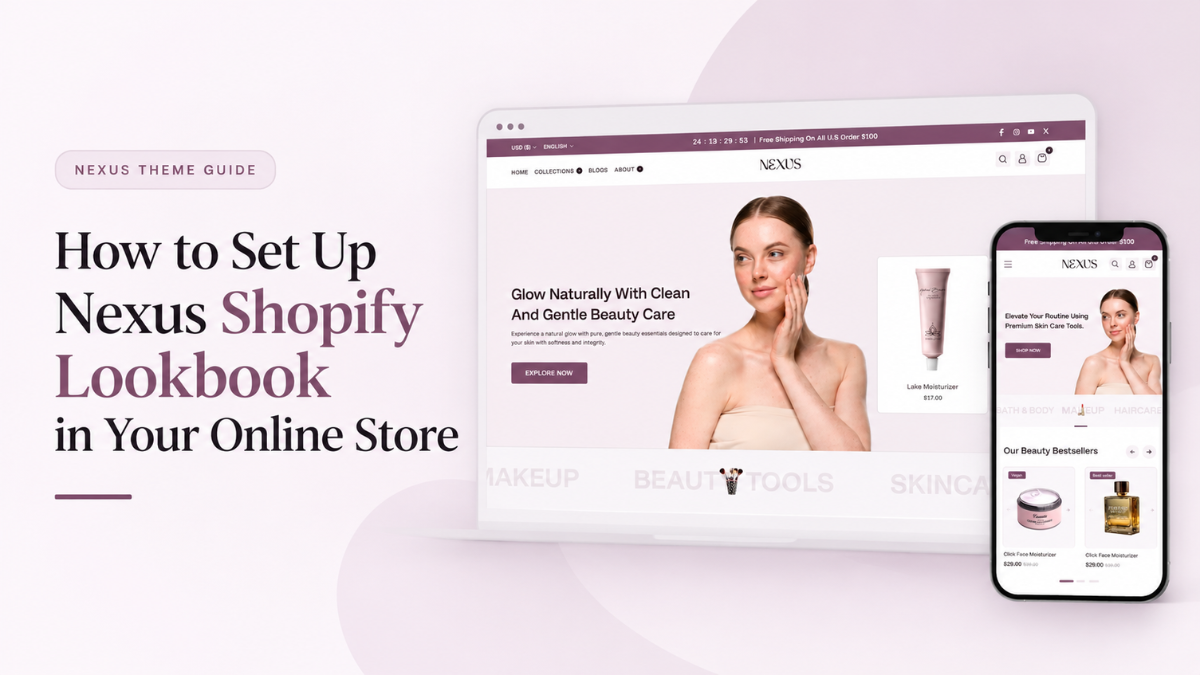
A visually appealing online store helps beauty brands showcase their products and inspire customers to explore different looks, routines, and styles. A Shopify lookbook makes this easier by presenting products through engaging images that highlight how items work together. Whether you sell skincare, makeup, haircare, or beauty accessories, a lookbook can help customers discover products and find inspiration for their next purchase. Choosing from premium Shopify themes with built-in lookbook sections can also help you create an attractive and engaging shopping experience.
The Nexus Shopify Theme offers a lookbook section that allows you to display product imagery and create a more engaging shopping experience. In this blog, you will learn how to set up the Shopify lookbook in your beauty online store, explore its benefits, and use it to showcase your products effectively.
What Is a Shopify Lookbook?
A Shopify lookbook is a visual merchandising tool that allows online store owners to present their products through carefully curated images, lifestyle photography, and themed collections. Instead of displaying individual products in a traditional product grid, a lookbook brings products together in a visual context, helping customers understand how different items can be used, combined, or incorporated into their daily routines.
For a beauty store, this approach can be particularly useful because customers often look for inspiration before choosing products. For example, a skincare brand can create a lookbook featuring a morning skincare routine, showcasing a cleanser, toner, serum, and moisturizer in a coordinated visual presentation. Similarly, a cosmetics Shopify store can display a complete party makeup look featuring foundation, eyeshadow, lipstick, and blush.
A well-organized lookbook connects these visual ideas with relevant products, allowing shoppers to explore the items featured in each image. Depending on the theme’s functionality and configuration, merchants can link lookbook images to product pages or collections, making it easier for visitors to move from inspiration to product discovery.
Shopify lookbooks can also support different merchandising strategies. Beauty brands can organize their visuals around seasonal trends, skin concerns, product launches, special occasions, or curated beauty routines. This gives customers a more contextual way to explore a store’s offerings rather than relying entirely on product names and category filters.
Benefits of Using a Shopify Lookbook for Your Beauty Store
Adding a lookbook to your beauty store offers several advantages beyond visual presentation.
- Showcase products in real-life contexts: Lifestyle images demonstrate how beauty products fit into skincare routines, makeup applications, and everyday grooming habits.
- Encourage complementary product discovery: Featuring multiple products within a coordinated look can introduce shoppers to related items they might not have considered purchasing together.
- Strengthen brand identity: Consistent photography, color palettes, and visual themes help communicate your brand’s personality and create a recognizable storefront.
- Make browsing more engaging: Image-led presentations give customers another way to explore your catalog, especially when they prefer visual inspiration over browsing conventional product listings.
- Support seasonal campaigns: Create dedicated lookbooks for summer skincare, winter hydration, festive makeup, or bridal beauty collections to align your merchandising with customer interests.
- Simplify the path to product pages: When images are linked to relevant products or collections, interested shoppers can navigate directly to the items they want to explore.
By combining attractive imagery with relevant product links, a Shopify lookbook can make your beauty store more informative, visually cohesive, and easier to explore. The next step is choosing a theme that supports the lookbook experience you want to create.
How to Set Up a Nexus Shopify Lookbook in Your Beauty Online Store
The Nexus Shopify Theme by SAMS IT Services includes a built-in Shopify Lookbook section that allows you to create image-based product showcases directly through the Shopify theme editor. You can customize the section’s layout, headings, colors, spacing, and individual look cards. The lookbook also supports interactive product hotspots, allowing you to feature products within your images.
Follow these steps to set up and customize the Shopify Lookbook for your beauty online store.
Step 1 Install the Nexus Shopify Theme
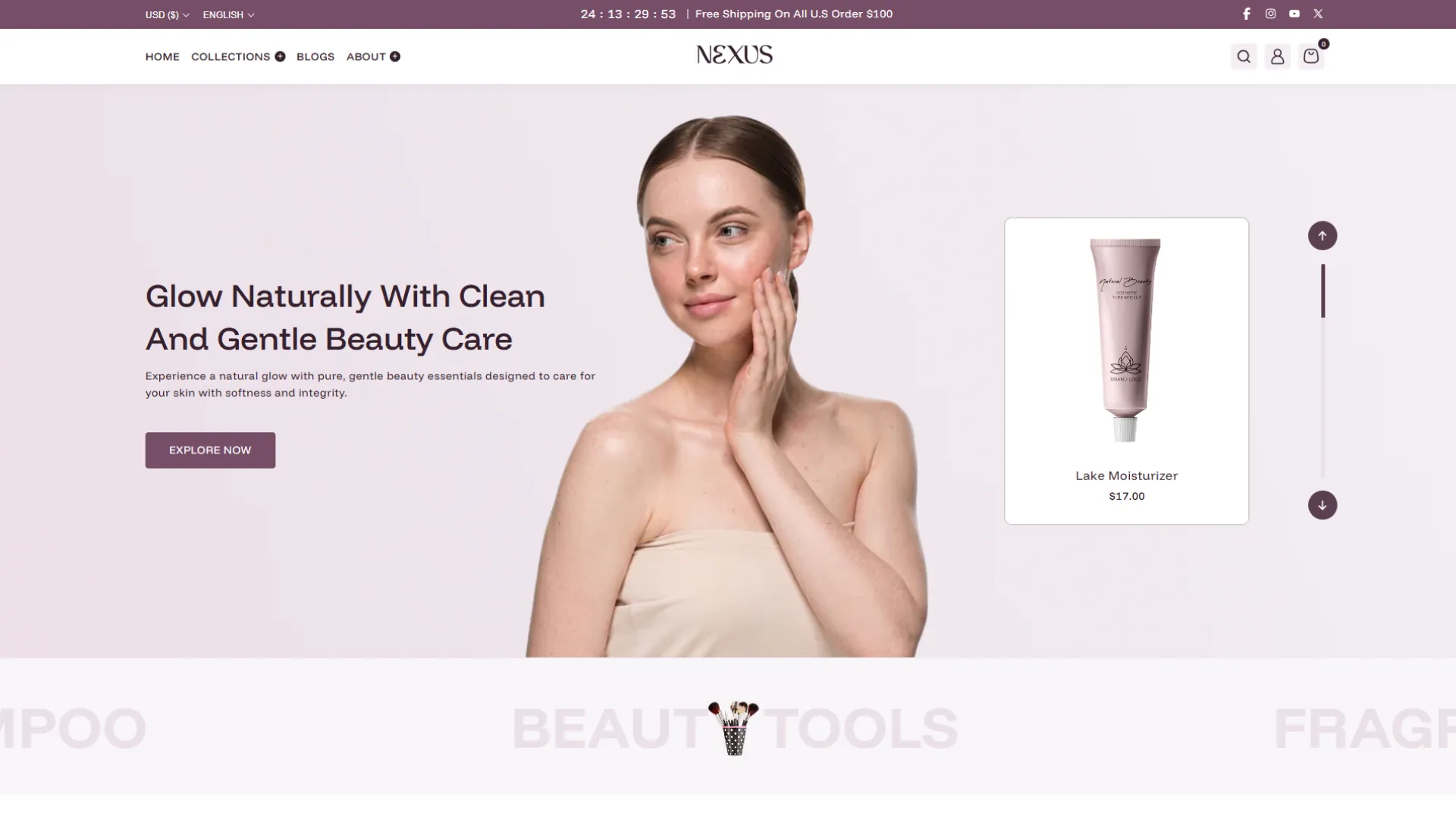
To begin, install the Nexus Beauty Shopify Theme in your Shopify store. Nexus is a premium Shopify theme developed by SAMS IT Services, offering storefront customization options and sections designed to help merchants present their products effectively. Its built-in Shopify Lookbook feature allows you to create visual product showcases without having to build the entire layout from scratch.
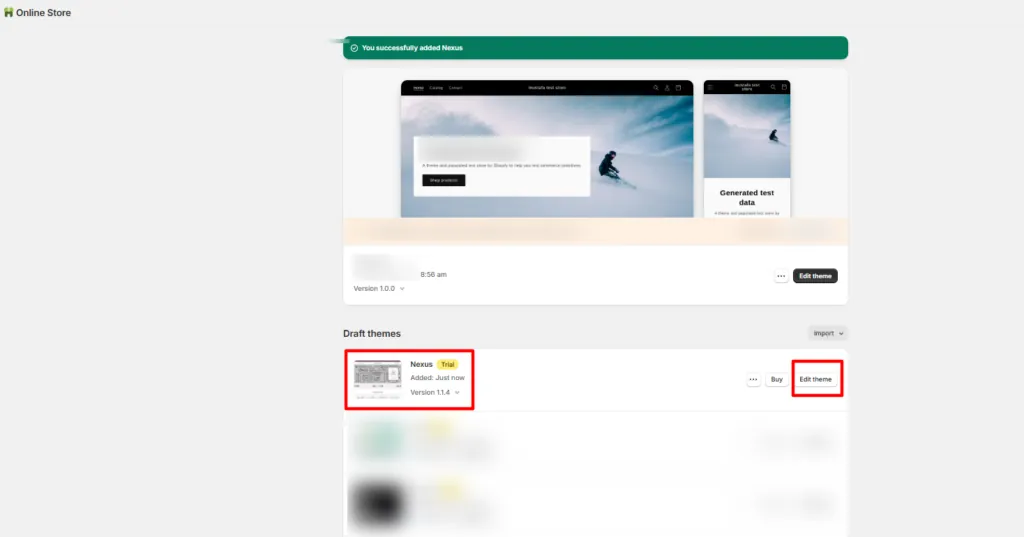
Once you have installed the theme, open your Shopify admin and navigate to Online Store > Themes. Locate Nexus and open its theme editor using the Customize option. If you are still preparing your storefront, you can configure the lookbook in your theme preview before publishing the theme to your live store.
Before moving forward, prepare high-quality images of your beauty products, skincare routines, makeup looks, or lifestyle photography. These images will form the foundation of your lookbook and help you create a cohesive visual presentation.
Step 2 Open the Shopify Theme Editor and Select the Lookbook Section
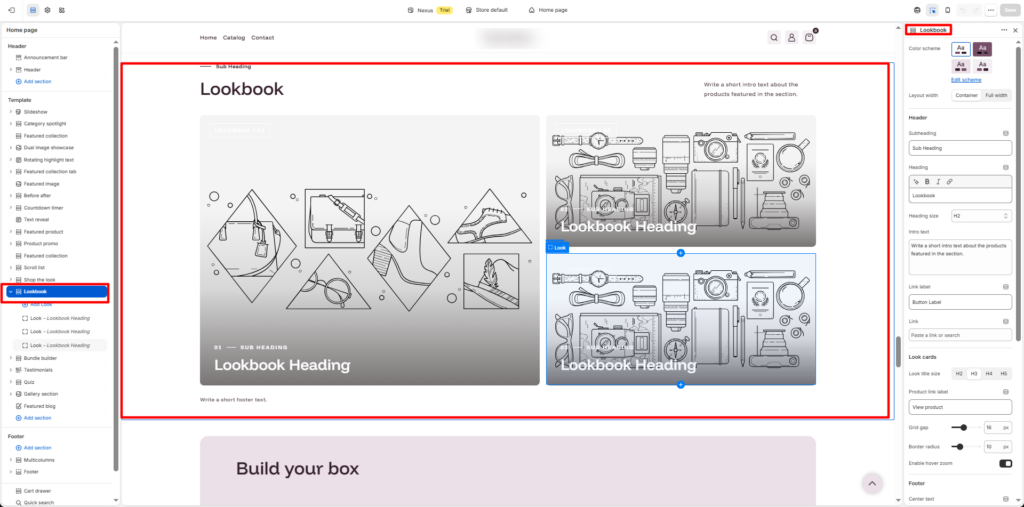
After opening the Nexus theme editor, navigate to the homepage using the page selector at the top of the editor. In the left-hand sidebar, locate the Lookbook section among the available homepage sections.
Click the Lookbook section to open its settings in the right-hand sidebar. This panel contains the controls you need to customize the overall appearance and behavior of your Shopify Lookbook.
From here, you can adjust the layout, color scheme, headings, look cards, product hotspot styling, footer links, and spacing. Start by configuring the main section settings before creating individual looks. This helps establish a consistent design that complements the rest of your beauty store.
Step 3 Configure the Main Shopify Lookbook Settings
The main Lookbook settings control how the entire section appears on your storefront. You can use these options to align the section with your brand identity, introduce the featured products, and guide shoppers toward relevant collections.
Customize the color scheme and layout width
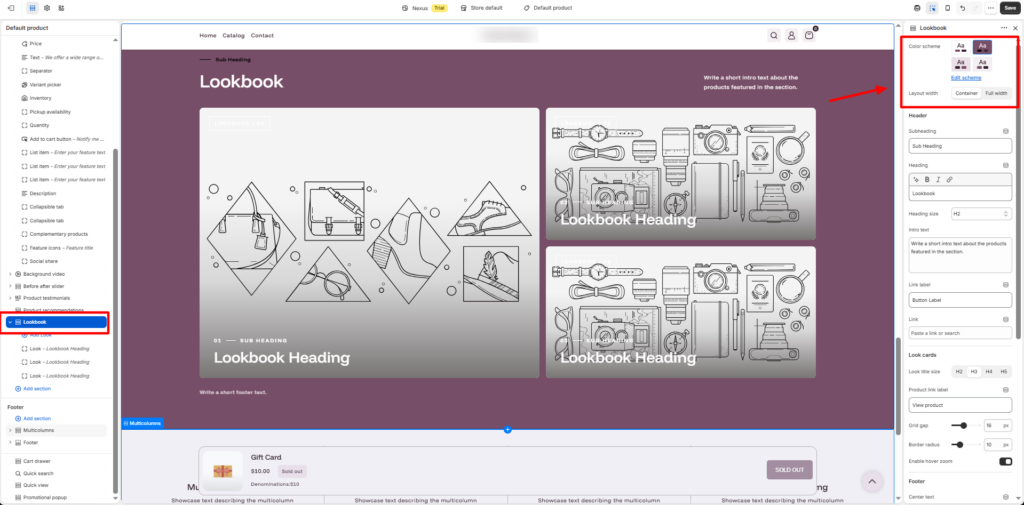
Begin by selecting a Color scheme that complements your beauty store’s branding. For example, a skincare brand might use soft neutral tones, while a cosmetics store might choose a more contrasting palette to make its product imagery stand out.
You can also adjust the Layout width to control how much horizontal space the section occupies.
- Container: Keeps the lookbook within the theme’s defined content width, creating a balanced layout with consistent margins.
- Full width: Allows the section to extend across more of the available screen width, giving your images greater visual prominence.
Choose the layout that works best with your images and the overall structure of your homepage.
Add a heading and introductory text
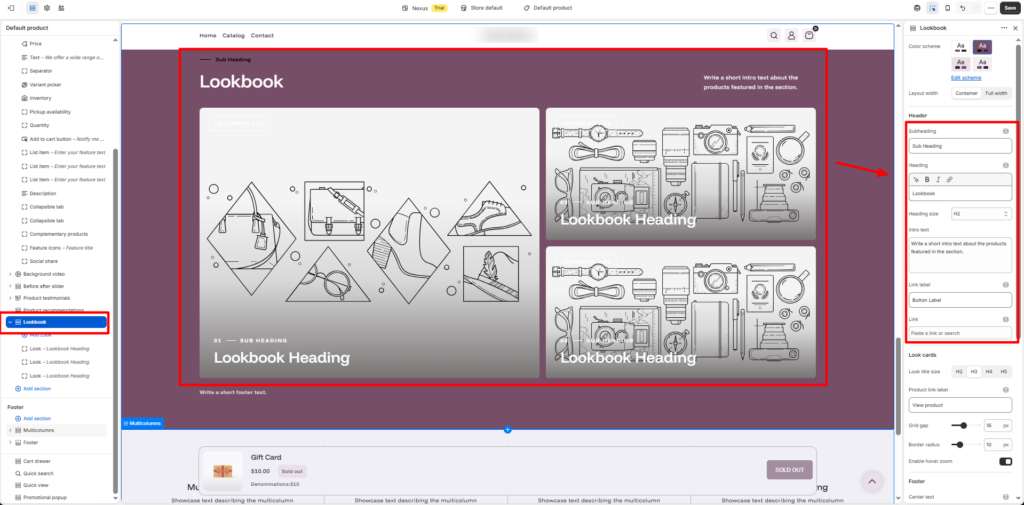
Next, configure the Header settings to introduce the lookbook to your customers. The Nexus theme provides options for a subheading, heading, heading size, introductory text, and a link.
Use the subheading to identify the collection or theme, then write a clear heading that encourages visitors to explore the featured beauty products.
For example, you could use the following content:
- Subheading: The Beauty Edit
- Heading: Discover Your Everyday Glow
- Intro text: Explore our curated skincare essentials and beauty favorites for your daily routine.
- Link label: Explore Collections
- Link: Select the relevant beauty collection or destination in your store.
The introductory text should briefly explain what shoppers will find in the lookbook. Keep it concise so the images remain the main focus of the section.
You can also select the heading size, such as H2, to establish the appropriate visual hierarchy. Choose a size that matches your store’s existing typography and makes the section easy to scan.
Adjust the look card appearance
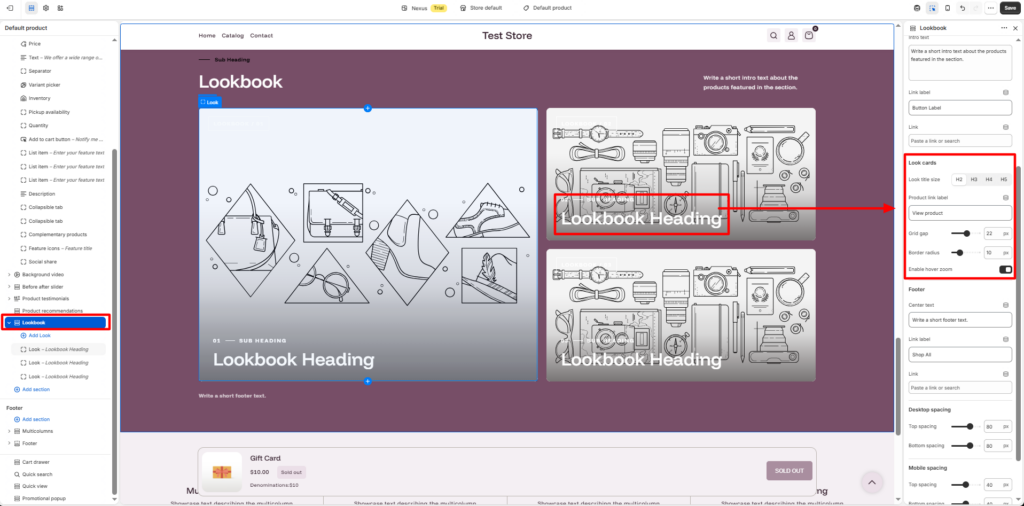
The Look cards settings help you customize the individual cards displayed within the Shopify Lookbook.
Available settings include:
- Look title size: Choose H2, H3, H4, or H5 according to the prominence you want each look title to have.
- Product link label: Customize the text shown for product links, such as “View product.”
- Grid gap: Set the space between look cards. A value of 16 provides a starting point for separating the images without making the layout feel disconnected.
- Border radius: Adjust the rounded corners of the cards. A value of 10 can create a softer appearance for beauty and skincare storefronts.
- Enable hover zoom: Turn on this option if you want images to enlarge slightly when shoppers hover over them on supported devices.
These settings help you maintain a consistent visual style across your lookbook. Use a suitable title size and moderate spacing to ensure the images and text remain easy to view.
Configure the footer
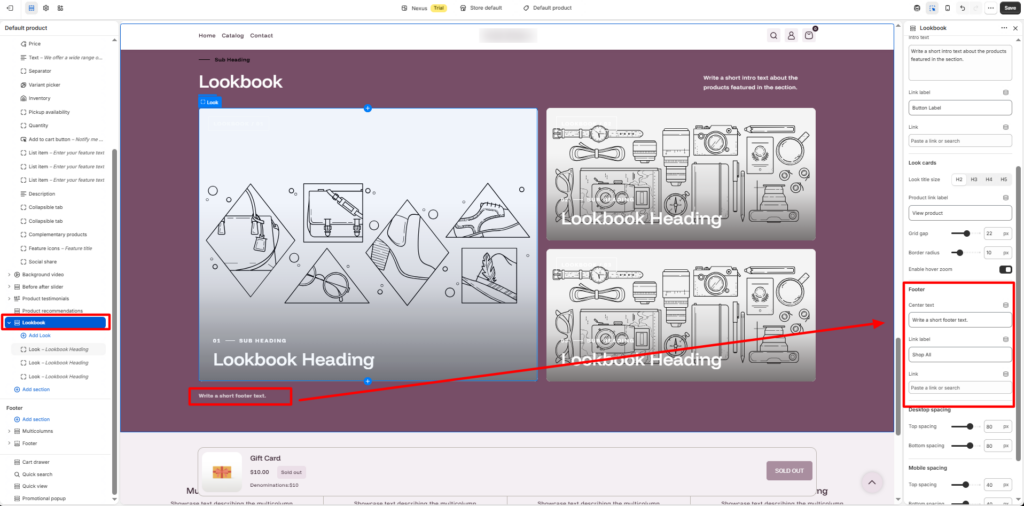
The footer settings allow you to add a closing message and a link beneath the lookbook cards. This is useful when you want visitors to explore the complete beauty collection after viewing the featured looks.
You can configure the following options:
- Center text: Add a short closing message, such as “Made for Your Everyday Beauty Rituals.”
- Link label: Enter a call to action, such as “Shop All Beauty.”
- Link: Choose the relevant collection or page shoppers should visit when they click the link.
For example, a cosmetics store can direct customers to its complete makeup collection, while a skincare store can link to its skincare essentials page.
Set desktop and mobile spacing
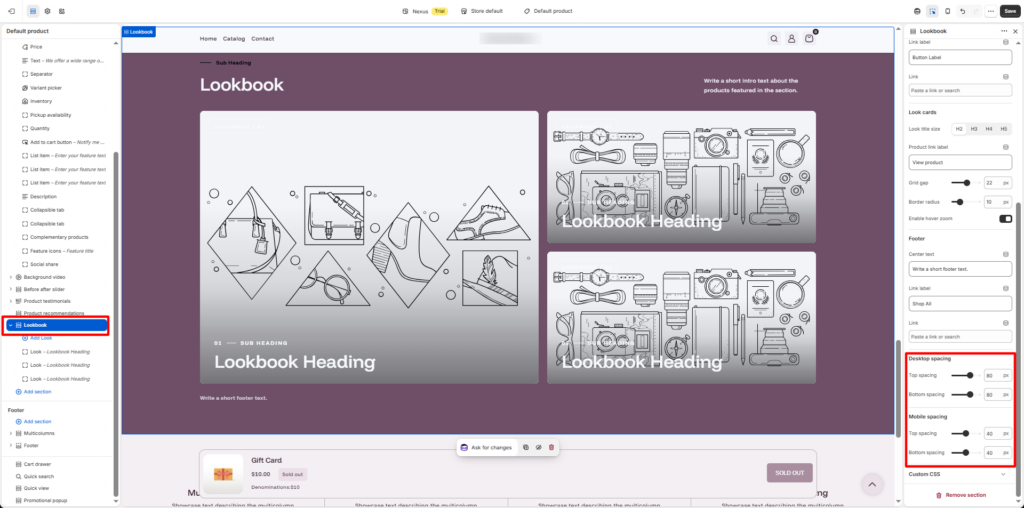
The Nexus theme also provides separate spacing controls for desktop and mobile devices. These settings help you create appropriate separation between the lookbook and neighboring homepage sections.
Under Desktop spacing, configure the top and bottom spacing values. You can use a top spacing of 0 and bottom spacing of 40 as a starting point, then adjust them according to the surrounding content.
Under Mobile spacing, configure the top and bottom spacing independently. The default values of 40 for each can provide additional breathing room on smaller screens.
Preview the section at different screen sizes to ensure that it fits naturally into your storefront.
Step 4 Add a Look and Upload Your Beauty Images
Once you have configured the main section, the next step is to create individual looks. In the left-hand sidebar, expand the Lookbook section and click Add Look. This creates a new look block that you can customize independently.
The Nexus Shopify Lookbook supports multiple look blocks, allowing you to present different beauty themes within the same section. For example, you could create one look for everyday skincare, another for hydration essentials, and a third for finishing touches.
Open the newly created look block to access its settings.
Upload an image
Under the Image setting, click Select to upload an image from your files or choose an available free image if that option is suitable for your store.
Choose imagery that communicates the purpose of the look. For example:
- Use a close-up skincare application image for a daily skincare routine.
- Use a coordinated arrangement of serums, moisturizers, and facial oils for a hydration collection.
- Use a makeup portrait to showcase products associated with a particular makeup look.
- Use a beauty lifestyle image to introduce a seasonal collection or new product range.
Select images with suitable dimensions and sufficient resolution so they appear clear on desktop and mobile screens. Consistent lighting, backgrounds, and photography styles can also help your lookbook feel more professional.
Customize the look’s text and labels
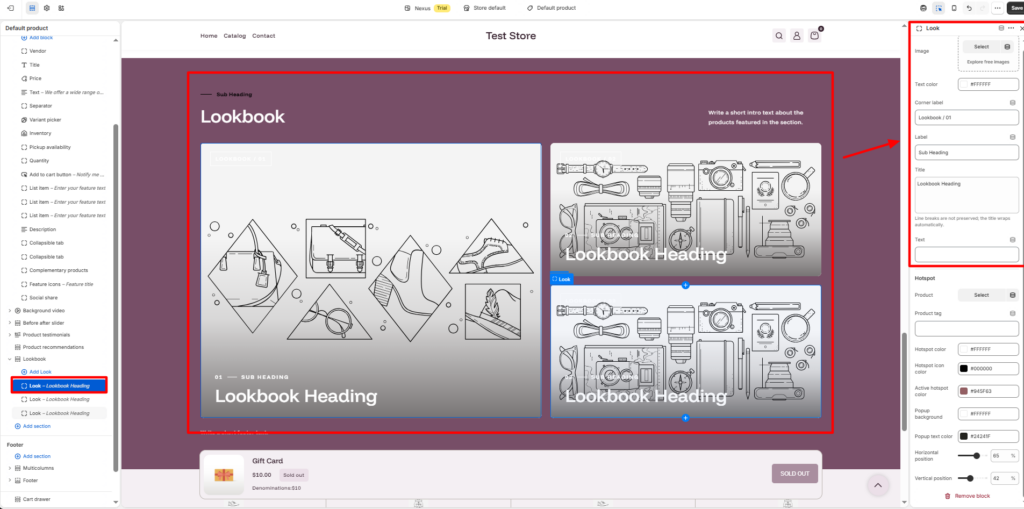
The look block includes several text settings that help you communicate what each image represents.
- Text color: Choose a color that contrasts with the image. White (#FFFFFF) can work well when the image has a darker overlay or background.
- Corner label: Customize the small label displayed on the image, such as “Lookbook / 01.”
- Label: Add a short subheading, such as “Everyday Rituals.”
- Title: Enter the main title for the look, such as “Skin, in Its Best Light.”
- Text: Add a brief description, such as “Discover your daily dose of radiance.”
You can use sequential labels to organize your lookbook into a clear visual story. For example, the first card could introduce a skincare routine, the second could highlight hydration products, and the third could feature the finishing touches.
Keep titles and descriptions concise. The text should explain the featured look without distracting customers from the image.
Step 5 Add Product Hotspots to Your Lookbook Images
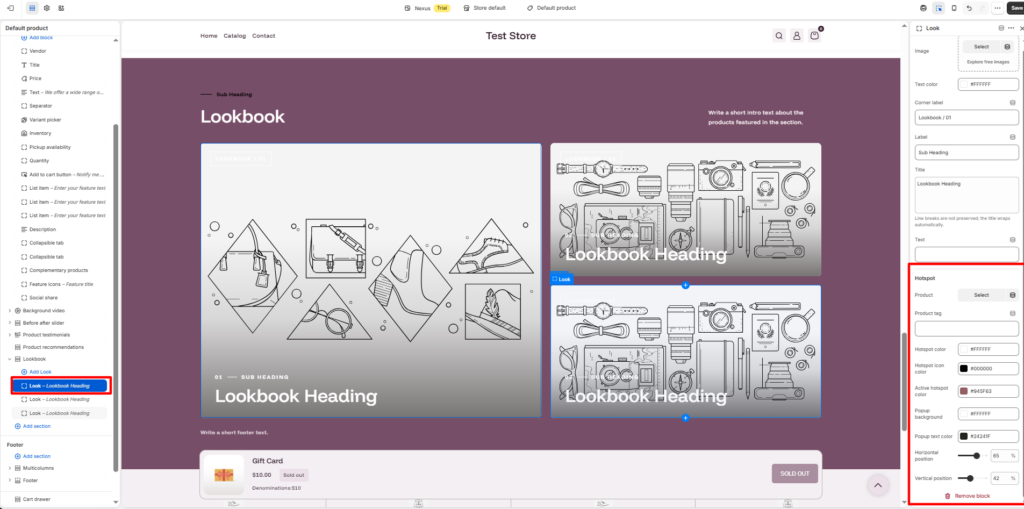
One of the useful features of the Nexus Shopify Lookbook is its product hotspot functionality. Hotspots allow you to place interactive markers over an image, connecting the visual presentation to specific products in your Shopify catalog.
For example, a skincare image might feature a serum bottle, a moisturizer, and a facial cleanser. You can use hotspots to make the products easier for shoppers to identify and explore.
To configure a hotspot, open the relevant look block and locate the Hotspot settings.
Configure the hotspot settings
- Product: Click Select and choose the product from your Shopify catalog that you want to feature.
- Product tag: Add a suitable tag or short product-related label if supported by the field’s configuration.
- Hotspot color: Choose the color of the hotspot marker. White (#FFFFFF) can stand out against darker imagery.
- Hotspot icon color: Set the icon color. Black (#000000) can provide contrast against a white marker.
- Active hotspot color: Customize the marker’s active state. For example, #945F63 provides a muted rose tone that can complement a beauty storefront.
- Popup background: Choose the background color of the product popup. White (#FFFFFF) offers a clean appearance.
- Popup text color: Set the popup text color. A dark shade such as #24241F helps maintain readability.
These styling options allow you to match the hotspots and product popups to your store’s color palette.
Position the hotspots accurately
The Horizontal position and Vertical position settings control where the hotspot appears within the image.
For example, a horizontal position of 65 and a vertical position of 42 can serve as a starting point for positioning a marker toward the right-hand side of an image. The correct values depend on where the featured product appears in your particular photograph.
To position hotspots effectively:
- Identify the exact product you want to highlight.
- Select that product in the hotspot settings.
- Adjust the horizontal and vertical positions until the marker sits near the product.
- Preview the image and test the hotspot interaction.
- Repeat the process for other featured products, where supported by the block configuration.
Accurate placement is important because shoppers should be able to associate each marker with the correct item. Avoid placing hotspots too close together, especially when several beauty products appear in the same image.
Step 6 Create and Customize Additional Lookbook Cards
After finishing the first look, return to the Lookbook section in the left-hand sidebar and click Add Look again to create another look block. Repeat the image, text, and hotspot configuration process for each additional look.
Creating multiple looks allows you to organize your beauty products around different themes instead of presenting every product in a single image.
For example, your Shopify Lookbook could include:
- Look 01: Everyday Rituals featuring cleansers, moisturizers, and daily skincare essentials.
- Look 02: The Hydration Edit featuring hydrating serums, facial oils, and moisturizers.
- Look 03: Finishing Touches featuring makeup products or beauty accessories that complete a routine.
For each look, upload a relevant image, customize the corner label, add a heading and description, and configure product hotspots where appropriate. Adjust hotspot positions individually to match the products in each image.
You can also maintain consistent typography, colors, and image styles across the different cards. This makes the lookbook easier to browse and gives your Shopify beauty store a more cohesive appearance.
Before moving on, check that every product selected in a hotspot matches the item shown in the image and that the text accurately describes the featured collection or routine.
Step 7 Save and Test Your Shopify Lookbook
Once you have configured the main section and all your look blocks, click the Save button in the Shopify theme editor. Saving your changes ensures that your latest configuration is retained in the theme you are editing.
After saving, preview your Shopify Lookbook on the storefront. If you are editing an unpublished theme, remember that you will need to publish that theme before the changes become visible on your live store.
During testing, review the following points:
- Image display: Check that all beauty images load correctly and look sharp.
- Text readability: Make sure headings, labels, and descriptions remain legible against their backgrounds.
- Hotspot placement: Verify that each hotspot appears near the correct product in its image.
- Product selection: Click the hotspots and confirm that they display or link to the intended products as configured.
- Footer links: Test the Shop All or other call-to-action link to ensure it opens the correct collection or page.
- Responsive layout: Preview the section on desktop and mobile to check image cropping, spacing, and text placement.
- Visual consistency: Ensure the lookbook complements the rest of your beauty storefront.
If anything appears out of place, return to the relevant section or look block, adjust the settings, and save your changes again.
Taking time to test the finished section helps you create a Shopify Lookbook that looks polished and makes it easier for customers to explore your beauty products.
Conclusion
Setting up a Shopify Lookbook with the Nexus Shopify Theme is a simple way to showcase your beauty products through engaging visuals. By adding high-quality images, customizing look cards, and connecting products through interactive hotspots, you can help customers explore skincare routines, makeup collections, and beauty essentials.
The Nexus theme by SAMS IT Services also lets you customize layouts, colors, headings, and spacing to match your store’s branding. Once your lookbook is configured, preview it across devices and test all product links. A well-designed lookbook can improve product discovery and create a more engaging shopping experience.
Frequently Asked Questions ( FAQs )
1. What is a Shopify Lookbook?
A Shopify Lookbook is a visual merchandising section that showcases products through curated images, themed collections, and interactive product links. It helps customers discover products in context.
2. Does the Nexus Shopify Theme include a Lookbook feature?
Yes, the Nexus Shopify Theme by SAMS IT Services includes a built-in Lookbook section that you can customize through the Shopify theme editor.
How do I add a Shopify Lookbook to my beauty store?
Install the Nexus theme, open the theme editor, select the Lookbook section on your homepage, customize its settings, add look blocks, upload images, and configure product hotspots.
Can I feature multiple products in a Shopify Lookbook?
The Nexus Lookbook supports multiple look blocks and product hotspot settings. You can create different looks for skincare routines, makeup collections, and beauty essentials. Check the theme’s configuration for the available hotspot options.
Can I customize the design of the Shopify Lookbook in Nexus?
Yes, you can customize the color scheme, layout width, headings, text, image labels, hotspot colors, product popup styling, grid gap, border radius, and desktop and mobile spacing.