
Launching an online food store has never been easier with Shopify and the right theme to showcase your products. Whether you sell fresh groceries, bakery items, organic foods, beverages, snacks, or gourmet specialties, having a professionally designed storefront helps attract customers and increase conversions. The Delicious Shopify Theme is built specifically for food businesses, offering an appetizing design, responsive layouts, product-focused sections, and seamless shopping functionality.
In this guide, you’ll learn How to Create Shopify Food Store with Delicious Shopify Theme through a simple step-by-step process. Set up your Shopify account to customize your store, add products, configure payments, and launch your website. Before getting started, explore different food website templates to understand which layout, features, and design elements best suit your food business. This tutorial covers everything you need to build a successful online food business.
Why Choose Delicious Shopify Theme for Your Food Store?
The Delicious Food Shopify Theme is purpose-built for modern food and beverage businesses. Create an engaging shopping experience while showcasing their products in the most appetizing way possible. The Delicious food Shopify theme provides food-focused layouts and merchandising features that make it easier to present products and create an engaging shopping experience Whether you sell organic groceries, gourmet snacks, bakery items, beverages, frozen foods, health supplements, or specialty ingredients, this premium theme combines stunning visuals with powerful eCommerce functionality to help you grow your brand. Designed as part of the Nexus collection, Delicious focuses on product storytelling, seamless navigation, and conversion optimization, making it an excellent choice for food entrepreneurs who want a professional online presence.
Its responsive design ensures customers enjoy a smooth shopping experience across desktops, tablets, and smartphones. While its flexible customization options allow you to build a unique storefront without touching a single line of code. With advanced merchandising tools, marketing features, and Shopify’s robust infrastructure, the Delicious Shopify Theme provides everything required to launch, manage, and scale a successful online food store.
Key Features of Delicious Shopify Theme
- Immersive Product Showcase: Present ingredients, nutritional information, product benefits, customer reviews, image galleries, videos, and interactive storytelling that encourages customers to make informed purchasing decisions.
- Mobile-First Shopping Experience: Built with a mobile-first approach, the theme offers fast loading pages, intuitive navigation, quick purchasing options, and a seamless checkout experience on every device.
- Complete Food Brand Solution: From startup food businesses to established brands, the theme provides flexible homepage sections, scalable layouts, marketing tools, and performance optimization for long-term growth.
- Advanced Shopping Cart Features: Enhance customer convenience with Quick Buy, Slide-Out Cart, Sticky Cart, Cart Notes, Pre-Orders, In-Store Pickup, Shop Login, and Customer Accounts.
- Powerful Marketing Tools: Increase conversions using promotional banners, countdown timers, promo popups, product badges, trust badges, press coverage sections, blogs, FAQs, and customizable contact forms.
- Outstanding Product Merchandising: Showcase products using image zoom, image rollover effects, color swatches, before-and-after sliders, product tabs, usage instructions, nutritional information, high-resolution galleries, and product videos.
- Excellent Product Discovery: Help shoppers find products faster with enhanced search, mega menus, sticky headers, breadcrumbs, product filtering and sorting, collection navigation, swatch filters, and recommended products.
- Built for Higher Conversions: Features like stock counters, quick view, recommended products, trust badges, sticky cart, and optimized checkout reduce purchase friction and encourage higher average order values.
- SEO and Performance Optimized: The lightweight architecture, responsive layouts, clean code, and fast page loading contribute to better search engine visibility and improved user experience.
- Easy Customization Without Coding: Use Shopify’s Theme Editor to personalize colors, typography, homepage sections, promotional content, and layouts, allowing you to create a store that perfectly matches your food brand identity.
With its powerful features and visually appealing design, the Delicious Shopify Theme provides everything you need to launch a successful online food store. Let’s begin building your store step by step.Top of Form
Steps to Create Shopify Food Store with Delicious Shopify Theme
After selecting the right theme, the next step is setting up your Shopify store and customizing it to reflect your food brand. Follow the guide below to get started.
Step 1: Create a Shopify Account
The first step toward building a successful Shopify Food Store is creating a Shopify account. Shopify is one of the most trusted eCommerce platforms, allowing entrepreneurs to build professional online stores without requiring coding knowledge. Whether you plan to sell fresh fruits, vegetables, bakery items, organic products, beverages, frozen foods, snacks, or gourmet delicacies, Shopify provides all the tools needed to manage your business efficiently. Its intuitive dashboard, secure hosting, and built-in eCommerce features make it an excellent choice for food businesses of every size.
If you plan to sell baked goods online, choosing the best Shopify bakery theme can help you create an attractive storefront that showcases your products effectively.
Below are the steps to follow:
To get started, visit Shopify’s official website and sign up for an account using your email address. Shopify will guide you through a simple onboarding process where you’ll enter your store name, business details, country, and preferred currency. During this stage, choose a unique and memorable store name that reflects your food brand and is easy for customers to recognize. Since this name also influences your store’s URL during setup, selecting the right name from the beginning helps establish a consistent brand identity.
After creating your account, you’ll be redirected to the Shopify Admin Dashboard, which acts as the control center for your Shopify Food Store. From here, you’ll manage products, collections, customers, orders, payments, shipping, discounts, and marketing campaigns. Shopify’s user-friendly interface ensures that even beginners can navigate the dashboard with ease. Before installing the Delicious Shopify Theme, take some time to explore the available settings and familiarize yourself with the platform’s layout. Understanding where everything is located will make the customization process much smoother in the following steps.
You should also complete your store’s basic information before moving forward. This includes adding your business address, contact information, tax details, and preferred currency. Configuring these settings early helps ensure that payments, taxes, and shipping are processed correctly once your store goes live. Additionally, Shopify automatically provides an SSL certificate, secure hosting, and regular platform updates. This allow you to focus entirely on growing your food business instead of worrying about technical maintenance.
What You Should Configure During Account Setup
- Register using a valid email address.
- Choose a unique and memorable food store name.
- Select your country and preferred currency.
- Enter your business information.
- Configure tax settings.
- Add your business address and contact details.
- Explore the Shopify Admin Dashboard.
- Review Shopify’s default settings.
- Familiarize yourself with Products, Orders, Customers, and Analytics sections.
- Prepare your account for theme installation.
Once your Shopify account is fully configured, you’ll have a strong foundation for building your Shopify Food Store. In the next step, you’ll purchase the Delicious Shopify Theme and prepare it for installation. This allow you to transform your store into a visually appealing and conversion-focused online food marketplace.
Step 2: Purchase the Delicious Shopify Theme
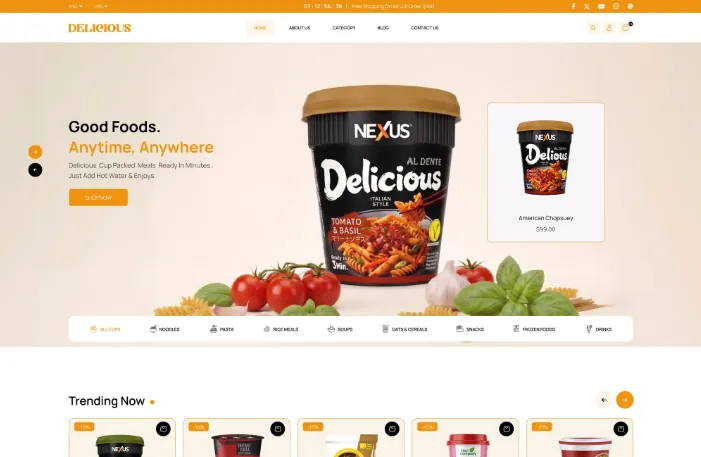
After creating your Shopify account, the next step is to purchase the Delicious Shopify Theme, which is specifically designed to help businesses build an engaging and professional Shopify Food Store. Visit the Shopify Theme Store and search for the Delicious Shopify Theme. Before purchasing, review its features, layout options, and demo store to ensure it aligns with your brand’s requirements. The theme offers immersive product showcases, mobile-first design, advanced product discovery, quick buying options, promotional sections, and flexible customization tools. This makes it an excellent choice for food and beverage businesses.
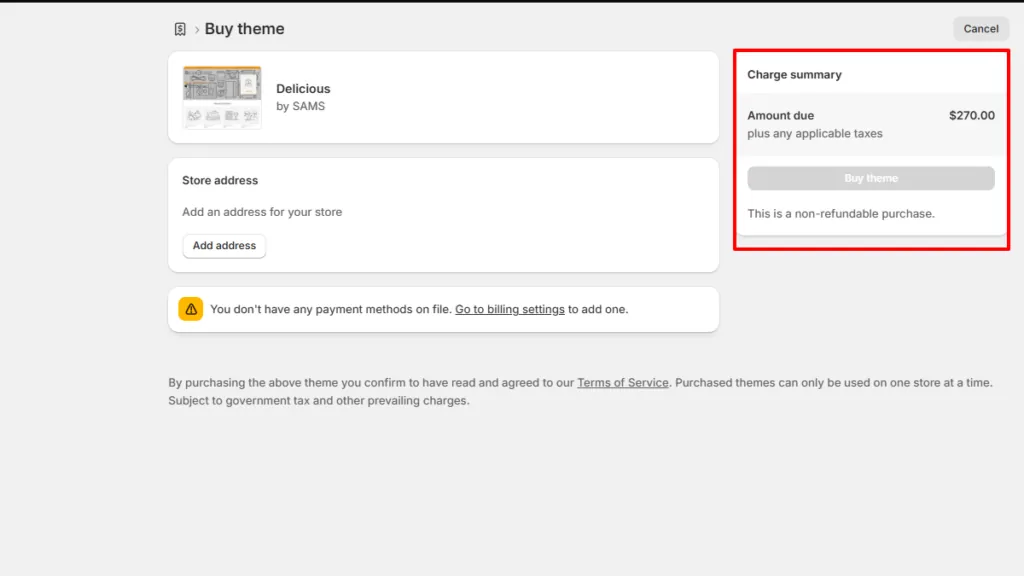
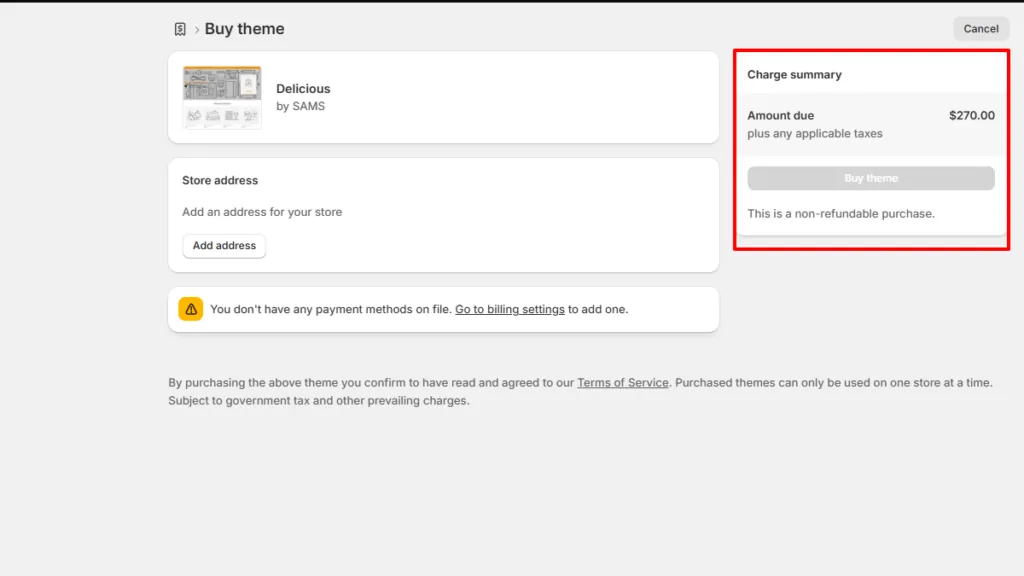
Once you’re satisfied with its design and functionality, complete the purchase using your preferred payment method. After the transaction is successful, the theme will be added to your Shopify account, making it available for installation from your admin dashboard. You can then access the theme from the Online Store > Themes section. There you’ll be able to install, preview, and customize it before publishing. Purchasing the right theme is an important investment, as it forms the visual identity and shopping experience of your Shopify Food Store, helping attract customers and increase conversions.
Step 3: Install the Delicious Shopify Theme
Once you’ve purchased the Delicious Shopify Theme, the next step is to install it and make it the foundation of your Shopify Food Store. From your Shopify Admin Dashboard, navigate to Online Store > Themes, where you’ll find the purchased theme in your theme library. If it hasn’t been added automatically, upload the downloaded theme file by clicking Add Theme and selecting the ZIP file. After the upload is complete, Shopify will install the theme within a few moments.
Before publishing it, use the Preview option to explore the layout and ensure everything displays correctly. This allows you to review the homepage, product pages, collections, navigation, and mobile responsiveness without affecting your live store. Once you’re satisfied, click Publish to make the Delicious Shopify Theme your active storefront. Shopify makes it easy to switch themes whenever needed while keeping your products and store data intact. With the theme successfully installed, your Shopify Food Store is now ready for customization, where you can personalize its design, branding, colors, typography, banners, and homepage sections to match your food business.
Step 4: Customize Your Shopify Food Store Using the Theme Editor
With the Delicious Shopify Theme installed, it’s time to customize your Shopify Food Store to reflect your brand identity and create an engaging shopping experience. Shopify’s built-in Theme Editor makes customization simple through an intuitive drag-and-drop interface, allowing you to modify your store without any coding knowledge. Navigate to Online Store > Themes and click Customize to access the editor. Here, you can personalize every aspect of your storefront, including colors, typography, homepage sections, banners, featured collections, promotional blocks, and product layouts.
Since the Delicious Shopify Theme includes flexible sections specifically designed for food businesses, you can showcase your best-selling products, seasonal offers, ingredients, nutritional information, customer testimonials, and promotional banners to encourage purchases. Replace the default content with your own high-quality images, logo, brand colors, and compelling text to create a consistent and professional appearance. Ensure that your homepage highlights important categories and makes it easy for visitors to discover products quickly.
For merchants who need additional design flexibility, exploring the best Shopify page builder apps can provide more options for creating custom sections and landing pages.
Customize the Following Elements
- Upload your brand logo and favicon.
- Select your brand colors and fonts.
- Replace demo banners with high-quality food images.
- Configure homepage sections and featured collections.
- Add promotional banners and special offers.
- Display customer testimonials and trust badges.
- Customize product cards and collection pages.
- Optimize the mobile view for a seamless shopping experience.
After completing these customizations, your Shopify Food Store will have a unique, visually appealing, and customer-friendly design that is ready for adding products and collections.
Step 5: Add Collections and Food Products
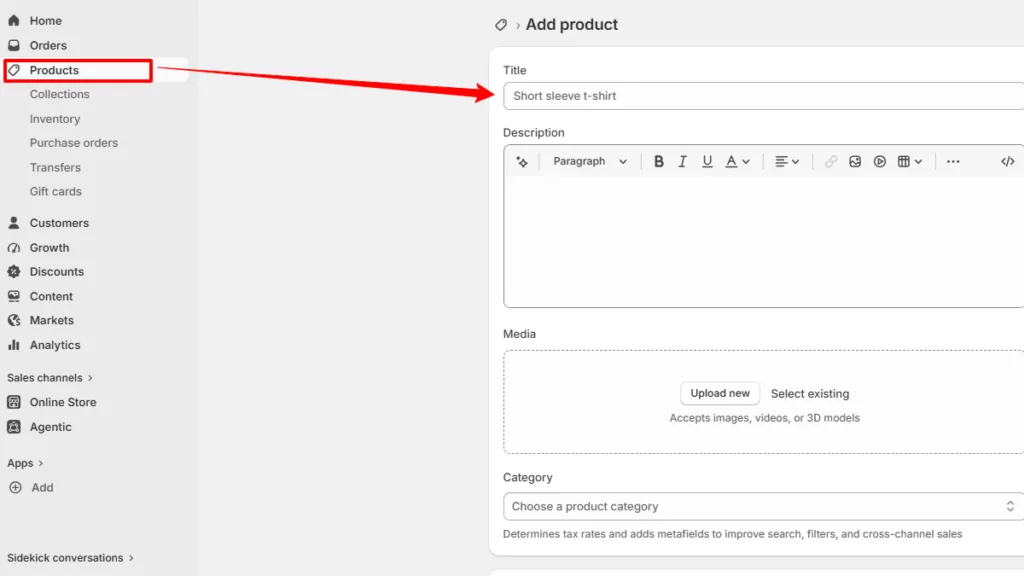
After customizing your storefront, the next step is to populate your Shopify Food Store with well-organized collections and detailed product listings. Proper categorization not only enhances the shopping experience but also helps customers quickly find the products they need. Start by creating collections based on your inventory, such as Fresh Fruits, Vegetables, Bakery Items, Dairy Products, Beverages, Organic Foods, Snacks, Frozen Foods, or Ready-to-Eat Meals. You can create both manual and automated collections depending on how you want to manage your catalog.
Next, add each food product with complete and accurate information. Include a descriptive product title, detailed description, pricing, SKU, inventory details, product variants, and high-resolution images from multiple angles. If applicable, mention ingredients, nutritional facts, allergens, storage instructions, expiration dates, and usage recommendations to help customers make informed purchasing decisions. The Delicious Shopify Theme beautifully displays this information through product tabs, image galleries, and product-focused layouts, making each listing more engaging and informative.
Best Practices for Adding Products
- Create logical product collections.
- Upload high-quality product images.
- Write SEO-friendly product titles and descriptions.
- Add ingredients and nutritional information.
- Configure pricing, inventory, and variants.
- Assign products to relevant collections.
- Add product tags for easier filtering.
- Preview every product page before publishing.
A well-structured product catalog improves navigation, builds customer confidence, and makes your Shopify Food Store more professional, helping increase engagement and conversions.
Step 6: Create Essential Store Pages
Once your products are added, the next step is to create the essential pages that every professional Shopify Food Store should have. These pages provide important information about your business, build customer trust, and ensure compliance with eCommerce regulations. From your Shopify Admin Dashboard, navigate to Online Store > Pages and create pages such as About Us, Contact Us, FAQ, Privacy Policy, Shipping Policy, Return & Refund Policy, and Terms & Conditions. The Delicious Shopify Theme offers clean, responsive page layouts that present this information in a professional and easy-to-read format.
Your About Us page should tell your brand story, mission, and commitment to quality food products. The Contact Us page should include your business address, email, phone number, contact form, and business hours. Policy pages should clearly explain shipping timelines, payment methods, returns, refunds, and data privacy to reduce customer concerns and improve transparency.
Essential Pages to Include
- About Us
- Contact Us
- FAQ
- Privacy Policy
- Shipping Policy
- Return & Refund Policy
- Terms & Conditions
- Store Locator (if applicable)
- Blog
- Customer Reviews or Testimonials
Creating these pages helps establish credibility, improves the user experience, and gives customers the confidence to purchase from your Shopify Food Store.
Step 7: Configure Navigation Menus
With your essential pages and products in place, the next step is to configure clear and intuitive navigation for your Shopify Food Store. A well-structured menu helps customers browse your store effortlessly, discover products faster, and complete purchases with minimal friction. In your Shopify Admin Dashboard, navigate to Online Store > Navigation to create and manage your store’s menus. The Delicious Shopify Theme supports advanced navigation features such as a Mega Menu, sticky header, breadcrumbs, and collection-based navigation, making it easy to organize large product catalogs.
Begin by creating a primary menu that includes links to your homepage, product collections, About Us, Blog, Contact Us, and other essential pages. If you offer multiple product categories, use the Mega Menu to group related items such as Fruits, Vegetables, Dairy, Bakery, Snacks, and Beverages under a single dropdown. This improves accessibility and enhances the shopping experience. You should also configure the footer menu with links to your policies, FAQs, shipping information, and customer support pages.
An intuitive navigation structure helps visitors explore your Shopify Food Store with ease, increasing engagement, improving usability, and encouraging higher conversion rates.
Step 8: Set Up Payment Gateways and Shipping Options
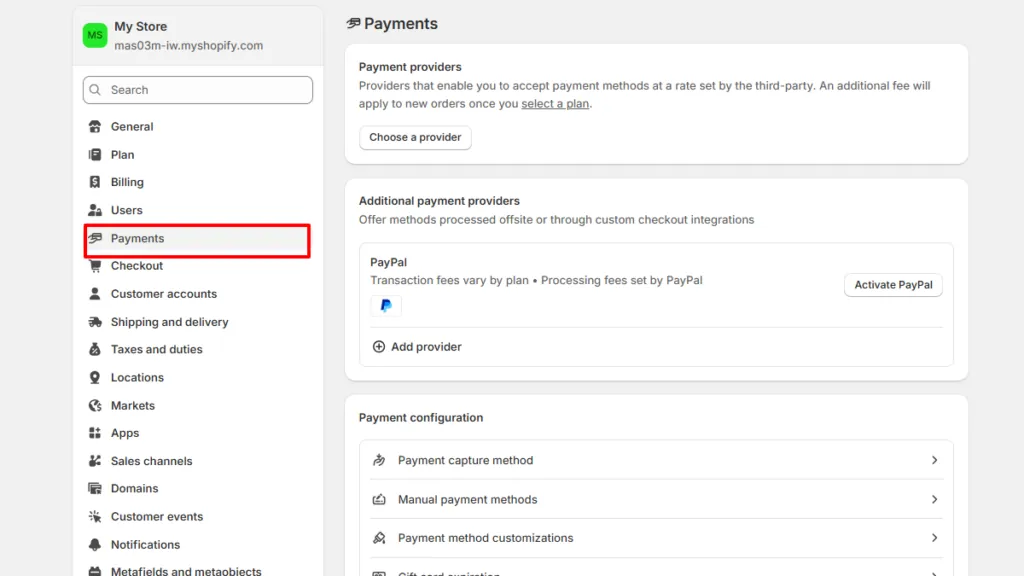
The next step is to configure secure payment gateways and shipping options for your Shopify Food Store. A smooth checkout process is essential for building customer trust and reducing cart abandonment. From your Shopify Admin Dashboard, navigate to Settings > Payments to enable your preferred payment methods. Shopify supports multiple payment gateways, including Shopify Payments, credit and debit cards, digital wallets, PayPal, and various regional payment providers. Choose the options that best suit your target audience and business location.
After configuring payments, set up your shipping settings by going to Settings > Shipping and Delivery. Create shipping zones based on the regions you serve and define shipping rates according to order value, product weight, or delivery location. If you sell perishable food items, consider offering local delivery, store pickup, or express shipping to ensure products reach customers fresh and on time. Clearly communicate delivery timelines and shipping charges during checkout to avoid confusion and improve customer satisfaction. You can also offer Shopify in-store pickup to let local customers collect their orders directly from your physical location.
Payment and Shipping Checklist
- Enable secure payment gateways.
- Accept multiple payment methods.
- Configure shipping zones and delivery rates.
- Offer local delivery or store pickup if applicable.
- Set estimated delivery times.
- Display shipping charges transparently.
- Test the checkout process before launch.
- Verify payment and shipping settings for accuracy.
Properly configured payment and shipping options make your Shopify Food Store reliable, convenient, and ready to deliver an excellent shopping experience from purchase to delivery.
Step 9: Optimize Your Shopify Food Store for SEO and Launch Your Website
Before launching your Shopify Food Store, it’s important to optimize it for search engines and thoroughly test every aspect of the website. Effective SEO helps your store rank higher in search results, driving more organic traffic and increasing sales opportunities. Start by creating SEO-friendly page titles, meta descriptions, and clean URLs for your homepage, collections, products, and blog posts. Naturally incorporate relevant keywords into your product descriptions and headings while ensuring the content remains informative and engaging. Compress images to improve page speed, add descriptive alt text, and use internal links to connect related products and pages for better navigation and indexing.
Next, perform a complete review of your store to ensure everything functions correctly. Test product pages, collection pages, menus, search functionality, contact forms, payment gateways, shipping options, and the checkout process on both desktop and mobile devices. Fix any broken links, spelling errors, or layout inconsistencies before making your store live. If you plan to expand into other niches, a gaming website template can provide a specialized layout for showcasing gaming products, accessories, or digital content.
Pre-Launch Checklist
- Optimize page titles and meta descriptions.
- Use SEO-friendly URLs and keywords.
- Add image alt text and compress images.
- Test navigation and search functionality.
- Verify payment and shipping settings.
- Review product information and pricing.
- Check mobile responsiveness.
- Place a test order to ensure a smooth checkout.
Once everything has been tested and optimized, publish your Shopify Food Store with confidence. A well-optimized and thoroughly tested website provides a professional shopping experience, improves search engine visibility, and positions your business for long-term success.
Conclusion
Creating a successful Shopify Food Store is much easier when you combine Shopify’s powerful eCommerce platform with the feature-rich Delicious Shopify Theme. From setting up your Shopify account and installing the theme to customizing your storefront, adding products, configuring payments, and optimizing your store for SEO, every step contributes to building a professional online food business.
The Delicious Shopify Theme offers a visually appealing design, mobile-first layouts, advanced product discovery, and conversion-focused features that help deliver an exceptional shopping experience. Whether you’re selling fresh produce, bakery items, beverages, organic foods, or gourmet products, this theme provides everything needed to showcase your brand and increase sales. If you’re planning to launch or upgrade your online food business, try the Delicious Shopify Theme and create a stunning, high-performing Shopify Food Store with confidence.
FAQs
1. Is the Delicious Shopify Theme suitable for all types of food businesses?
Yes. The Delicious Shopify Theme is ideal for grocery stores, bakeries, organic food shops, beverage brands, restaurants, snack stores, gourmet food businesses, and many other food-related online stores.
2. Do I need coding knowledge to customize the Delicious Shopify Theme?
No. The theme works seamlessly with Shopify’s intuitive Theme Editor, allowing you to customize layouts, colors, fonts, banners, and sections without writing any code.
3. Is the Delicious Shopify Theme mobile responsive?
Yes. The theme is built with a mobile-first approach, ensuring your Shopify Food Store delivers a smooth browsing and checkout experience across smartphones, tablets, and desktops.
4. Can I optimize my Shopify Food Store for search engines using this theme?
Absolutely. The Delicious Shopify Theme supports SEO best practices, including clean code, fast loading speeds, responsive design, and customizable meta titles and descriptions to help improve search engine visibility.
5. Why should I choose the Delicious Shopify Theme for my Shopify Food Store?
The Delicious Shopify Theme combines attractive food-focused designs, powerful merchandising tools, advanced product discovery, marketing features, and excellent performance, making it an ideal choice for building a professional and conversion-focused Shopify Food Store.