
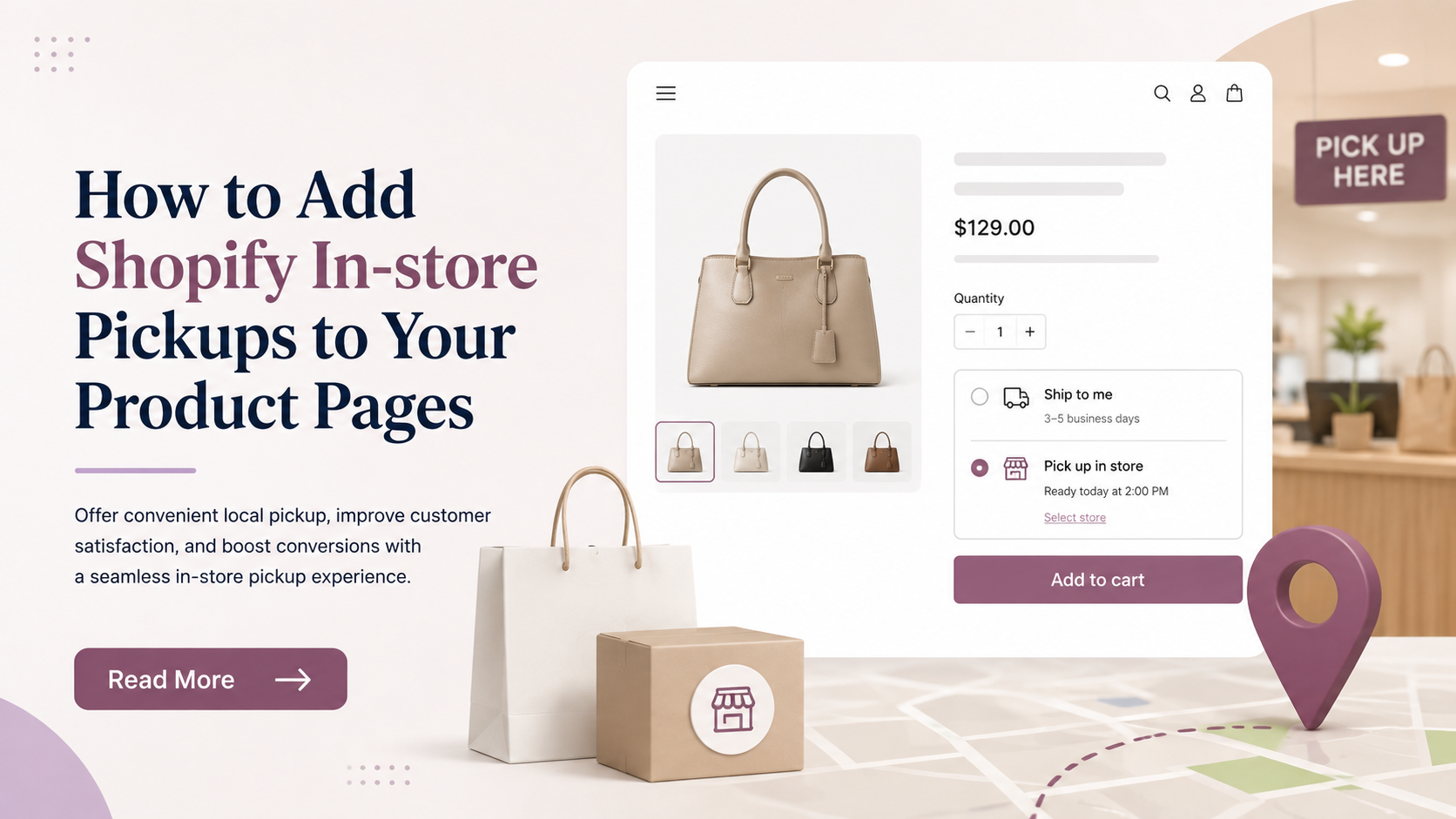
Offering flexible fulfillment options can make shopping more convenient for customers, especially for those who prefer to collect their orders directly from a nearby store. Shopify In-store Pickups allow merchants to offer a buy-online, pick-up-in-store experience without relying entirely on shipping. By showing pickup availability directly on product pages, customers can quickly check whether an item is available at a selected location before placing an order.
This feature can help reduce delivery costs, improve convenience, and create a smoother connection between online and physical retail. In this guide, we will explain the benefits of Shopify In-store Pickups, how the feature works, and how to add it to your product pages.
What Are Shopify In-store Pickups?
Shopify In-store Pickups allow customers to place an order online and collect it directly from a physical store or pickup location instead of having the order shipped to their address. This creates a convenient connection between a Shopify online store and a merchant’s offline retail locations.
When the feature is configured correctly, customers can see whether a product is available for pickup at a particular location. This information can appear directly on the product page through a pickup availability block, depending on the Shopify theme being used.
Shopify In-store Pickups are especially useful for merchants who operate both an online store and one or more physical locations. Customers can browse products online, check local inventory, complete their purchase, and then visit the store once the order is ready.
The pickup process generally works like this:
- The customer visits a product page and checks pickup availability.
- Shopify checks whether the selected product or variant is stocked at an eligible pickup location.
- The customer places the order and chooses pickup during checkout.
- The merchant prepares the order at the selected store.
- The customer receives a notification when the order is ready.
- The customer visits the store and collects the order.
Displaying pickup information on the product page can also help customers make purchasing decisions before reaching checkout. If shoppers know that an item is available nearby, they may be more likely to complete the purchase instead of waiting for delivery.
Benefits of Shopify In-store Pickups
Shopify In-store Pickups give customers more flexibility in how they receive their orders while helping merchants connect their online store with physical retail locations. Instead of relying only on home delivery, customers can place an order online and collect it from a nearby store when it is ready.
Some of the key benefits include:
- Lower shipping costs: Customers can avoid delivery charges by choosing store pickup.
- Faster order fulfillment: Locally available products can often be prepared for pickup sooner than standard shipping.
- Better customer convenience: Shoppers can choose between delivery and pickup based on what works best for them.
- Improved local shopping experience: Customers can check pickup availability before completing their purchase.
- More foot traffic to physical stores: Pickup orders bring online customers into retail locations, creating opportunities for additional purchases.
- Reduced delivery issues: Store pickup can help avoid missed deliveries, address errors, and some shipping delays.
- Stronger omnichannel experience: It connects online ordering, store inventory, and offline collection in one shopping journey.
- Better inventory utilization: Merchants can use stock available at physical locations to support online sales.
- Higher purchase confidence: Showing that a product is available nearby can encourage customers to complete their order.
- More fulfillment flexibility: Merchants can offer customers multiple ways to receive products without depending on a single delivery method.
Overall, Shopify In-store Pickups can make order fulfillment more convenient, reduce delivery dependency, and create a smoother connection between your online store and physical retail locations.
Steps to Set Up Shopify In-store Pickups
Setting up Shopify In-store Pickups allows customers to place an order online and collect it from a physical store location instead of waiting for delivery. The setup involves three main parts: enabling pickup in Shopify settings, making sure product inventory is available at the pickup location, and then displaying pickup availability on the product page.
If you are using the Nexus Shopify Theme, the process becomes even simpler because Nexus already includes a dedicated Pickup availability block for the product page. Once Shopify In-store Pickups are enabled in your Shopify admin, you only need to add this block to the single product page template.
Step 1: Enable Shopify In-store Pickups in Shopify Settings
First, you need to enable pickup for your physical store location from the Shopify admin.
Go to your Shopify dashboard and open:
Settings → Shipping and delivery
Look for the Pickup in store or local pickup section. Select the location where customers will be able to collect their orders and enable the pickup option.
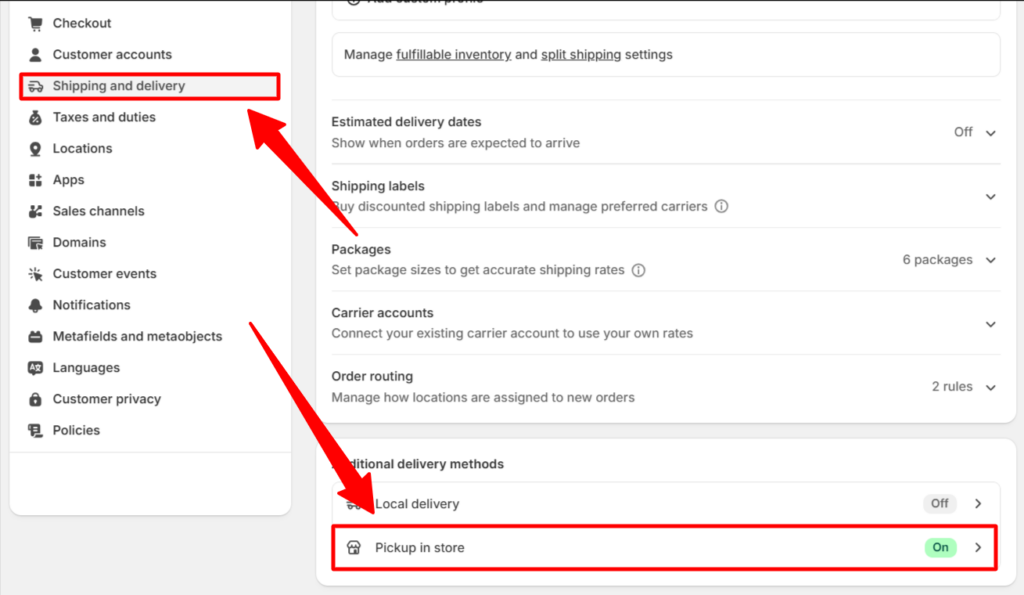
While configuring the pickup location, add the necessary customer-facing information such as:
- Store or pickup location
- Expected preparation time
- Pickup instructions
- Any specific information customers should know before arriving
- Contact or store details, if required
This information helps customers understand where and when they can collect their orders.
Once everything is configured, save the changes.
Step 2: Make Sure the Pickup Location Is Active
Shopify In-store Pickups work through Shopify locations, so the physical store you want to use must be configured as an active location.
Go to:
Settings → Locations
Check that your required store location is available and active. If you operate multiple physical stores, you can configure pickup individually for each eligible location.
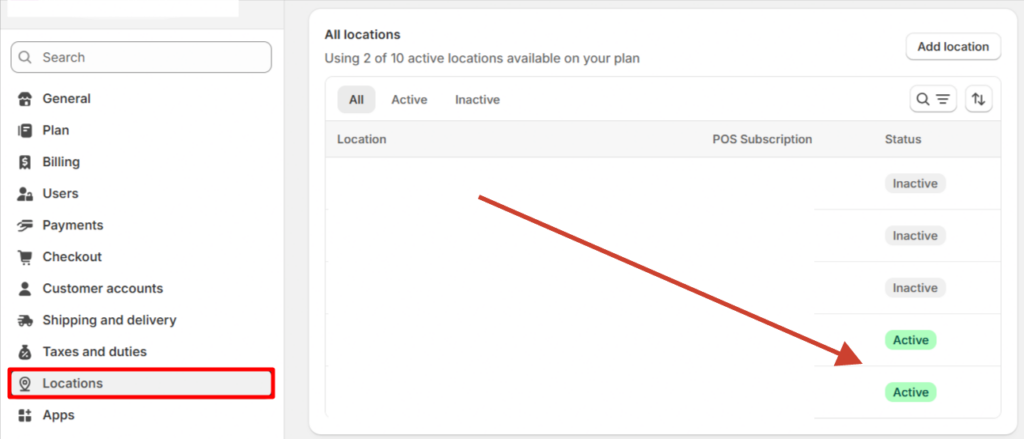
This is important because Shopify uses location information to determine where the selected product is stocked and whether it can be collected from that store.
Step 3: Enable Inventory Tracking for the Product
After enabling pickup, go to the product that you want to make available for in-store collection.
Open:
Shopify Admin → Products → Select Product
Scroll to the inventory area and make sure inventory tracking is enabled.
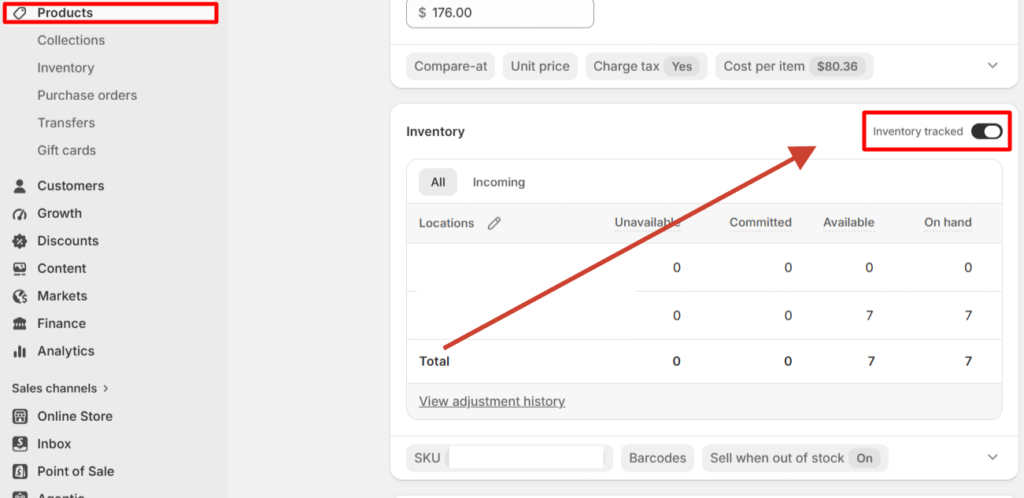
The product must have available inventory at the location where you enabled Shopify In-store Pickups. If Shopify does not detect inventory at the pickup location, it may show the item as unavailable for pickup.
Make sure to:
- Enable inventory tracking
- Assign the product to the correct location
- Add the available stock quantity
- Check inventory for every product variant
- Keep inventory quantities updated
For example, if a Black Leather Bag has five units available at your physical shop location, that inventory should be assigned specifically to that location.
Step 4: Configure Inventory for Product Variants
If your product contains variants such as size, color, style, or material, each variant may have its own inventory quantity.
Open the relevant variant and verify that stock is available at the pickup location.
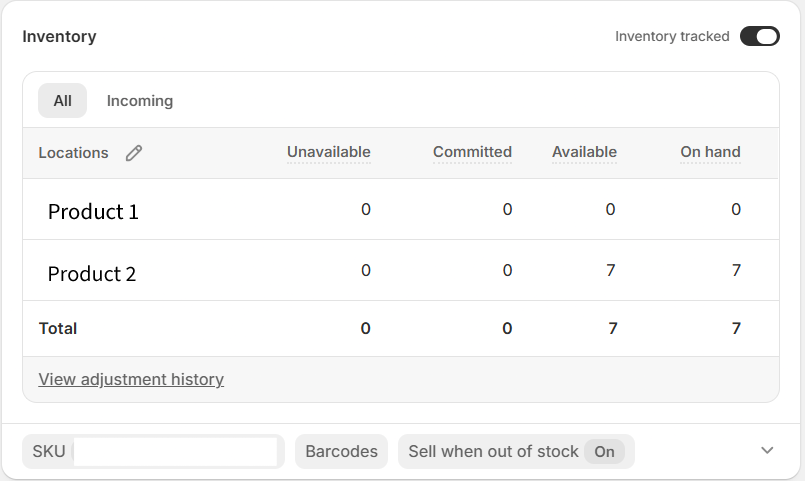
For example:
- Black / Small – 5 available
- Black / Medium – 0 available
- Brown / Small – 3 available
In this case, Shopify may show pickup availability only for the variants that actually have inventory at the pickup location.
Accurate variant inventory is therefore important for displaying correct Shopify In-store Pickups information to customers.
Step 5: Open the Nexus Shopify Theme Editor
Once pickup and inventory settings are configured, you can display the information on your storefront.
The Nexus Shopify Theme already offers a built-in Pickup availability block, so you do not need to create a custom section or install an additional app just to display the pickup status.
Go to:
Online Store → Themes → Nexus → Customize
This will open the Shopify Theme Editor.
Now select the required product page template, such as:
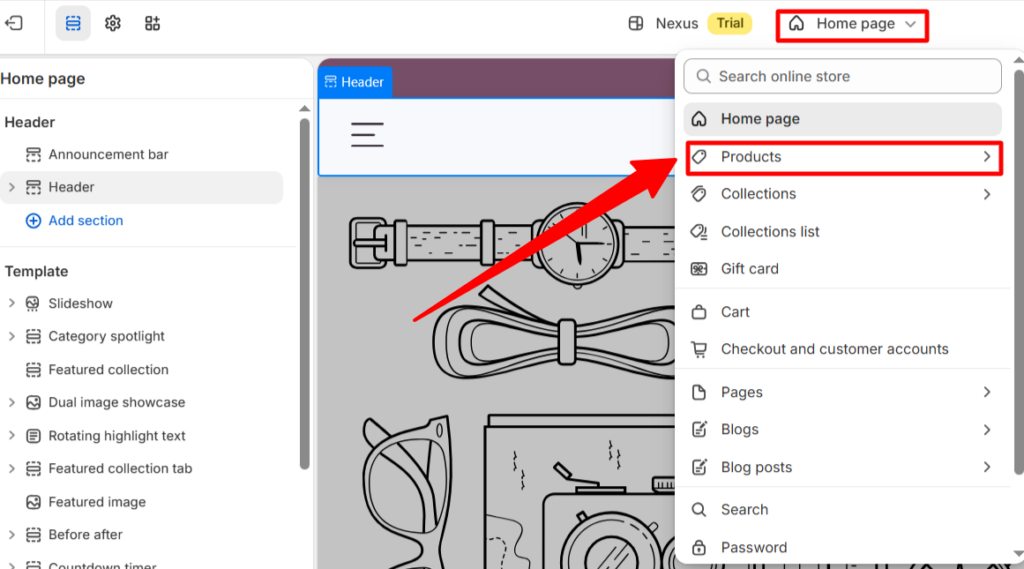
Default product
You will see the product preview along with the available product sections and blocks.
Step 6: Open the Main Product Section
Inside the product template, locate the Main product section from the left-hand sidebar.
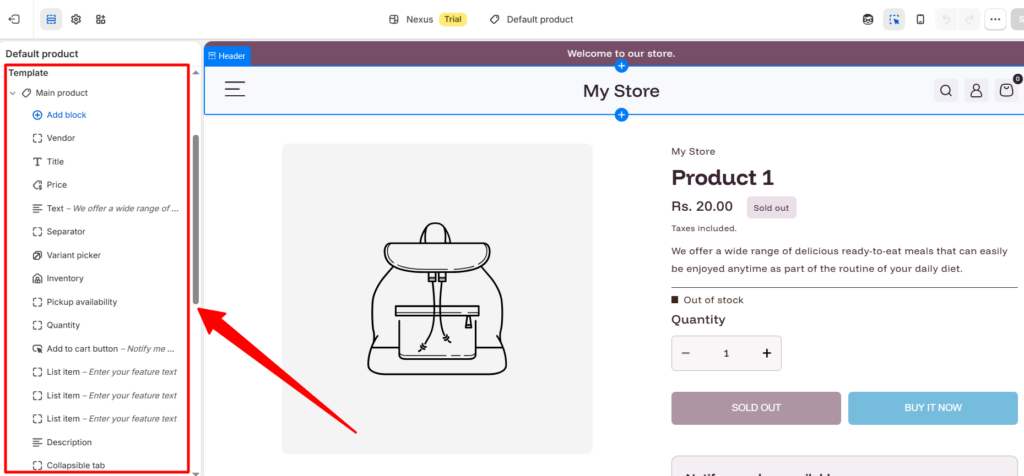
The Main product section contains the blocks that control the primary product information shown on the page, such as:
- Vendor
- Product title
- Price
- Product text
- Variant picker
- Inventory
- Quantity selector
- Add to Cart button
- Pickup availability
Click on Main product to view all available blocks.
Step 7: Add the Shopify In-store Pickups Block
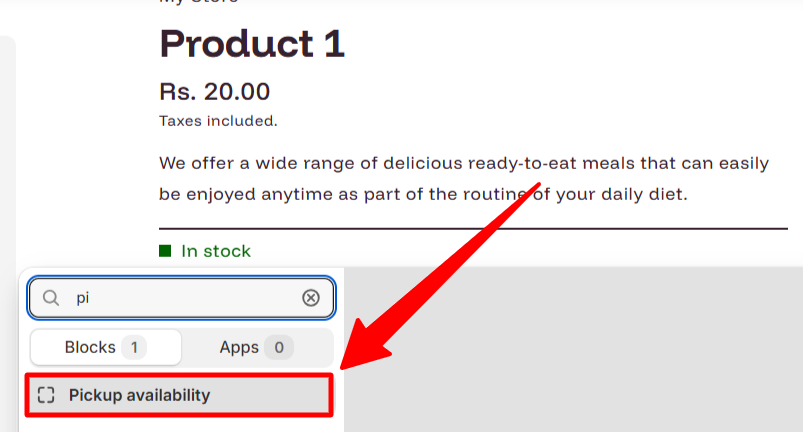
Now click Add block under the Main product section.
Select the Pickup availability block.
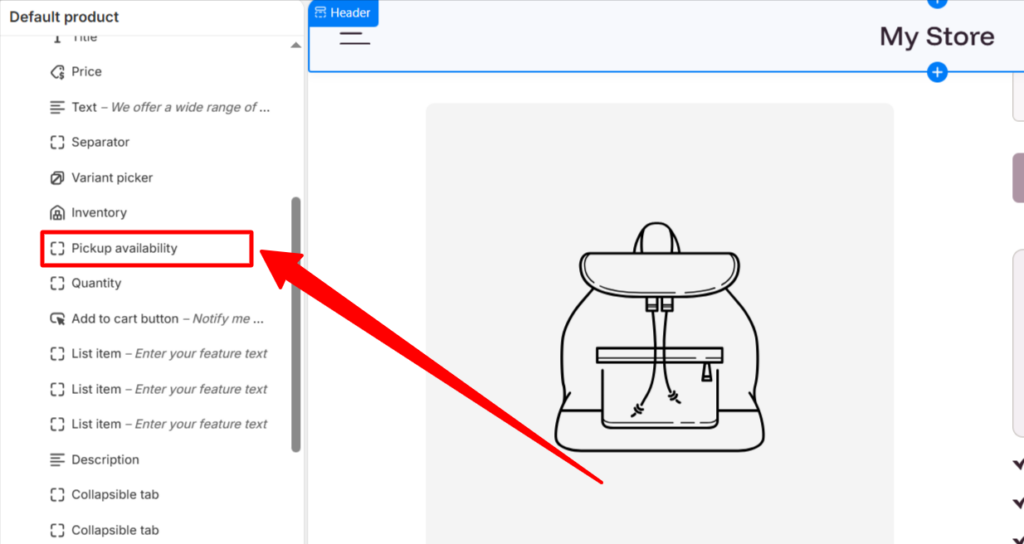
This is the block used by the Nexus Shopify Theme to display Shopify In-store Pickups information directly on the product page.
Once added, you can drag and position the block wherever you want it to appear.
A good position is usually close to the inventory information, variant selector, quantity selector, or Add to Cart button because customers are most likely to check pickup availability while deciding whether to purchase the product.
Step 8: Understand How the Pickup Availability Block Works
Unlike many other theme blocks, the Pickup availability block in the Nexus Shopify Theme does not require extensive manual configuration.
As shown in the theme editor, the block may display a message such as:
Pickup available at Shop location
It can also display an estimated preparation time, such as:
Usually ready in 24 hours
Customers may also get a View store information option where they can check additional details about the pickup location.
The important thing to understand is that this information is primarily controlled by the Shopify In-store Pickups settings and product inventory configuration rather than by settings inside the theme block itself.
This means the block automatically displays the relevant pickup information once Shopify detects that:
- Pickup is enabled for the location
- The product is stocked at that location
- The selected variant is available
- The product is eligible for pickup
Step 9: Position the Block in the Right Place
The placement of the Shopify In-store Pickups block can affect how easily customers notice the option.
In the Nexus Shopify Theme, you can simply drag the Pickup availability block up or down within the Main product section.
For better visibility, consider positioning it:
- Below the inventory status
- Below the variant picker
- Above the quantity selector
- Close to the Add to Cart button
Displaying pickup availability before the customer reaches the purchase button can help them understand their fulfillment options earlier in the buying journey.
Step 10: Save the Product Page Changes
After adding and positioning the Pickup availability block, click Save in the Shopify Theme Editor.
The feature will now be available on product pages that use the selected product template.
If your Shopify store uses multiple product templates, make sure the Pickup availability block is also added to any other templates where you want to display Shopify In-store Pickups.
Step 11: Test Shopify In-store Pickups on the Storefront
Do not rely only on the Theme Editor preview. Open the product page on the live storefront and test the complete experience.
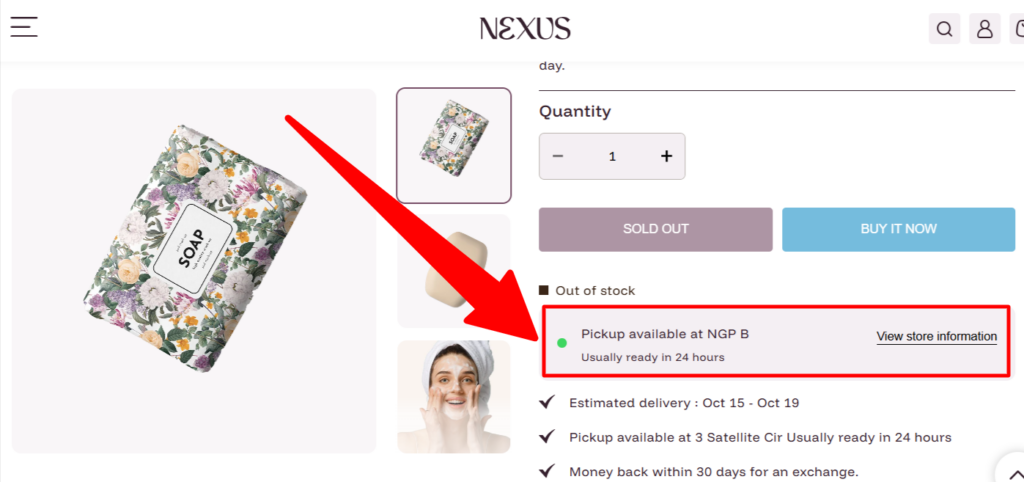
Select a product or variant that has inventory at the pickup location.
Check whether the product page correctly displays information such as:
- Pickup availability
- Pickup location
- Expected preparation time
- Store information
You should also test different product variants because pickup availability may change depending on the inventory assigned to each variant.
Step 12: Check the Customer Checkout Experience
After verifying the product page, add the product to the cart and continue through checkout.
Confirm that eligible customers are able to choose the pickup option where appropriate.
Testing the complete journey helps you identify configuration issues before real customers encounter them.
You should test:
- An in-stock product
- An out-of-stock product
- Different product variants
- Multiple locations, if available
- Pickup and shipping options
Conclusion
Shopify In-store Pickups give customers a convenient way to order products online and collect them from a nearby physical location. For merchants, this feature can reduce shipping dependency, improve fulfillment flexibility, and create a stronger connection between online and offline shopping. Setting it up requires enabling pickup in Shopify settings, assigning inventory to the correct location, and ensuring products are available there.
With the Nexus Shopify Theme, displaying pickup information on product pages is simple because the theme includes a built-in Pickup availability block. Once added, customers can quickly check availability, preparation time, and store information before completing their purchase.
FAQs
1. What are Shopify In-store Pickups?
Shopify In-store Pickups allow customers to buy products online and collect them from an eligible physical store location.
2. How do I enable Shopify In-store Pickups?
Go to Shopify Admin → Settings → Shipping and delivery, then enable pickup for the required store location.
3. Does the Nexus Shopify Theme support in-store pickup?
Yes. The Nexus Shopify Theme includes a built-in Pickup availability block for product pages.
4. Where can I add the Pickup availability block in Nexus?
Open the Theme Editor, go to the product template, select Main product, and add the Pickup availability block.
5. Why is pickup availability not showing?
Check whether pickup is enabled, inventory is assigned to the correct location, and the selected product variant is in stock.
6. Do I need an app for Shopify In-store Pickups?
In many cases, no. Shopify provides the pickup functionality, while compatible themes like Nexus can display pickup availability directly on product pages.
7. Can pickup availability change by product variant?
Yes. Pickup availability can vary depending on the inventory quantity assigned to each product variant at the selected store location.