
A Shopify store can have attractive product pages, well-organized collections, and a smooth checkout design, but these features alone do not guarantee a good shopping experience. If visitors have to wait for pages to load, deal with unresponsive buttons, or struggle with content that keeps moving around the screen, they may leave before completing a purchase. This is where Shopify Core Web Vitals become important. These performance measurements help store owners understand how customers experience their websites in real-world conditions. They highlight issues with loading speed, page responsiveness, and visual stability.
For Shopify merchants, monitoring these metrics is useful for more than technical maintenance. It helps identify performance problems that can affect product discovery, navigation, and the overall shopping journey. This guide explains what these measurements mean, how to check them, and what you can do to improve your store without removing features that customers actually need. You can also explore ways to improve Shopify SEO to support your store’s overall search visibility.
What Are Shopify Core Web Vitals?
Core Web Vitals are a set of performance measurements introduced by Google to evaluate important parts of the user experience on a website. They focus on three areas: how quickly the main content appears, how quickly a page responds to user actions, and whether the layout remains stable while loading. For Shopify stores, these measurements provide useful information about how shoppers interact with different parts of the storefront. Choosing suitable Shopify responsive themes can also help create a consistent browsing experience across mobile and desktop devices.
For example, imagine a customer visiting a product page from a mobile device. The product image takes several seconds to appear, the size selector responds slowly, and a promotional banner pushes the Add to Cart button further down the screen. Each problem creates friction in the buying process. The three Core Web Vitals help identify these different types of problems:
- Largest Contentful Paint (LCP): Measures how quickly the main visible content loads.
- Interaction to Next Paint (INP): Measures how quickly the page responds to user interactions.
- Cumulative Layout Shift (CLS): Measures unexpected movement of page elements during loading and navigation.
Google evaluates these metrics using real visitor experiences, with the recommended targets assessed at the 75th percentile of page loads across mobile and desktop devices.
Three Shopify Core Web Vitals Metrics Merchants Should Monitor
Understanding each metric makes it easier to identify which part of your storefront needs attention. A store might load its images quickly but still have slow buttons or unstable page elements. Therefore, improving one metric does not automatically solve the others.
1. Largest Contentful Paint (LCP)
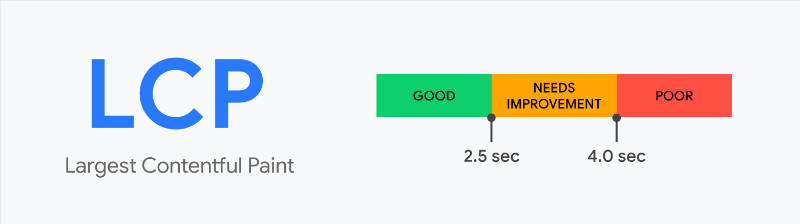
Largest Contentful Paint measures the time it takes for the largest visible content element to appear on the screen. This is commonly a hero image, product image, banner, or large text section. For an ecommerce website, the main product image or homepage banner often plays an important role in this measurement. If these elements take too long to appear, visitors may feel that the store is loading slowly.
Recommended LCP targets:
- Good: 2.5 seconds or less
- Needs improvement: More than 2.5 seconds and up to 4 seconds
- Poor: More than 4 seconds
What can affect LCP on Shopify?
- Large, uncompressed product and banner images.
- Slow-loading fonts and other important resources.
- Unnecessary scripts that delay the main content.
- Heavy homepage sections and background videos.
- Poor prioritization of important visual elements.
2. Interaction to Next Paint (INP)
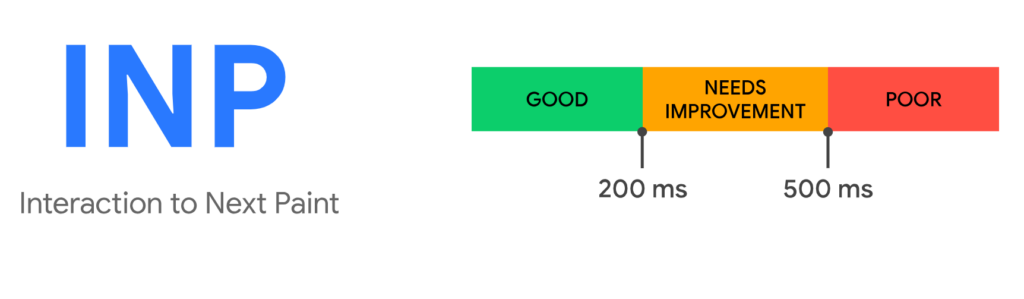
Interaction to Next Paint measures how quickly a website responds when visitors interact with it. It considers actions such as clicking buttons, opening menus, selecting product variants, and using filters. A Shopify storefront might appear fully loaded, but that does not mean every feature is immediately responsive. Merchants can explore Shopify page builder apps to understand the available options for building and managing storefront pages.
Recommended INP targets
- Good: 200 milliseconds or less
- Needs improvement: More than 200 milliseconds and up to 500 milliseconds
- Poor: More than 500 milliseconds
What can affect INP on Shopify?
- Excessive JavaScript running in the background.
- Multiple apps loading scripts on the storefront.
- Complicated theme customizations.
- Unoptimized product filtering and variant selection.
- Third-party tracking and marketing scripts competing for browser resources.
3. Cumulative Layout Shift (CLS)
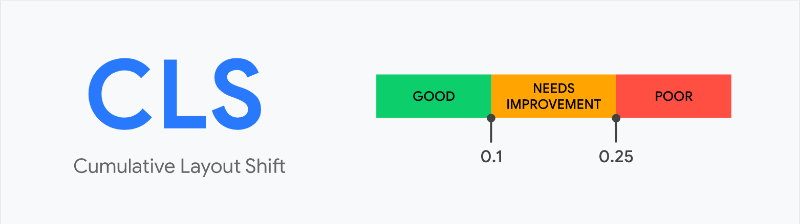
Cumulative Layout Shift measures unexpected movement of elements while a page loads or changes. It helps determine whether visitors can interact with a page without its content suddenly moving. Consider a customer who is about to click the Add to Cart button. A promotional banner appears above it, shifting the button to another position. The customer may accidentally click something else. This is an example of poor visual stability.
Recommended CLS targets:
- Good: 0.1 or less
- Needs improvement: More than 0.1 and up to 0.25
- Poor: More than 0.25
What can cause CLS issues on Shopify?
- Images without reserved dimensions.
- Promotional banners that appear after the main content.
- Fonts that change the size of text after loading.
- Apps that insert pop-ups or announcement bars dynamically.
- Product recommendations that load without reserved space.
Why Should Shopify Store Owners Pay Attention to Core Web Vitals?
Website performance affects how customers experience an online store. Even a visually appealing storefront can create problems when its pages are slow or difficult to interact with. Here are some reasons why monitoring these measurements matters.
A Better Mobile Shopping Experience
Many shoppers browse ecommerce stores using smartphones. Mobile visitors may have different network speeds, screen sizes, and device capabilities than desktop users. A page that performs well on a desktop computer might not offer the same experience on a mobile device. Monitoring mobile performance helps merchants identify issues that could affect product images, navigation, menus, and other shopping features. Selecting appropriate free Shopify website templates can provide a starting point for building a mobile-friendly storefront.
Fewer Interruptions During Shopping
Customers expect important storefront elements to work when they interact with them. Delayed buttons, slow product filters, and unexpected layout movements can interrupt the buying process. Improving responsiveness and visual stability helps make these interactions more predictable.
Support for Search Engine Visibility
Google uses Core Web Vitals as part of its broader page experience considerations. Good performance can support a positive user experience, but it does not guarantee higher search rankings. Search visibility also depends on content relevance, website structure, search intent, and other ranking systems. Merchants should treat performance optimization as one part of a complete SEO strategy rather than relying on a high performance score alone. Using suitable SEO tools for Shopify can help merchants monitor and improve other aspects of their store’s search performance.
Better Use of Store Features
Shopify merchants often use apps, product galleries, promotional banners, reviews, and other features to improve their storefronts. However, these additions can also introduce extra scripts and page elements. Monitoring performance helps merchants understand whether the benefits of a feature justify its effect on the shopping experience. For example, Shopify trust badges can help communicate store credibility, while unnecessary third-party scripts should be reviewed for their performance impact.
How to Check Shopify Core Web Vitals
Before making changes to your theme or removing apps, identify which performance metrics need improvement. Shopify and Google provide tools that can help you evaluate your storefront.
1. Check Shopify’s Built-In Web Performance Reports
Shopify provides web performance reports that show how your storefront performs across the three Core Web Vitals. Follow these steps:
- Log in to your Shopify admin.
- Navigate to Online Store > Themes.
- Find the web performance metric summary.
- Review your LCP, INP, and CLS results.
- Check the available date range to understand how your performance has changed.
- Open individual reports to investigate specific metrics.
You can also access detailed reports through Analytics > Reports. Search for the relevant performance reports to review LCP, INP, and CLS. Shopify allows merchants to investigate performance over time, by page URL, and by page type. This is useful when you want to understand whether an issue affects your entire storefront or only specific templates.
2. Test Individual Pages Using Google PageSpeed Insights
PageSpeed Insights is useful for checking individual storefront URLs and identifying possible performance issues. To use it:
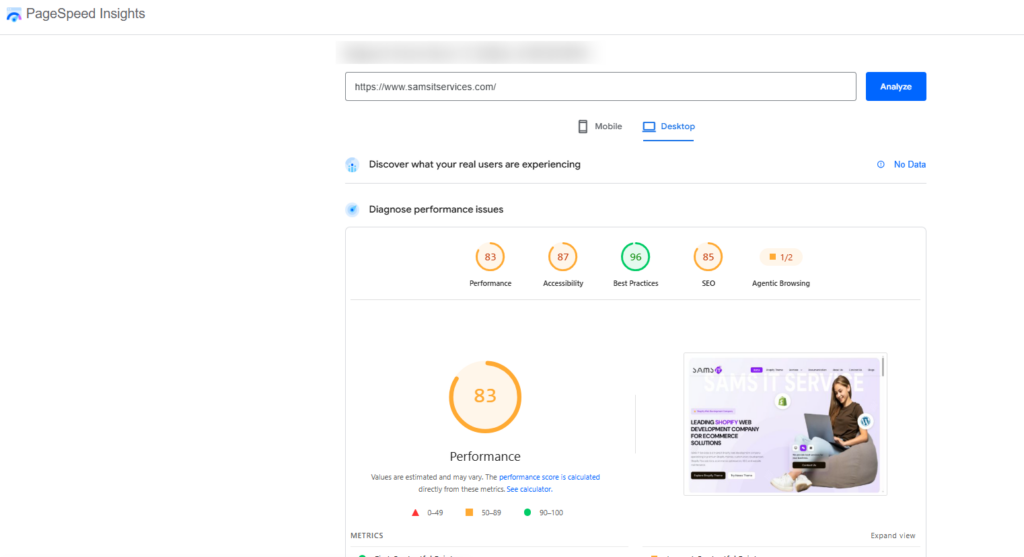
- Open Google PageSpeed Insights.
- Enter your Shopify store URL.
- Select Analyze.
- Review the mobile and desktop results.
- Check the Core Web Vitals assessment.
- Review the diagnostics and suggested improvements.
Instead of testing only your homepage, check other important URLs, including your main collection pages, popular product pages, blog articles, and pages that receive significant traffic. This helps you understand how different page layouts perform and identify which areas of your Shopify store need performance improvements.
3. Use Lighthouse for Technical Investigation
You can use Lighthouse through Chrome DevTools to investigate your Shopify store’s performance. Open your storefront in Google Chrome, right-click anywhere on the page, and select Inspect to open DevTools. Navigate to the Lighthouse tab, choose the appropriate device category, and select the Performance audit. Once you generate the report, review the results to identify performance issues, diagnostics, and possible improvements.
4. Review Google Search Console
Google Search Console provides a Core Web Vitals report based on real-world user experience data. To access it, open your Google Search Console account, select your Shopify website property, and navigate to the Core Web Vitals report. Review mobile and desktop performance separately, identify URL groups marked as Poor or Needs Improvement, and investigate the affected pages to understand their common issues. This report helps you evaluate how visitors experience your website over time instead of relying on the results of a single performance test.
Practical Ways to Improve Shopify Core Web Vitals
Once you understand which metrics need attention, you can begin improving your storefront. It is better to address the actual causes of performance problems rather than making random changes.
1. Optimize Product and Banner Images
Images are an important part of ecommerce websites, but large image files can increase loading time. Shopify merchants often upload high-resolution product photographs, collection banners, and lifestyle images. These visuals help customers understand products, but they should be optimized before being added to the storefront. Consider these practices:
- Use suitable image dimensions for the section where an image appears.
- Compress images without noticeably reducing visual quality.
- Use modern image formats such as WebP or AVIF when supported by your workflow.
- Avoid uploading unnecessarily large images for small display areas.
- Enable lazy loading for images that appear further down the page.
- Avoid lazy loading the main above-the-fold image when it is the LCP element.
For example, if your homepage features a large promotional banner, make sure the image is optimized and prioritized so visitors can see the main content quickly.
2. Review Installed Shopify Apps
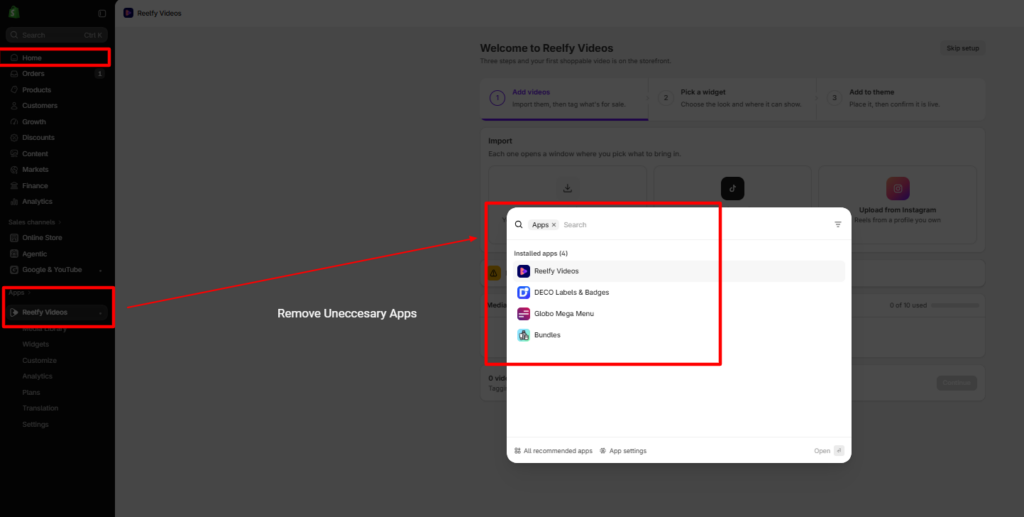
Shopify apps add useful functionality, including product reviews, wishlists, search filters, chat support, and promotional offers. However, some apps add JavaScript, CSS, or external resources to your storefront. When several apps load unnecessary resources, they can affect responsiveness and loading performance. To manage this:
- Open your Shopify admin.
- Navigate to Apps.
- Review the apps currently installed.
- Identify features that are no longer used.
- Remove unnecessary apps.
- Test your storefront after removing an app.
Also, check whether an app leaves behind code after uninstallation. Some integrations require manual cleanup, so review the theme code carefully or consult a Shopify developer before deleting anything. Keep the apps that provide real value to your customers and business operations. The objective is to reduce unnecessary loading, not remove every additional feature. You can also review different Shopify marketing apps and retain only the integrations that support your business goals.
3. Reduce Unnecessary JavaScript
JavaScript supports many interactive storefront features, but too much code can make a page less responsive. Scripts from custom theme features, analytics tools, marketing integrations, and third-party apps may compete for browser resources. You can improve performance by:
- Removing unused scripts and libraries.
- Loading non-essential scripts only when needed.
- Using async or defer where appropriate.
- Reducing unnecessary animations and complex interactions.
- Reviewing custom JavaScript for inefficient operations.
- Avoiding multiple scripts that perform the same task.
For example, a customer support widget may not need to load immediately when someone opens a product page. Depending on the integration, it may be possible to load it after the main page content is ready. Be careful when changing script-loading behavior because some scripts depend on others or need to run at a particular time.
4. Choose a Well-Optimized Shopify Theme
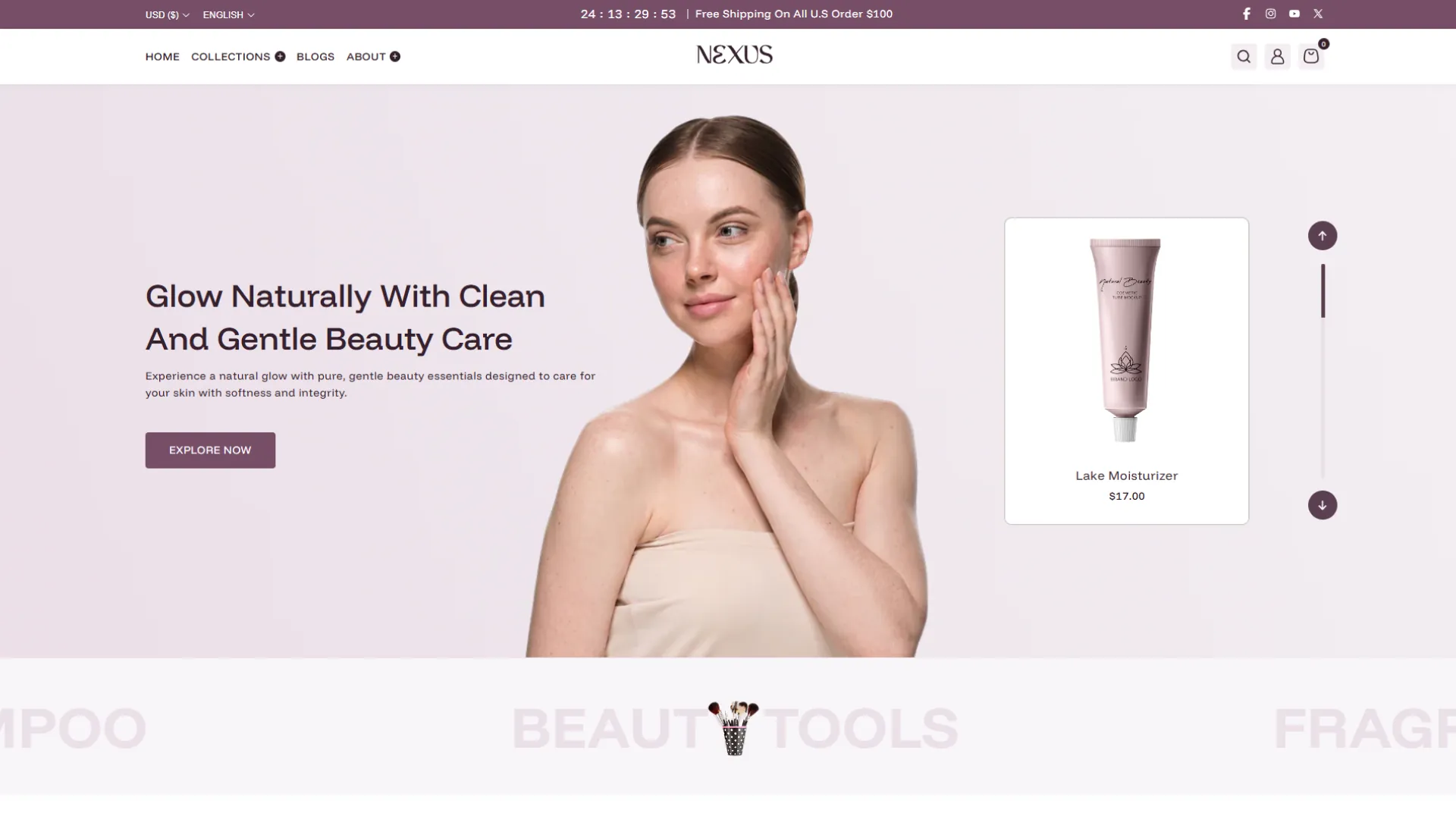
Your Shopify theme plays an important role in your store’s loading speed, layout, navigation, and overall shopping experience. Choosing a well-optimized theme can help improve performance while keeping your storefront visually appealing. For beauty brands, the Nexus Beauty Shopify Theme offers a stylish storefront design that helps showcase skincare, makeup, cosmetics, and other beauty products. Its organized product layouts and attractive sections help create a smooth browsing experience for customers.
- Mobile-friendly layouts.
- Efficient image handling.
- Clean and maintainable code.
- Well-organized product and collection pages.
- Responsive navigation.
- Useful built-in shopping features.
- Compatibility with the apps your store needs.
Avoid choosing a theme based only on its visual appearance. Test its important page templates and check how it behaves on mobile devices. You can explore Shopify premium templates and compare their layouts, features, and customization options before selecting one. Also, remember that customizations and additional apps can change the performance of an otherwise well-built theme.
5. Prevent Unexpected Layout Movements
A visually stable storefront helps visitors interact with page elements without losing their position. To reduce layout shifts:
- Specify image dimensions or aspect ratios.
- Reserve space for promotional banners.
- Set appropriate dimensions for embedded videos.
- Use consistent spaces for dynamically loaded product recommendations.
- Avoid inserting content above existing elements after the page loads.
- Use font-display strategies carefully to reduce unexpected text changes.
For example, if a product review widget appears below the product description, make sure its loading behavior does not unexpectedly push important shopping elements around.
6. Manage Homepage Sections Carefully
A homepage often contains several content sections, including banners, featured collections, product carousels, videos, testimonials, and promotional blocks. Although these sections help communicate your brand, adding too many large elements can increase page complexity. Review your homepage and consider:
- Keeping the most important brand and product information near the top.
- Removing sections that do not contribute to customer decisions.
- Using optimized images for featured collections.
- Loading below-the-fold content when appropriate.
- Avoiding multiple autoplay videos.
- Reducing unnecessary sliders and animations.
A well-organized homepage should make it easy for customers to understand what your store sells and where to find relevant products. Merchants can also learn how to customize a Shopify theme to manage storefront sections and layouts effectively.
7. Improve Font Loading
Custom fonts help maintain consistent branding, but loading multiple font families and weights can increase the number of resources required by a page. To manage fonts effectively:
- Use only the font families needed for your storefront.
- Reduce unnecessary font weights and styles.
- Prefer efficient font formats such as WOFF2.
- Avoid loading duplicate font files.
- Use suitable font-display settings.
- Preload only important fonts when appropriate.
8. Reduce Unnecessary Third-Party Integrations
Third-party tools support analytics, advertising, customer support, reviews, and marketing activities. However, each additional integration can introduce external requests and scripts. Review the integrations connected to your storefront and identify which ones are essential. For example, if your store uses several marketing tools that load similar tracking scripts, check whether all of them are necessary. Consolidating overlapping functionality may reduce unnecessary resource usage. Do not remove important tracking or marketing tools without checking their business purpose and data requirements.
How Often Should You Monitor Shopify Core Web Vitals?
Core Web Vitals should be part of your regular store maintenance process. Performance can change when you install apps, update theme code, upload new content, or introduce additional storefront features. A practical monitoring schedule can include:
- After a theme update: Check whether the new version changes page performance.
- After installing an app: Review the affected pages and test important interactions.
- Before major sales: Check your homepage, collection pages, and popular product pages before promotional campaigns.
- During regular maintenance: Review performance trends monthly.
- After custom development: Test the affected templates and compare results with earlier measurements.
Final Words
Maintaining a well-performing Shopify store requires more than uploading optimized images or choosing a lightweight theme. Merchants need to understand how different storefront elements affect loading speed, responsiveness, and visual stability. Monitoring Shopify Core Web Vitals helps identify performance issues before they become larger problems for customers. Start by reviewing your store’s existing reports, investigating the pages that need attention, and making improvements based on the actual causes.
Focus on keeping important content accessible, interactive elements responsive, and page layouts stable. With regular testing and thoughtful store management, you can create a smoother shopping experience while maintaining the features your customers value. For more practical guidance, explore our Shopify blog resources.
Frequently Asked Questions
1. What are the three main Shopify Core Web Vitals?
The three main metrics are Largest Contentful Paint (LCP), Interaction to Next Paint (INP), and Cumulative Layout Shift (CLS). They measure loading performance, responsiveness, and visual stability, respectively.
2. What is a good Core Web Vitals score for a Shopify store?
A good result means achieving an LCP of 2.5 seconds or less, an INP of 200 milliseconds or less, and a CLS score of 0.1 or less. These targets are evaluated at the 75th percentile of real-user experiences.
3. Can Shopify apps affect Core Web Vitals?
Yes. Some apps add scripts, stylesheets, and external resources that can affect loading speed, responsiveness, or layout stability. Review app usage and test your storefront after installing new integrations.
4. Why are my Shopify Core Web Vitals different on mobile and desktop?
Mobile devices may have slower network connections, less processing power, and different screen dimensions. These differences can affect image loading, script execution, and page interactions. Always review mobile and desktop performance separately.
5. Does a high PageSpeed Insights score guarantee better Google rankings?
No. A high PageSpeed Insights score does not guarantee better rankings. Website performance is one part of Google’s broader search evaluation, alongside content relevance, quality, and other ranking considerations.
6. Can changing my Shopify theme improve Core Web Vitals?
A well-built theme can provide a better starting point for performance optimization. However, the final results also depend on theme customizations, images, apps, scripts, and other storefront elements.