Product Promo
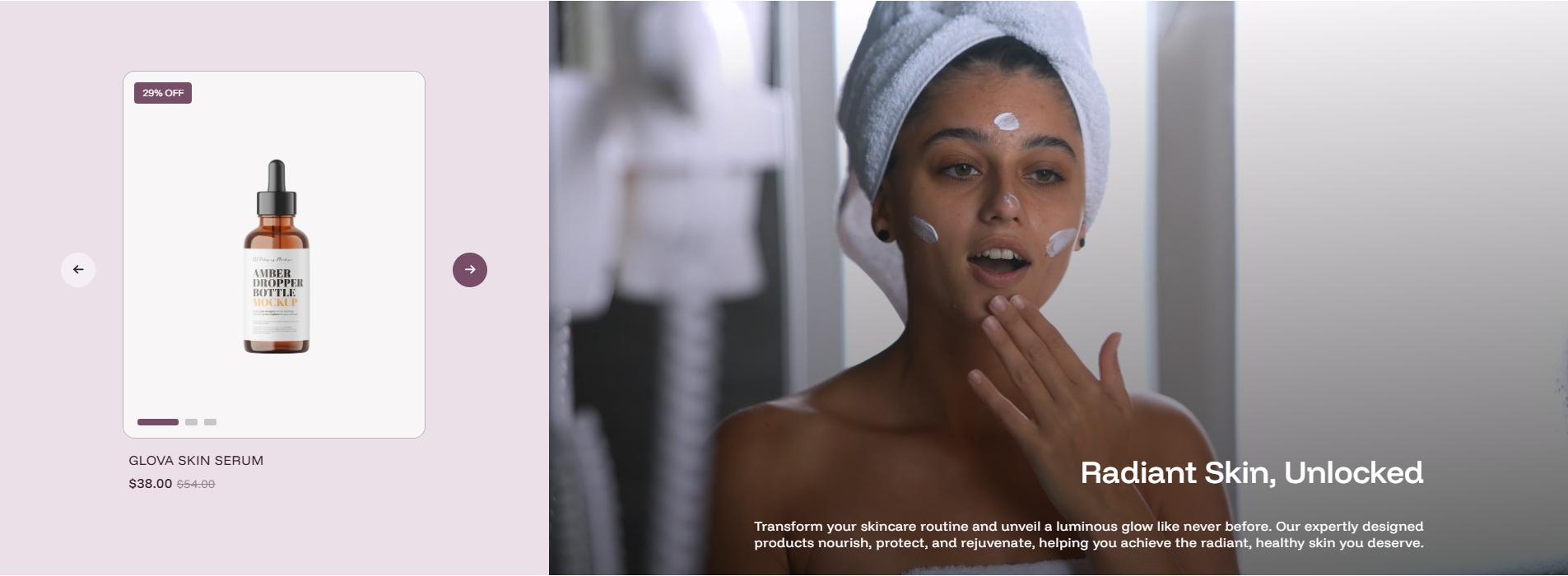
The Product Promo section is a dynamic split-layout component designed to showcase featured products alongside immersive media (images or video). It allows for a high-impact promotional area that combines storytelling with direct shopping links.
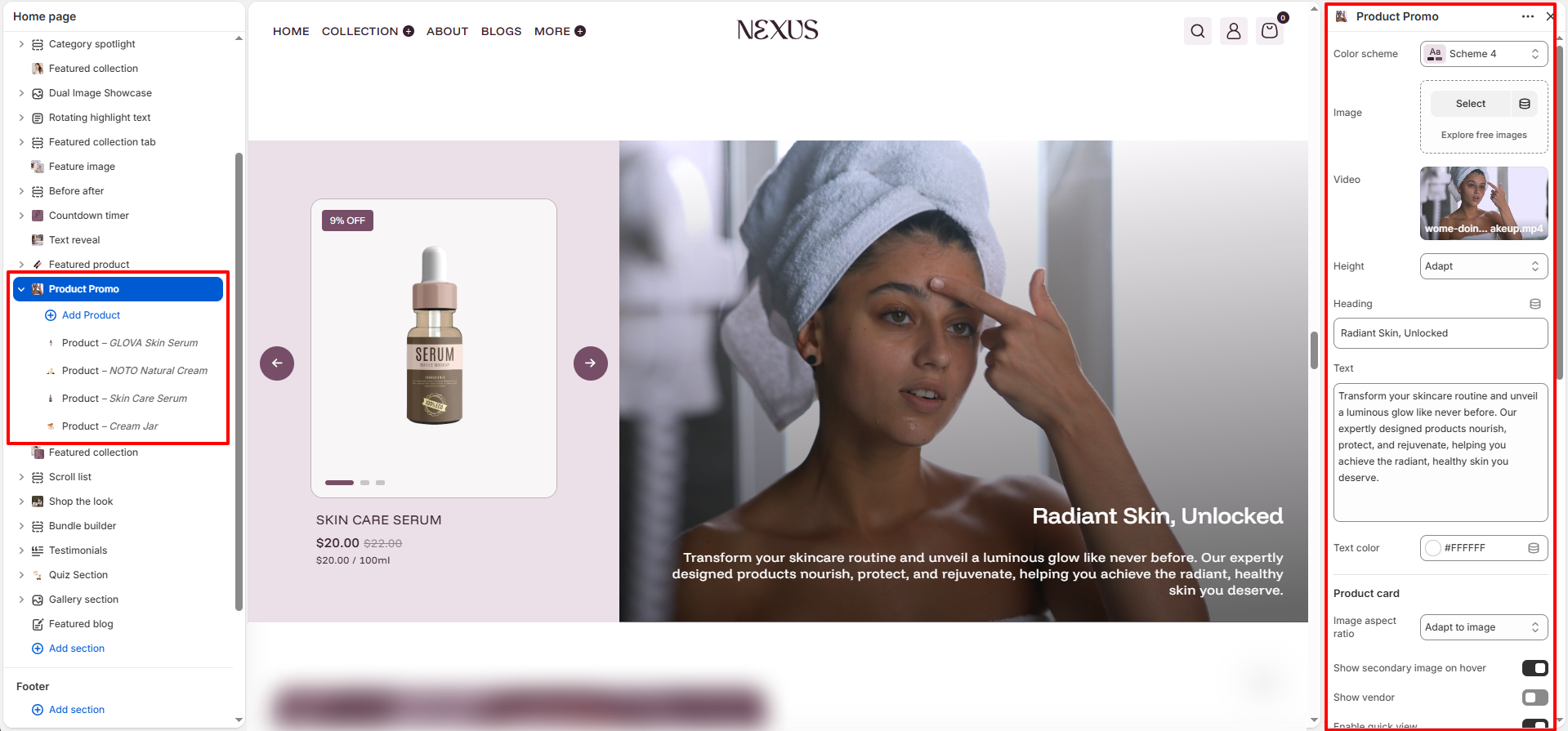
Section Settings:
Customize the overall appearance and media for the promo section:
- Color scheme: Select the color palette for the section (e.g., Scheme 4).
- Image: Select or upload a static background image for the media panel.
- Video: Upload or select a video file (e.g., .mp4) to create a dynamic background.
- Height: Set the vertical size of the section (e.g., Adapt to Image).
- Heading: Enter the main title displayed over the promo area.
- Text: Add a descriptive marketing message or sub-heading.
- Text color: Choose a specific color for the text overlay (e.g., #FFFFFF).
Product Card Settings:
Configure how the featured product cards appear within the slider:
- Image aspect ratio: Define the shape of product images (e.g., Adapt to image, Square, Portrait).
- Show secondary image on hover: Enable this to reveal the second product image when the user hovers over the card.
- Show vendor: Toggle the visibility of the product's brand name.
- Enable quick view: Toggle the quick view functionality for the products.
Product Blocks:
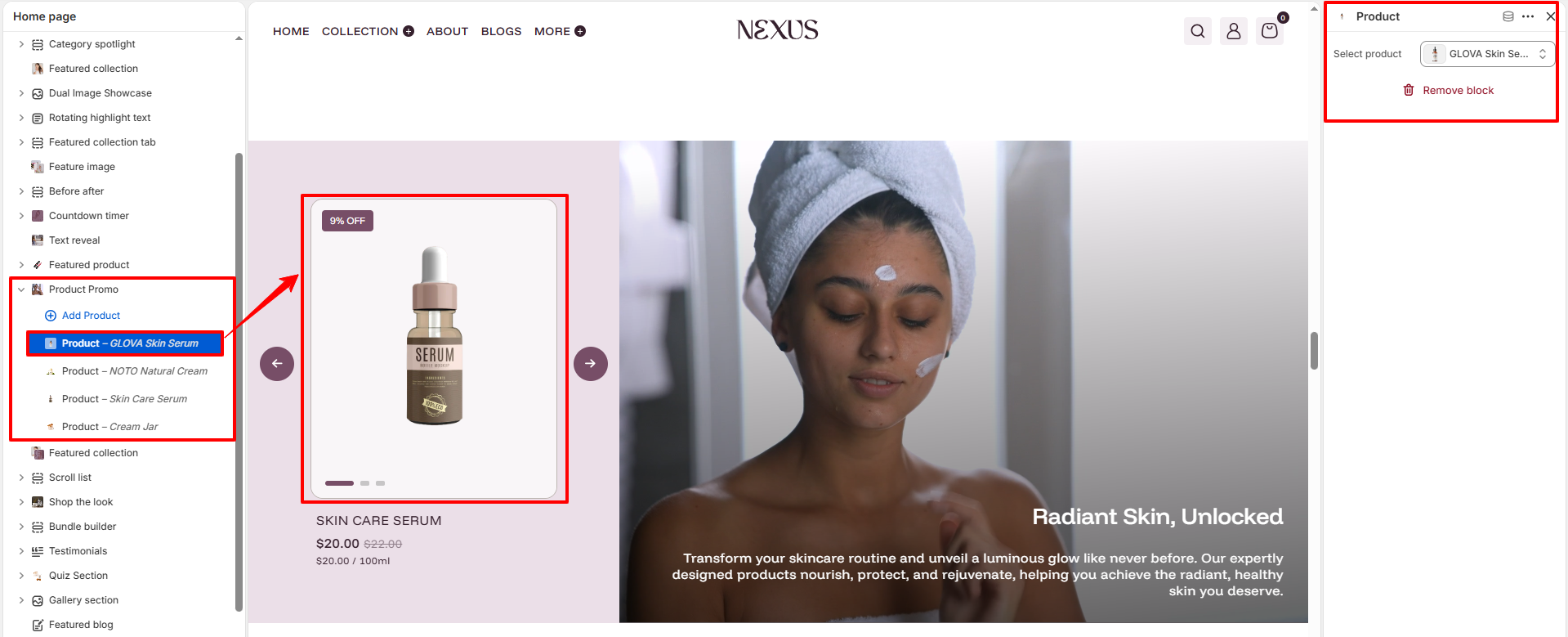
Add individual products to the slider/carousel within the section:
-
Product Block: Each block represents one product in the promo area.
- Select product: Choose the product from your store catalog.
How to Setup Product Promo
- Navigate to Customize theme editor.
- Click Add section and select Product Promo.
- In the section settings, upload your background media (Image/Video) and set your headings.
- Click Add Product (block) to feature multiple items in the interactive slider.
- Save your changes.