Footer Settings
The footer is the closing section of your store and an essential space for guiding customers. It’s where you can share helpful links, collect newsletter subscribers, and present key store details. With Nexus, you can effortlessly customize your footer using versatile content blocks—allowing you to design a polished, informative, and beautifully structured end to your storefront.
Footer Configuration Settings:
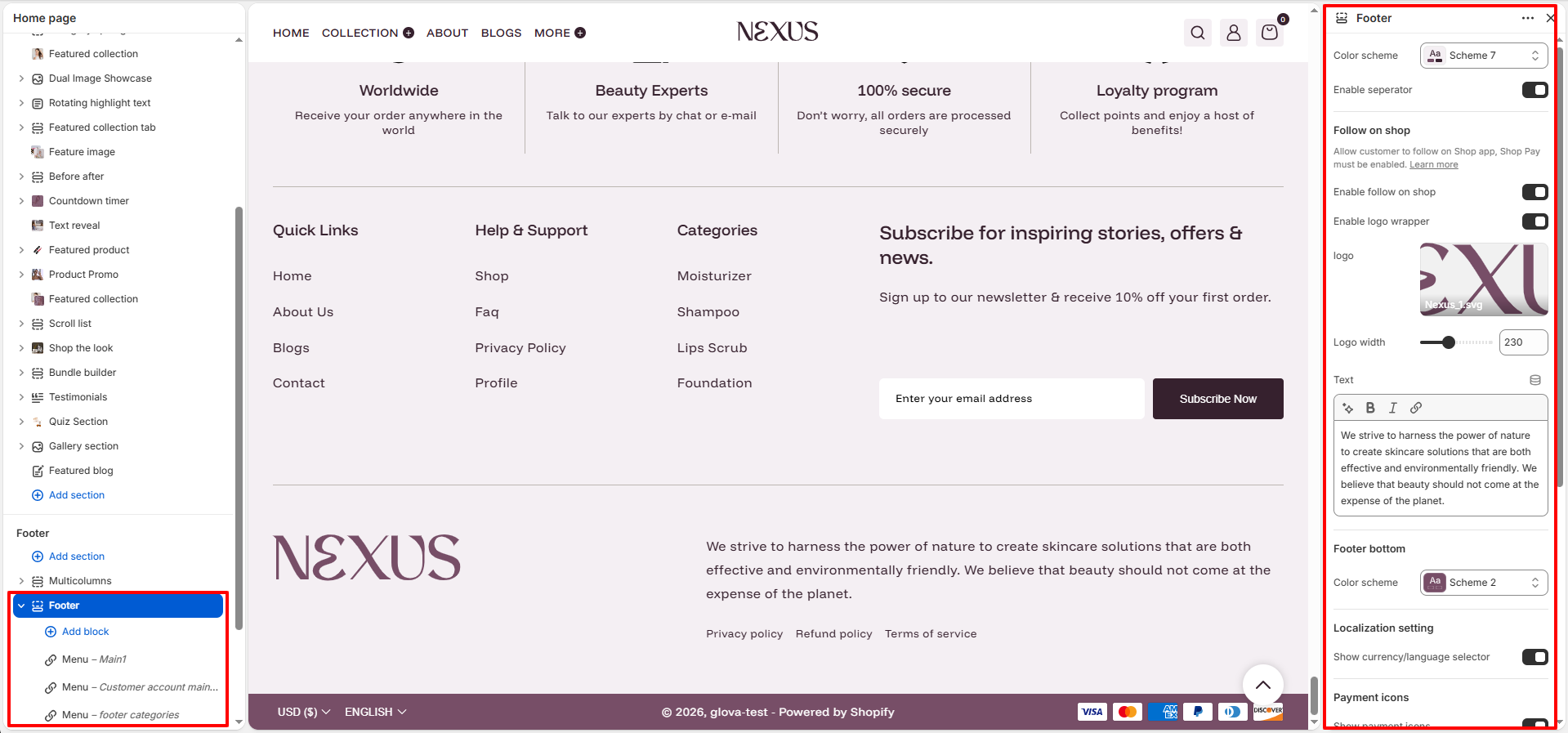
- Color Scheme: Select a color scheme (e.g., Scheme 7) to define the background and text colors for the main footer section.
- Enable separator: Toggle this on to add a subtle dividing line between the footer and the page content above it.
- Follow on Shop: Enable this option to allow customers to easily follow your store on the Shop app directly from the footer.
-
Logo Customization:
- Enable logo wrapper: Toggle this to contain the logo within a structured wrapper for better layout control.
- Logo: Upload your store's footer logo image.
- Logo width: Use the slider to set the perfect width (e.g., 230px) for your logo.
- Brand Text: Enter a brand description or mission statement using the rich text editor to share your store's story.
-
Footer Bottom Bar:
- Color Scheme: Assign a different color scheme (e.g., Scheme 2) specifically for the very bottom bar of the footer.
- Localization Setting: Toggle Show currency/language selector to provide a better shopping experience for international customers.
- Payment Icons: Enable Show payment icons to display trusted payment methods (Visa, Mastercard, etc.) at the bottom of the page.
- Policies: Toggle Show policies to automatically link to your store's legal pages (Privacy, Refund, etc.).
- Desktop Padding: Fine-tune the Top and Bottom spacing for large screens to ensure a balanced layout.
- Mobile Padding: Adjust the Top and Bottom vertical spacing specifically for mobile devices.
Footer Content Blocks:
- Nexus’s footer is built using flexible content blocks, allowing you to easily add, rearrange, or remove elements directly from the Shopify theme editor.
Available Footer Blocks:
Menu Block
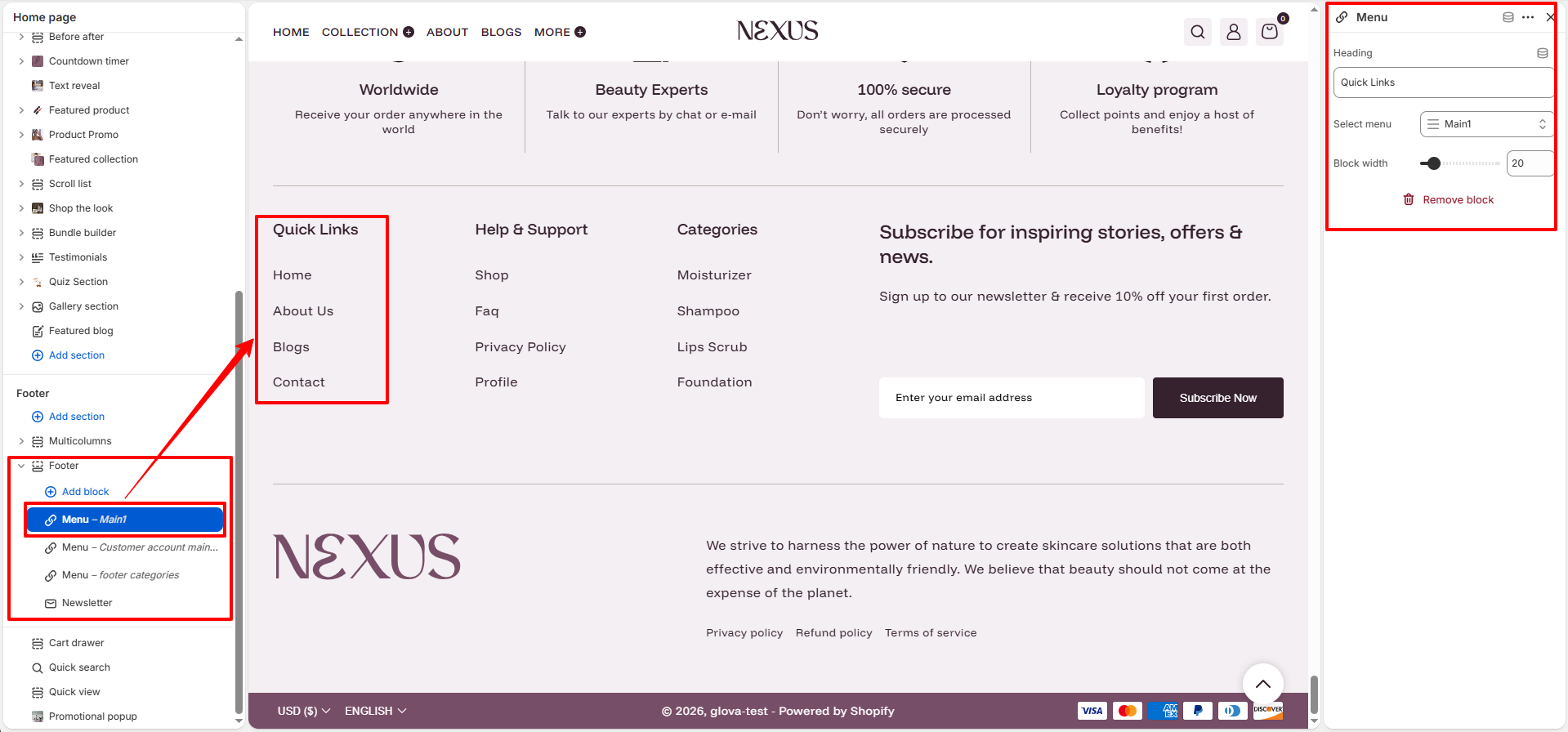
- Heading: Enter a title for the navigation column (e.g., "Quick Links" or "Help & Support").
- Select Menu: Assign a specific navigation menu from your Shopify Admin (e.g., main menu).
- Block Width: Adjust the horizontal width of the menu column using the slider (e.g., 20%).
Newsletter Block
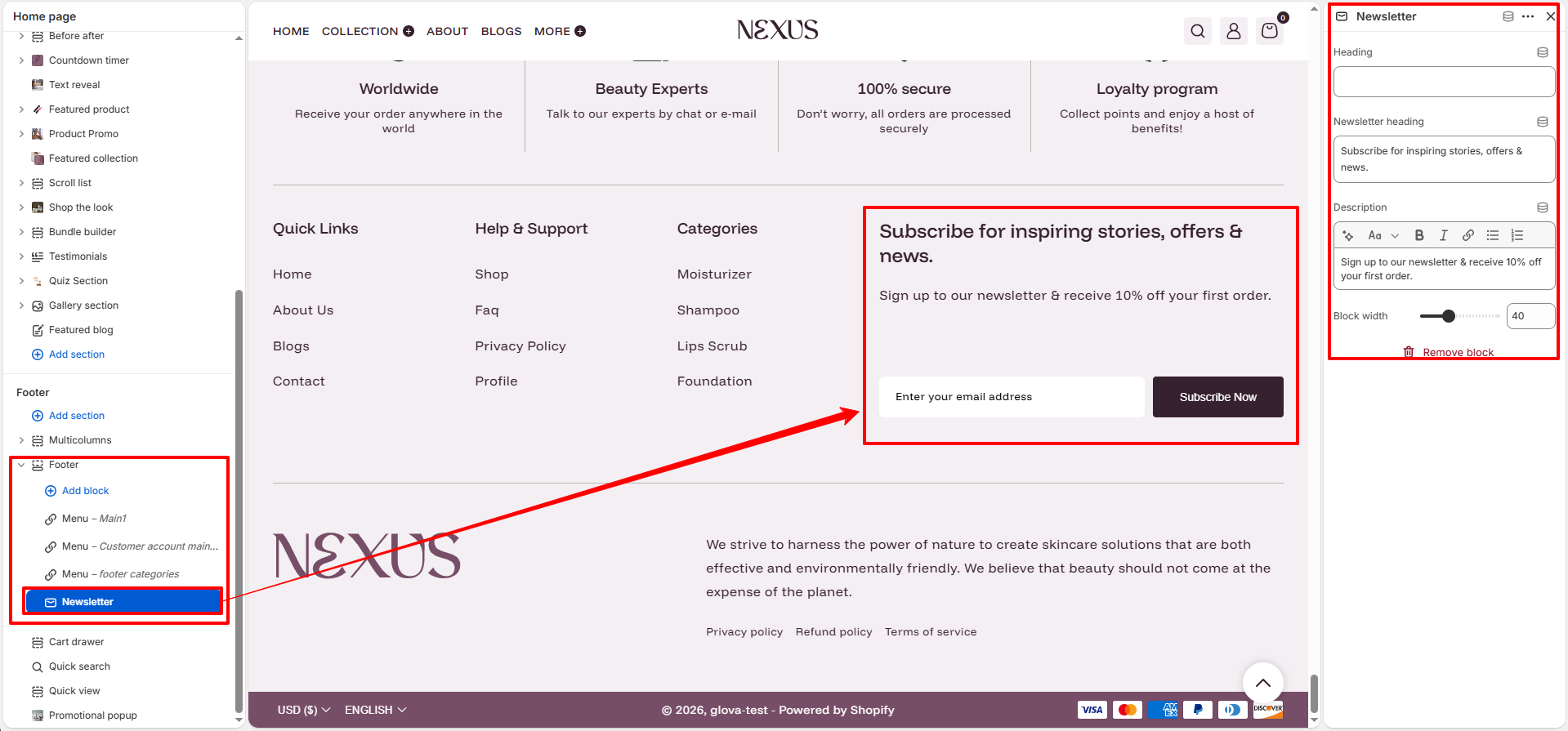
- Newsletter heading: Enter the primary title for the newsletter call-to-action (e.g., "Subscribe for inspiring stories, offers & news.").
- Description: Add a secondary description or an incentive to encourage customers to subscribe (e.g., "Sign up to our newsletter & receive 10% off your first order.").
- Block Width: Adjust the percentage width of the newsletter block using the slider (e.g., 40%) for better layout spacing.
How to Customize the Footer:
- Go to Online Store → Themes → Customize.
- Scroll to the bottom of your store preview and click on the Footer section.
- Add or remove blocks (Menu or Newsletter) to organize your content.
- Use the settings panel on the right to adjust colors, logo, brand text, and layout for both the main footer and the bottom bar.
- Save your changes.