Cart – Nexus
The Nexus theme provides a highly customizable cart experience. You can choose between two primary cart types to best suit your store's shopping flow: a quick-access Drawer or a dedicated full Page.
Types of Carts
- Cart Drawer: A slide-out panel that appears when a customer adds a product to their cart or clicks the cart icon. It provides a quick summary of added products, allows quantity adjustments, and offers a fast route to checkout without leaving the current page.
- Cart Page: A full-screen, dedicated page that displays all cart information in detail. It is ideal for stores where customers might need to review multiple items, add order notes, or apply discounts before proceeding to checkout.
Cart Settings (Theme Settings → Cart)
These settings apply globally across your store and control the behavior and appearance of your cart.
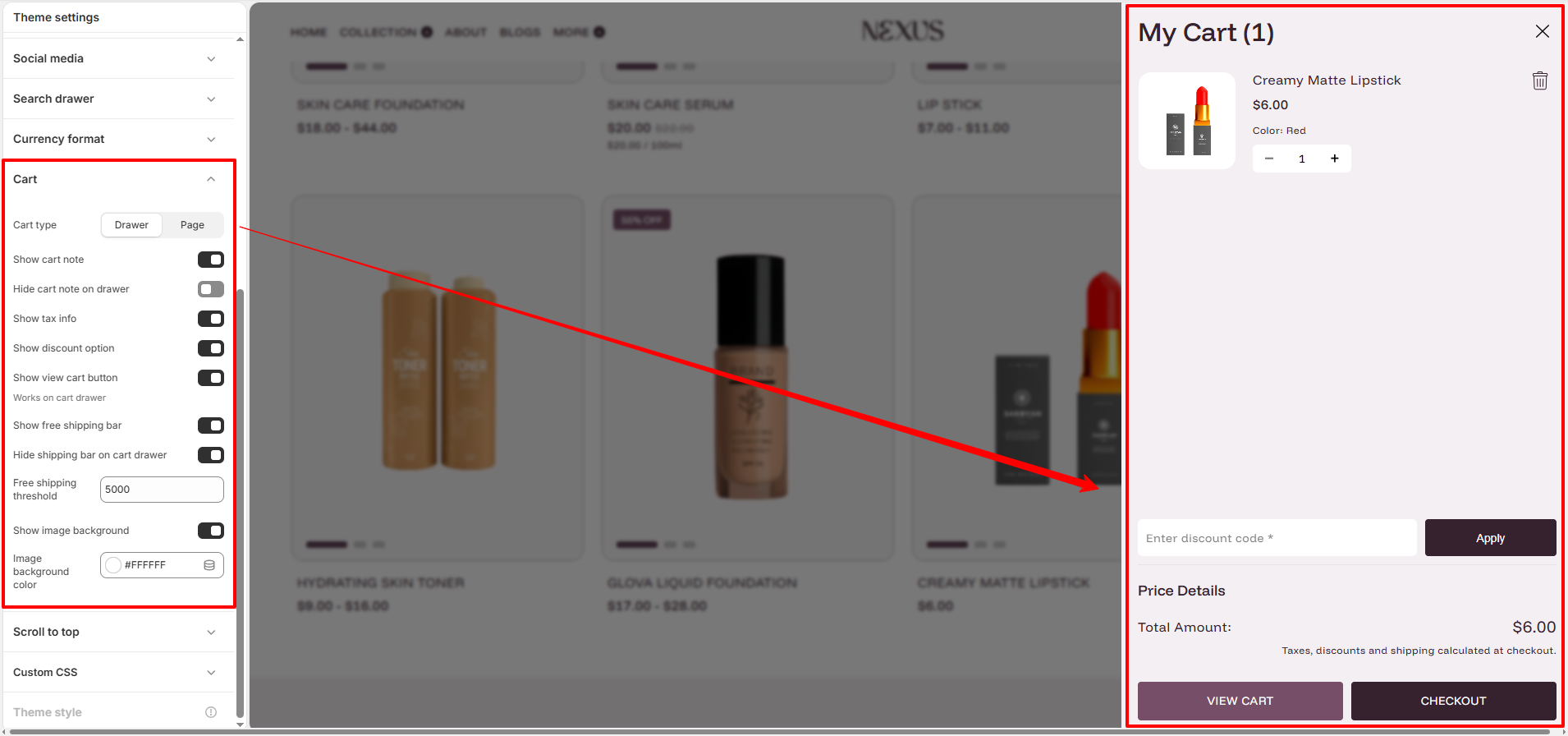
- Cart type: Choose between Drawer or Page.
- Show cart note: Enable this to allow customers to leave special instructions for their order.
- Hide cart note on drawer: If using the Drawer cart, you can choose to hide the note field to save space.
- Show tax info: Displays a message indicating whether taxes are calculated at checkout.
- Show discount option: Adds an input field for customers to apply discount codes directly in the cart.
- Show view cart button (Works on cart drawer): Adds a button in the drawer that links to the full dedicated cart page.
- Show free shipping bar: Displays a progress bar encouraging customers to add more items to qualify for free shipping.
- Hide shipping bar on cart drawer: Option to hide the free shipping progress bar specifically inside the drawer.
- Free shipping threshold: Set the cart total required to unlock free shipping (e.g., enter 5000 for $50.00).
- Show image background & Image background color: Toggle a background color behind product images in the cart and select the specific color.
Cart Page Section Settings
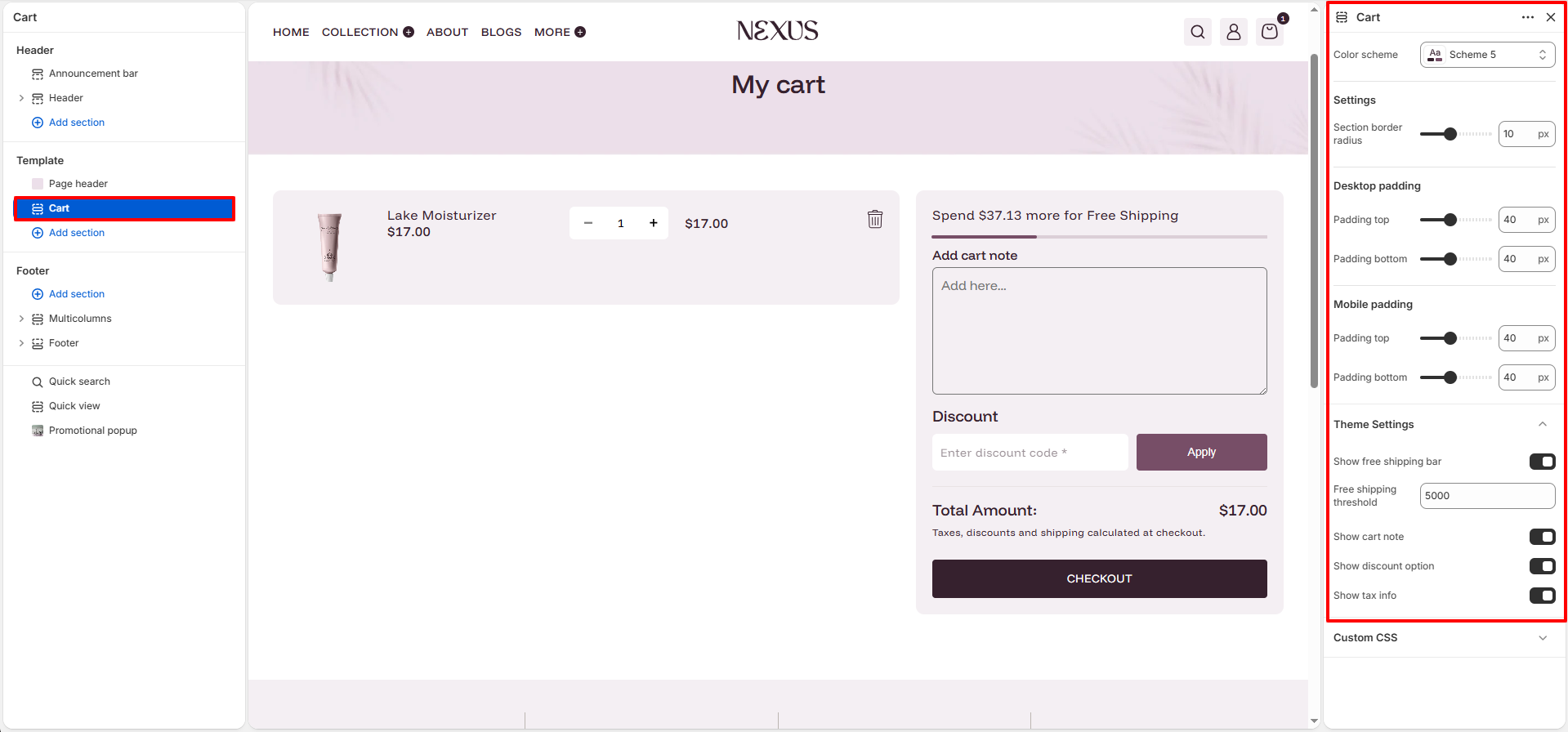
If you are using the dedicated Cart Page, you can further customize its layout by navigating to the Cart template in the Shopify Theme Editor.
- Color scheme: Select a color scheme (e.g., Scheme 5) to match your brand's aesthetic.
- Section border radius: Adjust the roundness of the corners on the cart summary box (e.g., 10px).
- Desktop padding: Control the top and bottom spacing of the cart section on desktop devices.
- Mobile padding: Control the top and bottom spacing of the cart section on mobile screens.
- Show free shipping bar: Toggles the free shipping progress bar at the top of the cart.
- Free shipping threshold: Sets the required amount to qualify for free shipping (e.g., enter 5000 for $50.00).
- Show cart note: Enables a text box for customers to leave special instructions for their order.
- Show discount option: Adds an input field so customers can enter promo codes directly in the cart before checkout.
- Show tax info: Displays a message below the subtotal indicating whether taxes and shipping are calculated at checkout.
How to Customize the Cart
- Go to Online Store → Themes → Customize.
- To change the Cart Type, click the gear icon (⚙️) on the left to open Theme settings, then click Cart.
- To edit the Cart Page layout, select Cart from the top page dropdown menu, then click the Cart section in the left sidebar.