Collection Page - Nexus
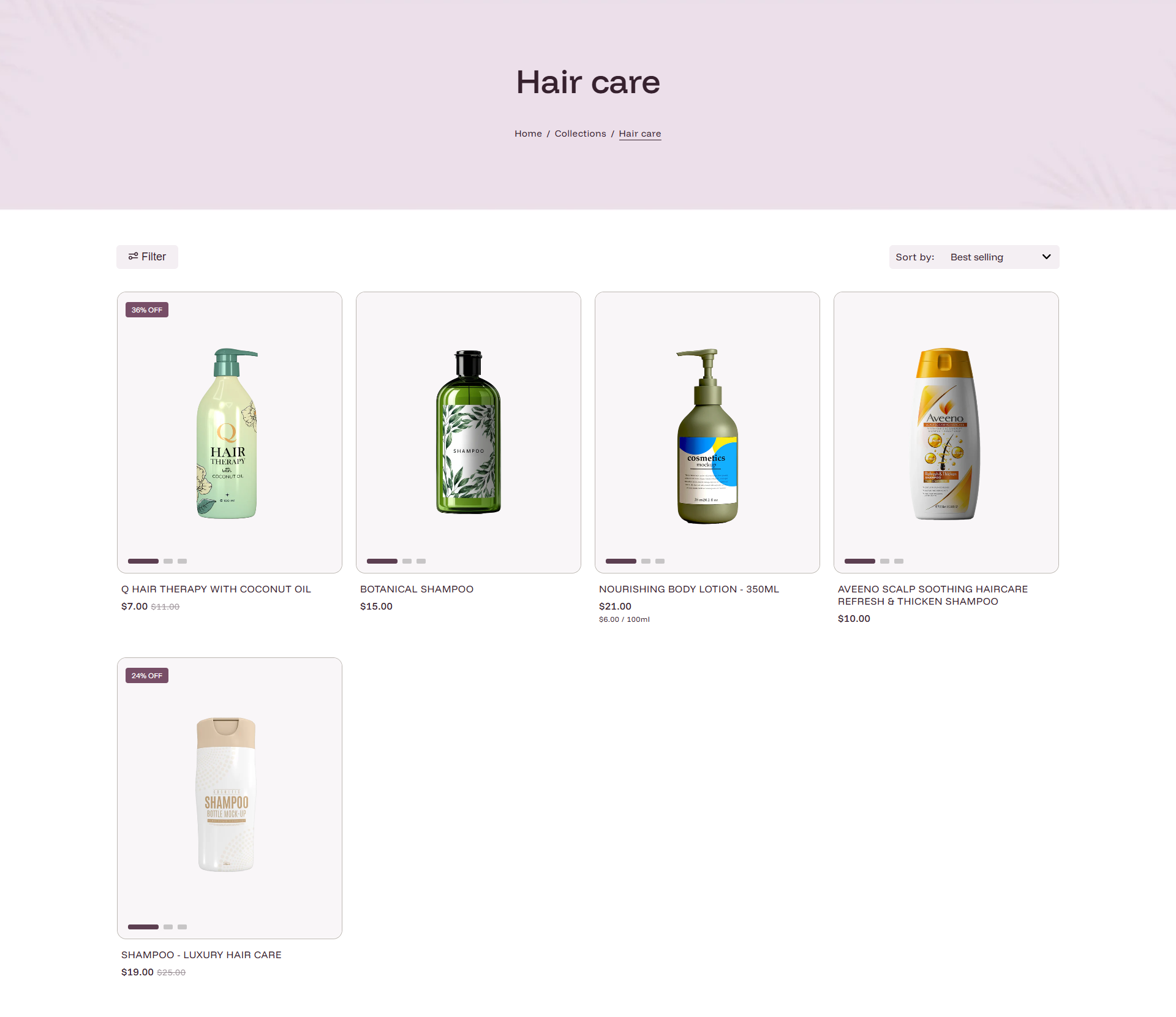
The Collection Page in Nexus is thoughtfully designed to showcase beauty products in a clean, elegant, and easy-to-navigate layout. It helps customers effortlessly explore makeup, skincare, and beauty collections while maintaining a premium visual experience.
With flexible layout controls and built-in filtering and sorting options, the Nexus Collection Page is ideal for displaying beauty product categories of any size—from small curated collections to large product catalogs.
It combines a visually rich Collection Header with a highly customizable Product Grid, making it perfect for presenting beauty products in an organized and engaging way.
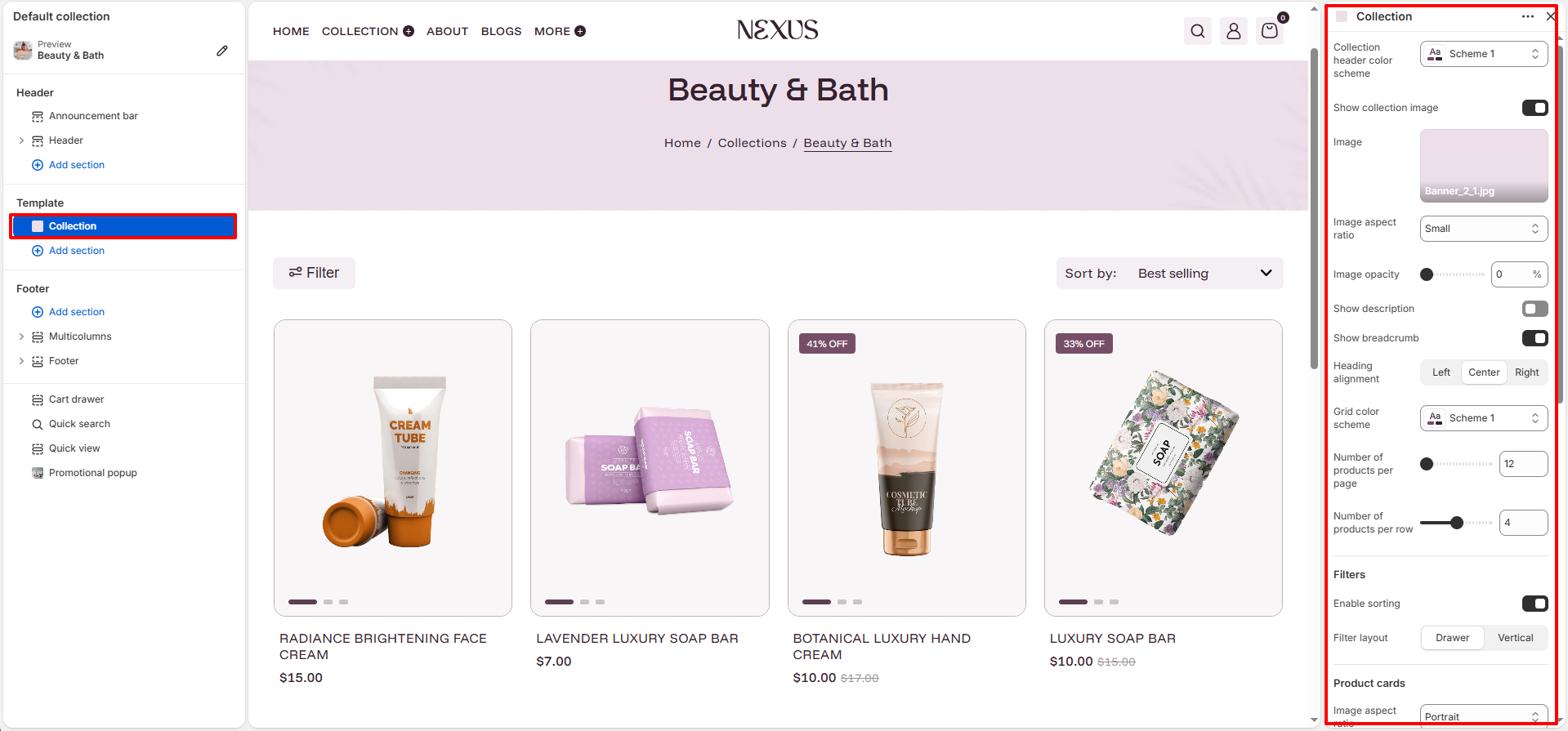
Collection Section Settings:
The Collection section controls everything from the banner at the top to the product grid and filters.
-
Header Customization:
- Collection header color scheme: Choose a color scheme to set the background and text colors for the top area.
- Show collection image: Toggle this to display the collection’s feature image as a background banner.
- Image aspect ratio: Set the height of the banner (e.g., Small, Medium, or Large).
- Image opacity: Use the slider to darken the banner image (0% is fully visible), making the title easier to read.
- Show description: Enable this to display the collection’s description text pulled from your Shopify Admin.
- Show breadcrumb: Displays a navigation path (e.g., Home / Collections / Beauty) to help users navigate your store.
- Heading alignment: Align your collection title and breadcrumbs to the Left, Center, or Right.
-
Grid & Filtering:
- Grid color scheme: Select the color scheme for the product grid area.
- Number of products per page: Set the total items to show before pagination starts (up to 24).
- Number of products per row: Choose how many items appear per row on desktop (e.g., 4).
- Enable sorting: Allows customers to sort products by price, date, or popularity.
-
-
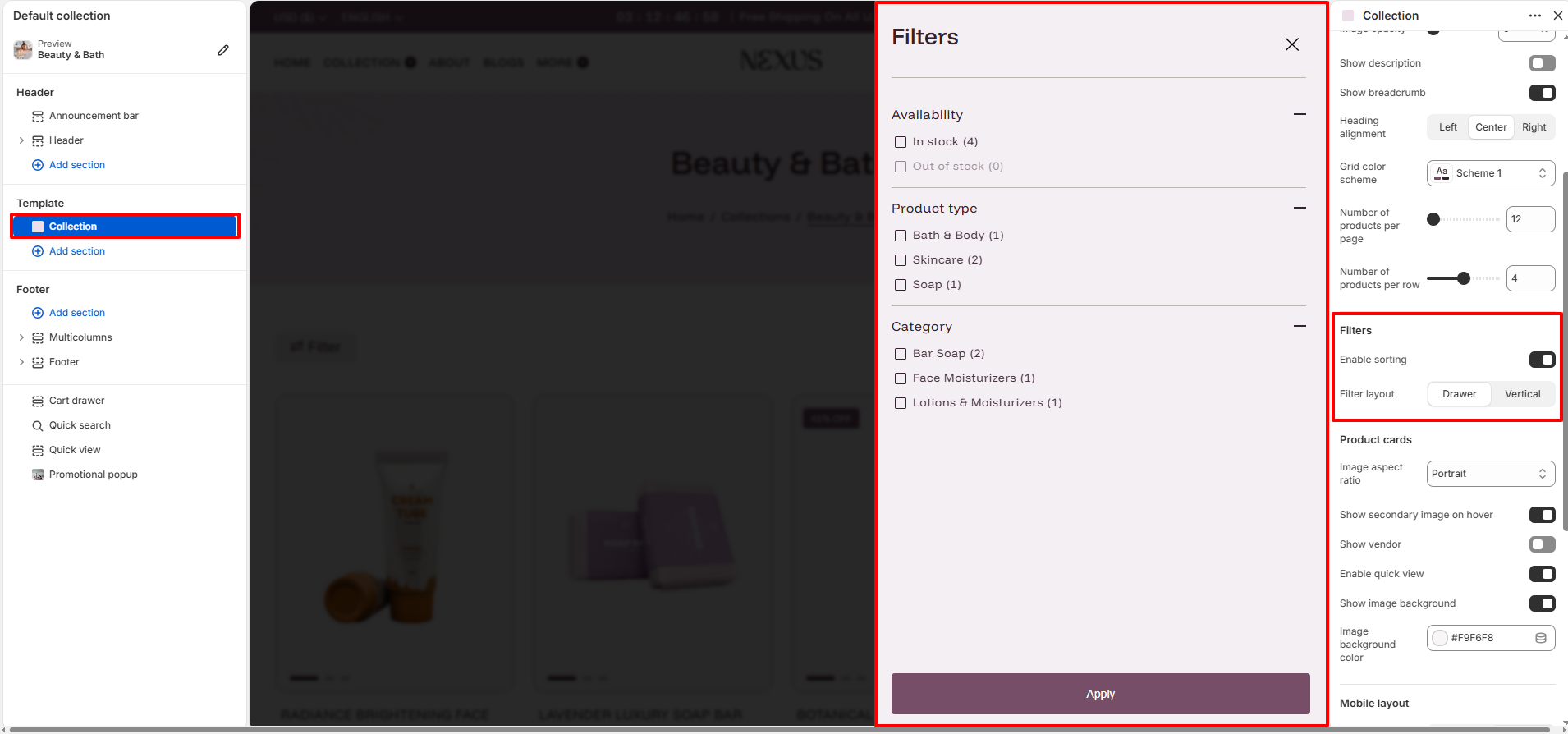
Filter layout: Choose between a Drawer (slide-out menu).
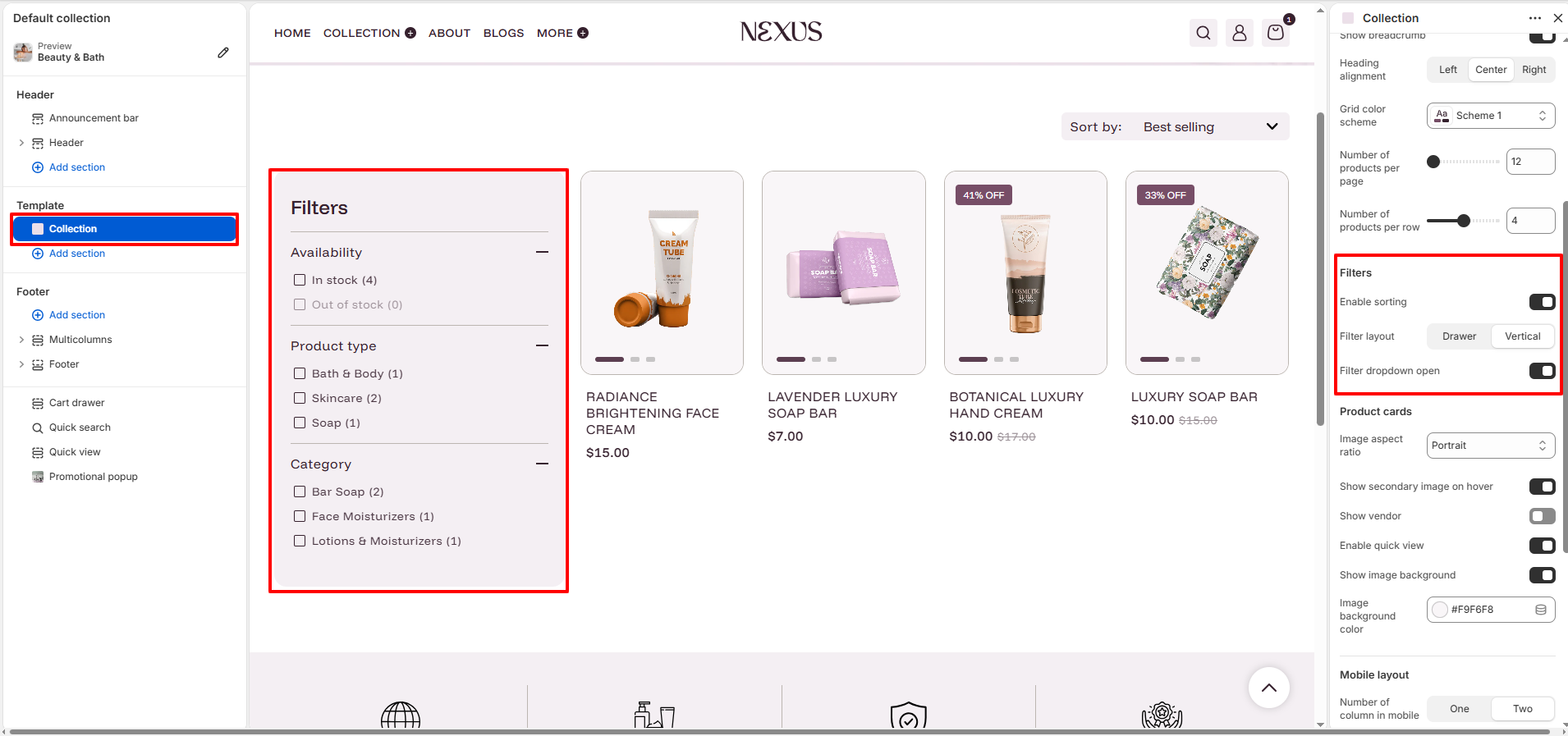
- Vertical (sidebar) layout for your filters.
-
Filter layout: Choose between a Drawer (slide-out menu).
-
Product Cards:
- Image aspect ratio: Set the shape of product images (Portrait, Square, or Adapt).
- Show secondary image on hover: Flips to the second product image when a user hovers over the card.
- Show vendor: Displays the product brand or manufacturer name.
- Enable quick view: Adds a button for customers to preview product details in a popup without leaving the page.
- Image background: Adds a solid background color (e.g., #F9F8F8) behind product images for a clean look.
-
Mobile & Spacing:
- Number of column in mobile: Choose to show One or Two products per row on mobile screens.
- Section Padding: Fine-tune the vertical spacing (top and bottom) for both Desktop and Mobile views.
Setting Up Collection Filters (Shopify Search & Discovery App)
The filter options displayed on your collection page are powered by the Shopify Search & Discovery app — not the theme settings. You must configure filters through this app for them to appear on your store.
- Go to your Shopify Admin.
- Navigate to Apps and open the Search & Discovery app. (Install it from the Shopify App Store if not already installed — it is free.)
- Click on the Filters tab in the left sidebar.
- Click Add filter to add a new filter (e.g., Color, Size, Price, Brand).
- Select the filter type and configure its display label and values.
- Drag filters to reorder them as they should appear on the collection page.
- Toggle filters on or off to control which ones are visible to customers.
- Click Save to apply your changes.
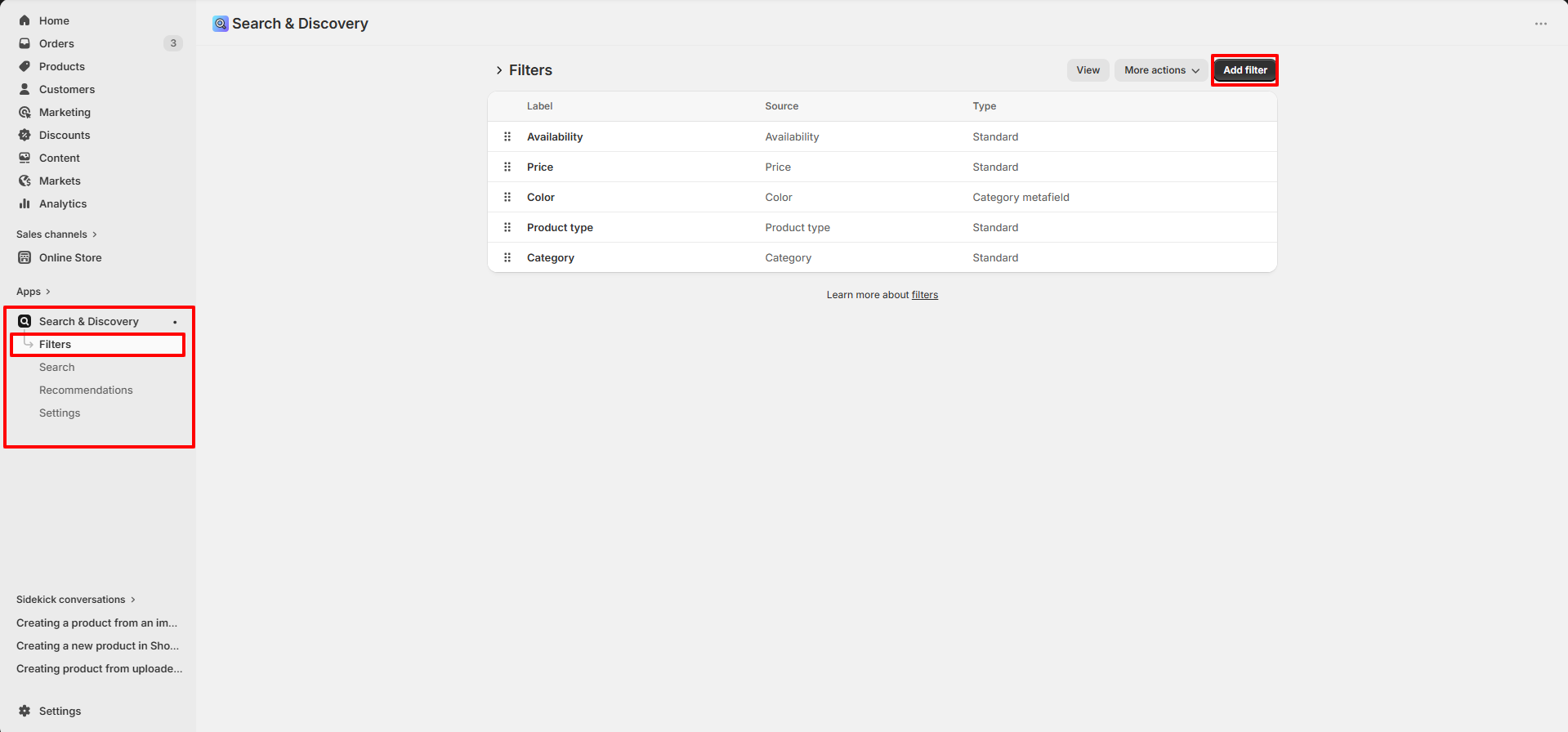
Note: The Nexus theme controls only the layout of the filter panel (Drawer or Vertical). The actual filter options (Color, Size, Price, etc.) are managed entirely within the Search & Discovery app.
How to Customize the Collection Page
- Go to Online Store → Themes → Customize
- From the top page dropdown, select Collections → Default Collection
- Select the Collection section in the sidebar to adjust settings
- Adjust layout, filtering, and card styles using the Nexus theme controls
- Save your changes