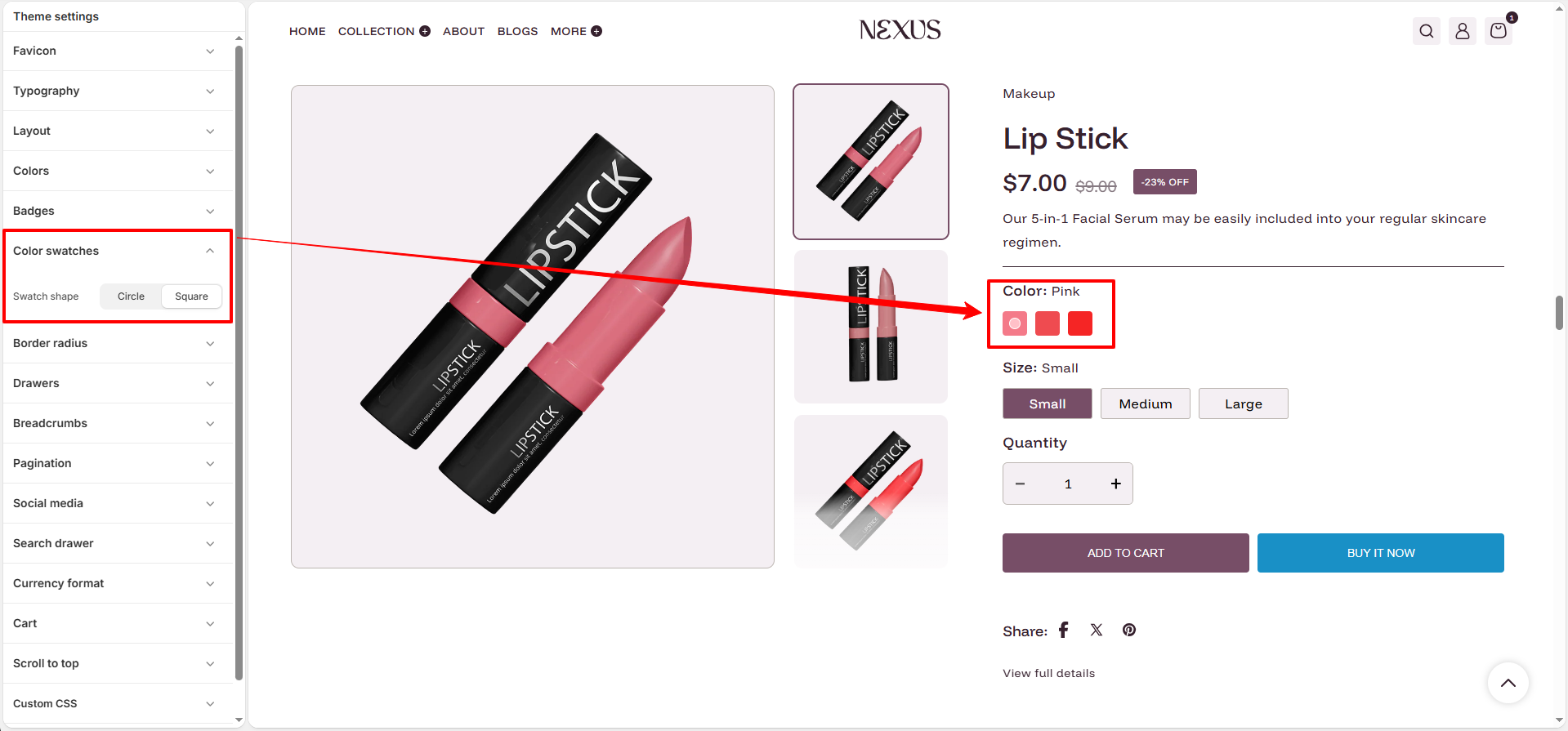
Product Color Swatches Setup Guide
Follow the steps below to properly configure color swatches in the Nexus theme.
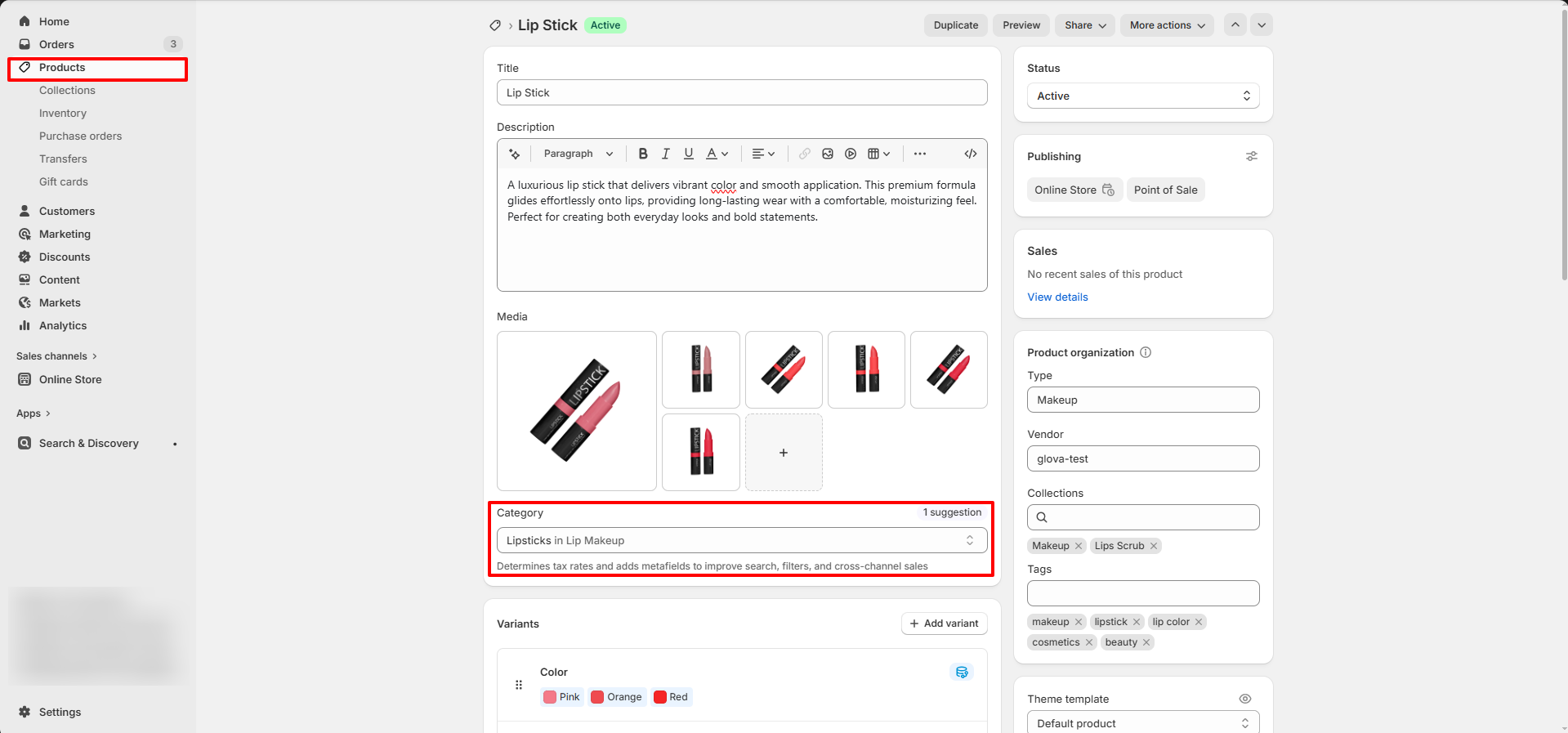
Step 1: Assign a Product Category
- Go to Shopify Admin → Products
- Select your product
- Click Browse categories
- Select a relevant category
- Click Save
Important: Color metafields appear only after assigning a category.
Step 2: Create Color Entries
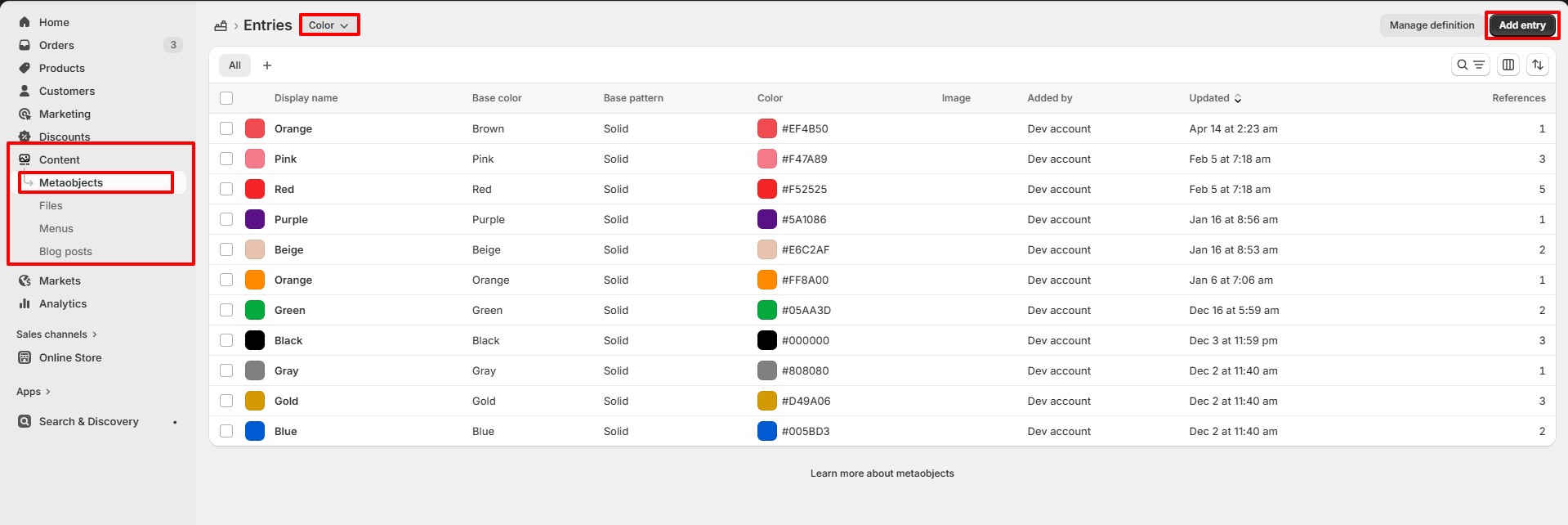
- Go to Shopify Admin → Content → Metaobjects
- Open Color definition
- Click Add entry
- Add Name (e.g., Red, Black)
- Add HEX code (e.g., #FF0000) or upload image
- Click Save
Note: Shopify category metafields are recommended.
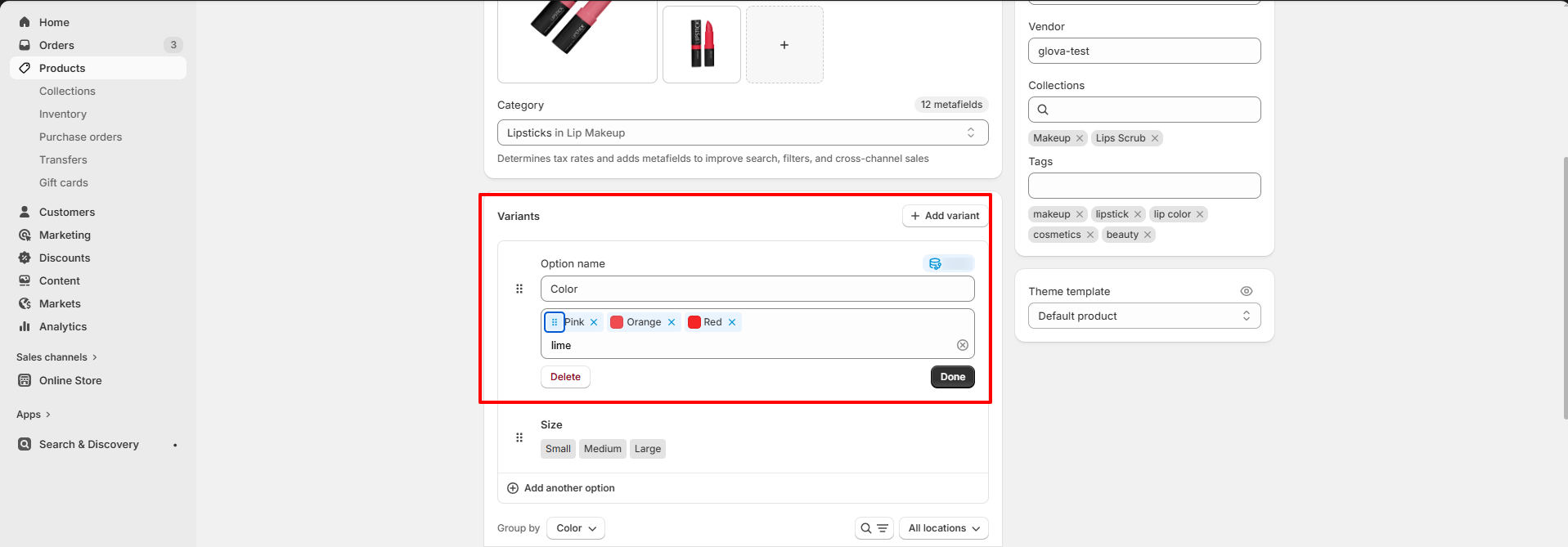
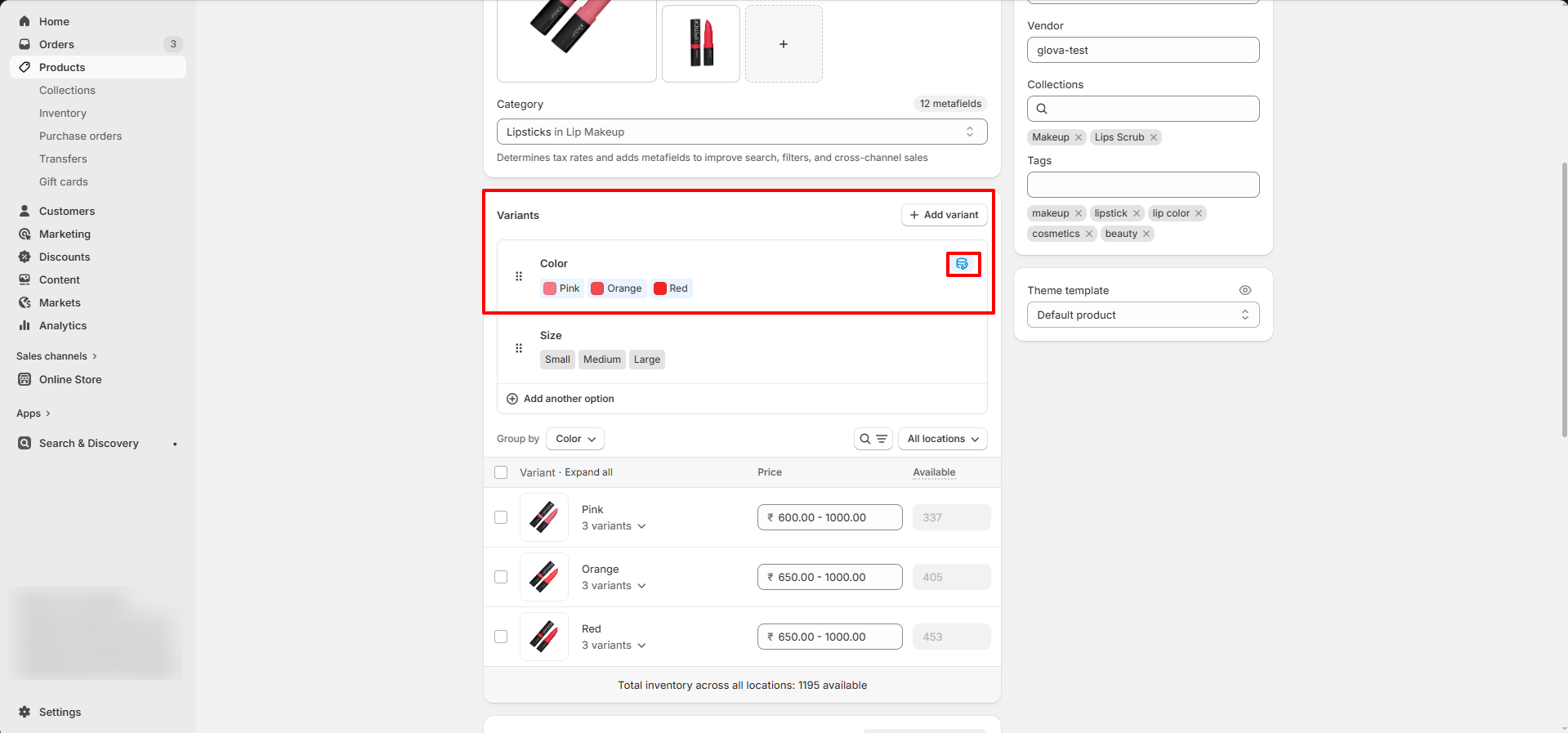
Step 3: Add Color Option
- Go to Products
- Open your product
- Scroll to Variants
- Click Add options
- Enter Color as option name
Step 4: Link Color Metafield
- Click the 🔗 dynamic source icon
- Select Color (Category Metafield)
Important: Required to show swatches instead of text.
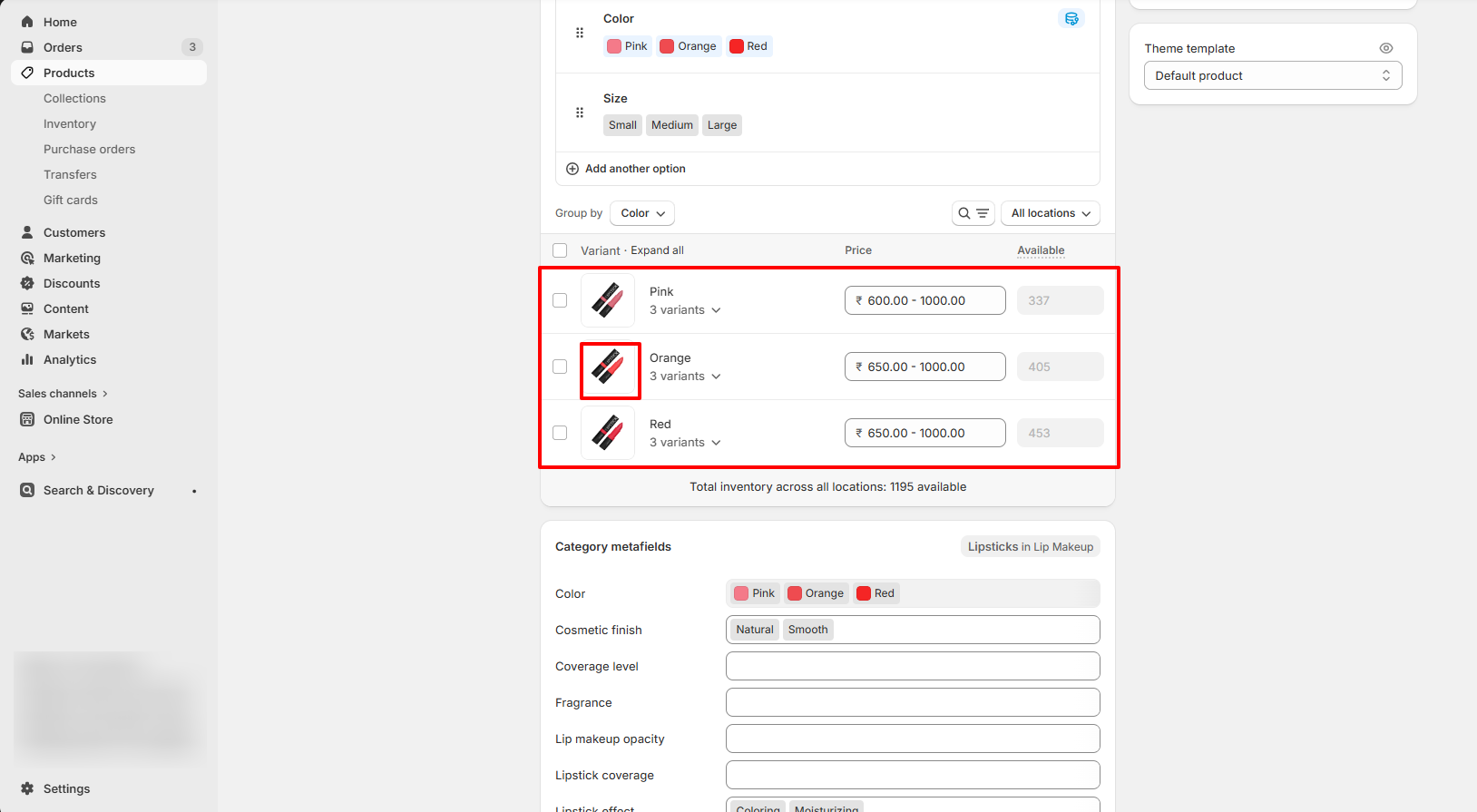
Step 5: Add Variant Images (Optional)
- Upload images for each color
- Assign them to variants
Step 6: Customize Swatch Style
- Go to Online Store → Themes
- Click Customize
- Open Theme Settings → Color Swatches
- Choose Circle or Square
- Click Save