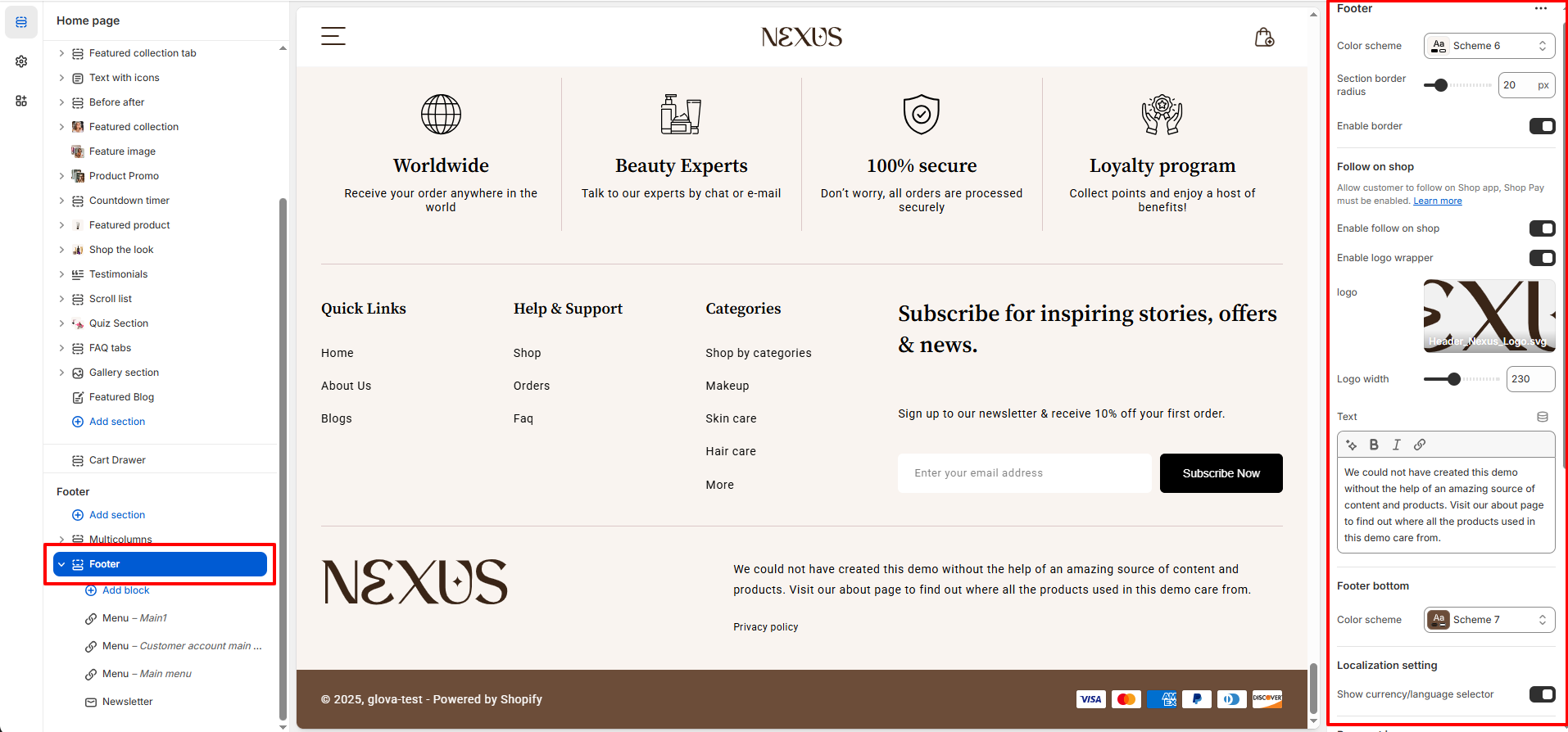
Footer Settings
The footer is the closing section of your store and an essential space for guiding customers. It’s where you can share helpful links, collect newsletter subscribers, and present key store details. With Nexus, you can effortlessly customize your footer using versatile content blocks—allowing you to design a polished, informative, and beautifully structured end to your storefront.
What You Can Do in the Footer:
- Add your logo
- Display navigation menus for quick links (e.g., About Us, Shipping, Contact).
- Add a newsletter signup form to grow your email list.
- Display payment icons to build customer trust.
- Display policy links for easy policies content.
- Display language/country selector.
- Choose from available theme color presets (e.g., Scheme 1).
Footer Content Blocks:
- Nexus’s footer is built using flexible content blocks, allowing you to easily add, rearrange, or remove elements directly from the Shopify theme editor.
Available Footer Blocks:
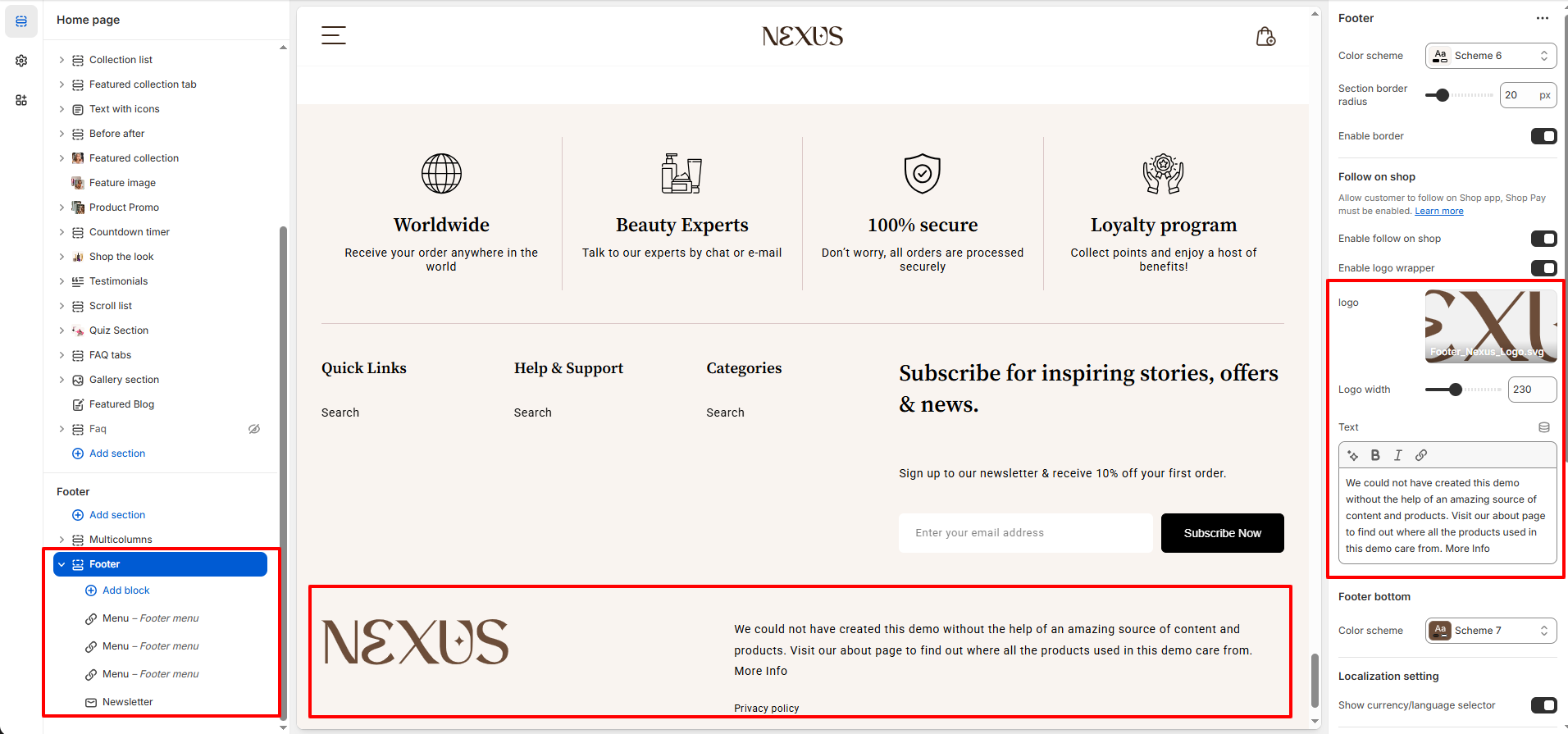
Logo Block
- Upload your store logo and adjust its size or switch to a text-based logo.
- Perfect for stores with minimal submenus.
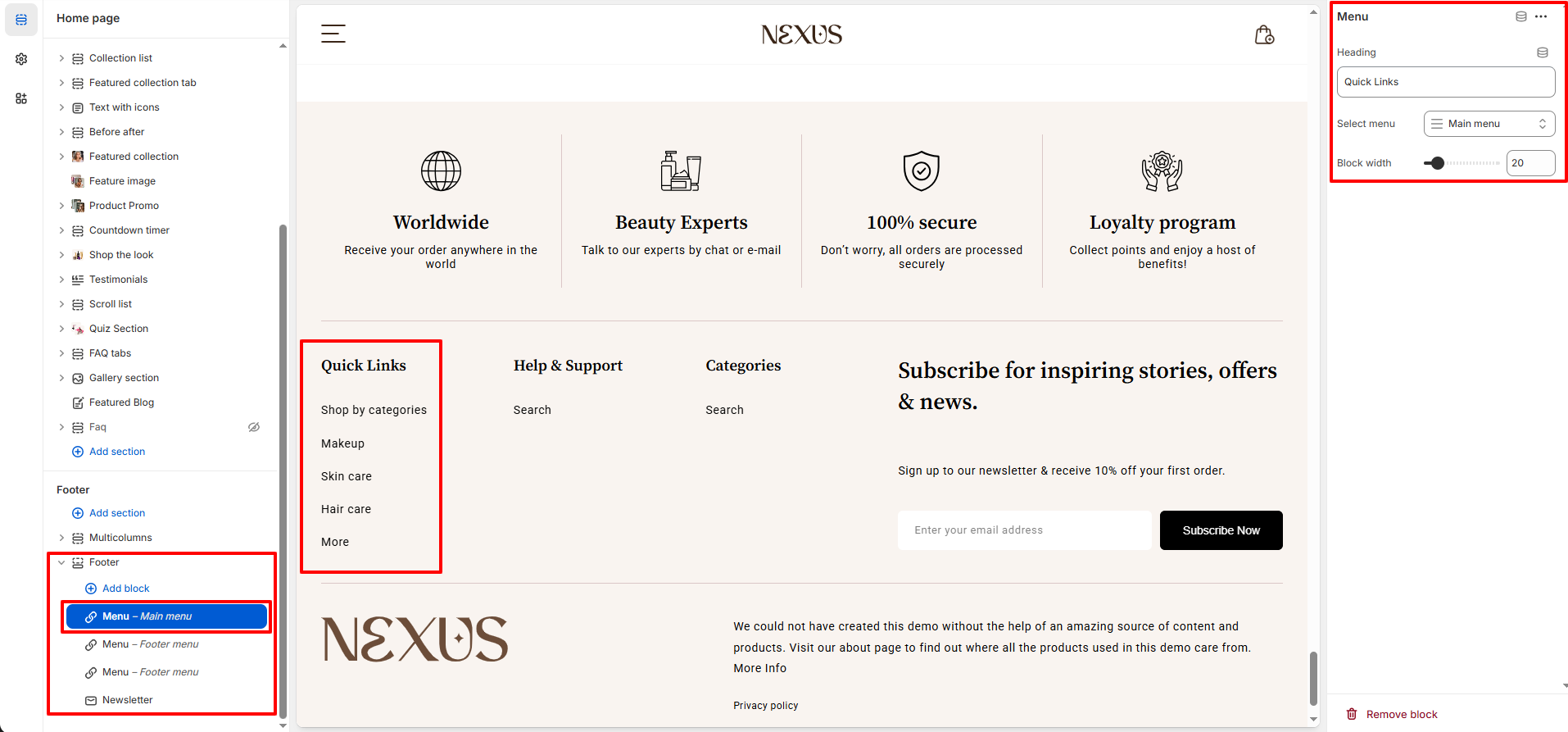
Menu Block
- Assign a menu created in Shopify’s Navigation settings to show quick links
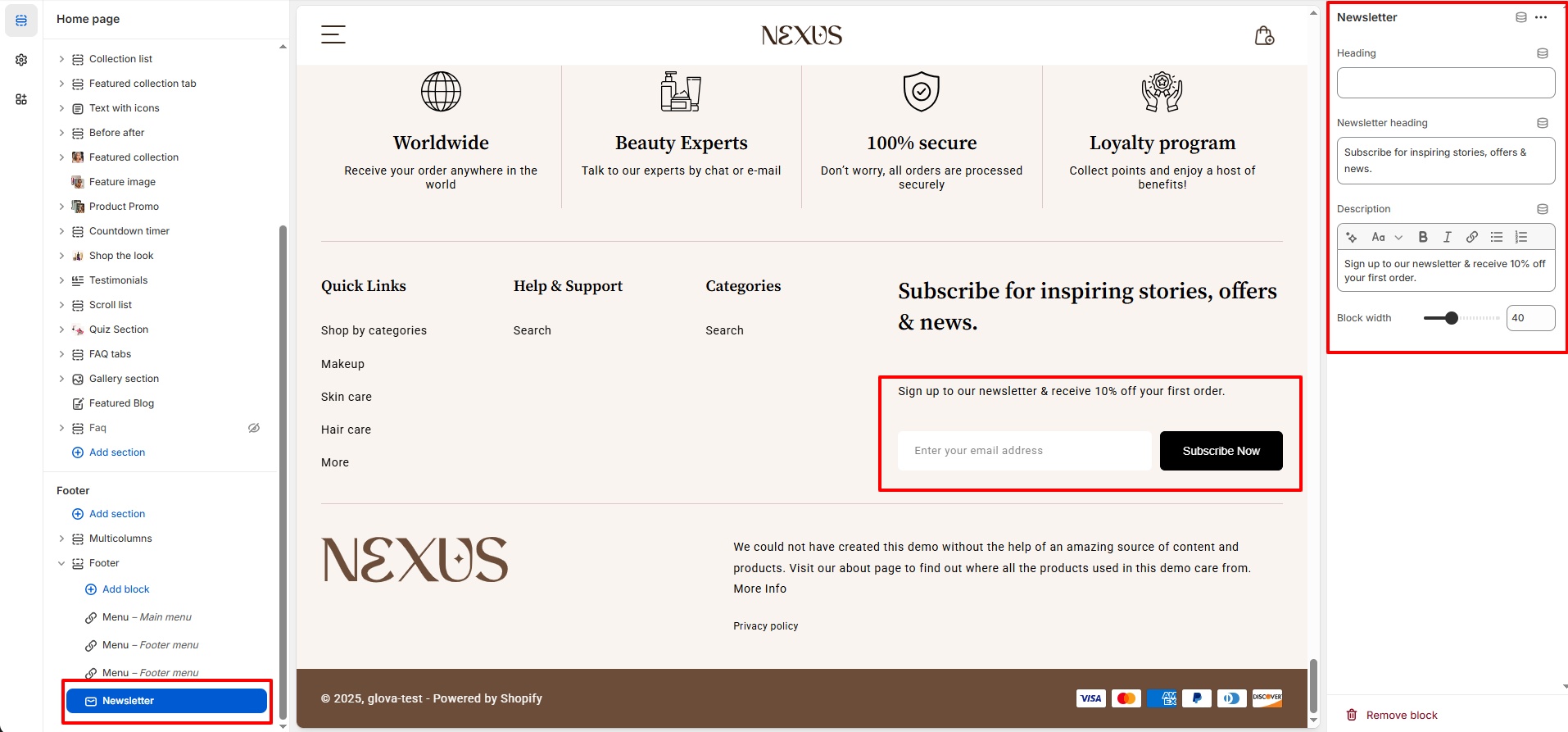
Newsletter Block
- The newsletter block allows you to invite shoppers into your beauty community by collecting email subscribers right from the footer—perfect for sharing updates, offers, and glow-worthy content.
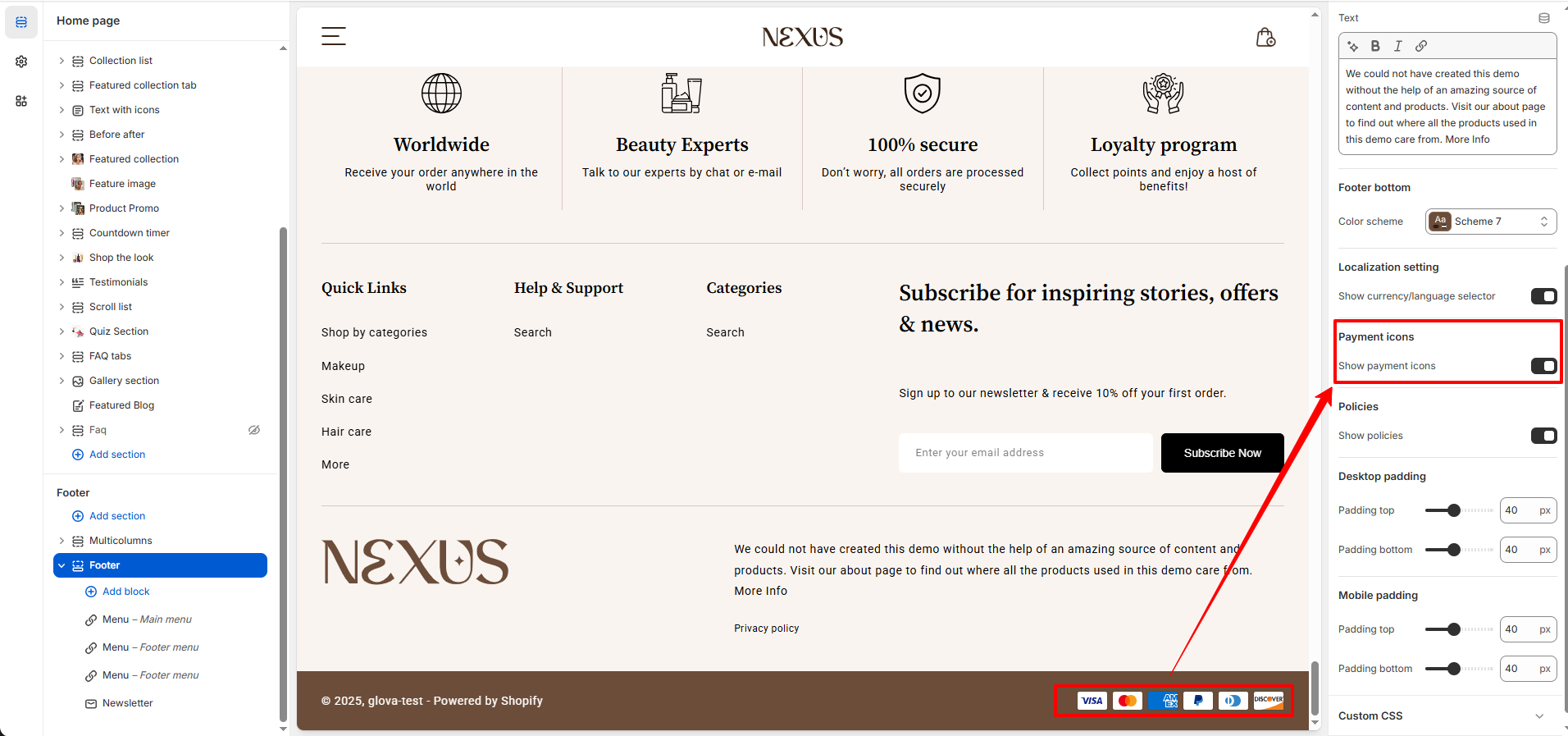
Payment Icons Block
- Show accepted payment methods to reassure customers.
- In Theme Settings, locate the Footer section. Enable the Payment Icons option to display available payment methods in the footer.
- Go to Settings > Payments in your Shopify admin.
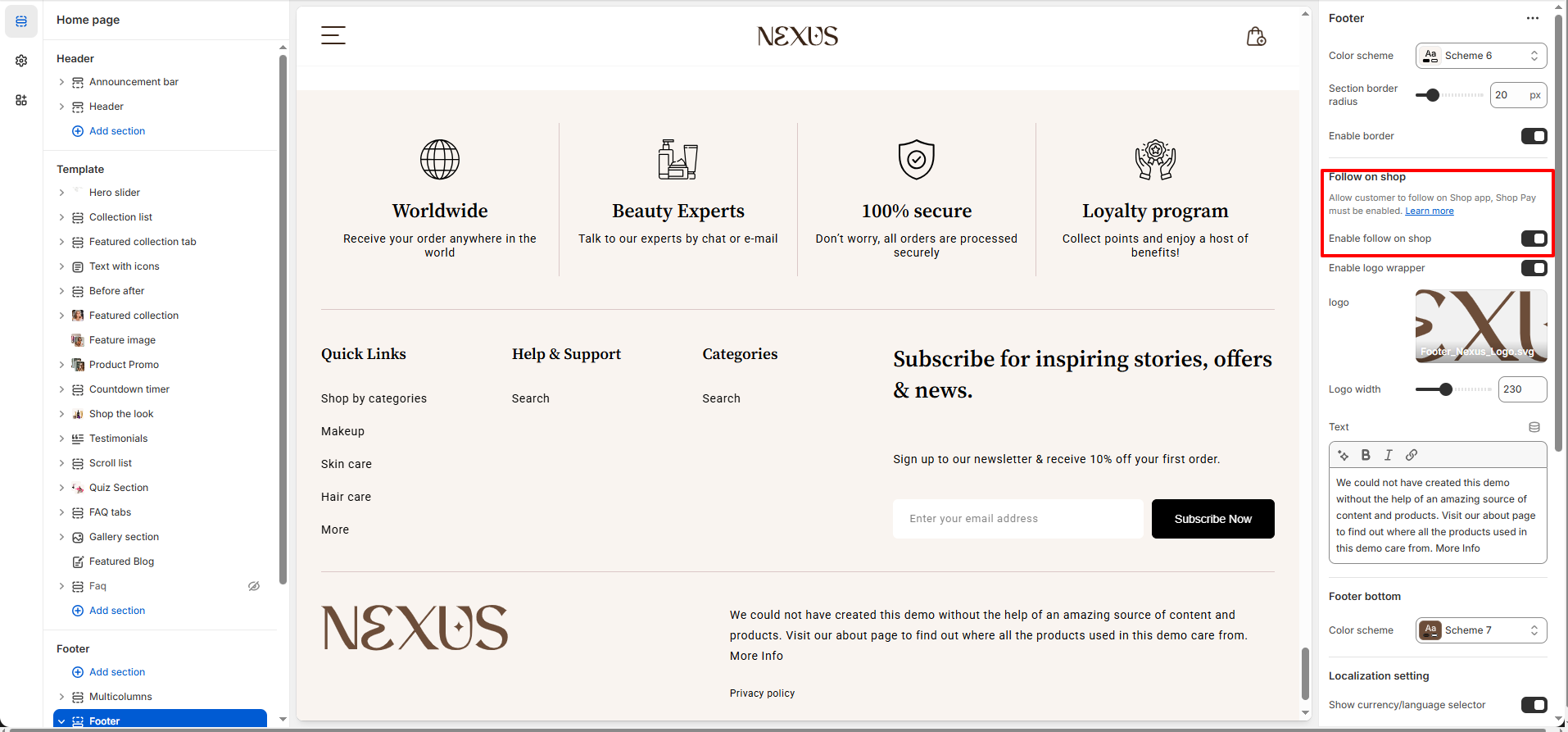
Enable Follow on Shop
- Make sure Shop Pay is enabled in your Shopify store settings.
- This allows customers to follow your store on the Shop app directly from your storefront.
- Read more about follow on shop
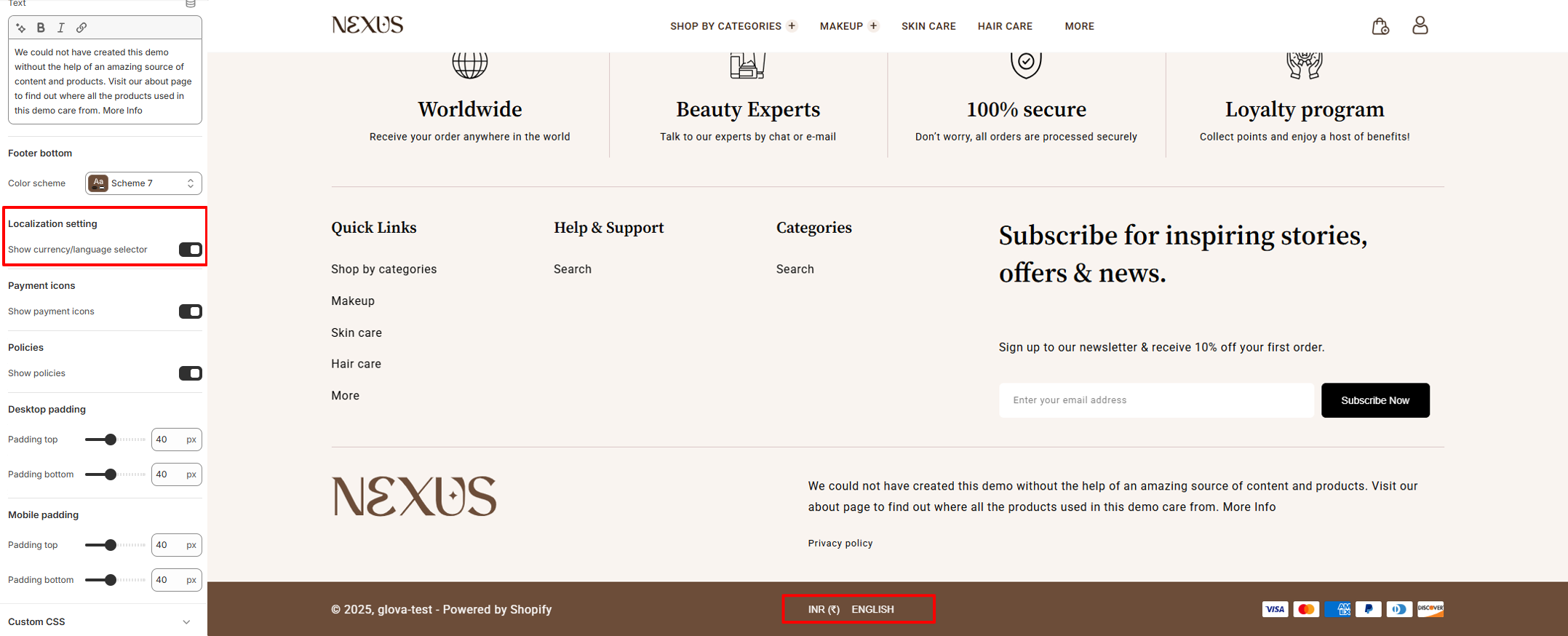
Enable Currency & Language Selector
- Enable Currency & Language Selector: Allow users to select their preferred currency and language, refer to the Shopify markets and Shopify languages support docs which will guide you through the process.
-
For Currency Settings-
- Navigate to Settings > Markets in your Shopify admin.
- Add the desired countries or regions to your markets.
- This will display a selector in the footer, allowing customers to choose their location.
-
For language Settings-
- Go to Settings > Languages in your Shopify admin.
- Add the languages you wish to support.
- Once added, the language selector will appear in the footer, enabling customers to choose their preferred language.
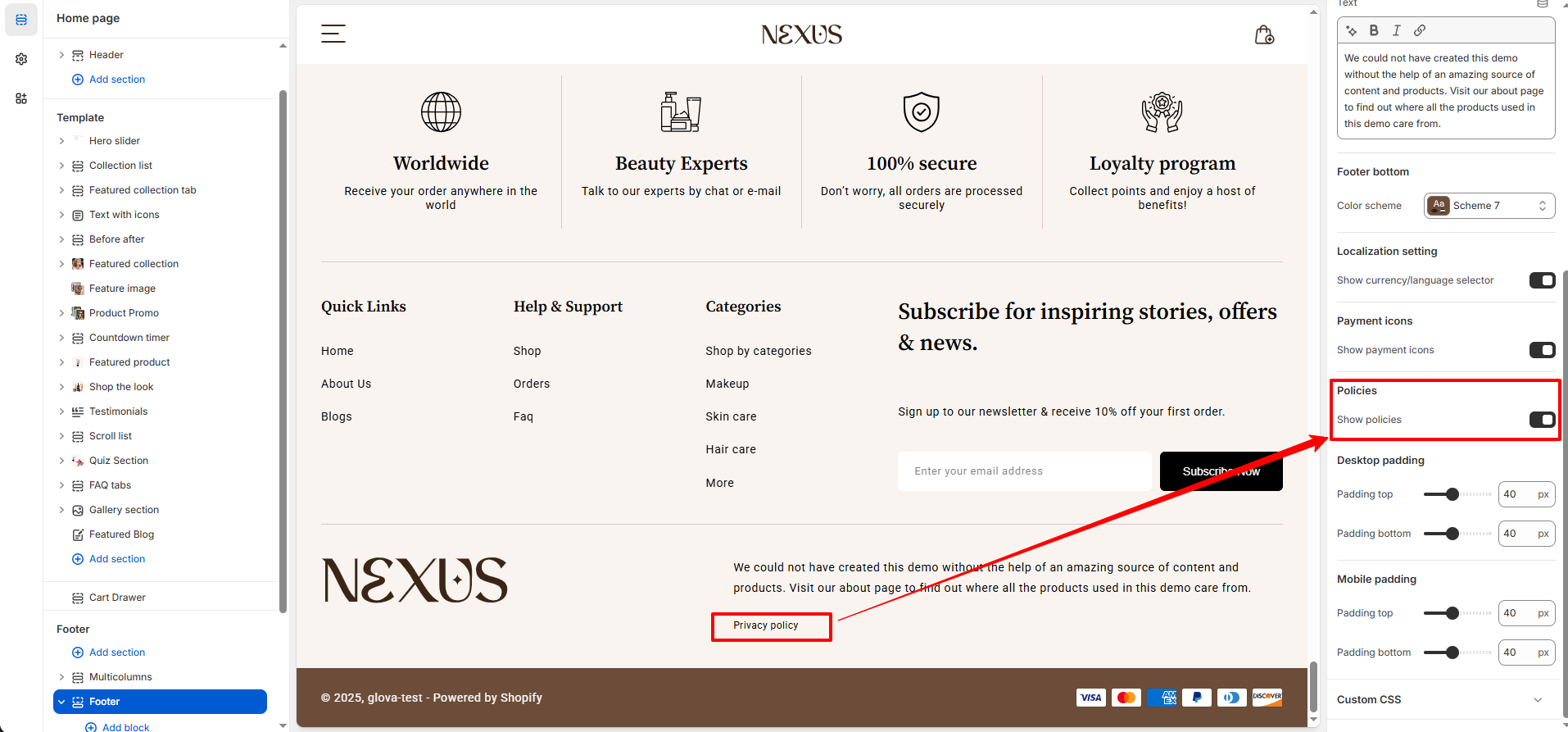
Show Policy Links-
- Go to Settings > Policies in your Shopify admin.
- Add policies for terms like Refund Policy, Privacy Policy, and Terms of Service.
- Once added, enable the Show Policy Links option in the Footer section of your theme settings to display these links in the footer.
How to Customize the Footer:
- Go to Online Store → Themes → Customize.
- Scroll to the bottom of your store preview and click on the Footer section.
- Add or remove blocks as needed.
- Use the settings panel to adjust colors, text alignment, and layout. .
- Save your changes.