Installation Guide
Follow the steps below to purchase, install, and activate the Nexus Shopify Theme.
1. Purchasing the Nexus Theme
Nexus is a premium Shopify theme, available exclusively on the Shopify Theme Store. To use it on your live store, you’ll need to purchase a license.
License Details:
- Each license is valid for one Shopify store only (in accordance with Shopify Terms of Service, Section 9.4 ).
- If you operate multiple stores, a separate license is required for each one.
Steps to Purchase:
- In your Shopify admin, navigate to Online Store > Themes .
- Browse the Shopify Theme Store and select Nexus .
- Click Buy , then follow the checkout process to complete your purchase.
Note: When you purchase the theme, it will automatically be added to your Shopify account.
2. Install & Publish Nexus
Once purchased, installing Nexus on your store only takes a few clicks.
Steps to Install:
- Log in to your Shopify admin .
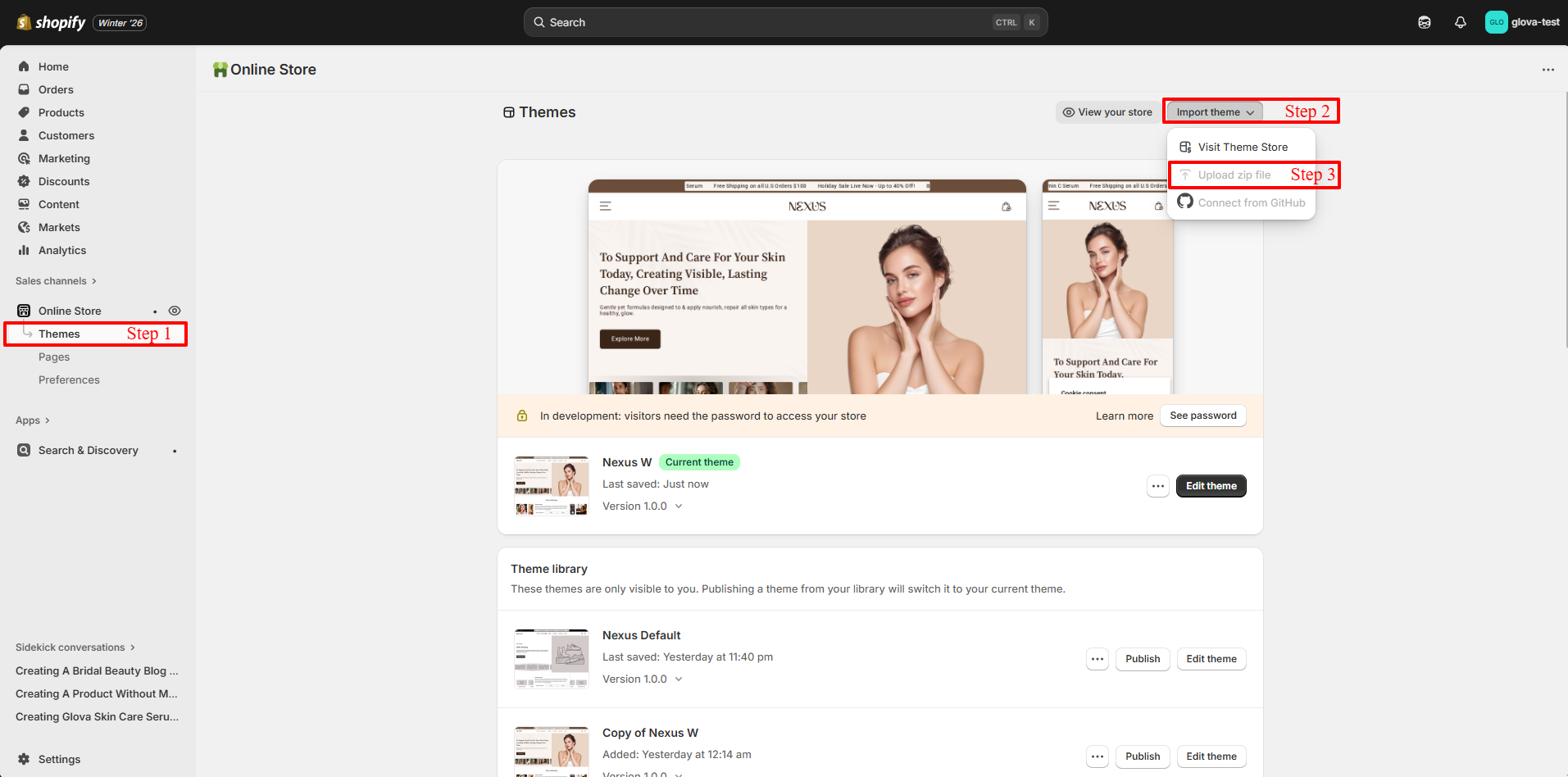
- Go to Online Store > Themes > Theme Library > Add Theme .
- Choose Upload zip file , then select your Nexus.zip package (or drag and drop the file).
- Click Upload and wait for the upload to complete.
- After the theme is added to your library, click Publish to activate Nexus as your live theme.
3. Try Nexus for Free
Just like other premium themes on the Shopify Theme Store, Nexus includes an unlimited free trial. You can explore, customize, and test all features before purchasing. When you’re ready to go live, simply purchase the theme to keep it active on your store.
How to Try Nexus:
- Visit the Shopify Theme Store and select Nexus .
- Click Try theme to add it to your Theme Library.
- In your Shopify admin, open Online Store > Themes.
- Under Theme Library, click Customize to start editing your store, or use Preview to see how Nexus looks before customizing.