Gallery Section – Nexus
The Gallery section in Nexus allows you to showcase your beauty products, lifestyle imagery, and brand visuals in a refined, visually rich grid layout.
It creates an elegant and immersive browsing experience, helping customers explore your collection through high-quality imagery while maintaining a clean, well-balanced page design.Each gallery image can be linked to product pages, collections, custom pages, Instagram profiles or posts, and external URLs for greater interactivity.
This section is perfect for highlighting product aesthetics, beauty routines, campaign visuals, social media content, or brand storytelling—making your store feel premium, inspiring, and visually engaging.
Features of the Gallery Section:
- Display multiple images in a clean, visually rich grid layout.
- Support high-quality product, lifestyle, and brand imagery.
- Each image can be linked to products, collections, pages, Instagram profiles or posts, and external URLs.
- Flexible layout options to create balanced and aesthetically pleasing designs.
- Adjustable image spacing and alignment for a polished appearance.
- Fully responsive design that adapts seamlessly across desktop, tablet, and mobile devices.
- Touch-friendly interaction for smooth browsing on mobile and touchscreen devices.
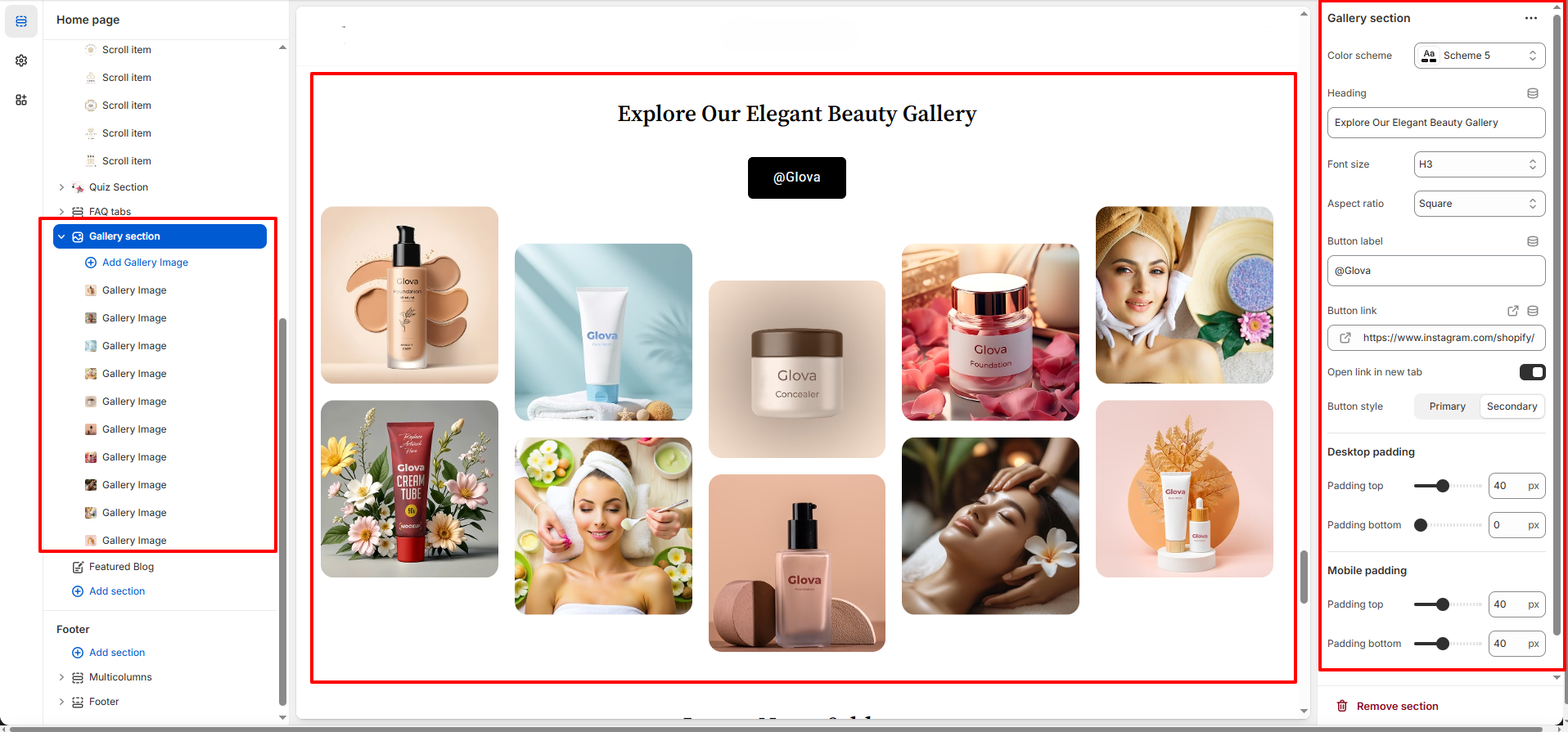
How to Set Up the Gallery Section:
- Go to Online Store → Themes → Customize.
- Click Add section and select Gallery from the section list.
- In the settings panel, configure the following.
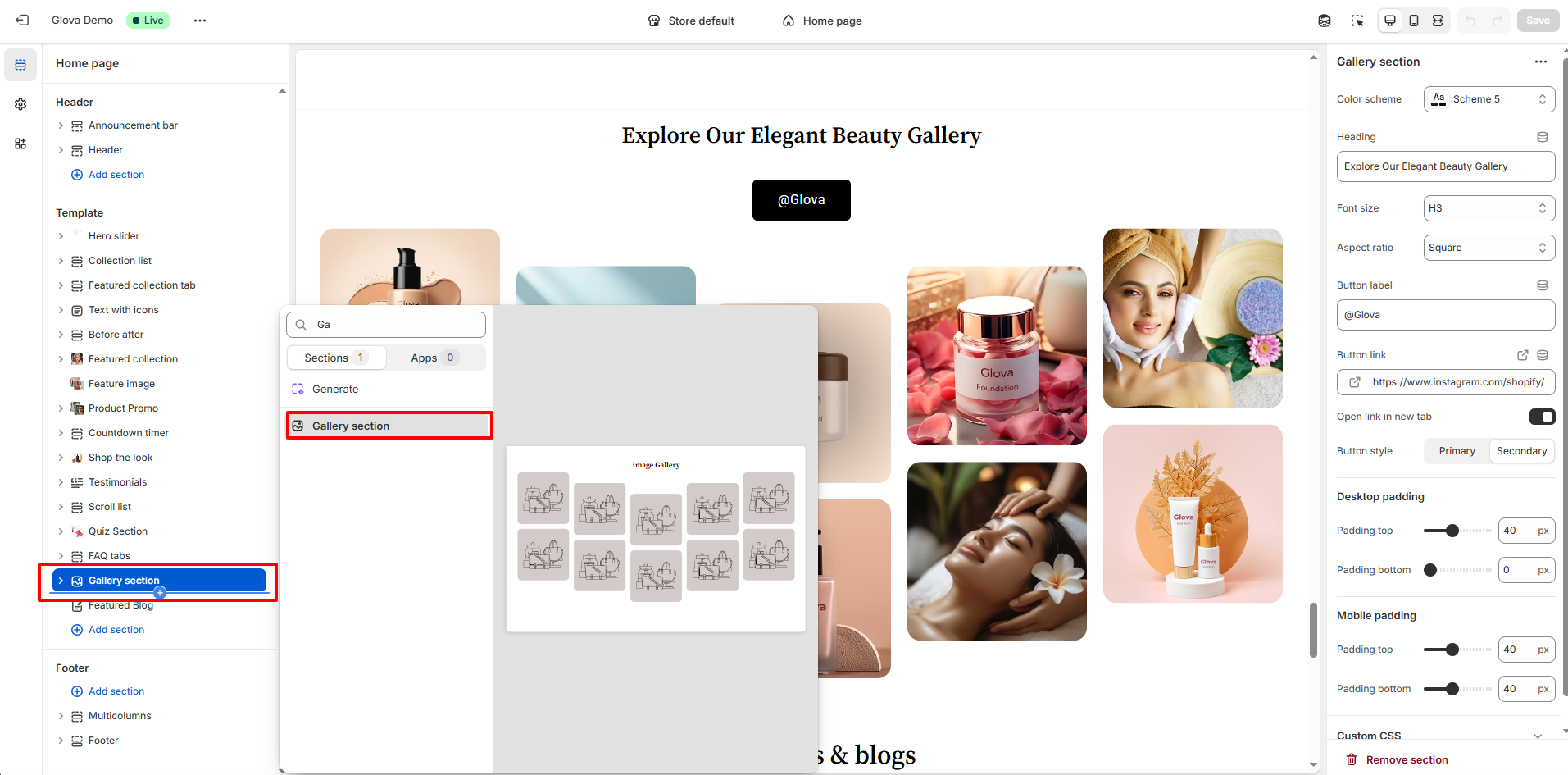
Gallery Section Settings:
- Color Scheme: Choose a predefined color scheme to match your store’s branding.
- Heading: Add a heading to introduce the gallery section.
- Font Size: Select the heading font size to control visual hierarchy.
- Aspect Ratio: Choose the image aspect ratio (such as Square) to maintain consistent image sizing.
- Button Label: Add text for the call-to-action button displayed in the gallery section.
- Button Link: Set the destination link for the button. This can link to Instagram, product pages, collections, custom pages, or external URLs.
- Open Link in New Tab: Enable this option to open the button link in a new browser tab.
-
Button Style:
- Primary – Highlights the main call-to-action
- Secondary – Subtle alternative button style
-
Desktop Spacing
- Spacing Top: Adjust the space above the gallery section on desktop devices.
- Spacing Bottom: Adjust the space below the gallery section on desktop devices.
-
Mobile Spacing
- Spacing Top: Adjust the top spacing for mobile devices.
- Spacing Bottom: Adjust the bottom spacing for mobile devices.
Gallery Image Block Settings:
- Gallery Image: Upload images to display in the gallery grid.
- Image Link: Add a link to each image (products, collections, pages, Instagram, or external URLs).
Pro Tips:
Use this section to showcase your best-selling products,Instagram posts or latest collections.
Link images to product pages, Instagram posts, or promotional campaigns to drive engagement.
Maintain consistent image styles and aspect ratios for a polished, professional look.