Quiz Section – Nexus
The Quiz Section allows you to create an interactive beauty or skincare quiz that helps customers find the most suitable products based on their answers.
This section is perfect for beauty, skincare, and cosmetic stores that want to offer personalized product recommendations, improve engagement, and increase conversion rates.
Features of the Quiz Section:
- Interactive Customer Experience:Engage customers with step-by-step quiz questions related to skin concerns, preferences, or needs.
- Product Recommendation Logic: : Automatically suggest products based on customer answers using built-in mapping logic.
- Customizable Design: : Fully customize colors, fonts, headings, and layout to match your Nexus theme branding.
- Multiple Questions Support : Add multiple questions and answer options to build a detailed and effective quiz flow.
- Fully Responsive Design : Ensures smooth functionality and appearance across desktop, tablet, and mobile devices.
How to Set Up the Muticolumn Section:
- Go to Online Store → Themes → Customize.
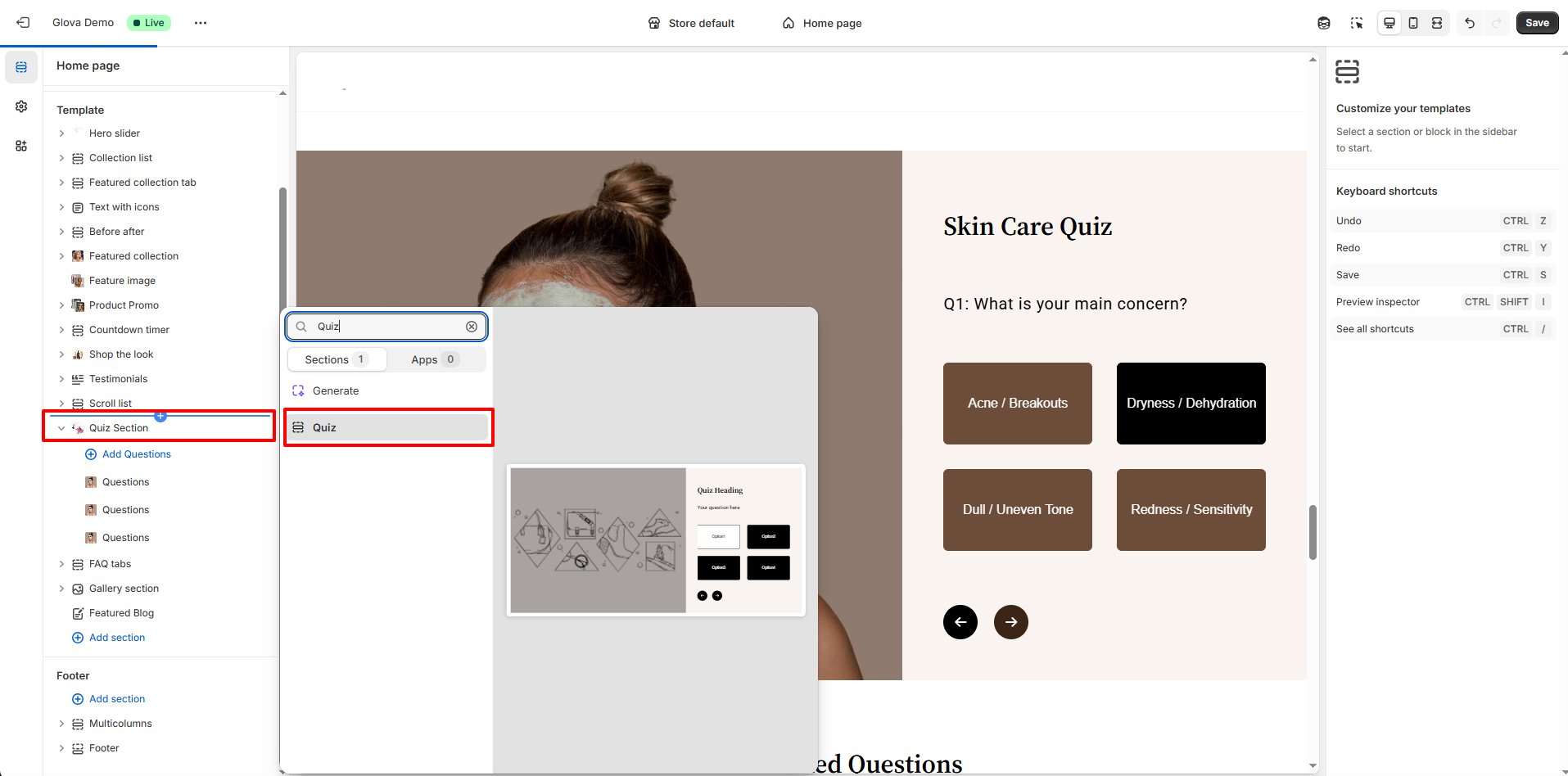
- Click Add section and select Quiz from the section list.
- In the settings panel, configure the following.
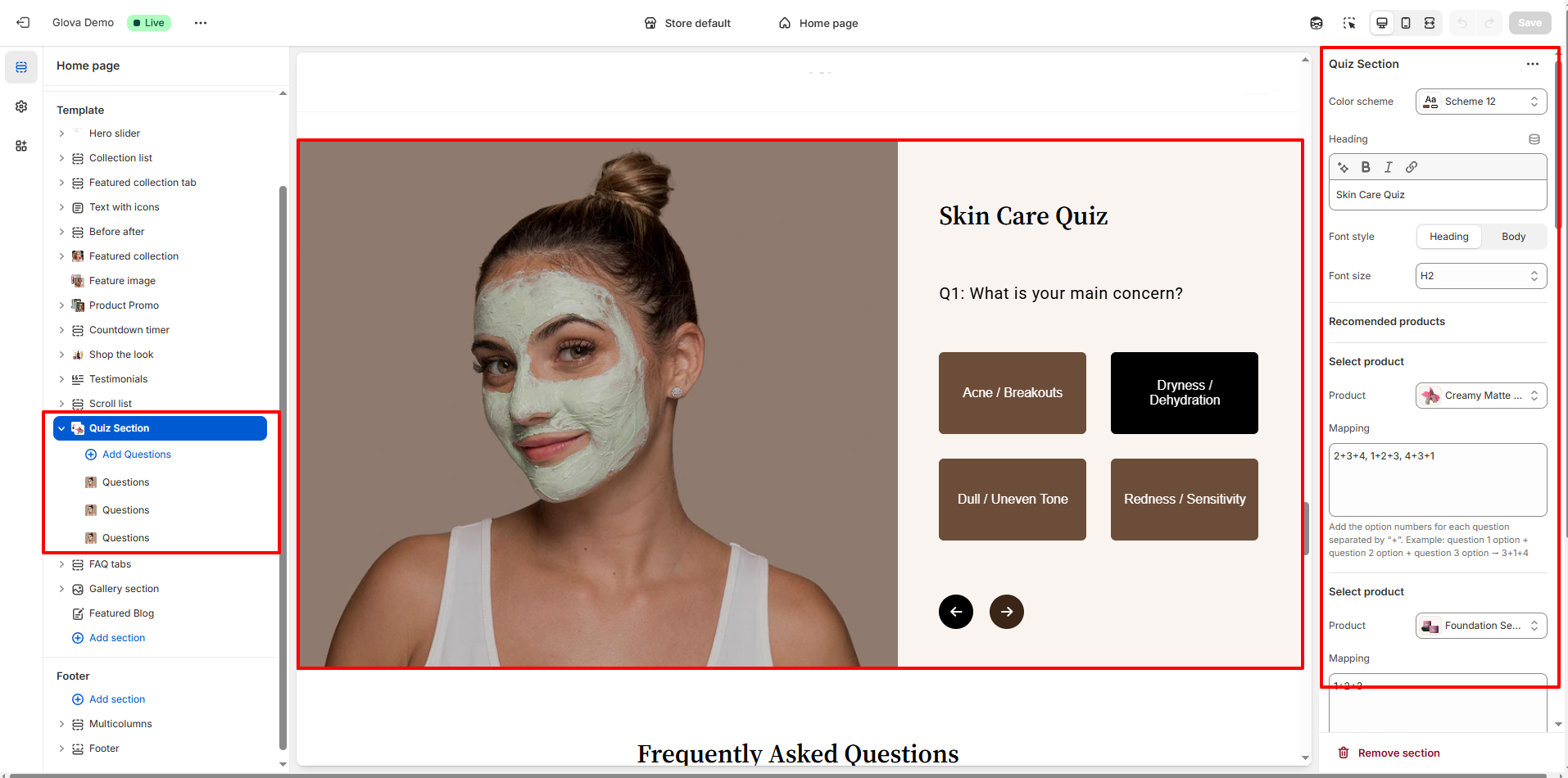
Quiz Section Settings:
- Color Scheme: Choose a predefined color scheme that matches your store’s branding.
- Heading : Set the main quiz title (for example: Skin Care Quiz).
- Font Style : Select whether the heading uses Heading or Body font style.
- Font Size : Choose the heading size (H1, H2, H3, etc.).
- Select Product : Choose the product you want to recommend based on quiz results.
-
Mapping Logic : Assign option numbers for each question using the mapping field.
-
Mapping Format Example:2+3+4, 1+2+3, 4+3+1
- Each number represents an option selected by the customer.
- Use + to combine multiple answers.
- Use , to separate different result combinations.
-
Product Cards Settings:
- Image Aspect Ratio:Choose how product images are displayed within the card.(Adapt To Image,Square,Landscape,Portrait)
- Show Vendor:Enable this option to display the product vendor name on the product card. Disable it for a cleaner and more minimal product presentation.
- Show Product Options:When enabled, product options such as size or shade are visible directly on the product card, allowing customers to preview variations easily.
- Enable Quick View:Allows customers to open a quick view popup to see product details without leaving the quiz flow, improving engagement and usability.
- Show Variant Image:When enabled, the product image updates automatically based on the selected variant, providing a more accurate visual preview.
-
Spacing:
- Desktop Spacing: Adjust top and bottom spacing for desktop view.
- Mobile Spacing: Customize spacing specifically for mobile screens.
Quiz Block Settings:
- Image: Upload an image to visually support the question. This is useful for showcasing skincare results, product usage, or lifestyle imagery to increase engagement.
- Question : Enter the quiz question text.
- Option : Add answer choices related to the question
Each option represents a selectable response for the customer.
Pro Tips:
Enable Quick View to keep customers engaged without interrupting the quiz
experience.
Enable Variant Image for products with multiple shades or colors to enhance visual
clarity.