Scroll List Section – Nexus
The Scroll List section in Nexus allows you to showcase a horizontal scrolling list of text or icons in a clean and modern layout.
This section creates a smooth, continuous scrolling effect that naturally draws attention while maintaining a balanced and uncluttered page design.
It is perfect for highlighting brand USPs, key benefits, certifications, partner logos, or trust badges in a compact, engaging, and visually appealing format.
Features of the Scroll List Section:
- Add multiple items (text, icons, or images) to a horizontally scrolling list.
- Customize scroll speed and enable looping for continuous animation.
- Choose between icons, images, or plain text for list items.
- Adjust spacing and alignment for a clean and balanced design.
- Adjust image size, text size and its colors.
- Fully responsive and touch-friendly on all devices.
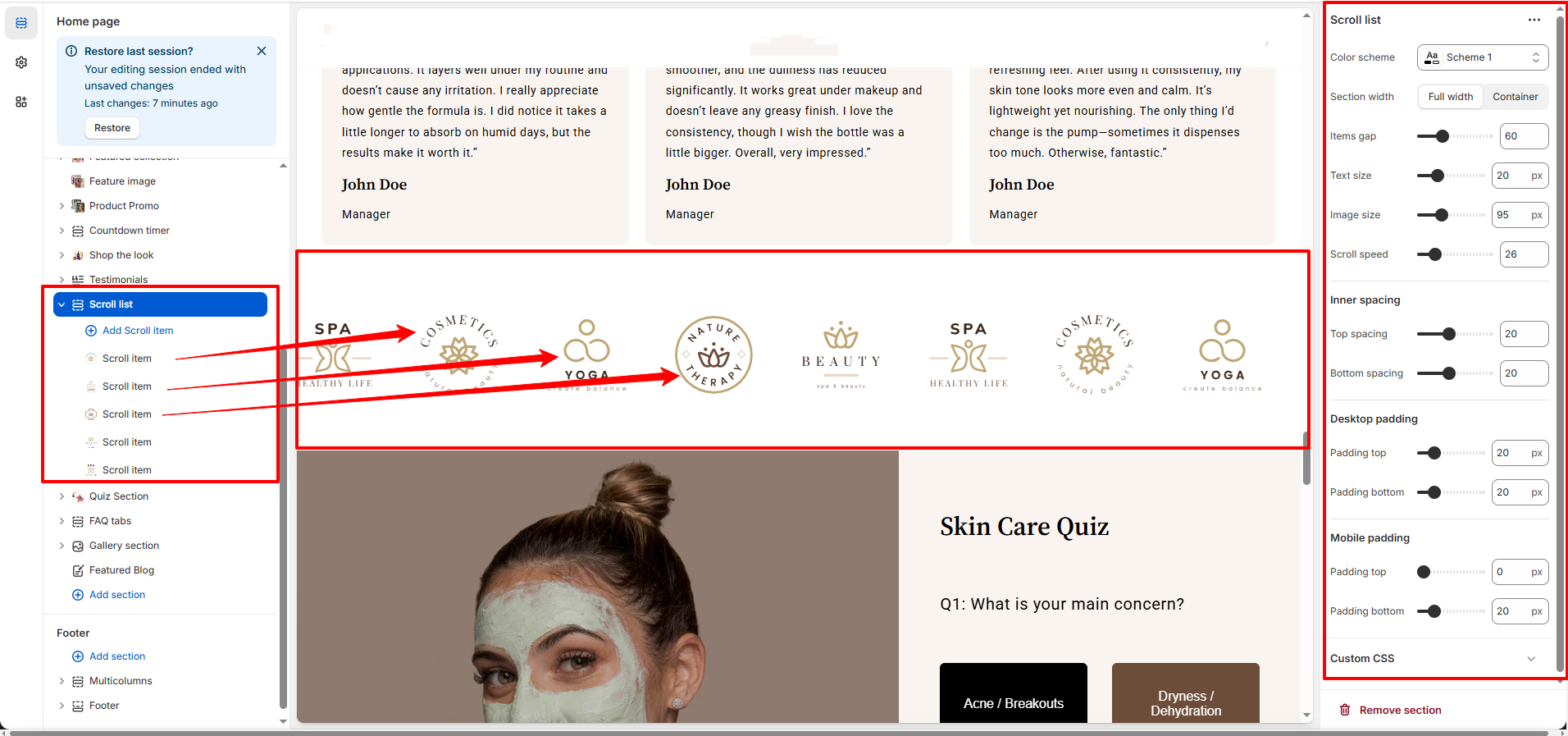
How to Set Up the Scroll List Section:
- Go to Online Store → Themes → Customize.
- Click Add section and select Scroll List from the section list.
- In the settings panel, configure the following.
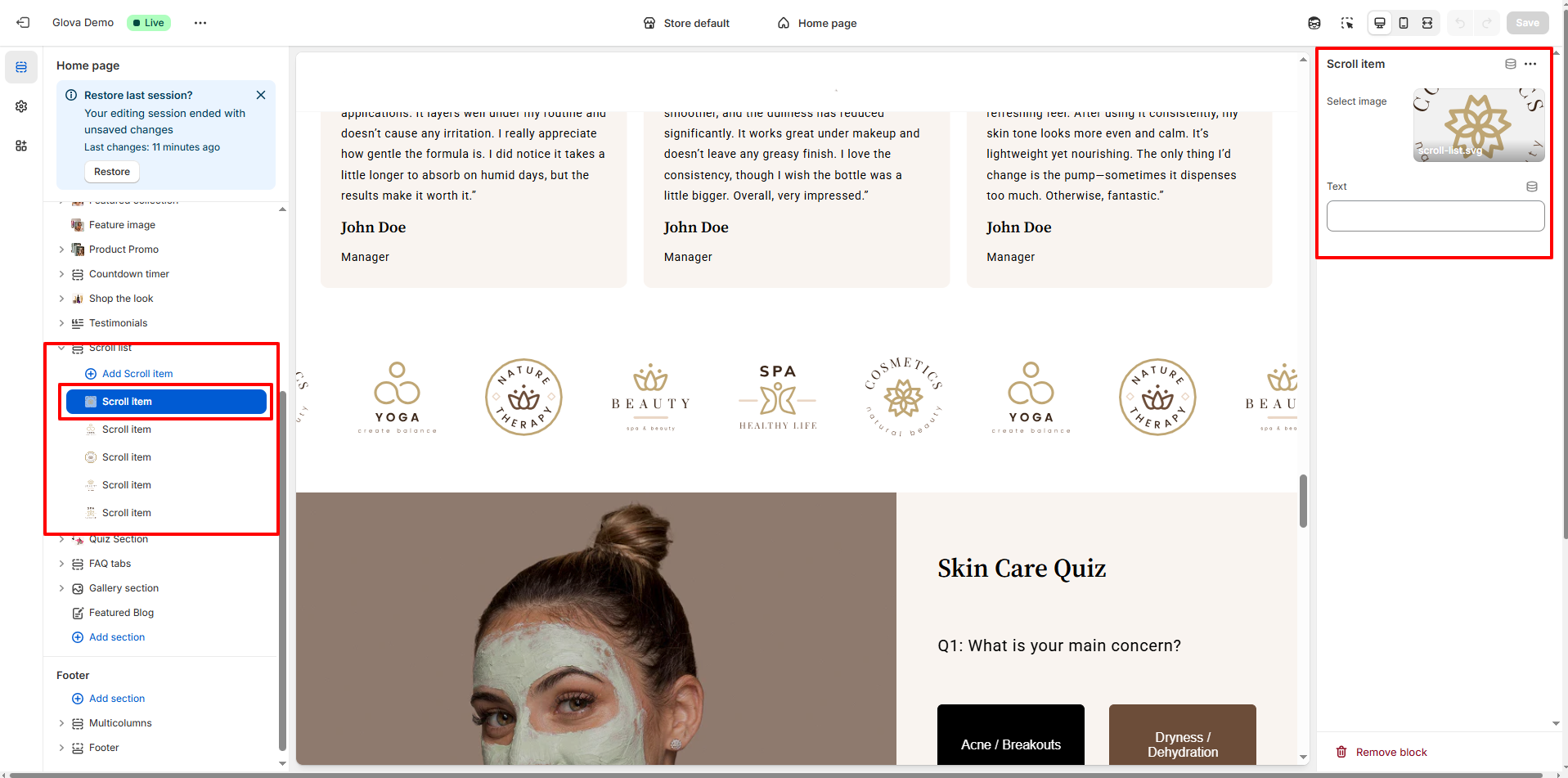
Scroll List Settings:
- Color Scheme: Choose a predefined color scheme to match your store’s branding.
-
Section Width:
- Full Width – Spans the entire screen width
- Container– Keeps content aligned within the theme container
- Items Gap: Control the spacing between each list item for better visual balance.
- Text Size: Adjust the size of the text inside each list item.
- Image Size: Set the size of images or icons used within the list items.
- Scroll Speed: Define how fast the list scrolls across the screen. Higher values result in faster movement.
-
Scroll List Block Settings
- Image/Icons:Select the Icon/Images to be scrolled
- Text:Add text to be scrolled
Pro Tips:
Use this section to highlight USPs like “Free Shipping”,
“24/7 Support”, or “Sustainable Materials”.
Add brand or partner logos for building credibility.
Keep the list concise (5–10 items) for smooth scrolling.