Shop The Look Section – Nexus
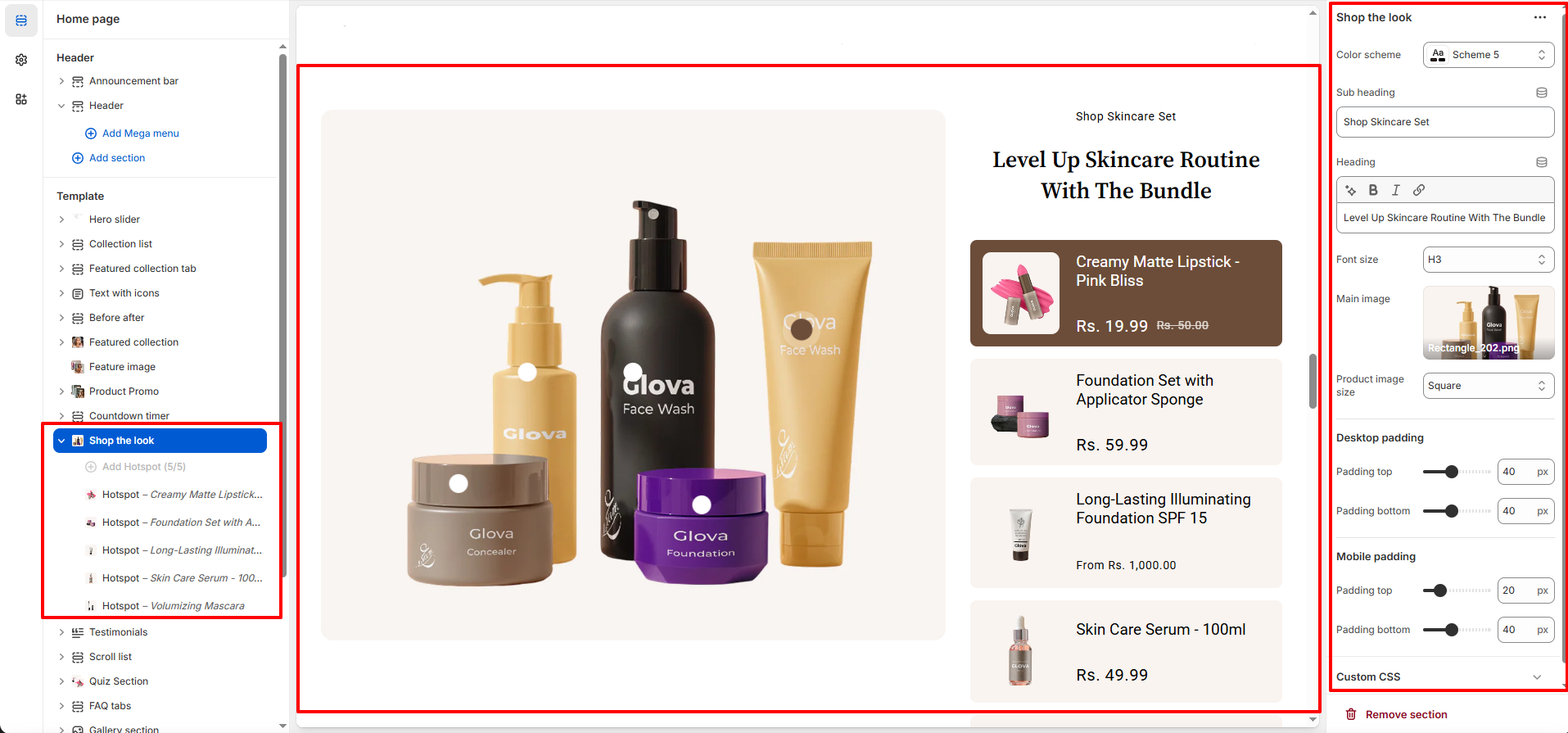
The Shop the Look Section in the Nexus theme is crafted to seamlessly blend inspiration with shopping. It allows you to showcase curated beauty looks by pairing visually engaging imagery with featured products, making it easy for customers to explore and purchase the complete look. Ideal for highlighting skincare routines, makeup bundles, or styled product combinations,this section enhances product discovery while delivering a refined, editorial-style shopping experience that elevates your beauty brand.
Features of the Product Carousel Section:
- Visual-to-Purchase Experience : Turn inspiration into action by pairing a striking main image with shoppable products, allowing customers to instantly buy the complete skincare or beauty look they love.
- Curated Bundle Storytelling : Highlight thoughtfully selected product sets with a custom heading and subheading, helping you tell a routine-based or look-based story that boosts customer confidence and conversions.
- Responsive & Customizable Layout : Enjoy a polished shopping experience on every device with adjustable spacing, image sizing, and color schemes that adapt beautifully to desktop and mobile screens.
How to Set Up the Product Promo Section:
- Go to Online Store → Themes → Customize.
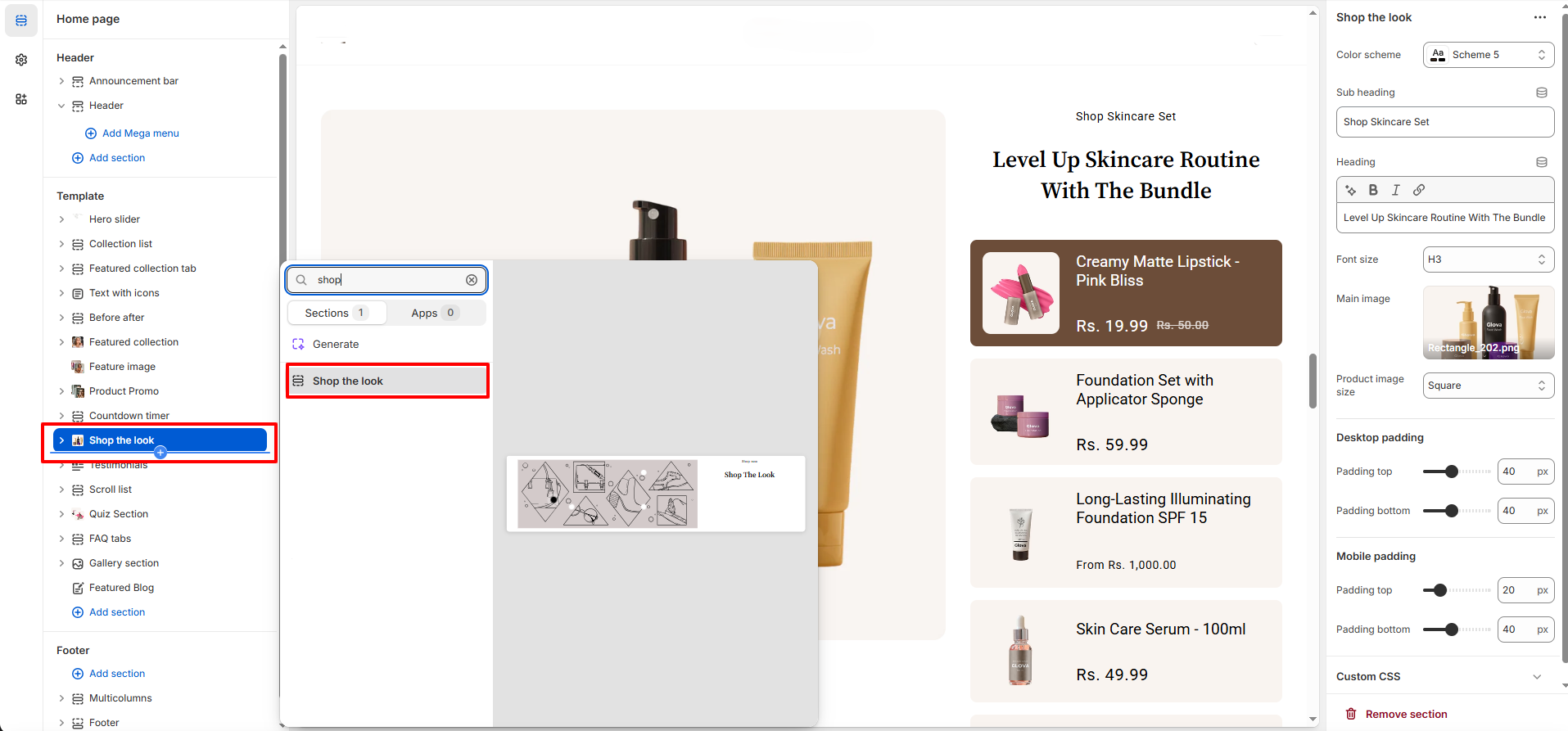
- Scroll to the Shop The Look section or add it by clicking Add section → Shop The Look.
- In the settings panel, configure the following.
Shop The Look Settings:
- Color Scheme: Select from your theme’s predefined color schemes to ensure the section blends seamlessly with the overall Nexus design aesthetic.
- Sub Heading: Add a short supporting line displayed above the main heading to introduce the featured look or product set (e.g., “Shop Skincare Set”).
- Font Size:Choose the heading font size (such as H1–H6) to control visual hierarchy and match your page layout.
- Main Image:Upload a large, high-quality image that represents the complete look, skincare routine, or bundled products showcased in the section.
- Product Image Size: Select the product image shape (e.g., Square) to maintain a consistent and clean product presentation.
Shop The Look - Hotspot Block Settings:
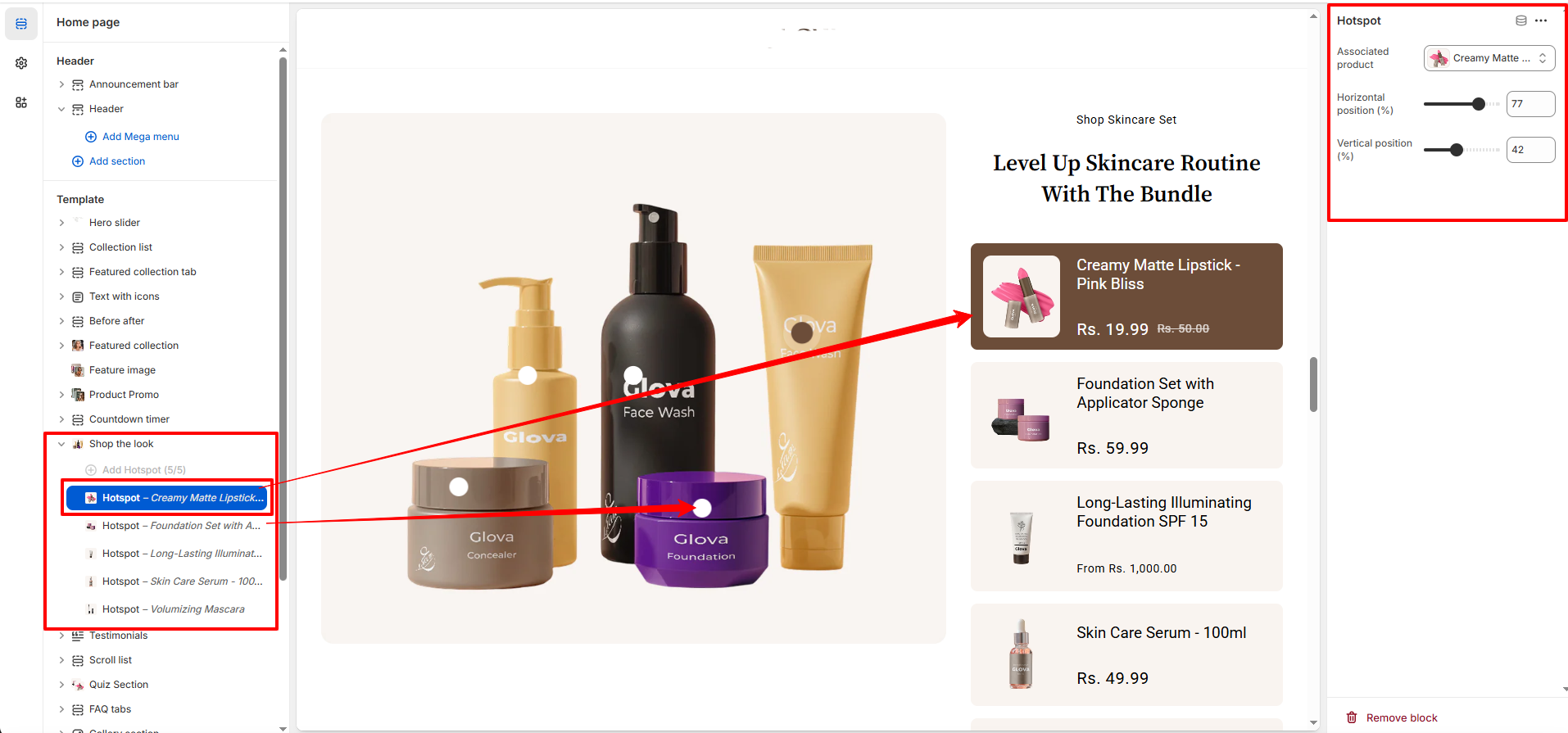
- Associated Product: Select the product that will be linked to this hotspot. When customers interact with the hotspot, the chosen product details are displayed for quick access and purchase.
- Horizontal Position: Adjust the horizontal placement of the hotspot across the image to precisely align it with the product being highlighted.
- Vertical Position:Control the vertical placement of the hotspot on the image to ensure accurate positioning over the featured product.
Pro Tips:
Place hotspots directly over clearly visible products for better user interaction. Use multiple
hotspots
sparingly to avoid clutter, and ensure enough spacing between them for easy tapping on mobile devices.
For best
results, choose a high-quality main image with a clean background so hotspot products stand out
naturally.