Category Spotlight
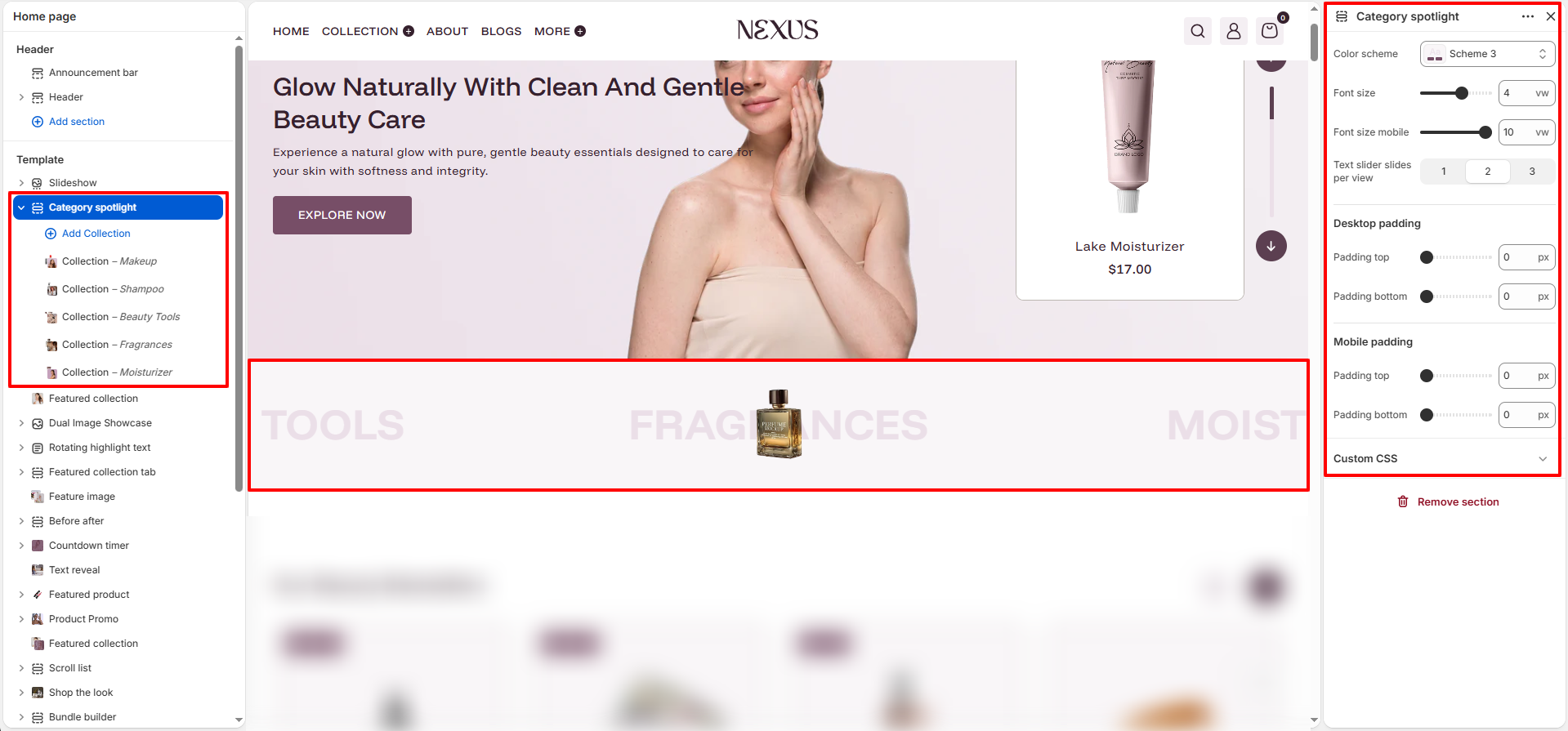
The Category Spotlight section in Nexus displays a horizontally scrolling ticker of your store's collections, showcasing each category with its name and a featured product image. It draws shoppers' attention to your key product categories in a dynamic, visually engaging way.

Category Spotlight Section Settings
- Color scheme: Select a color scheme (e.g., Scheme 3) to define the background and text colors for the category ticker strip.
- Font size: Set the size of the collection name text displayed in the ticker on desktop, measured in viewport width units (vw). For example, a value of 4 vw scales the text relative to the browser window width.
- Font size mobile: Set the font size of the collection name text specifically for mobile screens (e.g., 10 vw).
- Text slider slides per view: Choose how many collection slides are visible at once in the ticker. Options are 1, 2, or 3 slides per view.
Padding Settings
- Desktop padding top / bottom: Control the vertical spacing above and below the category spotlight strip on desktop screens (e.g., 0 px top, 0 px bottom).
- Mobile padding top / bottom: Control the vertical spacing above and below the strip on mobile screens (e.g., 0 px top, 0 px bottom).
Collection Block Settings
Each collection item added within the Category Spotlight section has its own block settings:
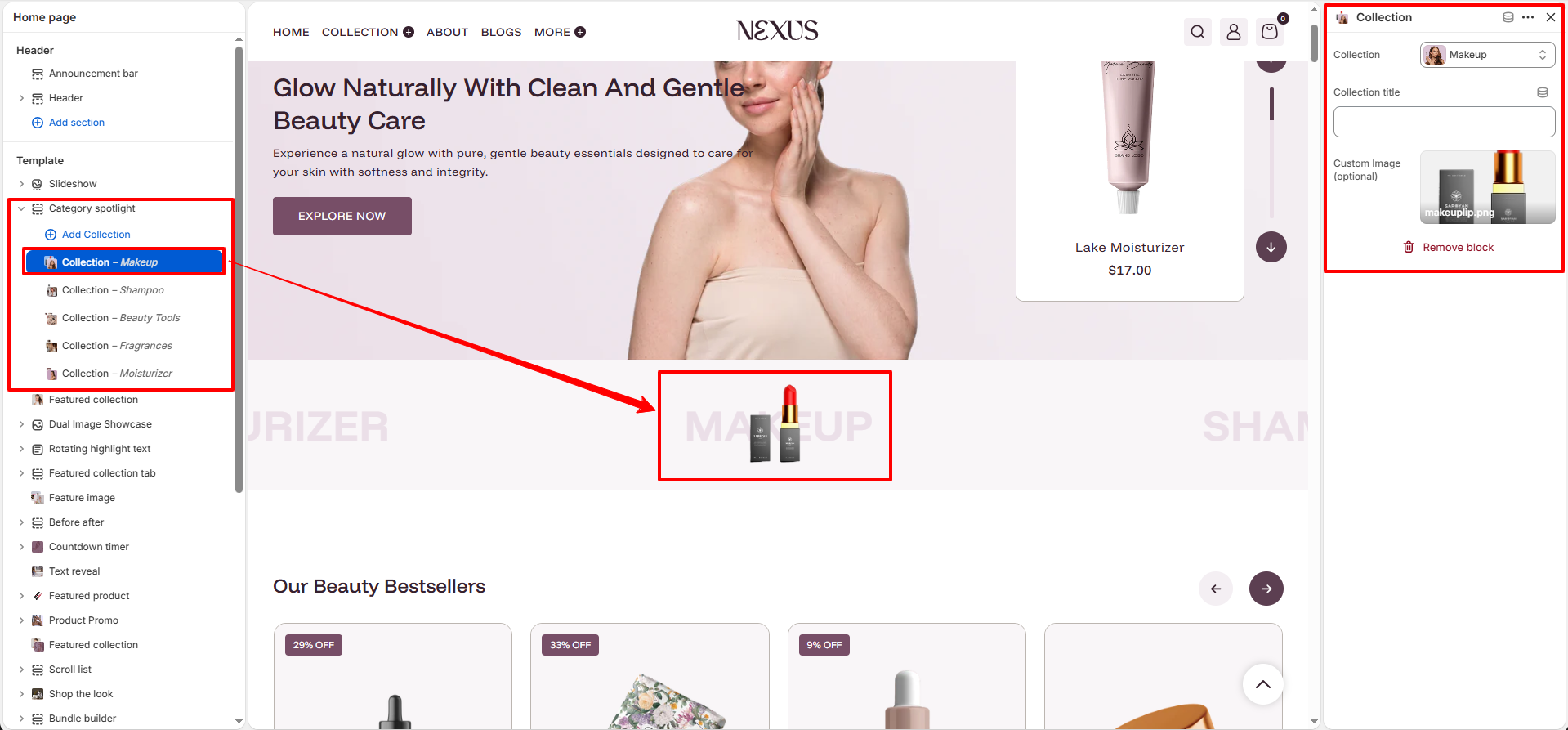
- Collection: Select which collection to feature in this block (e.g., Makeup, Shampoo, Beauty Tools, Fragrances, Moisturizer). The collection name will appear as the ticker label.
- Collection title: Optionally override the displayed text label for this collection. If left empty, the collection's default name is used.
- Custom image (optional): Upload a custom collection image to display floating alongside the collection name in the ticker. If not set, the section will use the collection's default featured image.
How to Customize the Category Spotlight
- Go to Online Store → Themes → Customize.
- On the Home page template, click on the Category spotlight section in the left sidebar.
- Use the right-hand settings panel to configure the color scheme, font sizes, and slides per view.
- Click Add Collection to add individual collection blocks, then select a collection and optionally upload a custom image.
- Repeat for each category you want to feature in the ticker.
- Click Save to apply your changes.