Dual Image Showcase – Nexus
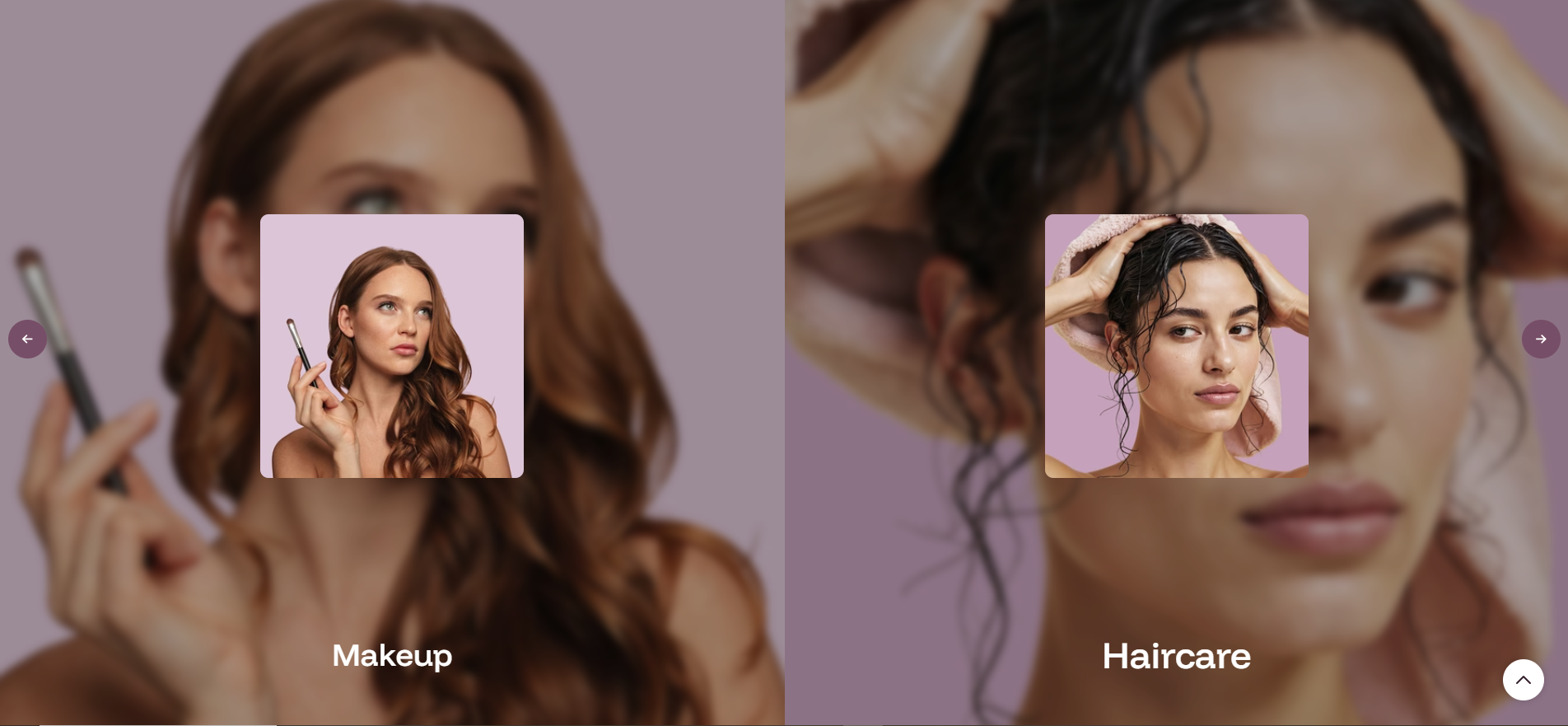
The Dual Image Showcase section in Nexus displays a full-width, side-by-side slider where each slide features two category panels — a left and a right — each with a large background image, a small floating card image, a category title, and a clickable link. It is ideal for spotlighting two product categories at once in a visually rich, immersive layout.
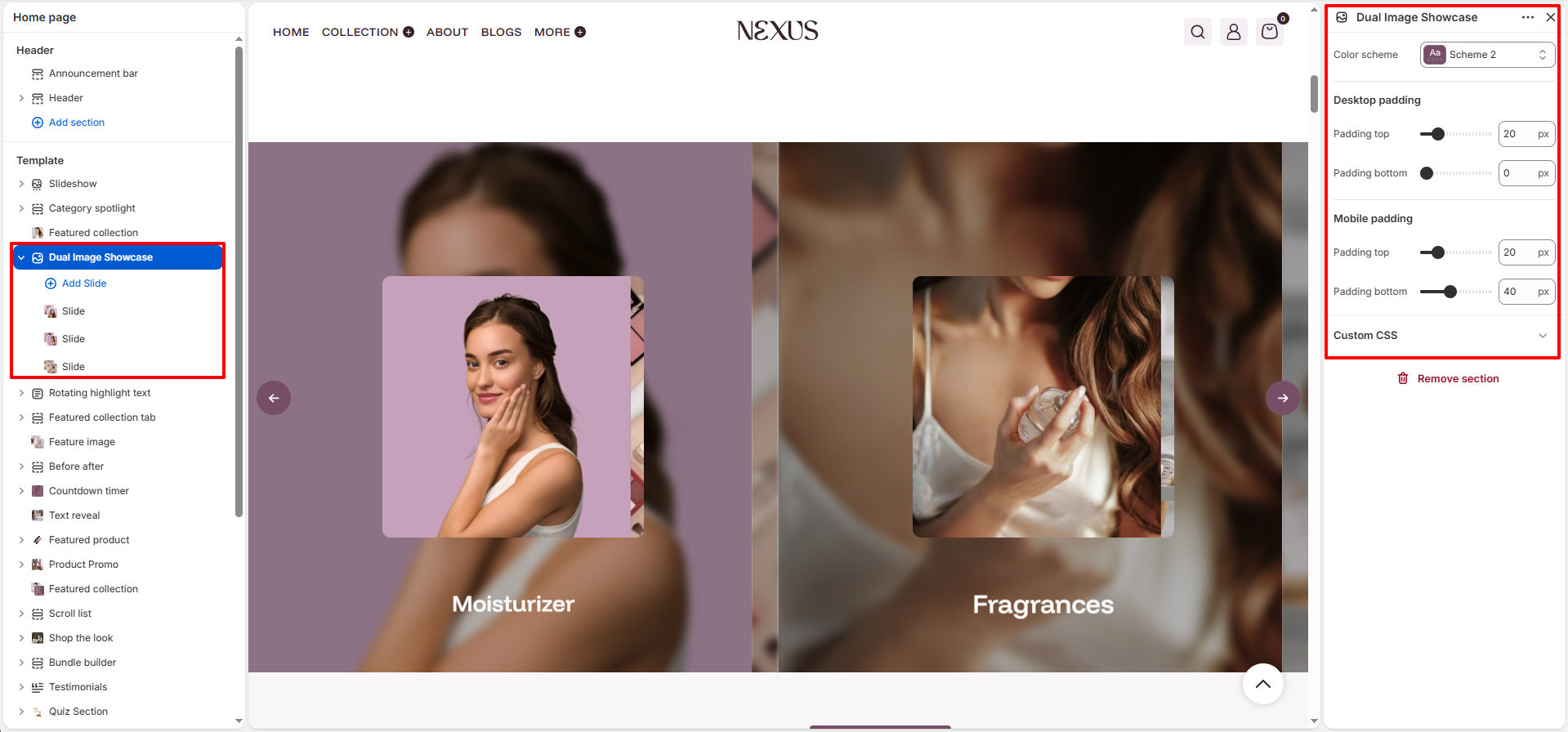
Dual Image Showcase Section Settings
- Color scheme: Select a color scheme (e.g., Scheme 2) to define the background and text colors applied to the overall section container.
- Desktop padding top: Set the space above the section on desktop screens (e.g., 20 px).
- Desktop padding bottom: Set the space below the section on desktop screens (e.g., 0 px).
- Mobile padding top: Set the space above the section on mobile screens (e.g., 20 px).
- Mobile padding bottom: Set the space below the section on mobile screens (e.g., 40 px).
- Custom CSS: An advanced field for adding custom CSS rules scoped to this section, allowing further styling without editing theme files directly.
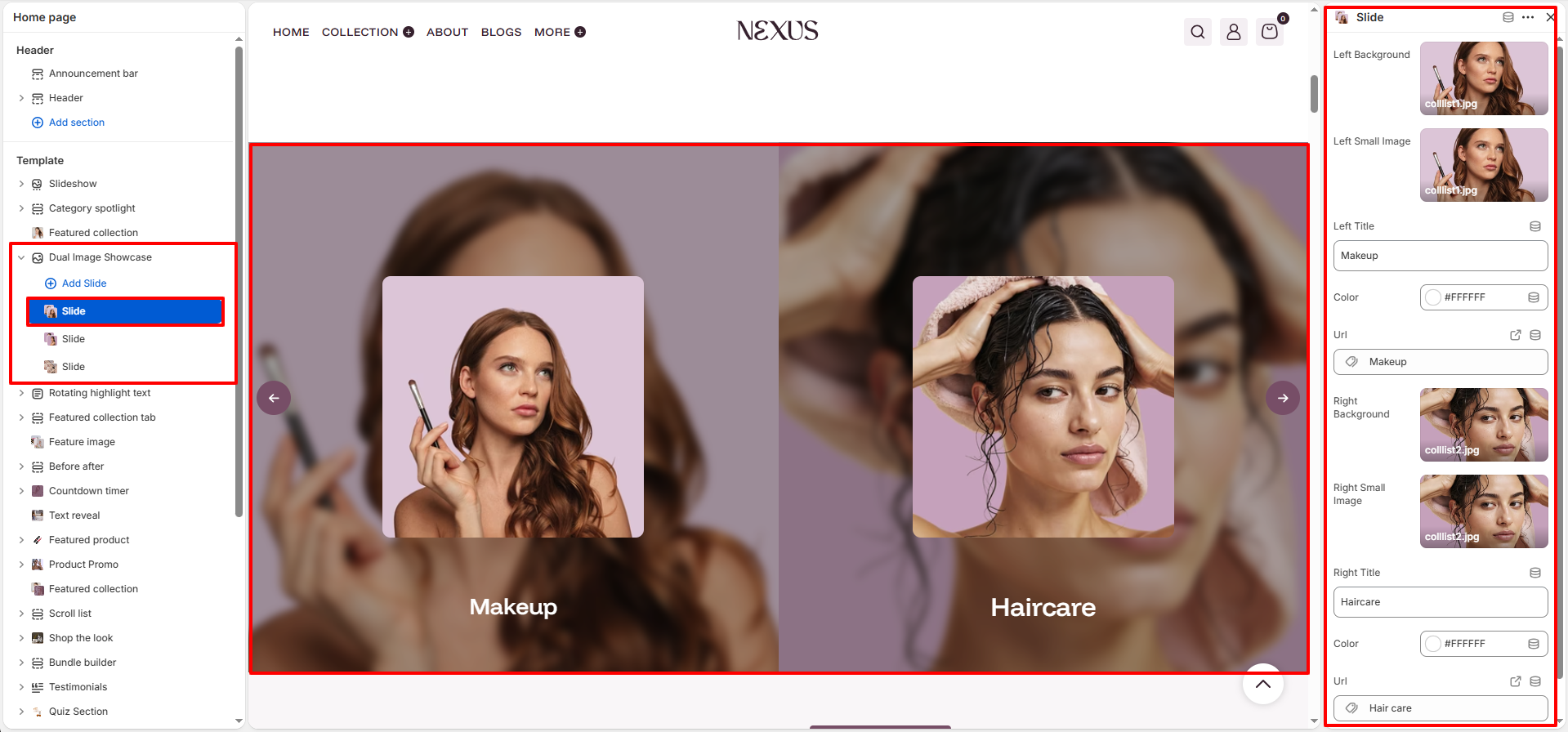
Slide Block Settings
Each slide added within the Dual Image Showcase section contains a left panel and a right panel. Both panels are configured within the same slide block. You can add multiple slides using the Add Slide button to create a rotating showcase of different category pairs.
Left Panel Settings
- Left Background: Upload the full-bleed background image displayed behind the entire left panel of the slide (e.g., a model or lifestyle shot representing the left category).
- Left Small Image: Upload a smaller product or highlight image that appears as a floating card overlaid on the left panel, drawing additional visual attention to the category.
- Left Title: Enter the category name or label displayed at the bottom of the left panel (e.g., "Makeup"). This acts as the main text identifier for the left category.
- Color (Left): Set the text color of the Left Title label (e.g., #FFFFFF for white text, ensuring readability over dark background images).
- URL (Left): Link the left panel to a collection, product, page, or any URL (e.g., the Makeup collection). When a shopper clicks anywhere on the left panel, they are taken to this destination.
Right Panel Settings
- Right Background: Upload the full-bleed background image displayed behind the entire right panel of the slide (e.g., a model representing the right category).
- Right Small Image: Upload a smaller product or highlight image that appears as a floating card overlaid on the right panel.
- Right Title: Enter the category name or label displayed at the bottom of the right panel (e.g., "Haircare").
- Color (Right): Set the text color of the Right Title label (e.g., #FFFFFF for white).
- URL (Right): Link the right panel to a collection, product, page, or any URL (e.g., the Hair care collection). When a shopper clicks anywhere on the right panel, they are taken to this destination.
How to Set Up the Dual Image Showcase
- Go to Online Store → Themes → Customize.
- On the Home page template, click Dual Image Showcase in the left sidebar, or click Add section → Dual Image Showcase to add it.
- In the section settings panel, choose a Color scheme and set your preferred desktop and mobile padding values.
- Click Add Slide to create a new slide block. Each slide holds settings for both the left and right panels.
- For each slide, upload background images and small card images for both the left and right panels, enter category titles, set text colors, and link each panel to its corresponding collection or page.
- Repeat to add more slides for additional category pairs.
- Click Save to apply your changes.
Pro Tips:
Use high-resolution, vertically oriented images for the background panels to ensure
they
look great on all screen sizes.
Keep both panel backgrounds visually consistent (similar lighting or color palette)
for a
cohesive, premium look.
Use white (#FFFFFF) or light text colors for category titles to ensure readability
over
most background images.
Limit each slide to two categories that are closely related (e.g., Makeup &
Haircare,
Moisturizer & Fragrances) for the clearest visual storytelling.