Faq Tabs Section – Nexus
The FAQ Tabs section in Nexus helps you organize and display frequently asked questions in a clean, tab-based layout, making it easy for customers to find answers about your beauty products, ingredients, usage, and policies.
This section is perfect for addressing common skincare and makeup questions, reducing customer support inquiries, and improving user confidence before purchase.
FAQ Tabs Settings:
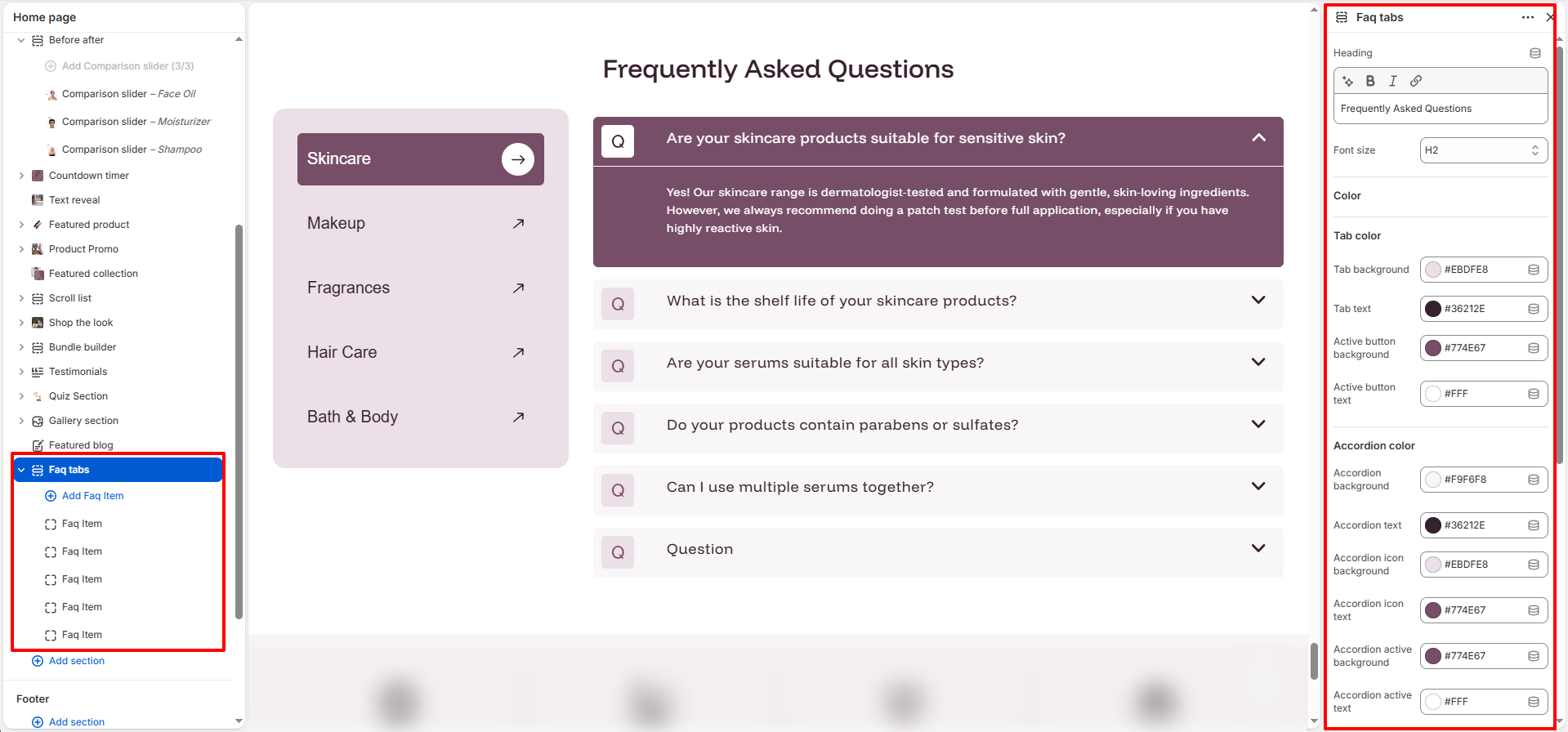
- Heading: Add a section title to introduce the FAQ area (e.g., Frequently Asked Questions).
- Font Size: Select the heading size (H1, H2, etc.) for better visual hierarchy.
-
Tab color:
- Tab background: Select the background color for the category tabs.
- Tab text: Choose the text color for the category tabs.
- Active button background: Set the background color for the currently selected tab.
- Active button text: Set the text color for the currently selected tab.
-
Accordion color:
- Accordion background: Select the background color for the FAQ accordion items.
- Accordion text: Choose the text color for the FAQ questions.
- Accordion icon background: Set the background color for the expand/collapse icon.
- Accordion icon text: Set the color for the expand/collapse icon.
- Accordion active background: Select the background color for an active (expanded) accordion.
- Accordion active text: Choose the text color for an active accordion question.
- Accordion active icon background: Set the background color for the icon when expanded.
- Accordion active icon text: Set the color for the icon when expanded.
-
Desktop padding:
- Padding top: Adjust the top padding for desktop view (in px).
- Padding bottom: Adjust the bottom padding for desktop view (in px).
-
Mobile padding:
- Padding top: Adjust the top padding for mobile view (in px).
- Padding bottom: Adjust the bottom padding for mobile view (in px).
FAQ Item Block Settings:
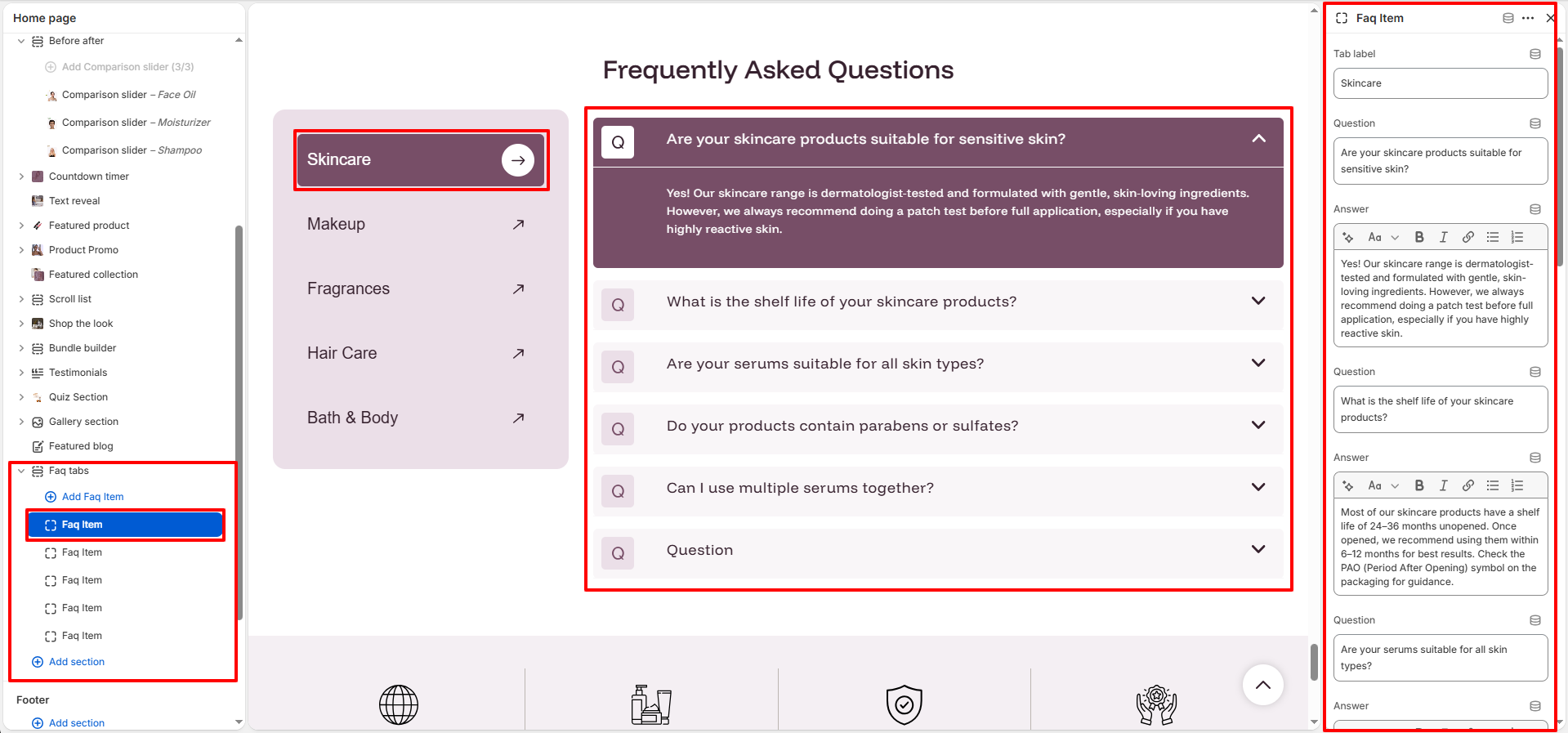
- Tab Label: Enter the name of the tab (e.g., Skincare, Makeup) that groups the related FAQs.
-
Questions & Answers: Add up to 10 question-and-answer pairs for this tab. Each pair
consists of:
- Question: The text of the customer question.
- Answer: The detailed response or explanation.
How to Set Up the Faq Tab Section:
- Go to Online Store → Themes → Customize.
- Click Add section and select Faq Tab section from the section list.
- In the settings panel, configure the following.