Gallery Section – Nexus
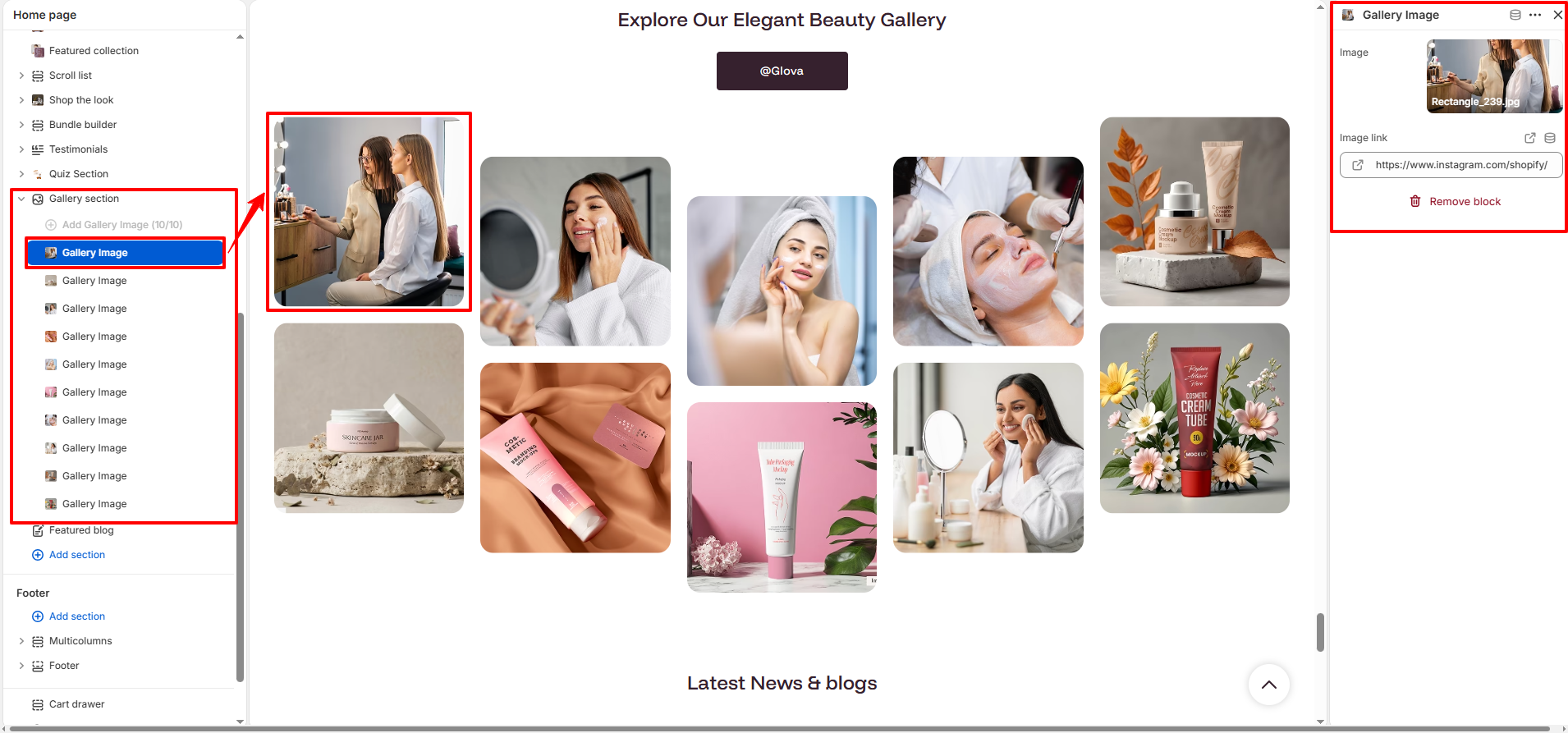
The Gallery section in Nexus allows you to showcase your beauty products, lifestyle imagery, and brand visuals in a refined, visually rich grid layout.
It creates an elegant and immersive browsing experience, helping customers explore your collection through high-quality imagery while maintaining a clean, well-balanced page design.Each gallery image can be linked to product pages, collections, custom pages, Instagram profiles or posts, and external URLs for greater interactivity.
This section is perfect for highlighting product aesthetics, beauty routines, campaign visuals, social media content, or brand storytelling—making your store feel premium, inspiring, and visually engaging.
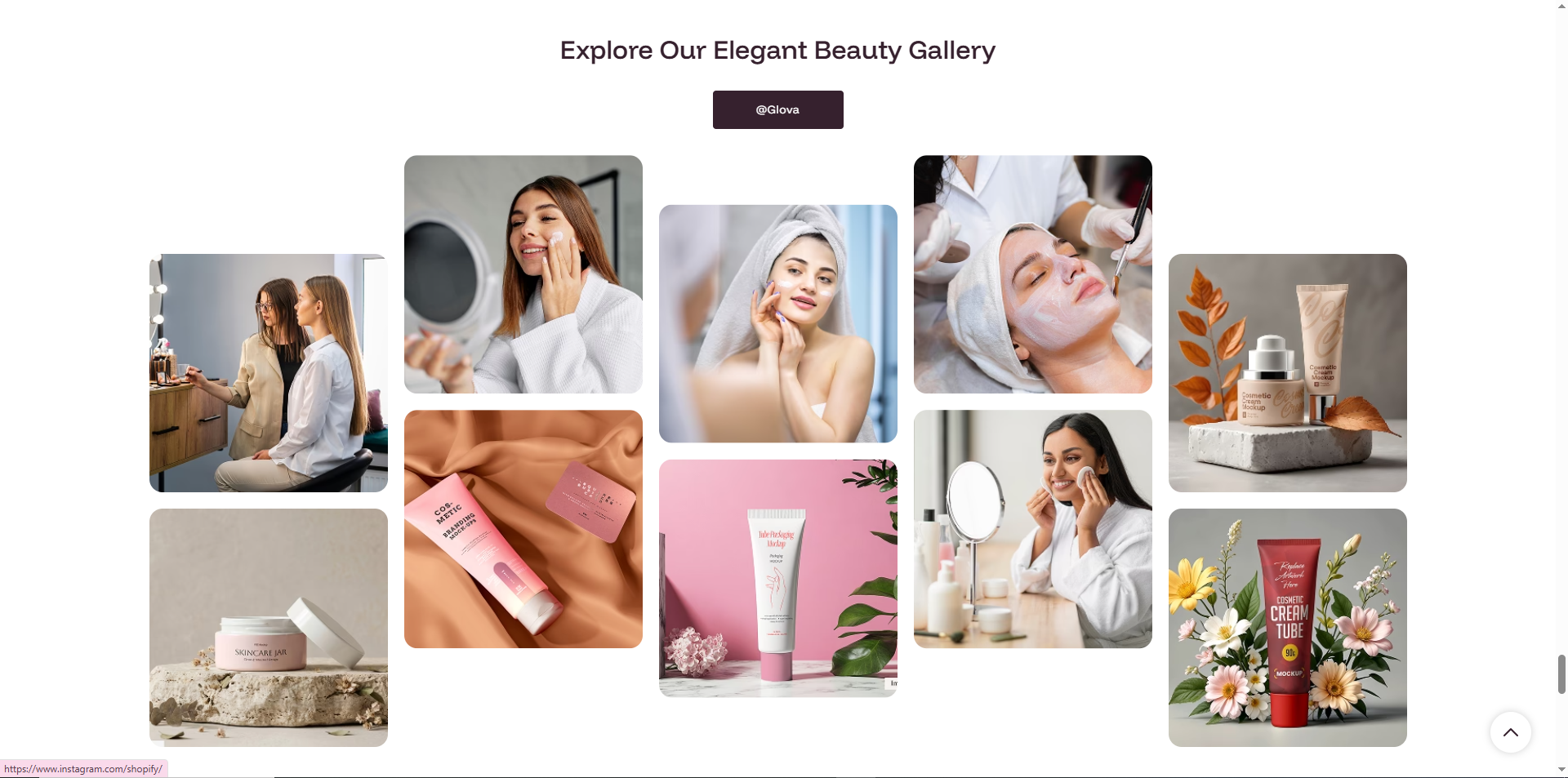
How to Set Up the Gallery Section:
- Navigate to Online Store → Themes → Customize.
- Click Add section and select Gallery Section.
- Configure the global Heading, Aspect Ratio, and Header Button.
- Click Add Gallery Image (up to 10) to populate your grid.
- Assign a Link to each individual image to guide your customers.
Section Settings:
Customize the look and functionality of your gallery grid:
- Color scheme: Select a predefined color palette for the gallery section (e.g., Scheme 1).
- Layout Width: Choose how the gallery section is displayed across the page. Select Full Width to stretch the gallery across the available content area.
- Heading: The main title displayed above the gallery (e.g., "Explore Our Elegant Beauty Gallery").
- Font size: Select a heading size (H1-H6) to control visual prominence and hierarchy.
-
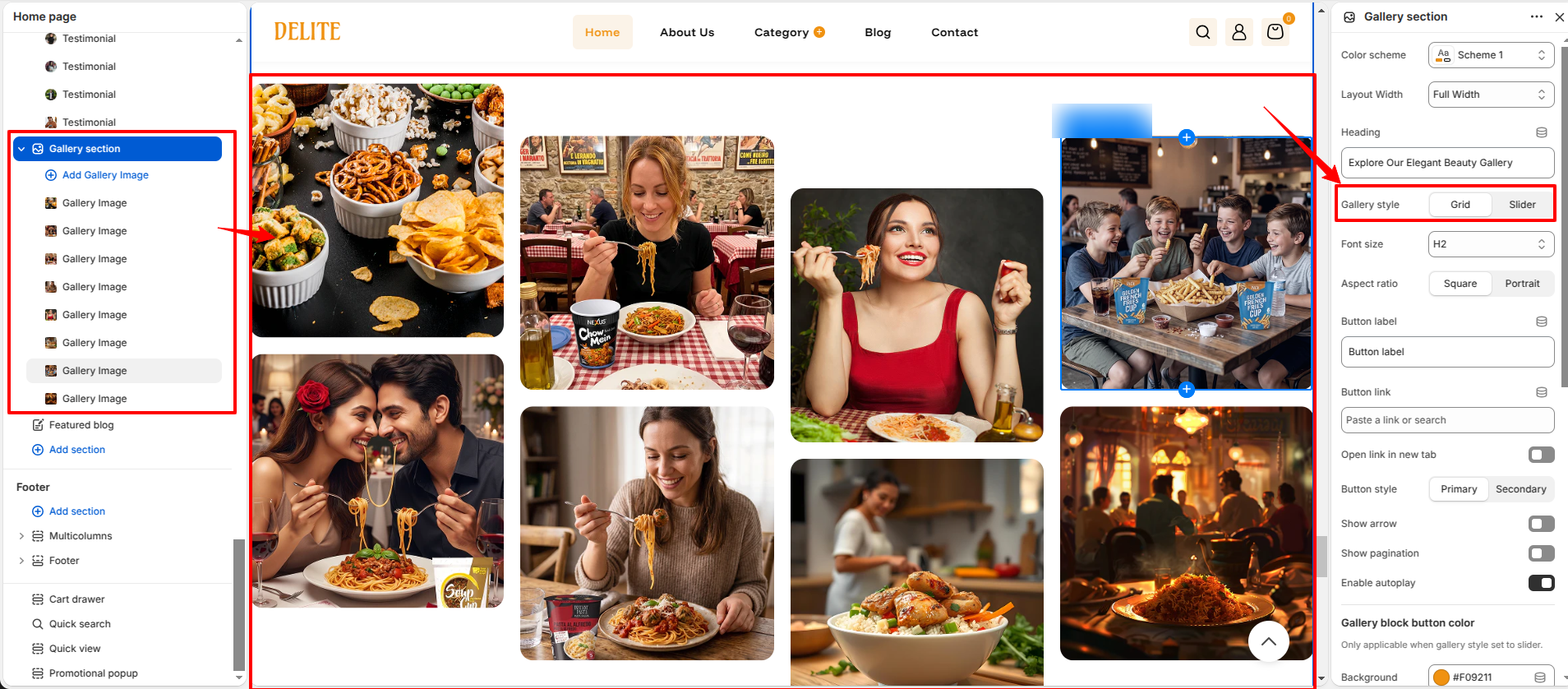
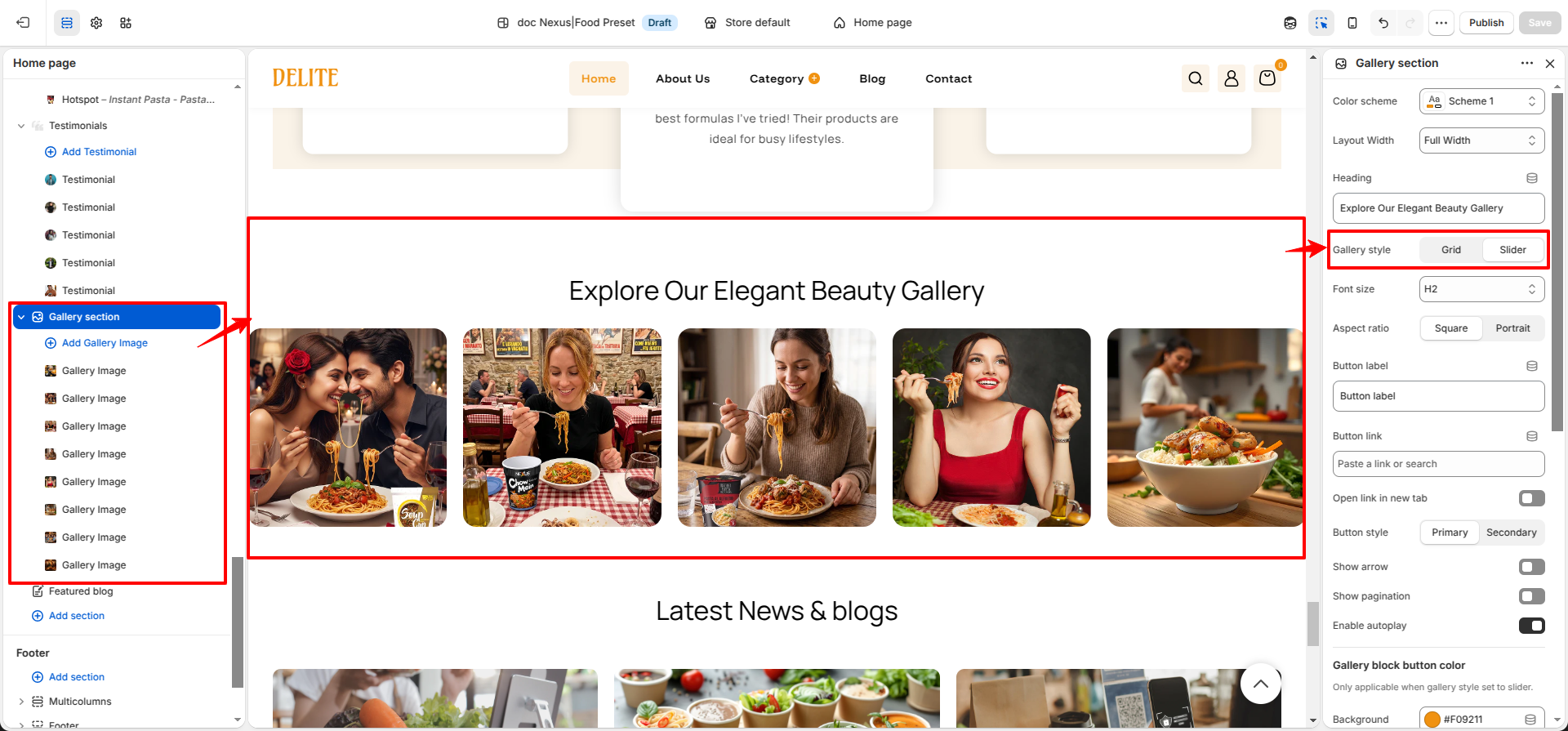
Gallery style: Select the display format for gallery items.
Grid arranges images in a clean, organized layout, while
Slider displays images in a scrollable carousel that supports arrows, pagination, and autoplay settings.
- Aspect ratio: Choose Square or Portrait to define the shape of all gallery items.
-
Header Button:
- Button label: Text displayed on the call-to-action button.
- Button link: Specify the destination URL, collection, product, or page.
- Open link in new tab: Enable to open the button link in a new browser tab while keeping your store open in the current tab.
- Button style: Choose between Primary or Secondary button styles.
- Show arrow: Enable navigation arrows for the slider, allowing customers to browse gallery items manually.
- Show pagination: Display pagination indicators below the slider to show the current slide position.
- Enable autoplay: Automatically rotate gallery slides after a set interval when the slider layout is enabled.
-
Gallery block button color: Customize the appearance of gallery item buttons when the gallery style is set to Slider.
- Background: Sets the default button background color.
- Label: Sets the default button text color.
- Borders: Sets the default button border color.
- Hover background: Sets the button background color when hovered.
- Hover Label: Sets the button text color when hovered.
- Hover borders: Sets the button border color when hovered.
-
Desktop padding:
- Padding top: Vertical space above the section on desktop screens.
- Padding bottom: Vertical space below the section on desktop screens.
-
Mobile padding:
- Padding top: Vertical space above the section on mobile devices.
- Padding bottom: Vertical space below the section on mobile devices.
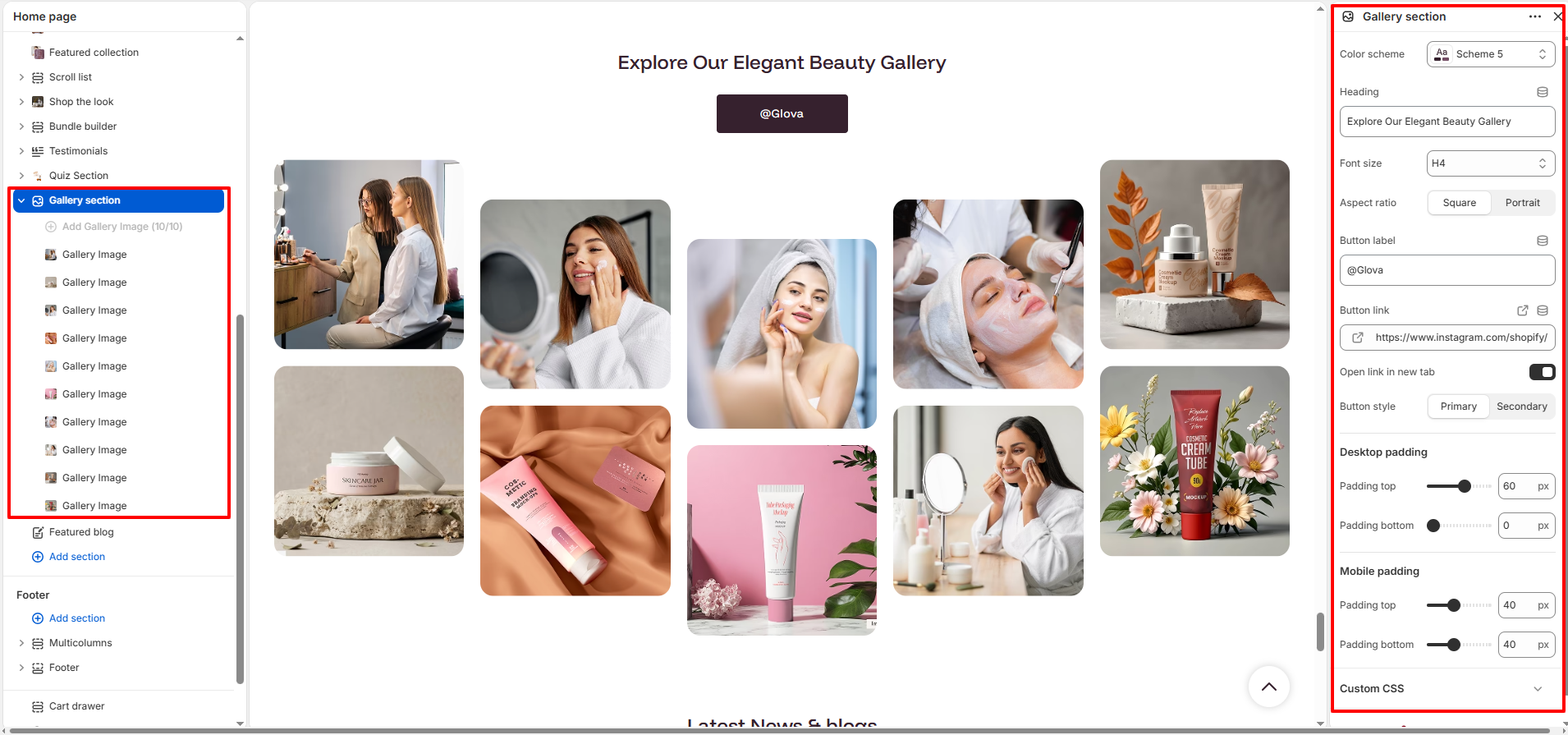
Gallery Image Block Settings:
Configure individual items within your gallery:
- Image: Upload a high-quality visual for the grid item.
- Image link: Set a specific destination (Product, Collection, or External URL) for this image.
Pro Tips:
Use this section to showcase your best-selling products,Instagram posts or latest collections.
Link images to product pages, Instagram posts, or promotional campaigns to drive engagement.
Maintain consistent image styles and aspect ratios for a polished, professional look.