Image With Text Section – Nexus
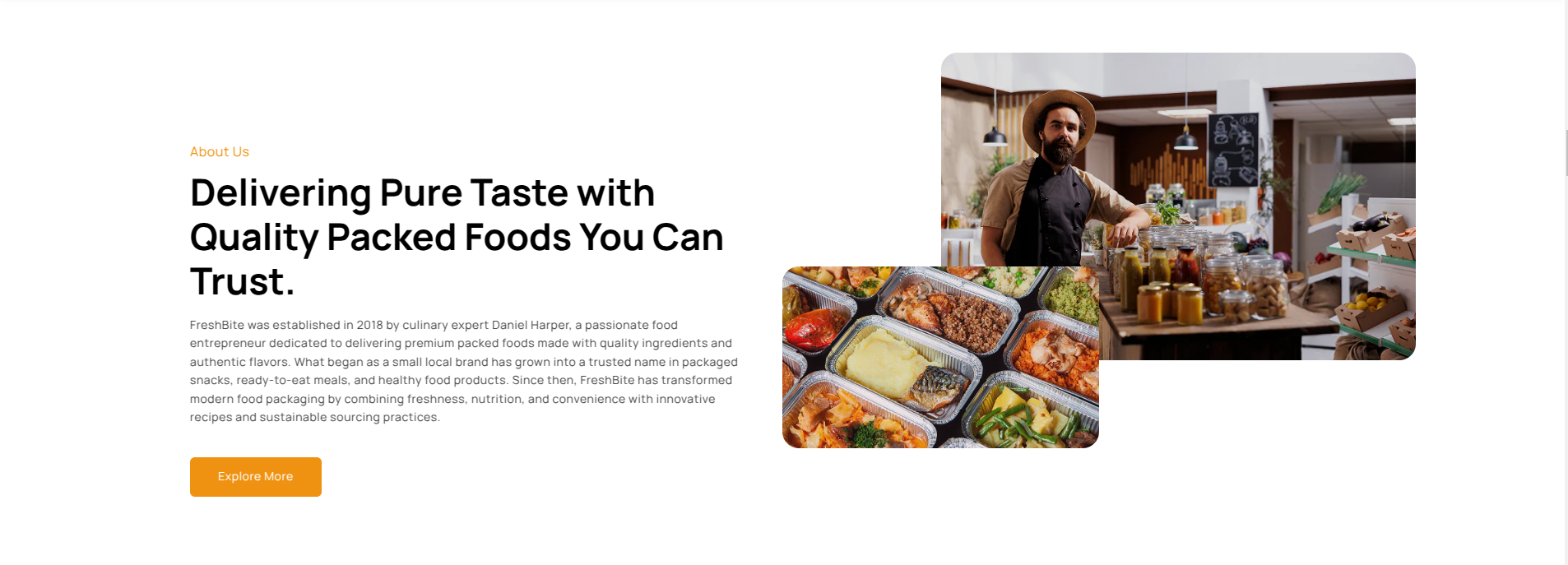
The Image With Text Section allows you to combine engaging visuals with compelling content to tell your brand story, highlight product benefits, or showcase important business information. Featuring a modern layout with one or two images alongside rich text content, this section helps create a strong visual impact while maintaining excellent readability.
It’s ideal for About Us pages, brand storytelling, product introductions, company highlights, and promotional content. With customizable image positioning, text alignment, optional content backgrounds, parallax effects, and call-to-action buttons, you can create a professional and engaging section that connects with your audience and strengthens your brand identity.
How to Set Up the Image With Text Section :
- Navigate to Online Store → Themes → Customize.
- Click Add Section and select Image With Text.
- Upload the primary image and optional secondary image.
- Configure the image position and text alignment according to your preferred layout.
- Add your subheading, heading, description, and button content.
- Customize the section styling including border radius, spacing, color scheme, and parallax effect.
Section Settings:
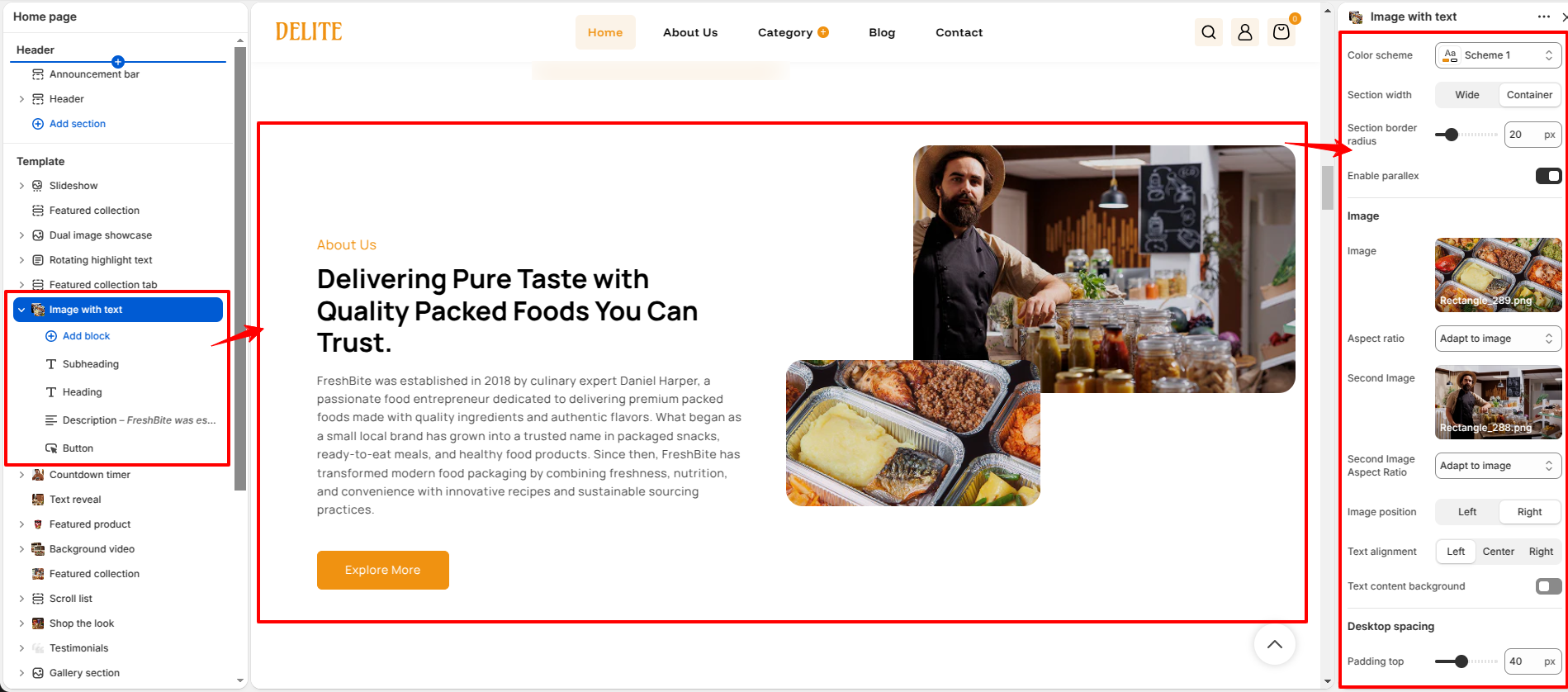
Customize the appearance and layout of the Image With Text section using the following settings:
- Color Scheme: Select a color palette that matches your store branding.
- Section Width: Choose between a Wide or Container layout.
- Section Border Radius: Adjust the corner radius of the section content area.
- Enable Parallax: Add a subtle scrolling effect to images for a more dynamic experience.
- Primary Image: Upload the main image displayed in the section.
- Image Aspect Ratio: Control how the primary image is displayed.
- Second Image: Upload an optional secondary image to create a layered image design.
- Second Image Aspect Ratio: Configure the display ratio of the secondary image.
- Image Position: Display the images on the left or right side of the content.
- Text Alignment: Align content to the left, center, or right.
- Text Content Background: Enable a background behind the text content for improved readability.
-
Desktop Spacing:
- Padding Top: Controls the space above the section on desktop devices.
- Padding Bottom: Controls the space below the section on desktop devices.
-
Mobile Spacing:
- Padding Top: Controls the space above the section on mobile devices.
- Padding Bottom: Controls the space below the section on mobile devices.
Content Blocks:
Use the available content blocks to build your Image With Text section.
-
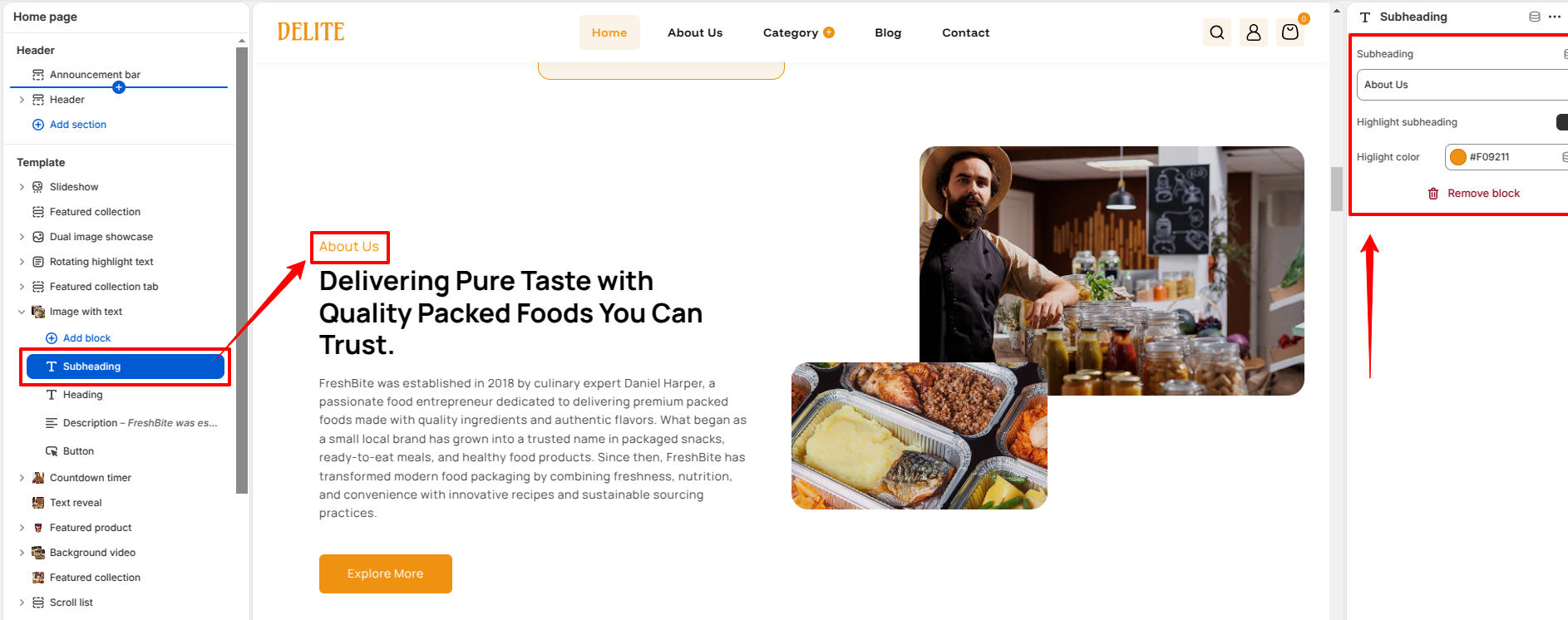
Subheading Block:
- Subheading Text: Display a short introductory label above the main heading.
- Highlight Color: Customize the subheading color to draw attention.
-
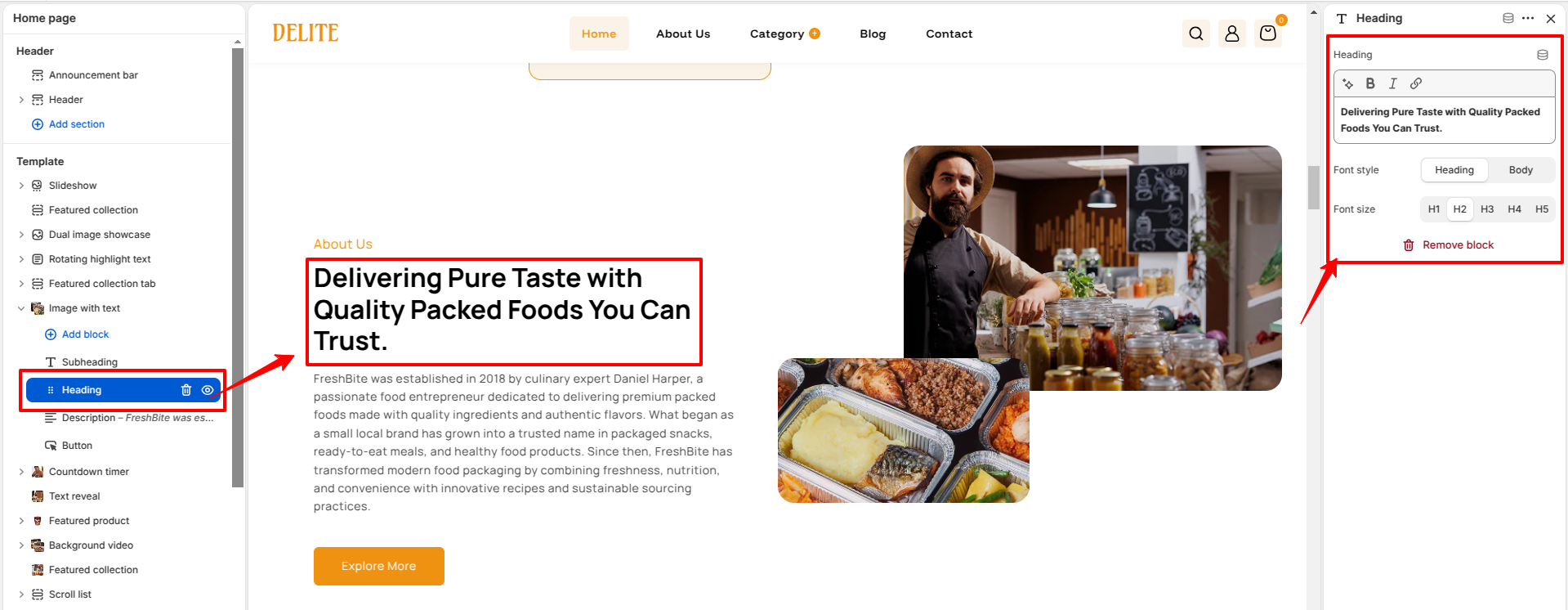
Heading Block:
- Heading Text: Add a primary title or message for the section.
- Font style: Customize the font style for the heading.
- Font size: Customize the font size for the heading.
-
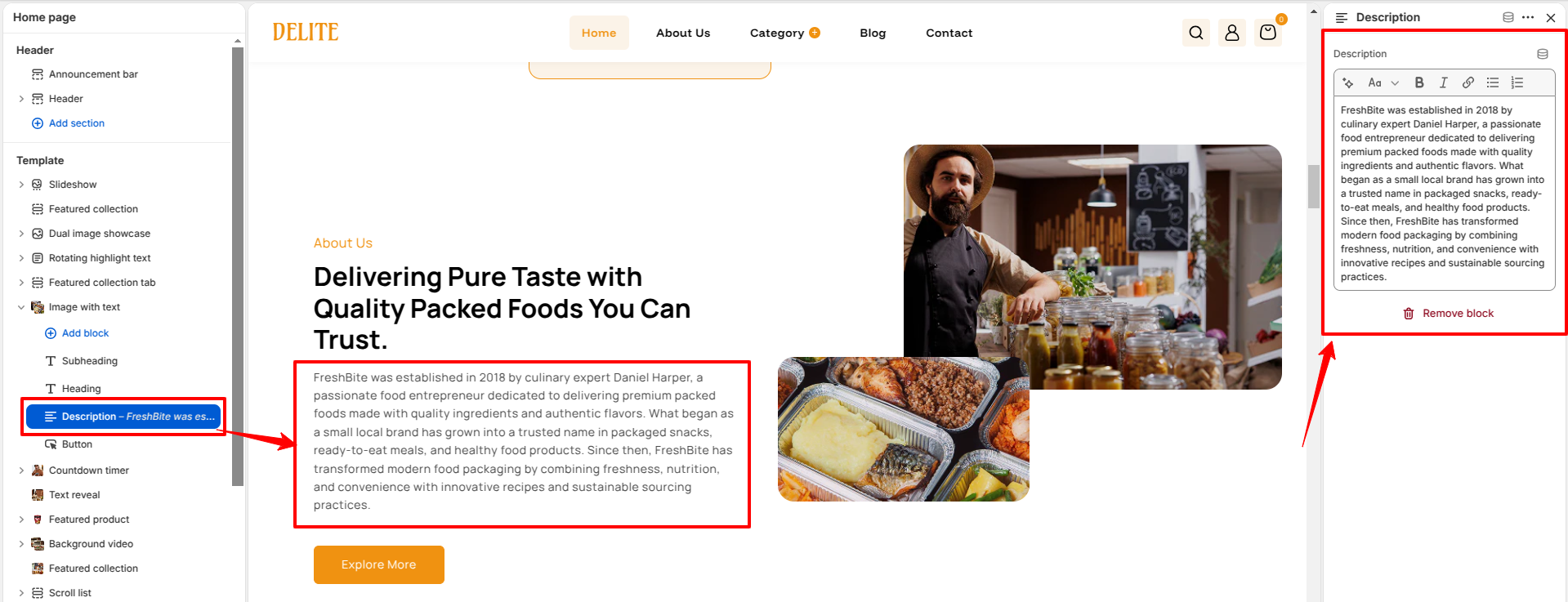
Text Block:
- Description: Add detailed content, brand information, or product highlights.
-
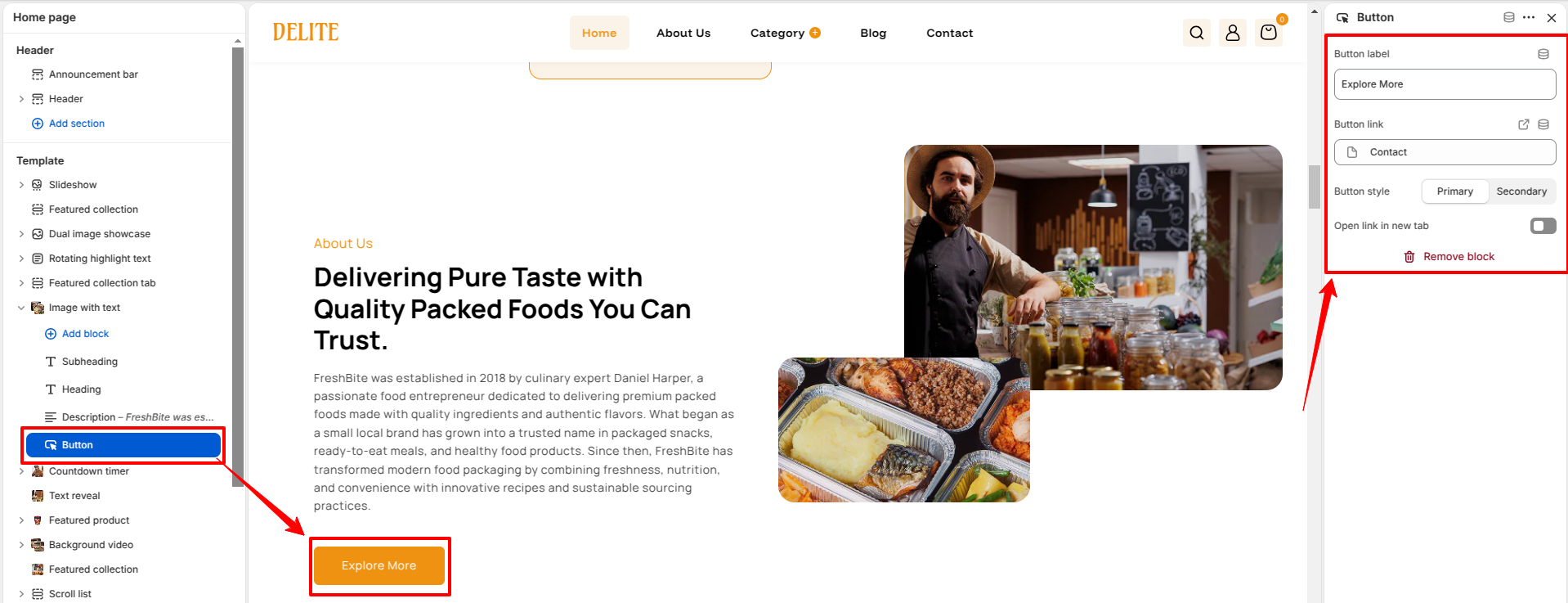
Button Block:
- Button Label: Customize the button text.
- Button Link: Add a destination URL.
- Button Style: Select the preferred button appearance.
- Open link in new tab: Choose whether the button link should open in a new browser tab (Enable) or in the current tab (Disable).