Promo Split Banner – Nexus
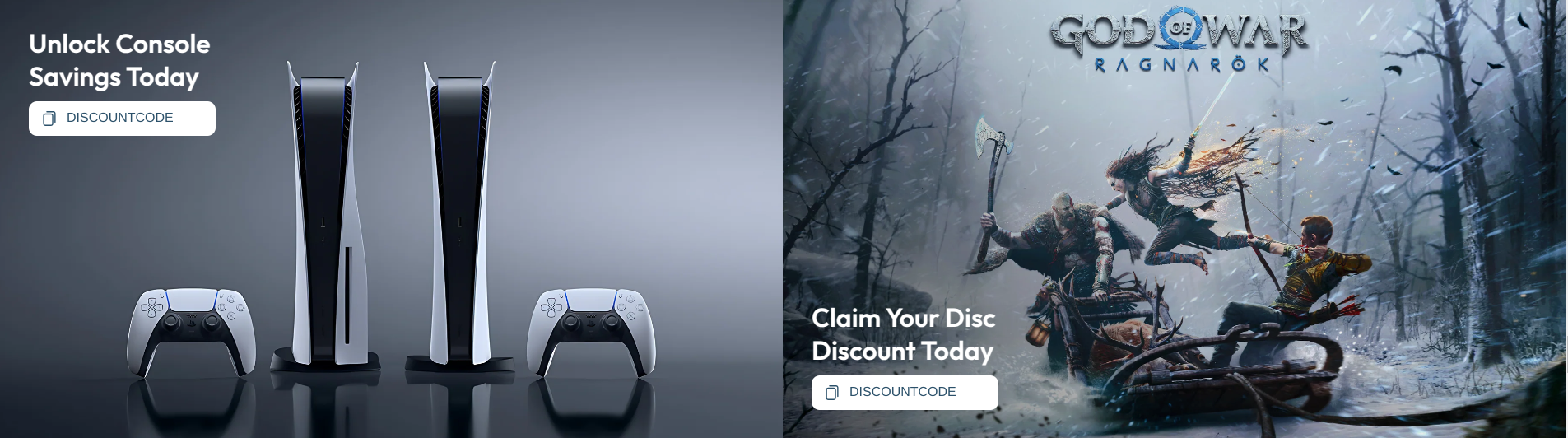
The Promo Split Banner section allows you to showcase multiple promotional banners side by side, making it ideal for highlighting sales, discount codes, seasonal campaigns, or featured collections. Each banner can display its own image, heading, coupon code, and link, helping customers quickly discover your latest offers.
How to Set Up the Promo Split Banner:
- Navigate to Online Store → Themes → Customize.
- Click Add section and select Promo Split Banner.
- Configure the section settings to control the layout and spacing.
- Add one or more Promo Card blocks.
- Upload banner images, add promotional content, and link each banner to the desired page.
Section Settings:
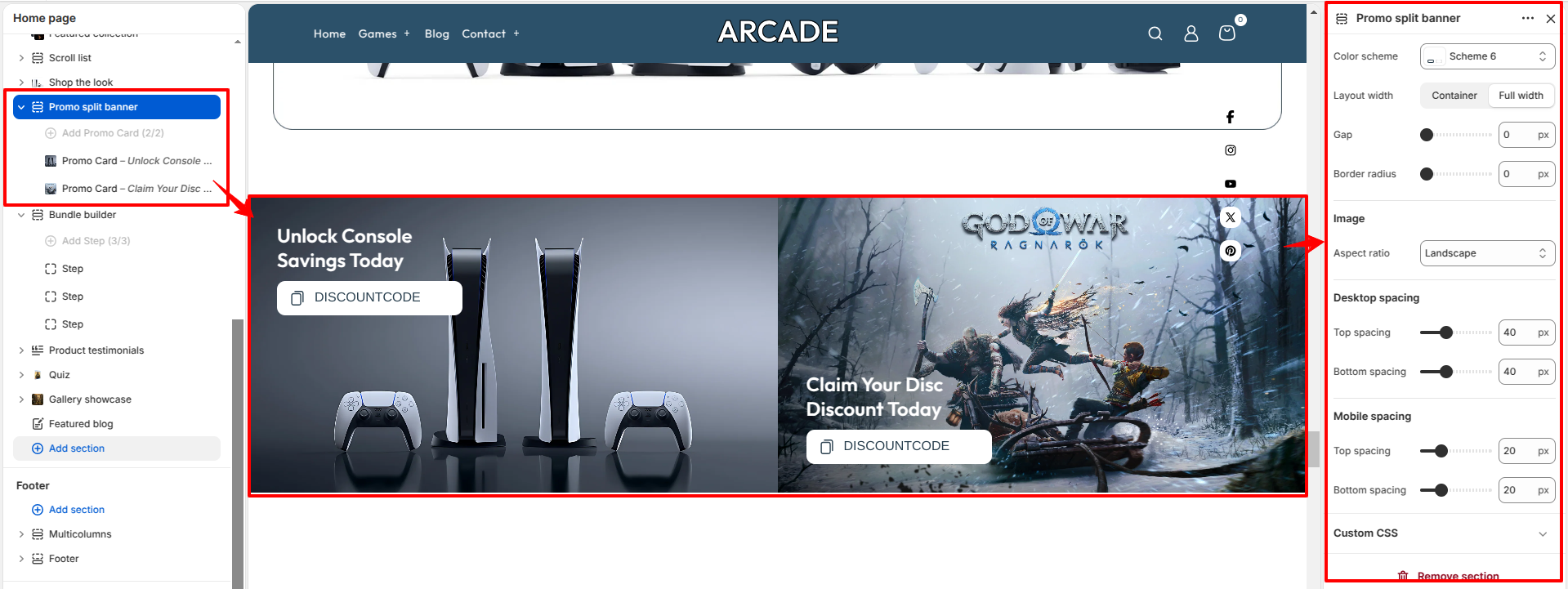
Customize the overall appearance of the Promo Split Banner section.
- Color scheme: Select a predefined color scheme for the section.
- Layout width: Choose between Container and Full width layouts.
- Gap: Adjust the spacing between promo cards.
- Border radius: Set the corner rounding for the promo cards.
- Image aspect ratio: Select the aspect ratio used for banner images (for example, Landscape).
-
Desktop spacing:
- Top spacing: Controls the space above the section.
- Bottom spacing: Controls the space below the section.
-
Mobile spacing:
- Top spacing: Controls the space above the section on mobile devices.
- Bottom spacing: Controls the space below the section on mobile devices.
Promo Card Block Settings:
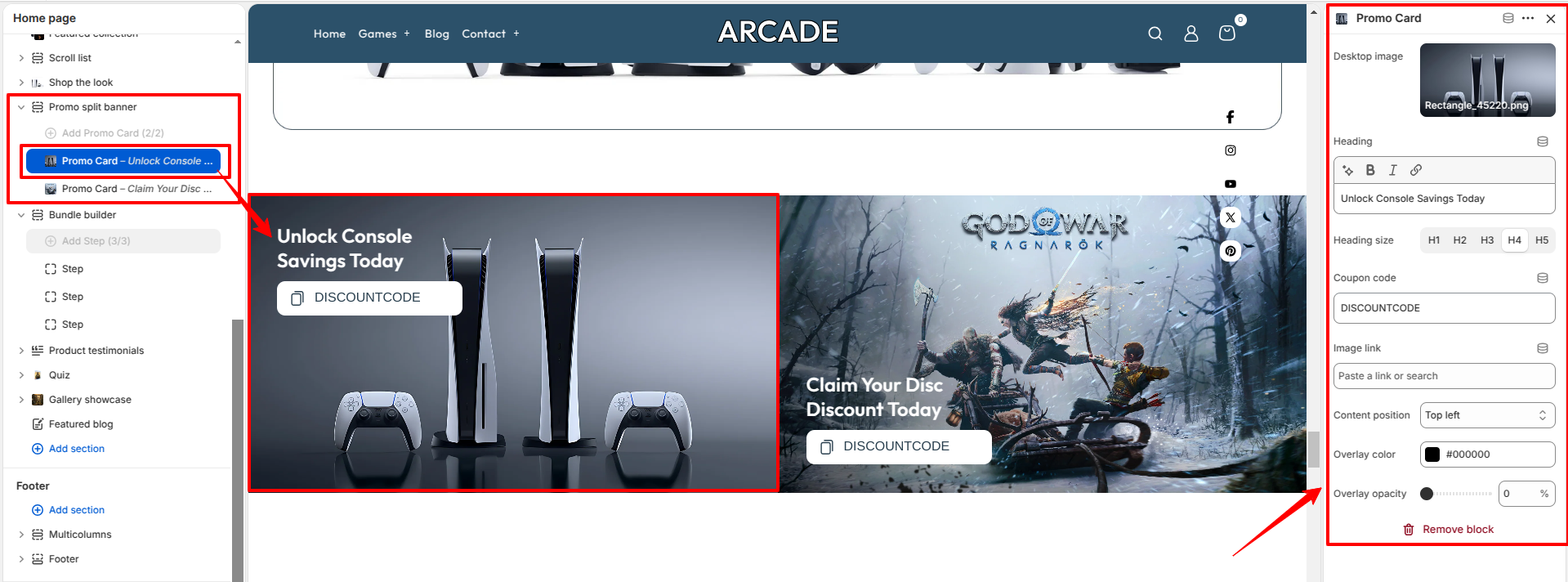
Each Promo Card represents an individual promotional banner.
- Desktop image: Upload the banner image displayed on desktop devices.
- Heading: Enter the promotional heading displayed on the banner.
- Heading size: Choose the heading size (H1–H5).
- Coupon code: Display a promotional or discount code on the banner.
- Image link: Select the destination page when customers click the banner.
- Content position: Choose where the banner content appears over the image (for example, Top Left).
- Overlay color: Select the overlay color placed over the image to improve text readability.
- Overlay opacity: Adjust the transparency of the image overlay.
Pro Tip:
Use high-quality promotional images with clear focal points and keep
your headings concise. If you're displaying a coupon code, ensure it
stands out by using an appropriate overlay color and opacity for maximum readability.