Quiz Section – Nexus
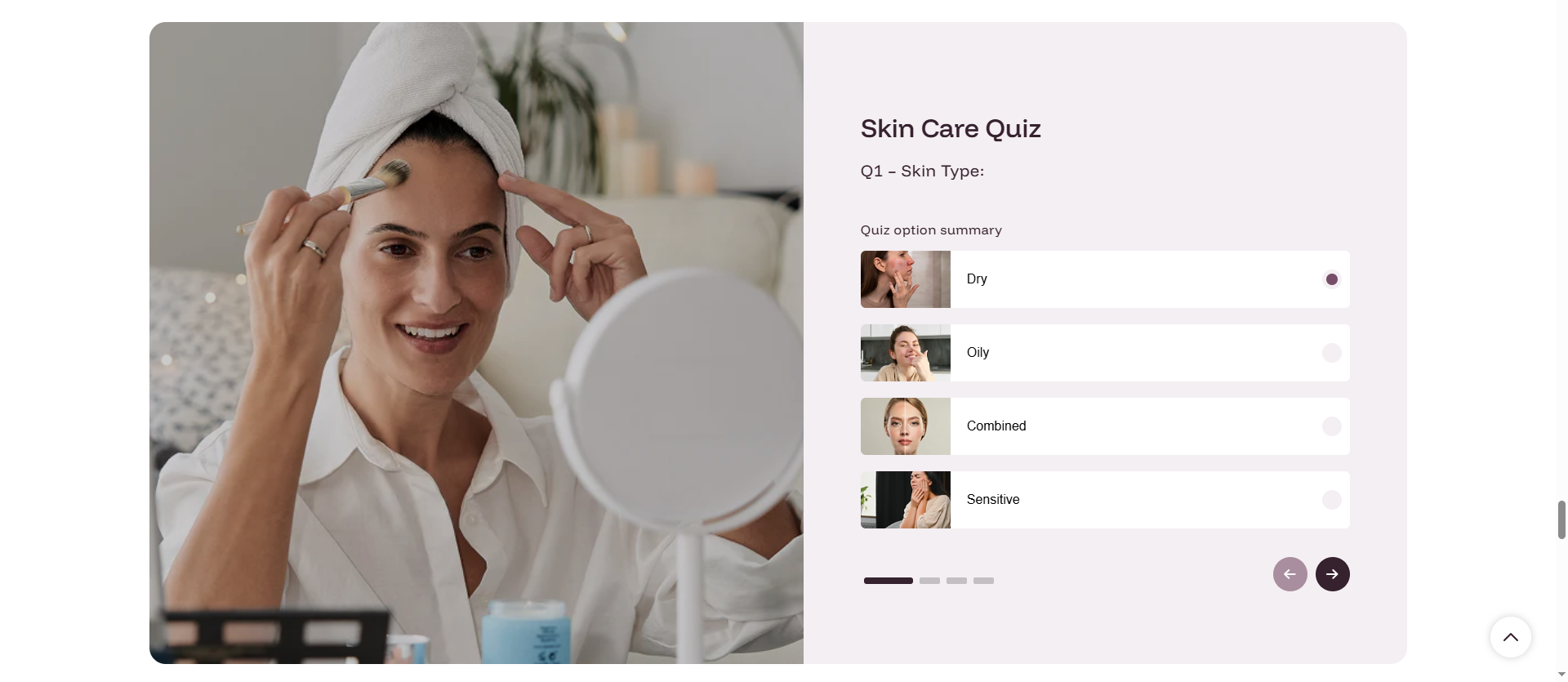
The Quiz Section allows you to create an interactive beauty or skincare quiz that helps customers find the most suitable products based on their answers.
This section is perfect for beauty, skincare, and cosmetic stores that want to offer personalized product recommendations, improve engagement, and increase conversion rates.
Features of the Quiz Section:
- Interactive Personalization: Engage customers with a visually guided selection process to find their perfect product match.
- Advanced Mapping Logic: Use complex answer combinations (e.g., 1+2+3) to deliver precise product recommendations.
- Option-Specific Imagery: Add images to individual answer choices to provide a richer, more intuitive user experience.
- Media-Rich Questions: Support for large background images and descriptive subheadings for every quiz stage.
- Customizable CTA: Fully configure the results page with custom buttons, labels, and color schemes.
How to Set Up the Quiz Section:
- Navigate to Online Store → Themes → Customize.
- Click Add section and select Quiz Section.
- Configure the Header (image/text) and global Product Card settings.
- Click Add Questions to create individual quiz stages.
- Define your Mapping Logic to link specific answer combinations to recommended products.
Section Settings:
Customize the global behavior and result logic of your quiz:
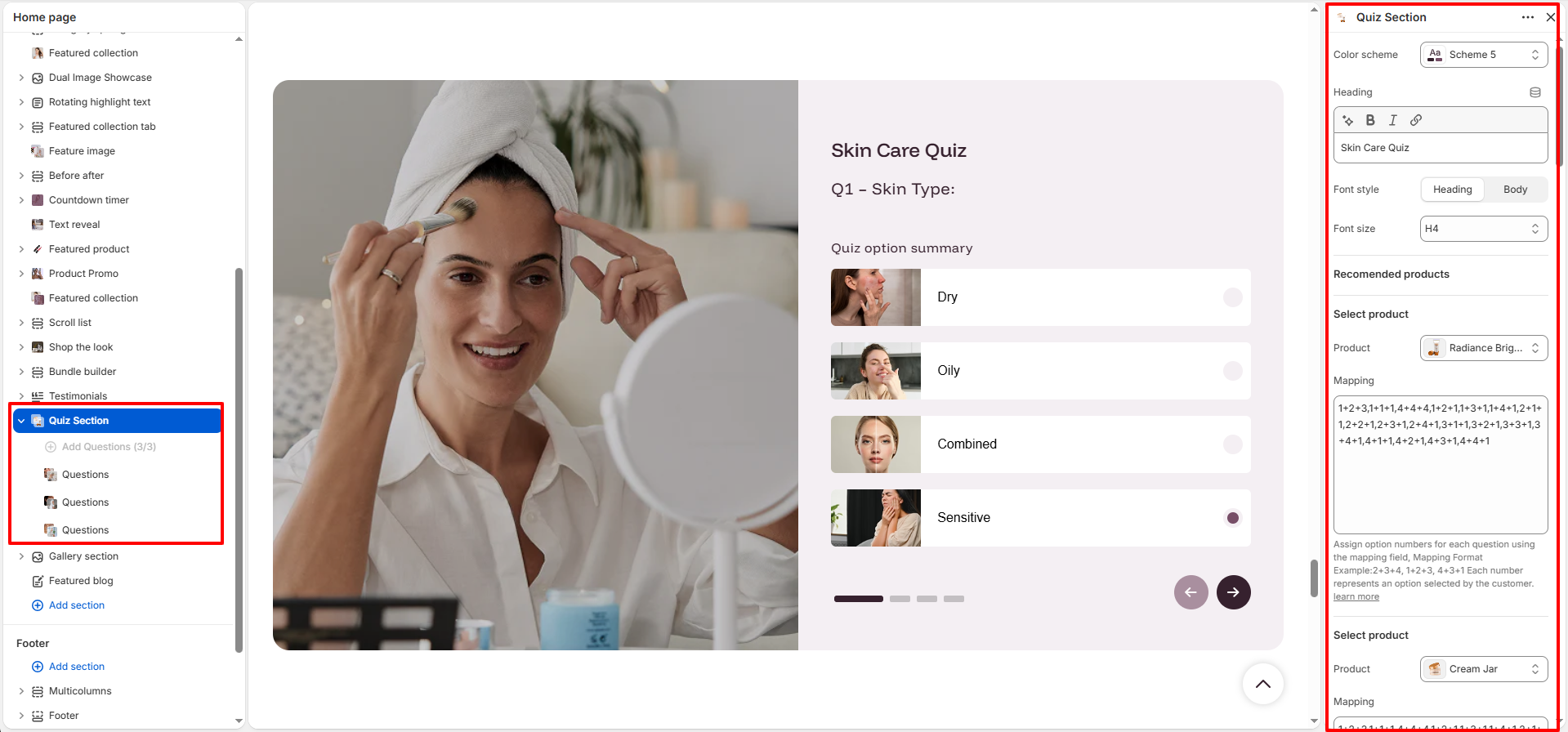
- Color Scheme: Select a palette for the quiz interface (e.g., Scheme 5).
- Header Settings:
- Image: Upload a large background image for the quiz section.
- Heading: The main title of the quiz (e.g., "Skin Care Quiz").
- Font style: Choose between Heading or Body fonts.
- Font size: Select the heading size (e.g., H4).
- Mapping Logic & Products:
- Select Product: Choose the product to be recommended.
- Mapping: Enter the answer combination (e.g.,
1+2+3) that triggers this recommendation. Multiple combinations can be separated by commas.
- Product Card: Configure how recommended products appear (Image ratio, Show vendor, Quick view, etc.).
- Button Settings: Customize the label and style of the final CTA button.
- Spacing: Fine-tune Desktop and Mobile padding for a perfect fit.
Question Block Settings:
Configure individual steps of the quiz:
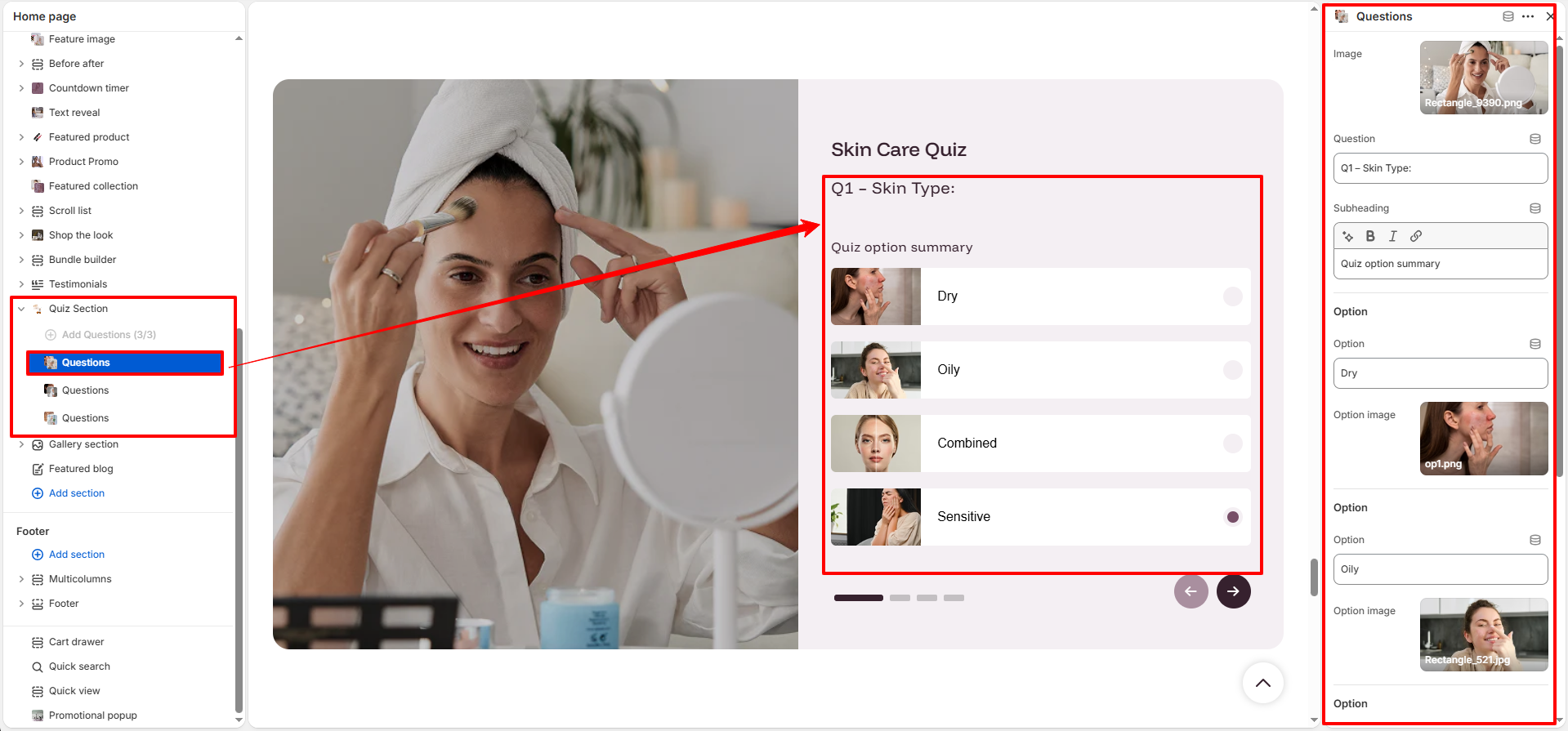
- Image: Upload a large supporting image for the question.
- Question: Enter the main question text (e.g., "What's your skin type?").
- Subheading: Add a descriptive summary or instruction above the options.
- Options & Option Images:
- Option [1-4]: Enter the text for each answer choice.
- Option Image [1-4]: Upload a small illustrative image for each choice.
Pro Tips:
Enable Quick View to keep customers engaged without interrupting the quiz
experience.
Enable Variant Image for products with multiple shades or colors to enhance visual
clarity.