Rotating Highlight Text
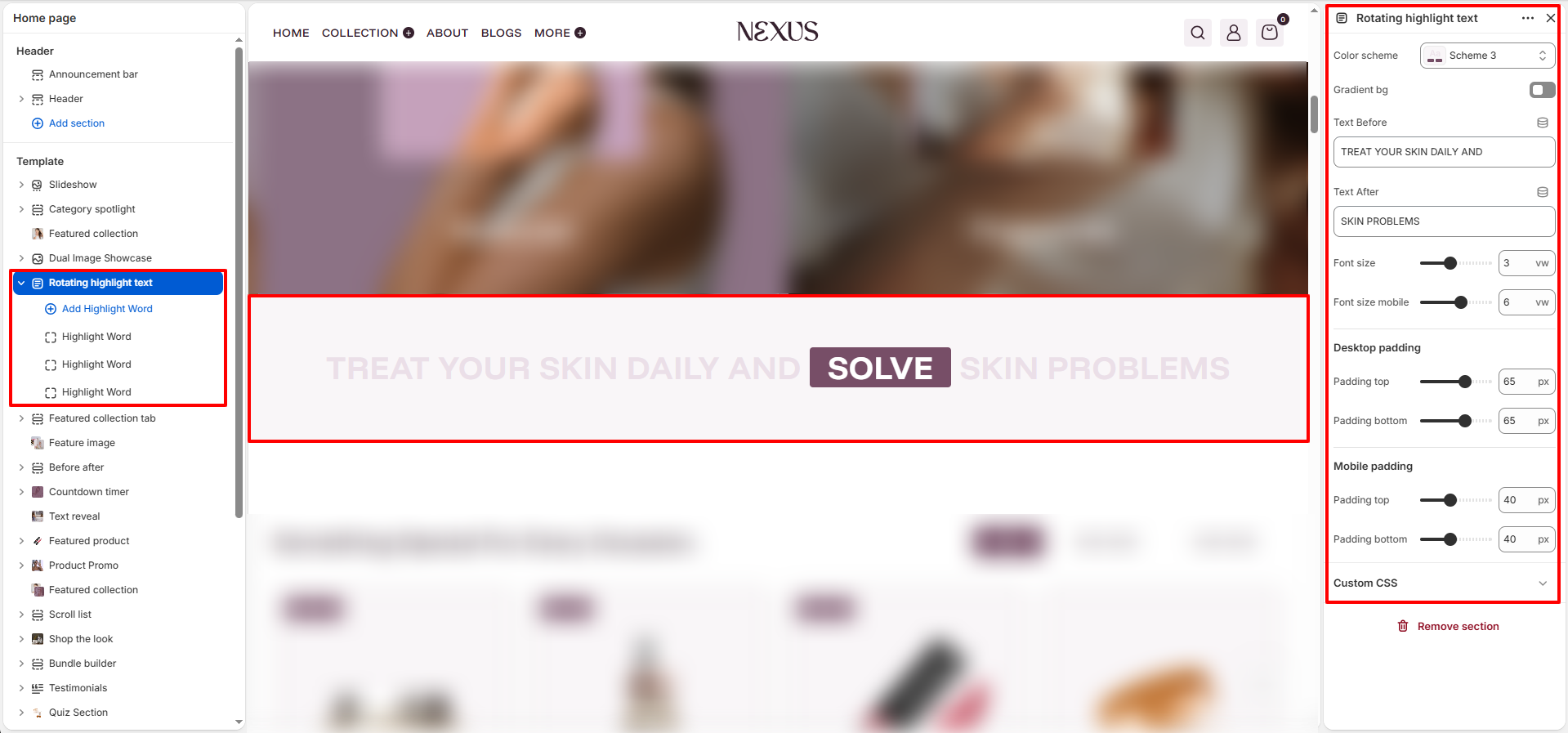
The Rotating Highlight Text section in Nexus displays a large, full-width statement sentence where one word in the middle rotates through a list of highlighted keywords. The highlighted word is displayed inside a styled box that animates through each word block you add, creating an eye-catching, dynamic message perfect for brand taglines or promotional statements.

Rotating Highlight Text Section Settings
- Color scheme: Select a color scheme (e.g., Scheme 3) to define the background and text colors for the entire section.
- Gradient bg: Toggle on to apply a gradient background to the section instead of a flat color, adding visual depth to the banner.
- Text Before: Enter the static text that appears before the rotating highlight word (e.g., "TREAT YOUR SKIN DAILY AND"). This text remains unchanged as the highlight word rotates.
- Text After: Enter the static text that appears after the rotating highlight word (e.g., "SKIN PROBLEMS"). Together with "Text Before" and the rotating word, this forms the complete sentence displayed in the section.
- Font size: Set the size of the entire statement text on desktop, measured in viewport width units (vw). For example, 3 vw scales the text relative to the browser window width for a responsive, proportional look.
- Font size mobile: Set the font size of the statement text on mobile screens (e.g., 6 vw), ensuring the text remains legible and well-proportioned on smaller devices.
- Desktop padding top: Set the space above the section on desktop screens (e.g., 65 px).
- Desktop padding bottom: Set the space below the section on desktop screens (e.g., 65 px).
- Mobile padding top: Set the space above the section on mobile screens (e.g., 40 px).
- Mobile padding bottom: Set the space below the section on mobile screens (e.g., 40 px).
- Custom CSS: An advanced field for adding custom CSS rules scoped specifically to this section, allowing further styling without editing theme files directly.
Highlight Word Block Settings
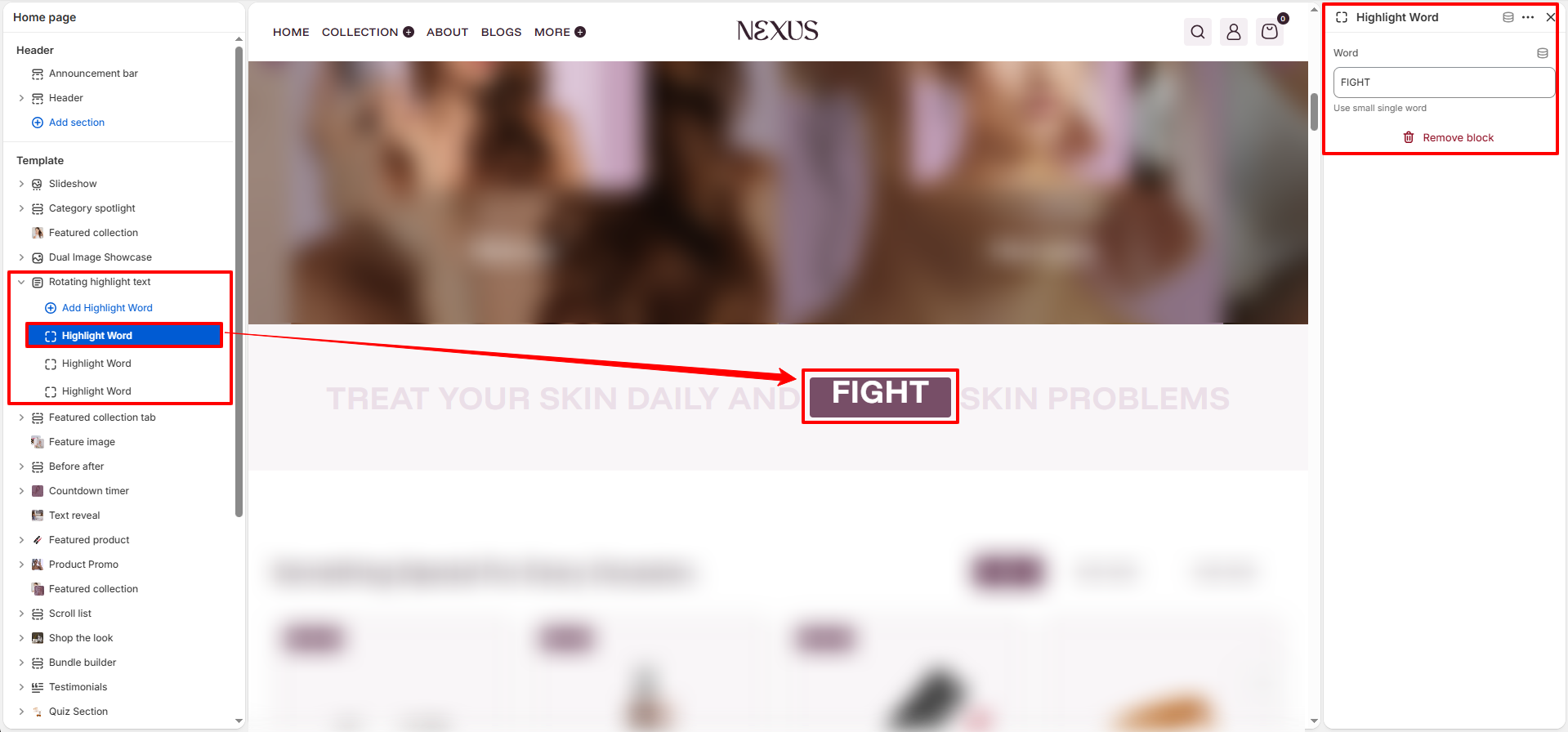
Each Highlight Word block added within this section defines one of the rotating keywords that will cycle through the highlighted box. Add as many word blocks as needed — the section will automatically rotate through each word in sequence.
- Word: Enter a single short word to display in the rotating highlight box (e.g., "FIGHT", "SOLVE", "BEAT"). The theme recommends using small, single words for the best visual fit within the highlight box. Each word block rotates in order, replacing the previous word with a smooth animation.
How to Set Up the Rotating Highlight Text Section
- Go to Online Store → Themes → Customize.
- On the Home page template, click Rotating highlight text in the left sidebar, or click Add section → Rotating highlight text to add it.
- In the section settings panel, choose a Color scheme, set Text Before and Text After to form your sentence, and adjust font sizes and padding to suit your layout.
- Click Add Highlight Word to add individual word blocks. Enter a short, single word in the Word field for each block.
- Add as many words as you like — the section will cycle through all of them automatically.
- Click Save to apply your changes.
Pro Tips:
Use short, punchy single words in each Highlight Word block for the best visual
impact
(e.g., FIGHT, SOLVE, BEAT, HEAL).
Keep "Text Before" and "Text After" concise — the full sentence should fit
comfortably on
one or two lines across all screen sizes.
Adjust the font size (vw) to ensure the text scales proportionally on both desktop
and
mobile without overflowing.
Use a contrasting color scheme so the highlighted word stands out clearly against the
section background.