Scroll List Section – Nexus
The Scroll List section in Nexus allows you to showcase a horizontal scrolling list of text or icons in a clean and modern layout.
This section creates a smooth, continuous scrolling effect that naturally draws attention while maintaining a balanced and uncluttered page design.
It is perfect for highlighting brand USPs, key benefits, certifications, partner logos, or trust badges in a compact, engaging, and visually appealing format.
Features of the Scroll List Section:
- Add multiple items (text, icons, or images) to a horizontally scrolling list.
- Customize scroll speed and enable looping for continuous animation.
- Choose between icons, images, or plain text for list items.
- Adjust spacing and alignment for a clean and balanced design.
- Adjust image size, text size and its colors.
- Fully responsive and touch-friendly on all devices.

How to Set Up the Scroll List Section:
- Navigate to Online Store → Themes → Customize.
- Click Add section and select Scroll List.
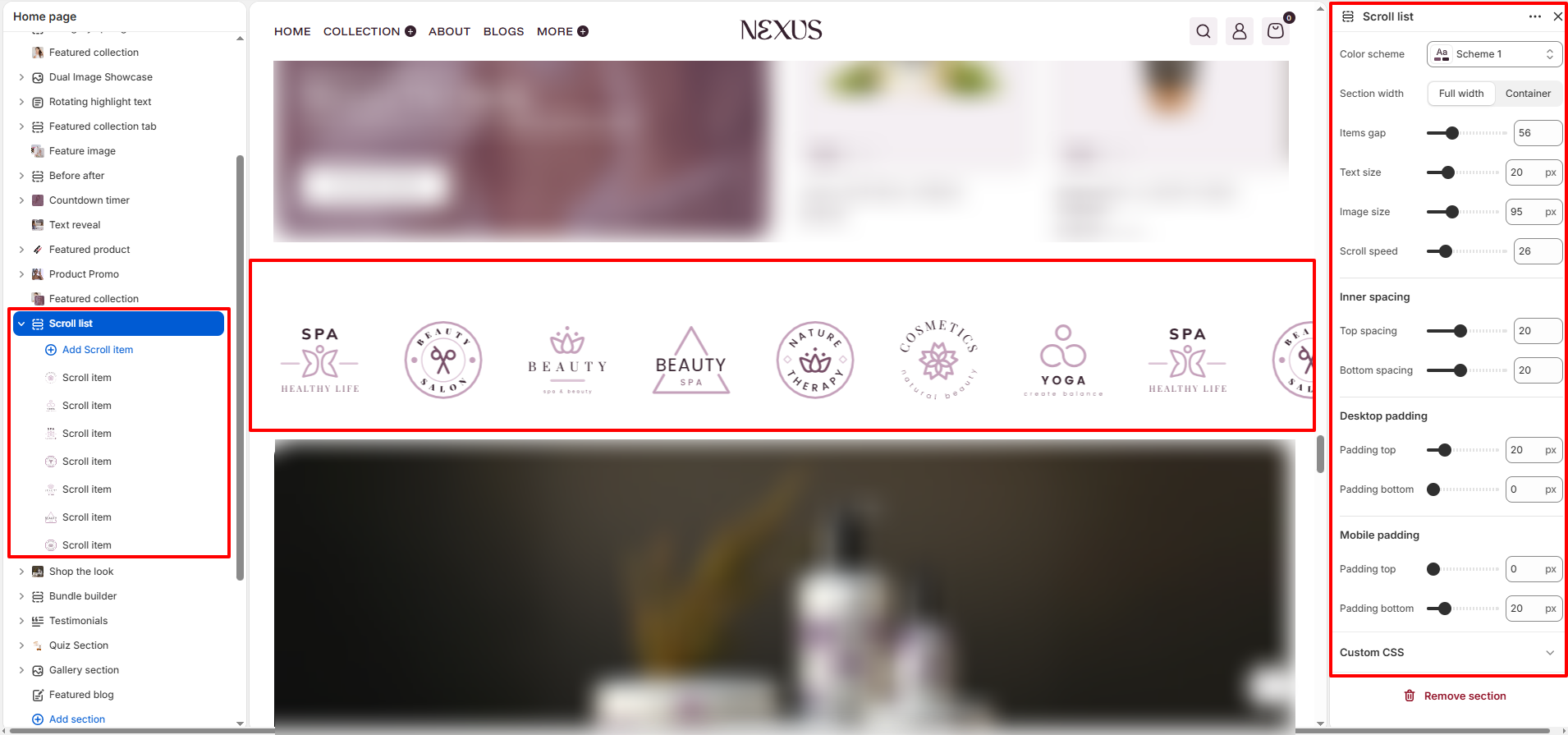
- Configure the overall section settings in the right-hand panel.
- Click Add Scroll item to add text or icons to the scrolling animation.
Section Settings:
Customize the behavior and appearance of the scrolling list:
- Color scheme: Select the color palette for the section (e.g., Scheme 1).
- Section width: Choose between Full width or Container layout.
- Items gap: Adjust the space between each item in the scroll list.
- Text size: Set the font size for the text items.
- Image size: Adjust the dimensions of the icons/images.
- Scroll speed: Control how fast the items scroll across the screen.
-
Inner spacing:
- Top spacing: Vertical space inside the section at the top.
- Bottom spacing: Vertical space inside the section at the bottom.
-
Desktop padding:
- Padding top: External top padding for desktop views.
- Padding bottom: External bottom padding for desktop views.
-
Mobile padding:
- Padding top: External top padding for mobile views.
- Padding bottom: External bottom padding for mobile views.
Scroll Item Block Settings:
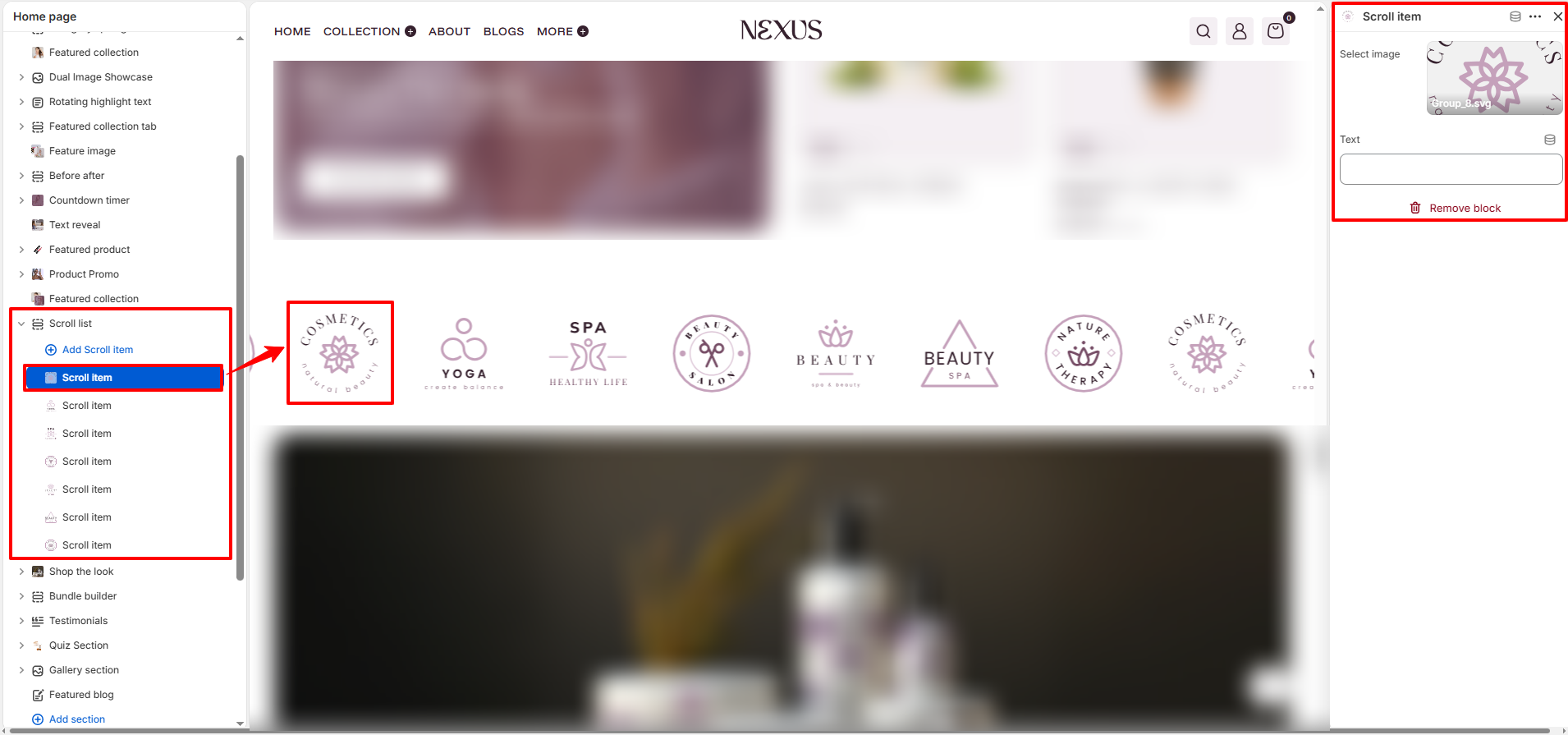
- Select image: Upload or select an image/icon to be displayed.
- Text: Add text content to the scroll item.
Pro Tips:
Use this section to highlight USPs like “Free Shipping”,
“24/7 Support”, or “Sustainable Materials”.
Add brand or partner logos for building credibility.
Keep the list concise (5–10 items) for smooth scrolling.