Shop The Look Section – Nexus
The Shop the Look Section in the Nexus theme is crafted to seamlessly blend inspiration with shopping. It allows you to showcase curated beauty looks by pairing visually engaging imagery with featured products, making it easy for customers to explore and purchase the complete look. Ideal for highlighting skincare routines, makeup bundles, or styled product combinations,this section enhances product discovery while delivering a refined, editorial-style shopping experience that elevates your beauty brand.
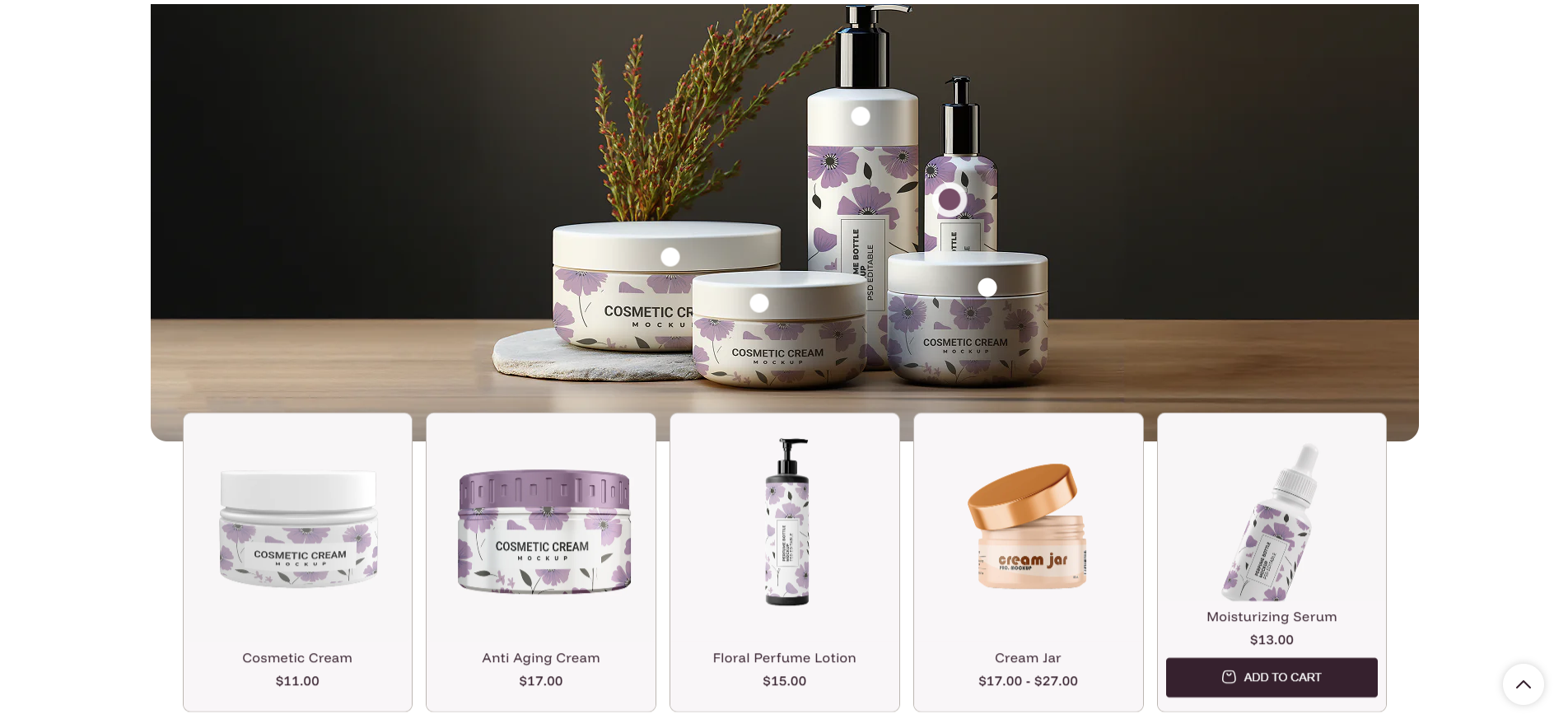
How to Set Up the Shop the Look Section:
- Navigate to Online Store → Themes → Customize.
- Click Add section and select Shop the Look.
- Upload your Main image and adjust the Section border radius.
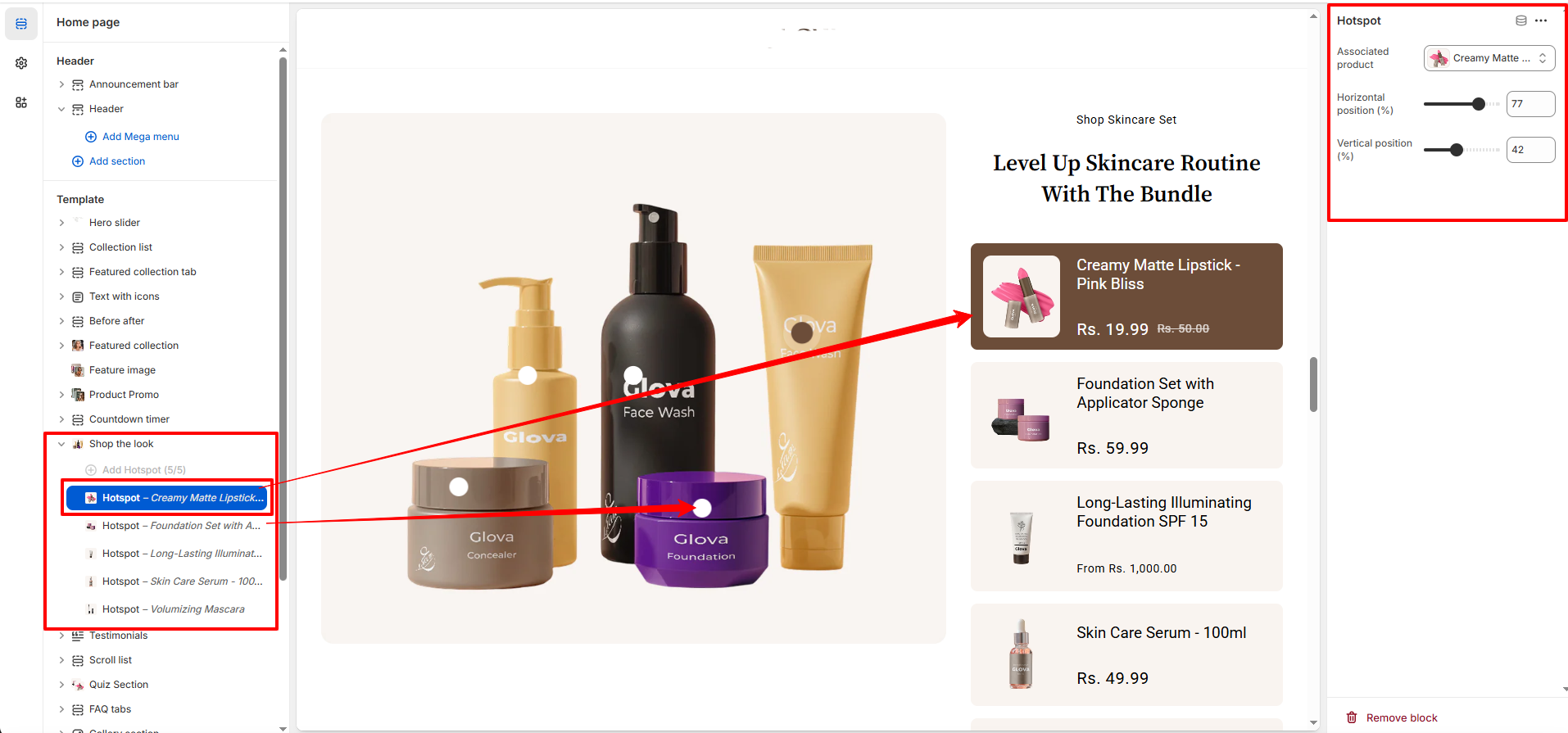
- Click Add Hotspot to link products to specific parts of the image.
- Adjust the Horizontal and Vertical sliders to position the hotspots accurately.
Section Settings:
Customize the behavior and appearance of the shop the look section:
- Color scheme: Select a color palette for the section (e.g., Scheme 5).
- Section border radius: Adjust the curvature of the main image corners.
-
Section style: Choose between different predefined layouts for the Shop The Look section.
- Style 1: Displays the image and product information using the default layout design.
- Style 2: Uses an alternative layout arrangement to create a different visual presentation.
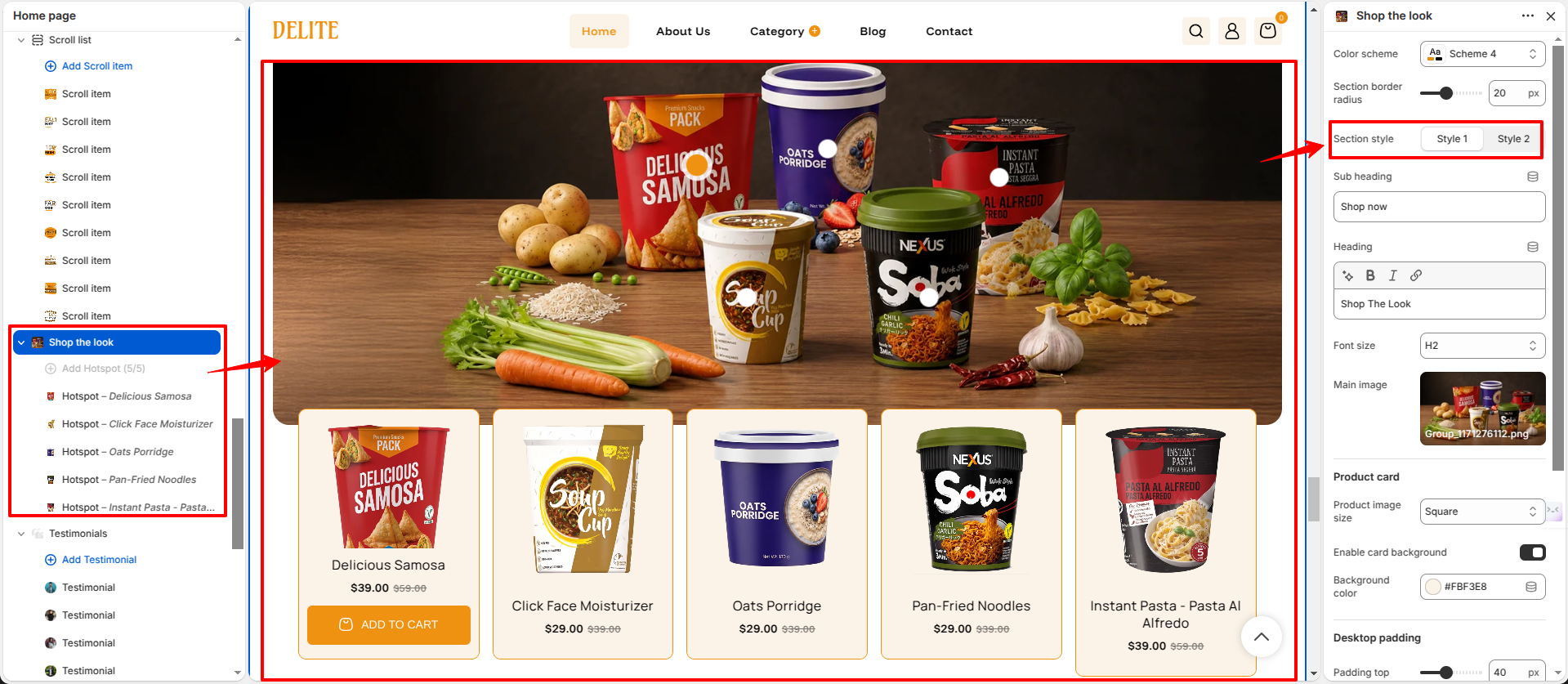
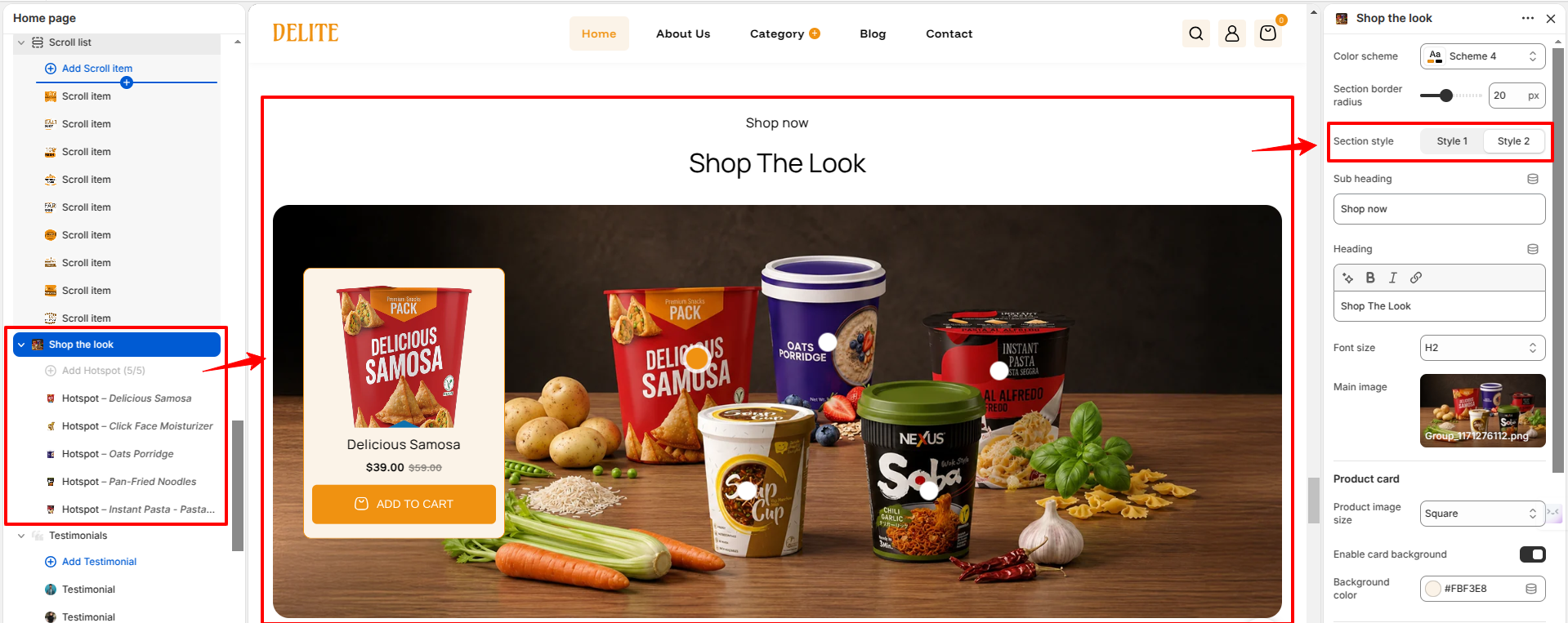
- Sub Heading: Add a supporting line of text above the main heading.
-
Heading: Add a primary title for the section (e.g., “Shop The Look”).
- Font Size: Select the heading size (H1–H6) to control the visual hierarchy.
- Font Size: Select the heading size (H1-H6) to control the visual hierarchy.
- Main image: Upload the primary image containing the look/products.
- Product image size: Set the aspect ratio for product images (e.g., Square).
- Enable card background: Toggle to show/hide a background for the product cards.
- Background color: Choose a specific background color for the product cards.
-
Desktop padding:
- Padding top: Vertical space outside the section on desktop (top).
- Padding bottom: Vertical space outside the section on desktop (bottom).
-
Mobile padding:
- Padding top: Vertical space outside the section on mobile (top).
- Padding bottom: Vertical space outside the section on mobile (bottom).
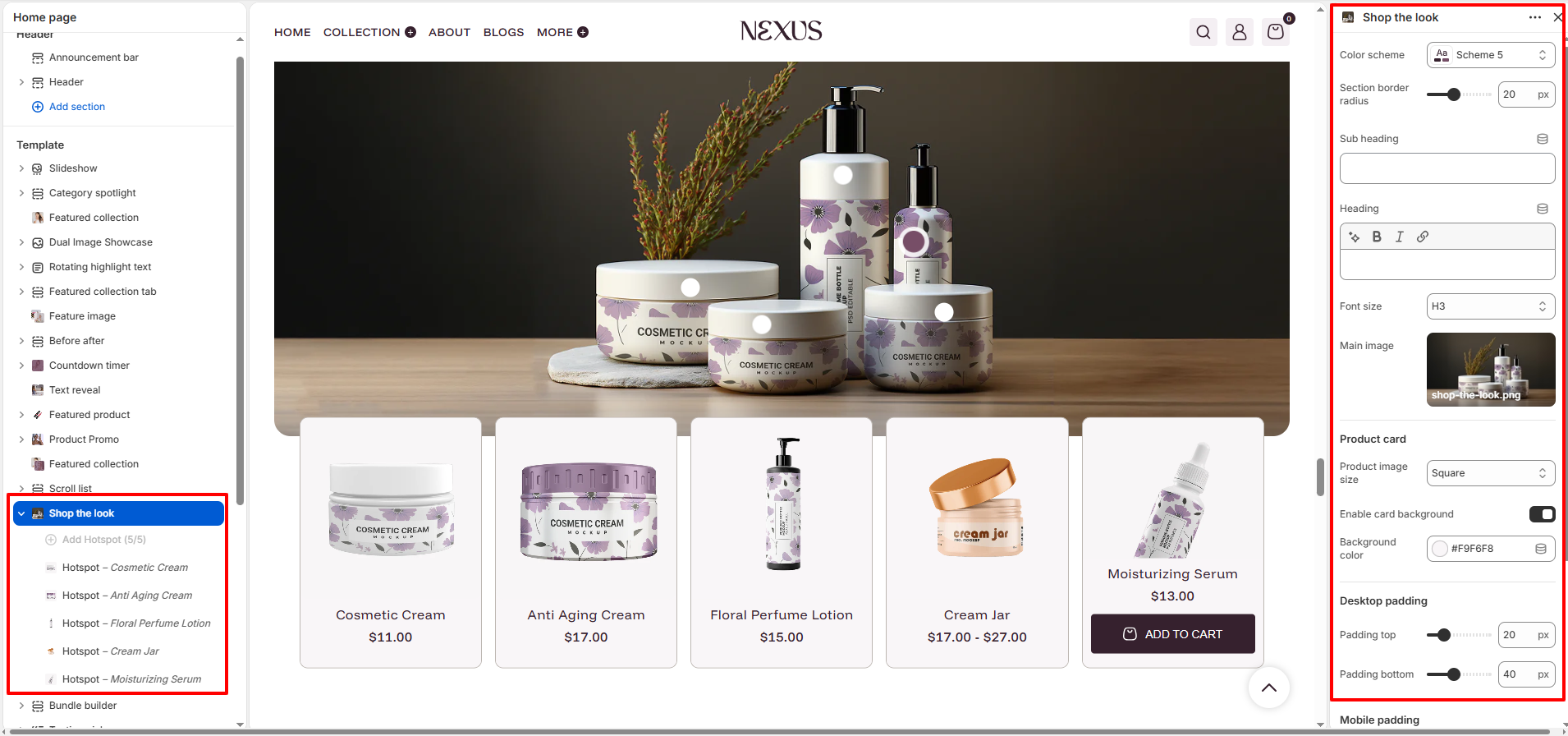
Hotspot Block Settings:
Define the interactive points on your main image:
- Associated product: Link the hotspot to a specific product in your catalog.
- Horizontal position (%): Slide to position the hotspot horizontally across the image.
- Vertical position (%): Slide to position the hotspot vertically across the image.
Pro Tips:
Place hotspots directly over clearly visible products for better user interaction. Use multiple
hotspots
sparingly to avoid clutter, and ensure enough spacing between them for easy tapping on mobile
devices.
For best
results, choose a high-quality main image with a clean background so hotspot products stand out
naturally.