Testimonial Section – Nexus
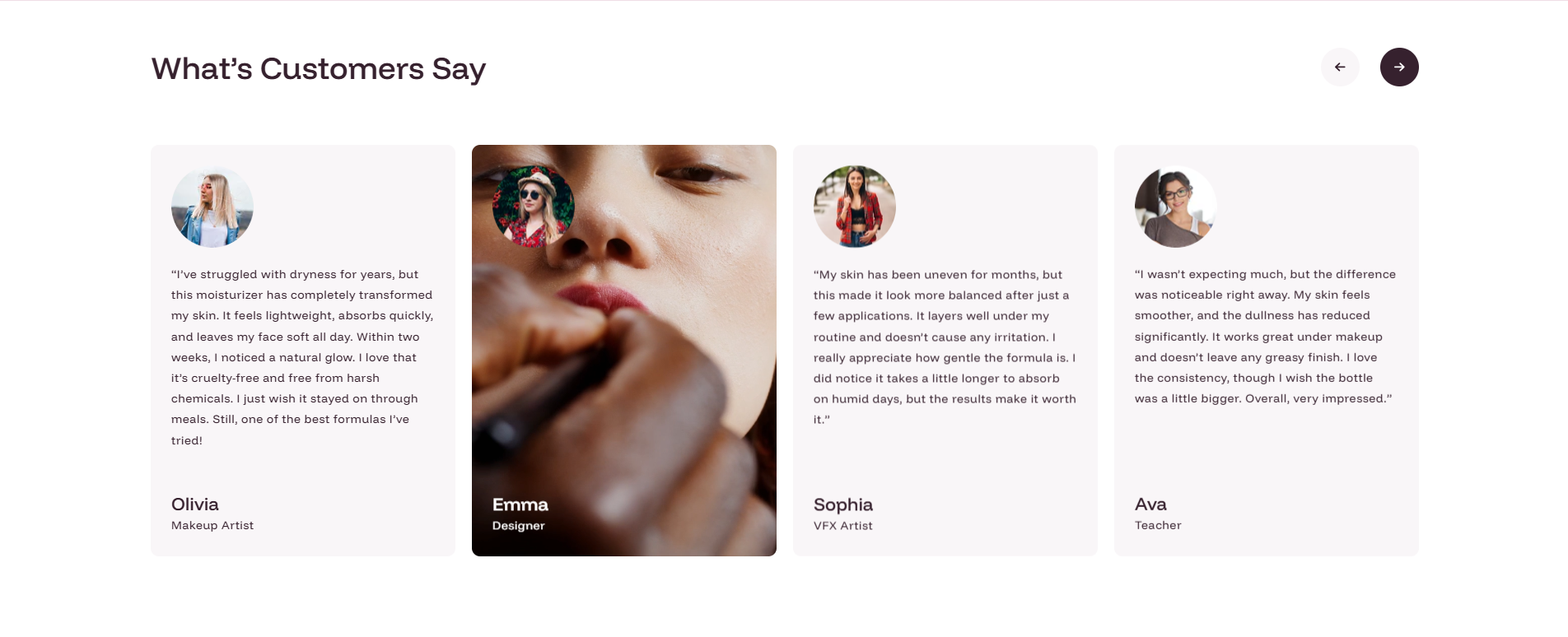
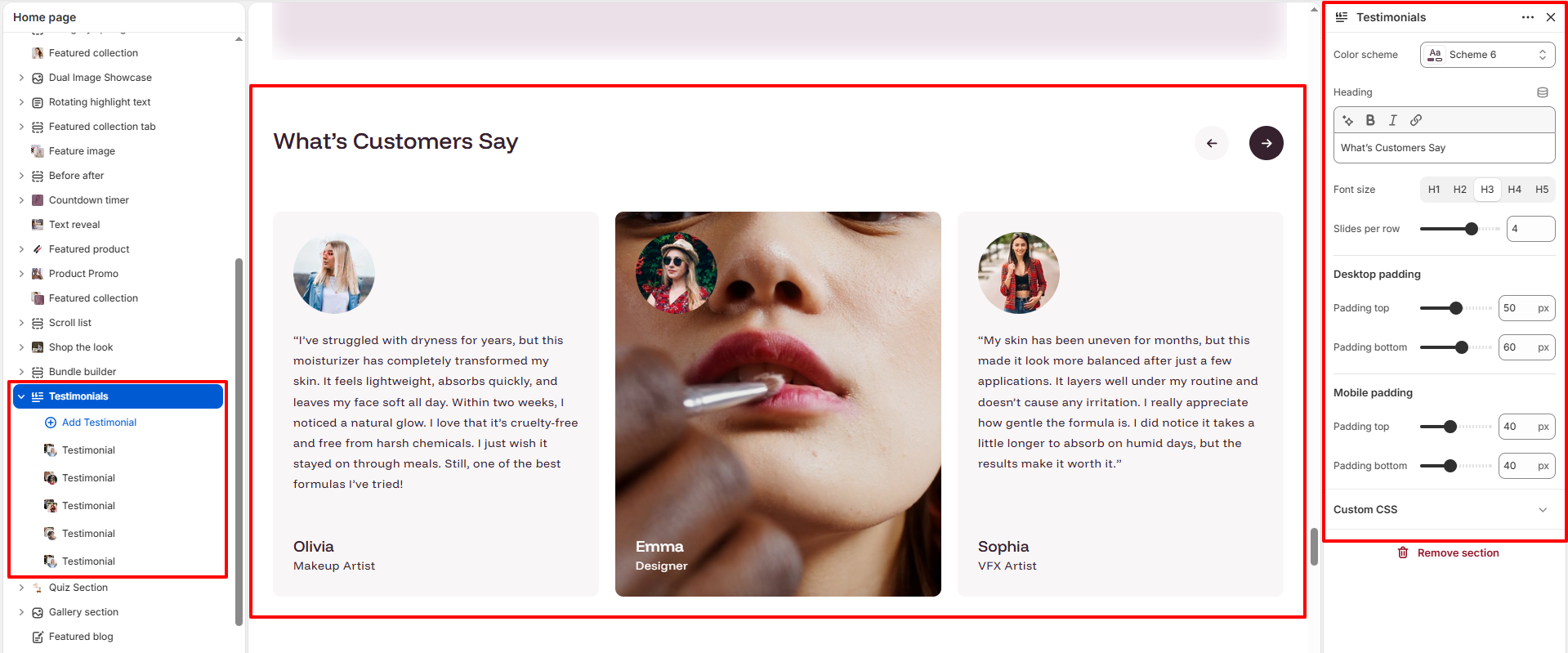
The Testimonials section allows you to showcase real customer feedback in an elegant slider layout, helping build trust and credibility for your beauty brand.
This section is perfect for highlighting skincare results, product experiences, and customer satisfaction.
How to Set Up the Testimonial Section:
- Navigate to Online Store → Themes → Customize.
- Click Add section and select Testimonials.
- Configure the global Heading, Slides per row, and Padding.
- Click Add Testimonial to add individual reviews.
- For each testimonial, you can add an Author image, Video, and Secondary image.
Section Settings:
Customize the behavior and appearance of the testimonial section:
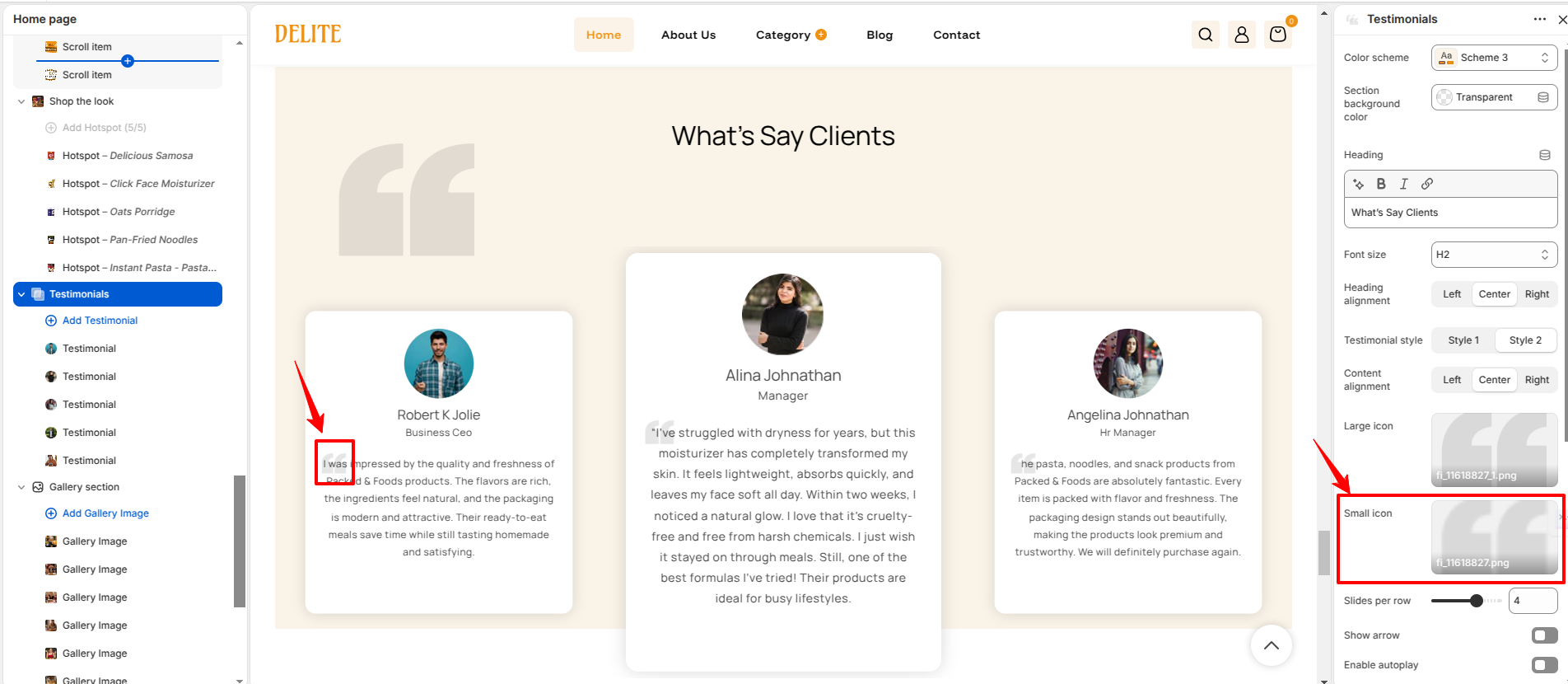
- Color scheme: Select a predefined color palette for the section (e.g., Scheme 3).
- Section background color: Choose a custom background color for the testimonial section. Select Transparent to inherit the page background.
-
Heading: Add a title to introduce your customer reviews (e.g., "What's Say Clients").
- Font size: Select the heading size (H1-H6) to control visual hierarchy.
- Heading alignment: Choose whether the heading is aligned to the Left, Center, or Right.
-
Testimonial style: Choose between different testimonial card layouts.
- Style 1: Displays testimonials using the default card design.
- Style 2: Uses an alternative layout for a different visual presentation.
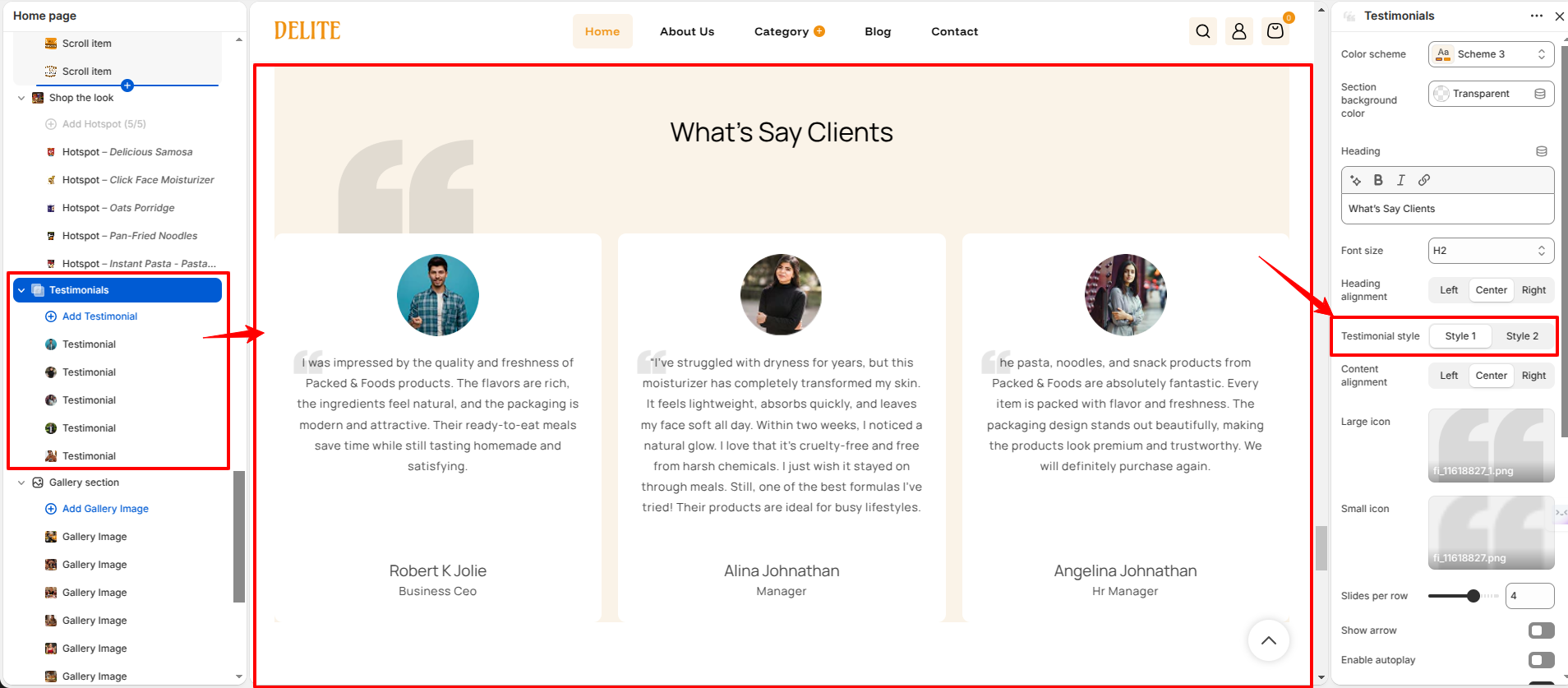
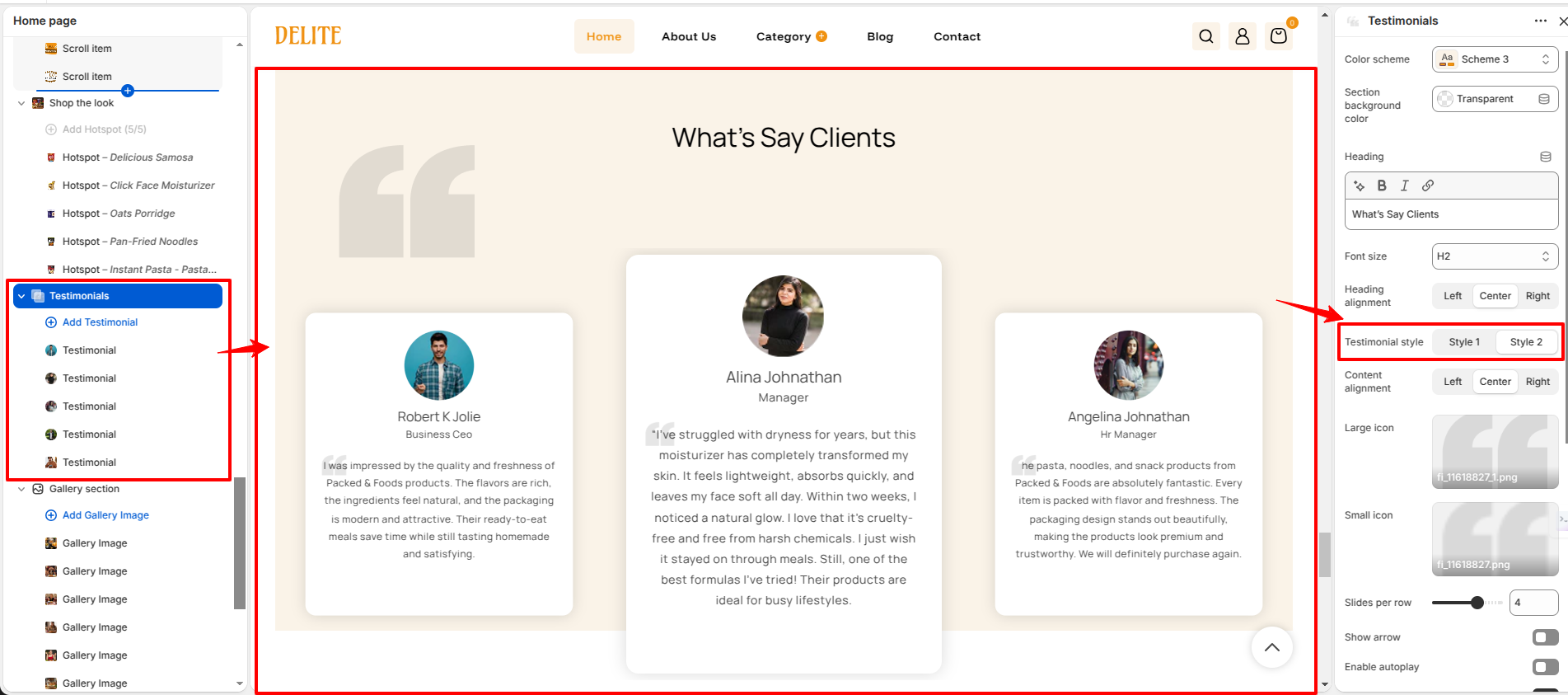
- Content alignment: Controls the alignment of testimonial content within each card. Options include Left, Center, and Right.
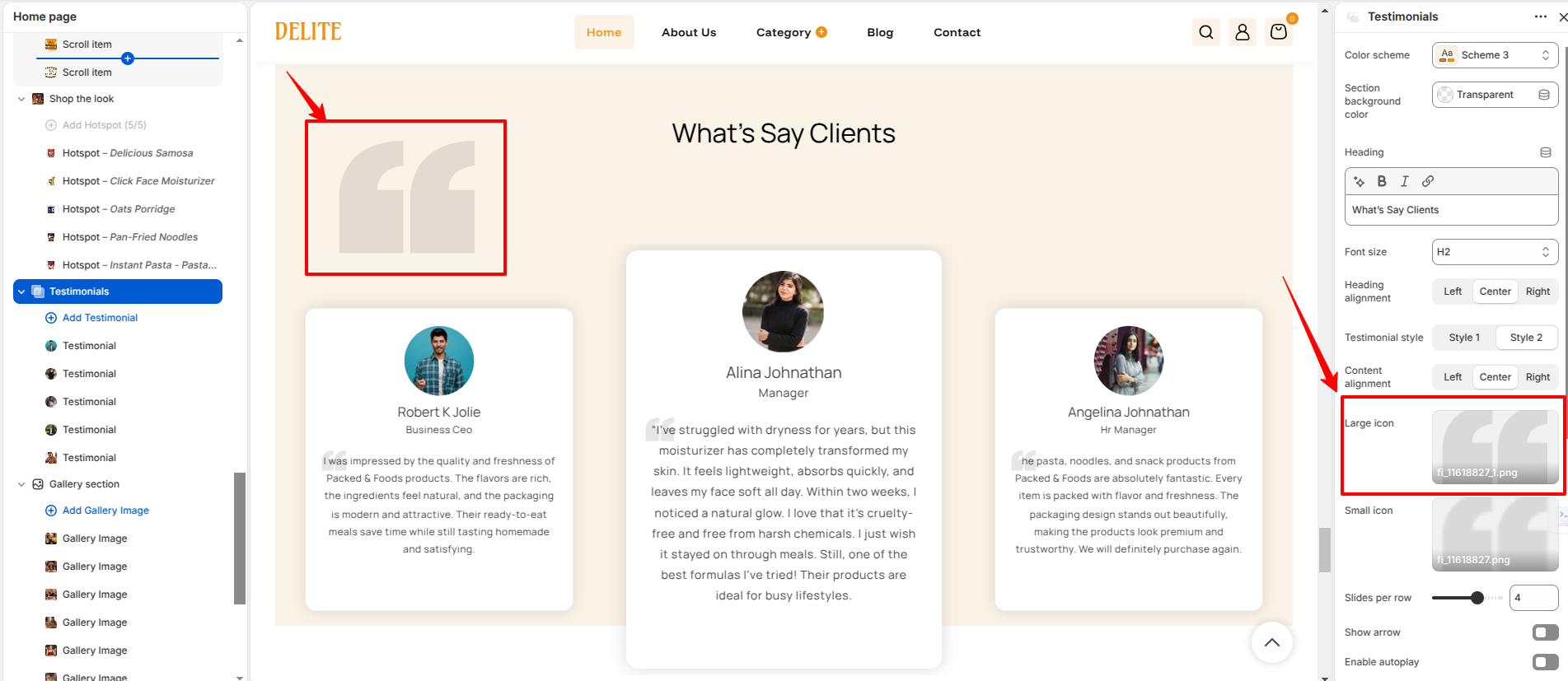
- Large icon: Upload a decorative icon displayed prominently within the testimonial section design.
- Small icon: Upload a secondary decorative icon used to enhance the testimonial layout.
- Slides per row: Set how many testimonials are visible at once on desktop.
- Show arrow: Enable to display previous and next navigation arrows for the testimonial slider.
- Enable autoplay: Automatically advances testimonial slides after a specified interval.
- Enable loop: Allows the testimonial slider to continuously cycle through all testimonials.
- Autoplay Speed: Controls the delay between slide transitions when autoplay is enabled. The value is measured in milliseconds (e.g., 3000 ms = 3 seconds).
-
Desktop padding:
- Padding top: Controls the space above the section on desktop devices.
- Padding bottom: Controls the space below the section on desktop devices.
-
Mobile padding:
- Padding top: Controls the space above the section on mobile devices.
- Padding bottom: Controls the space below the section on mobile devices.
Testimonial Block Settings:
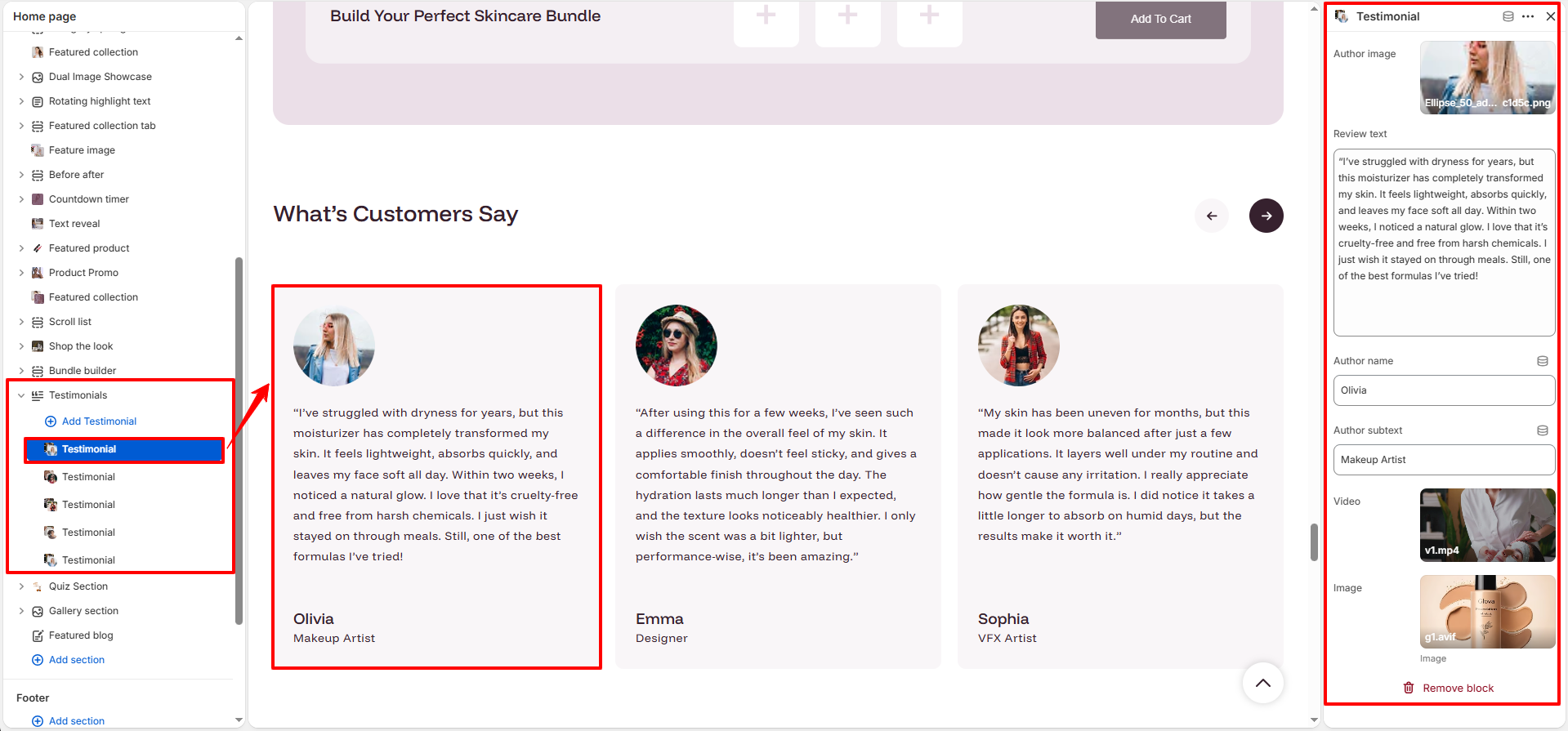
Configure individual customer review cards:
- Author image: Upload a profile picture of the customer.
- Review text: Add the customer's testimonial or feedback.
- Author name: Enter the name of the customer.
- Author subtext: Add details like their profession or status (e.g., "Verified Buyer").
- Video: Add a short video to accompany the testimonial for more engagement.
- Image: Upload a secondary image (e.g., results or product photo).
Pro Tips:
Use real customer photos and detailed feedback to build authenticity and trust.
Highlight testimonials that mention visible results or specific product benefits.