Text Reveal Section – Nexus
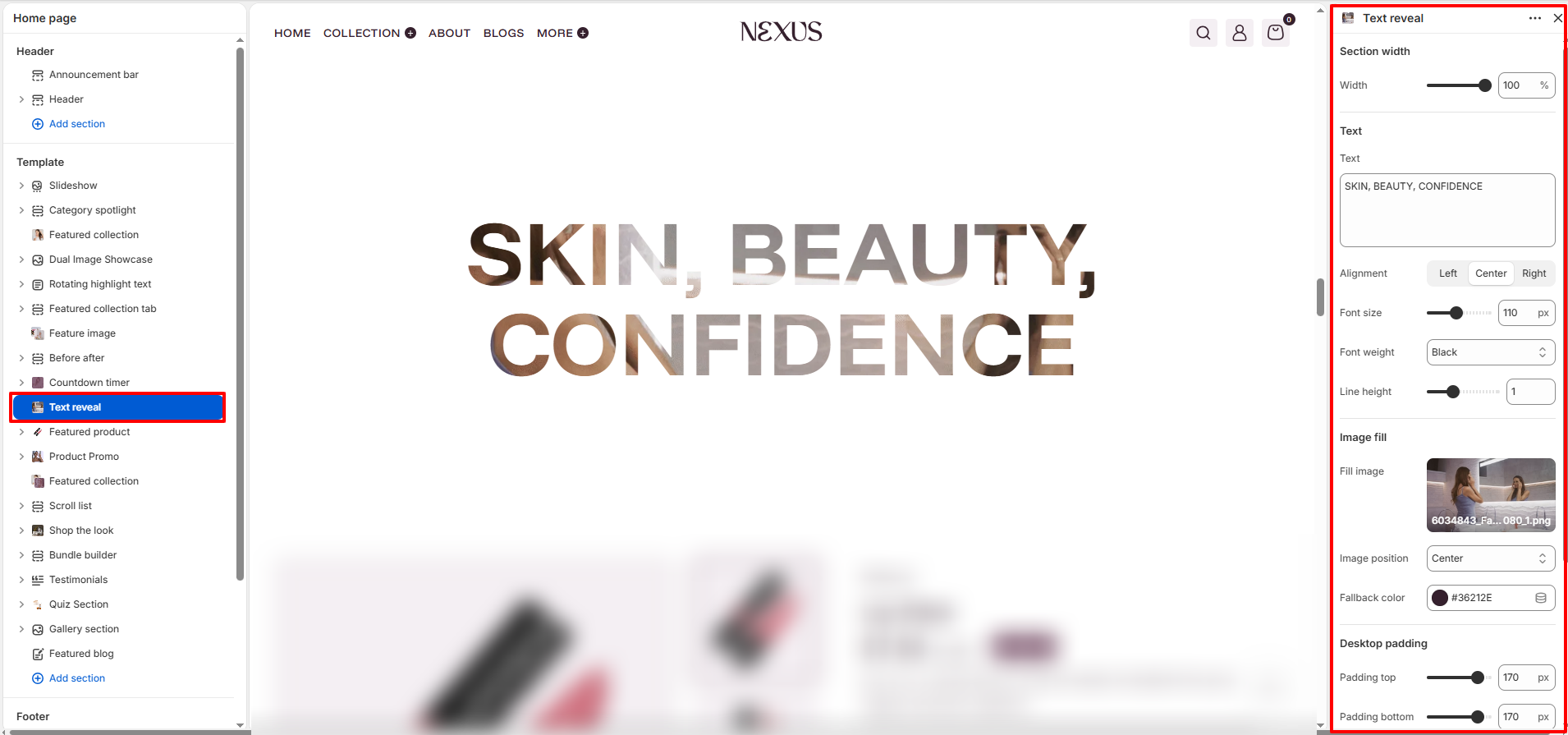
The Text Reveal section is a high-impact visual feature designed to showcase bold messaging with a creative image-masking effect. As users scroll or view the page, an image is revealed through the outline or body of the large typography, creating a premium and modern aesthetic for your beauty brand.

Section Settings
- Width: Control the total width of the section container on the page (e.g., 100%).
Text Settings
- Text: Enter the primary message you want to display (e.g., "SKIN, BEAUTY, CONFIDENCE"). Large, uppercase letters often work best for this effect.
- Alignment: Set the text horizontal alignment to Left, Center, or Right.
- Font size: Adjust the size of the text (e.g., 110 px) to fit your design and ensure the reveal effect is prominent.
- Font weight: Choose the weight of the font (e.g., Black, Bold, Medium) to control the thickness of the characters.
- Line height: Adjust the spacing between lines of text (e.g., 1).
Image Fill Settings
These settings control the image that is revealed through the text characters.
- Fill Image: Upload or select the image that will appear inside the text. Lifestyle or product shots with rich textures work exceptionally well.
- Image position: Set the focal point of the fill image (e.g., Center, Top, Bottom) to ensure the most important part of the visual is visible through the letters.
- Fallback color: Select a color (e.g., #36212E) that will be displayed if the image fails to load or before it is fully revealed.
Spacing Settings Desktop and Mobile
- Padding top: Set the top vertical spacing for the section on desktop (e.g., 170 px).
- Padding bottom: Set the bottom vertical spacing for the section on desktop (e.g., 170 px).
How to Set Up the Text Reveal Section
- Go to Online Store → Themes → Customize.
- Click Add section → Text reveal to add it to your page template.
- Enter your main brand messaging in the Text field.
- Adjust the Font size and Font weight to make the text large and impactful.
- Upload a high-quality Fill Image that represents your brand aesthetic.
- Use the Desktop padding sliders to give the section enough vertical "breathing room" to stand out.
- Click Save.
Pro Tips:
Use short, powerful words for the reveal effect. Single words or short phrases (3-4
words) create a much cleaner and more professional look than long
sentences.
Choose images with high contrast or vibrant colors for the Fill
Image to make the text pop against the page background.
Ensure your Fallback color matches your theme's primary or secondary
color to maintain brand consistency during loading.